Tag Archives: mobileart

How to Make a Movie Poster with Adobe Photoshop Mix

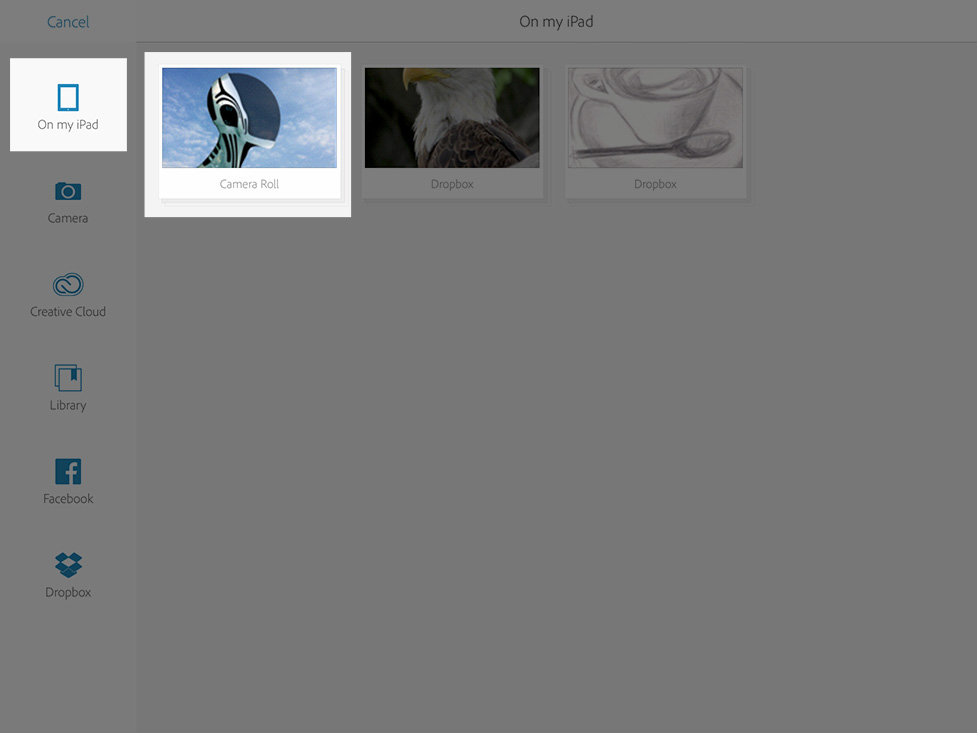
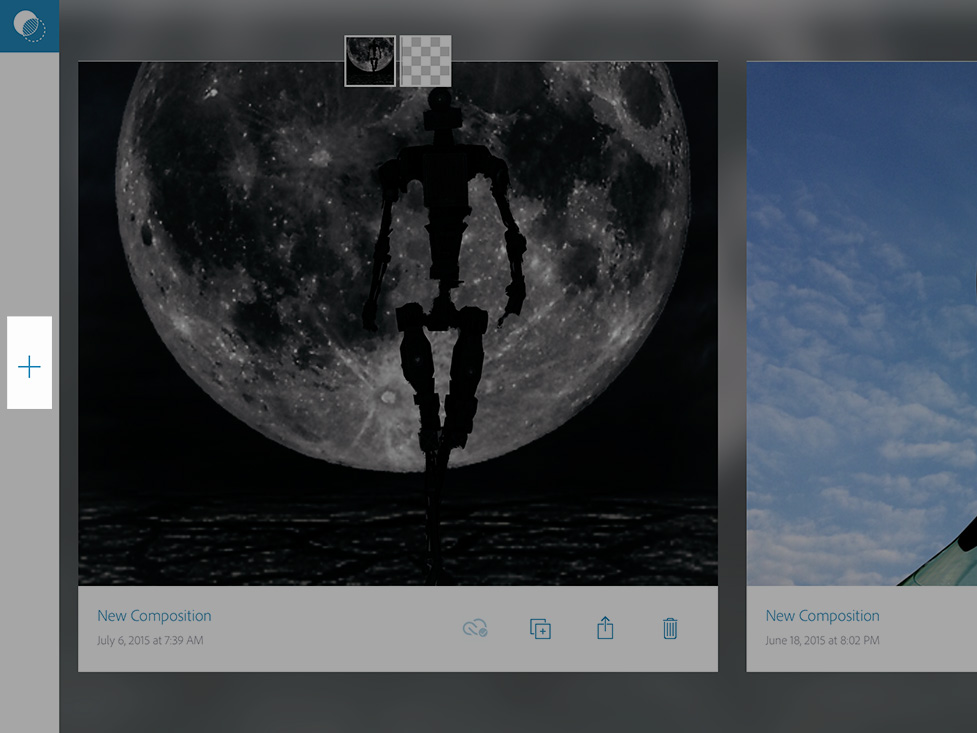
Click on + icon

IMG_1021

Click on Camera Roll icon

IMG_1006

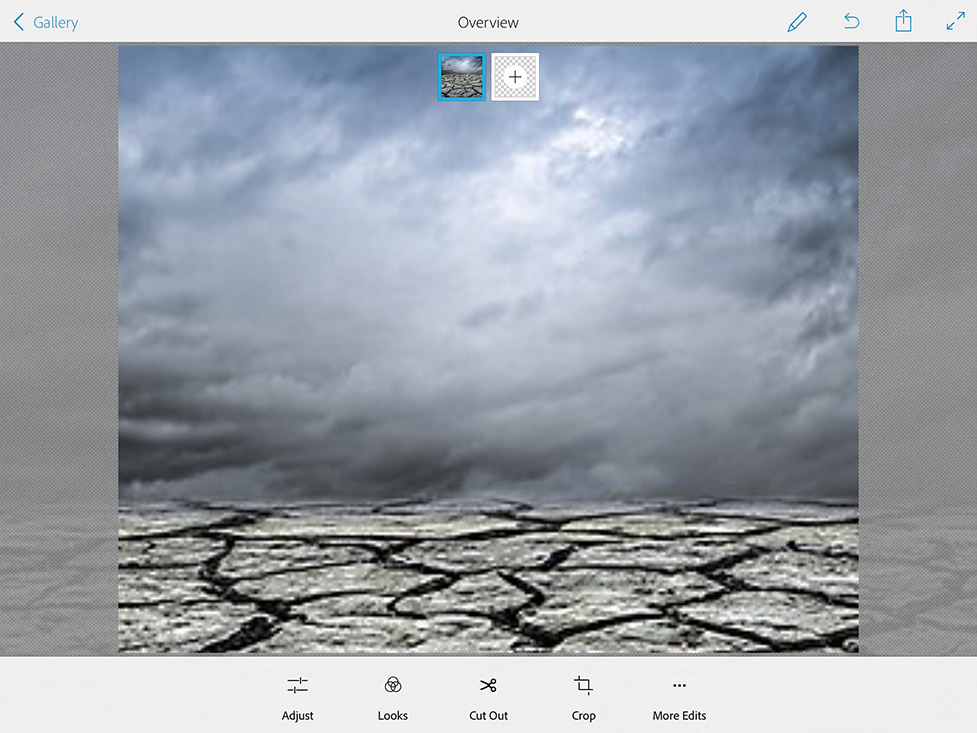
Choose your first ( and it will be our background ) image
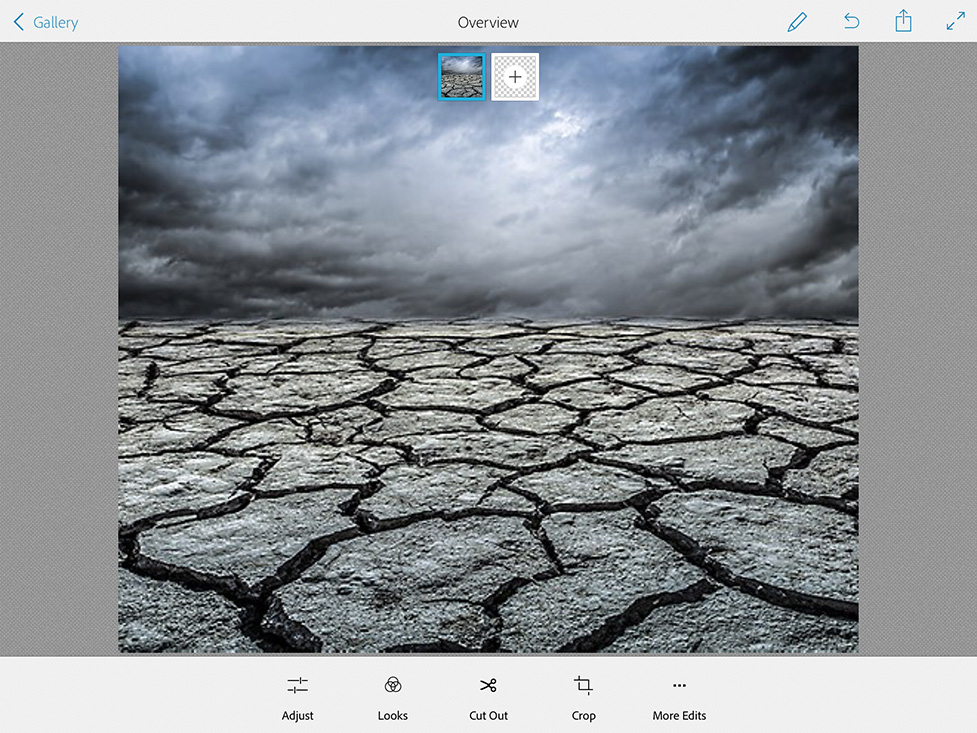
IMG_1008

Resize your image

IMG_1009

Adjust > Exposure ( move exposure’s slider all way to the left to apply the Night Time Effect to our background layer)
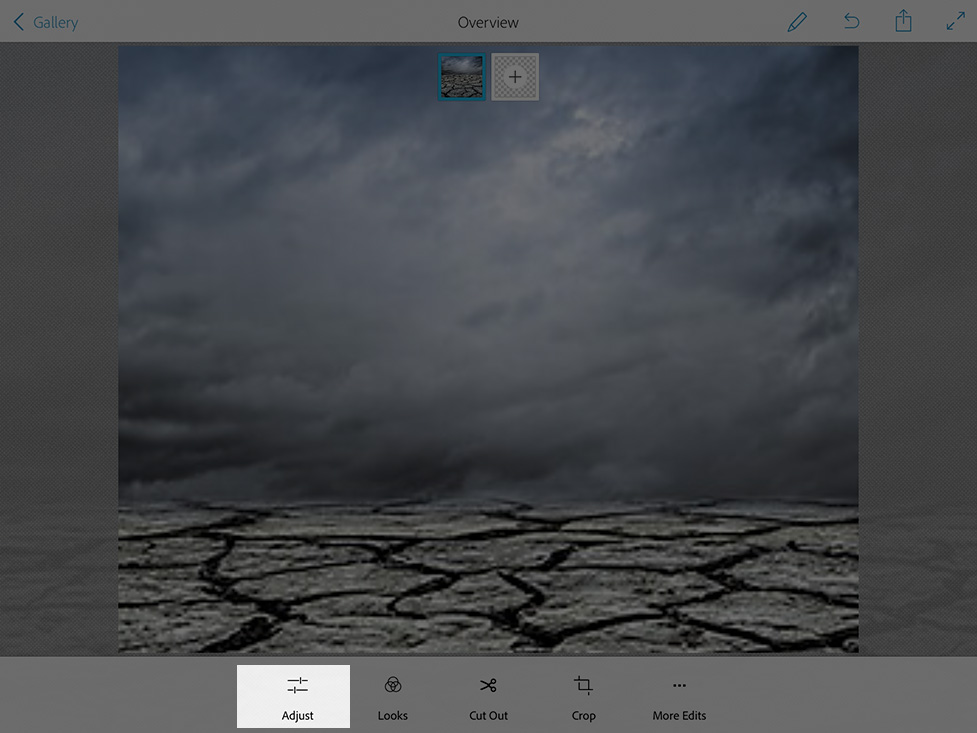
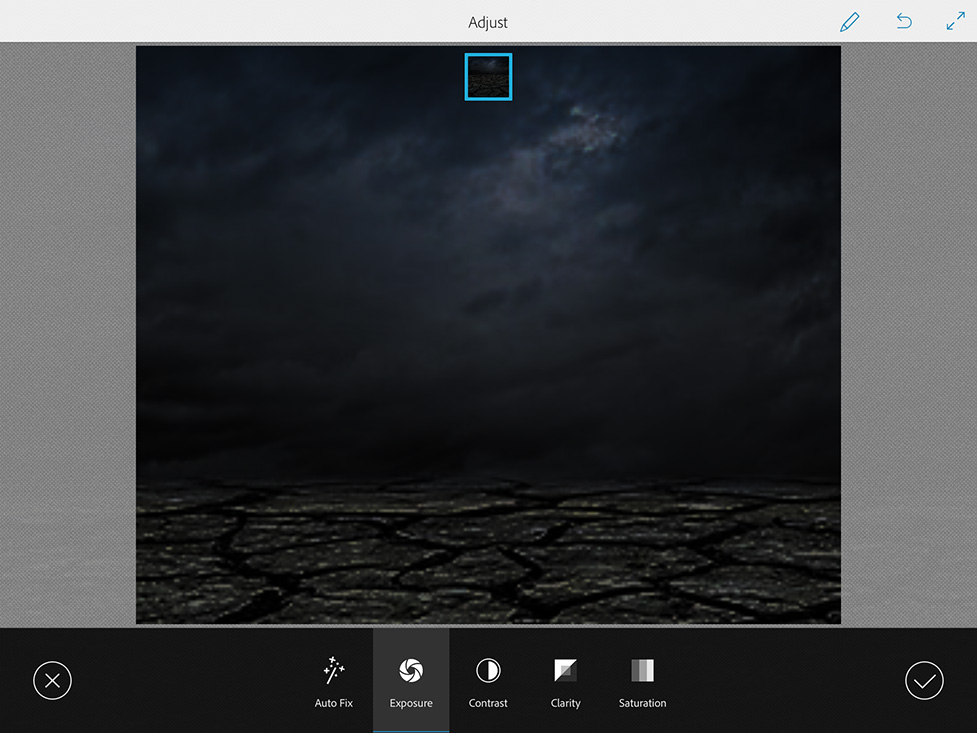
IMG_1009C
IMG_1010

Click on the second layer icon and add your second image

Click on Cut Out icon. Now we need to remove the Moon’s background.
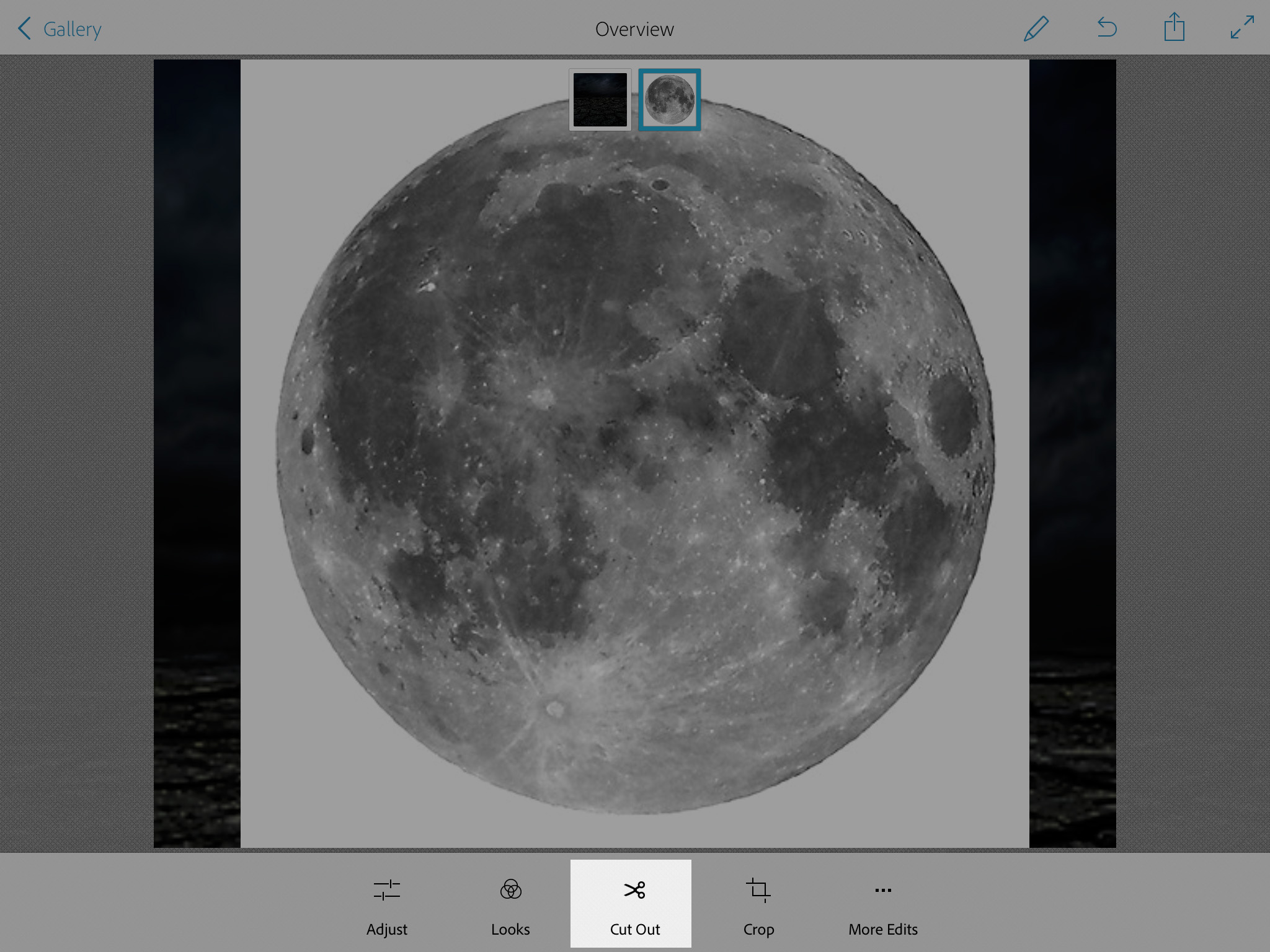
IMG_1012

Resize the Moon’s size

Adjust > Exposure ( move exposure’s slide to the left to make the moon darker )

Holding the Moon Layers move this layer over our Background layer
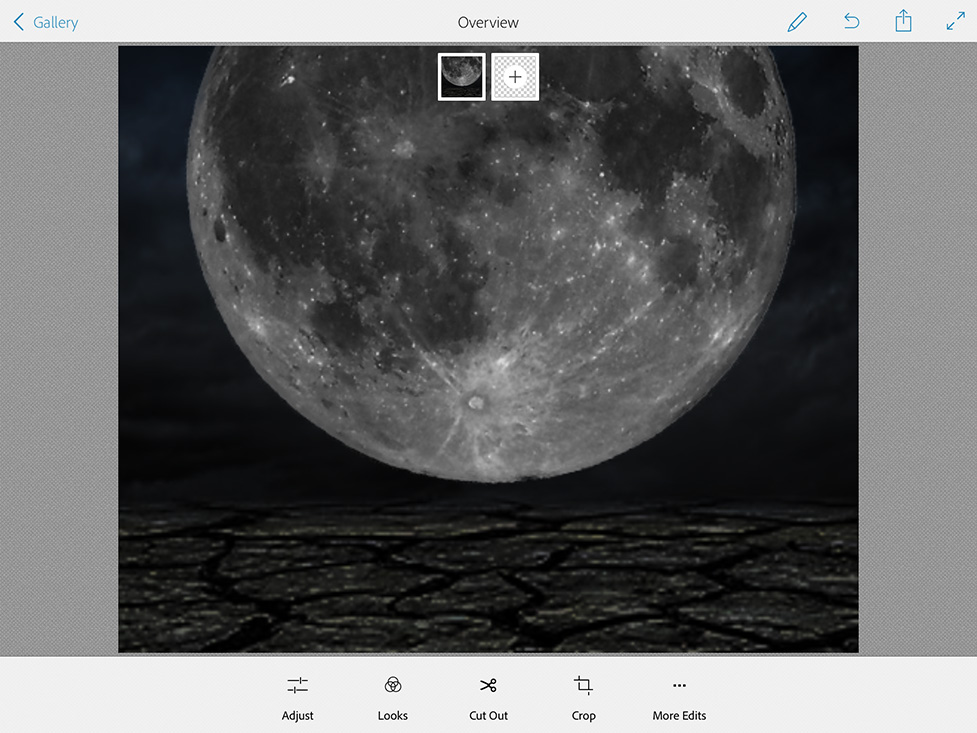
IMG_1015

Now we have another “empty” layer. Click on the “empty” layer and chose the robot image
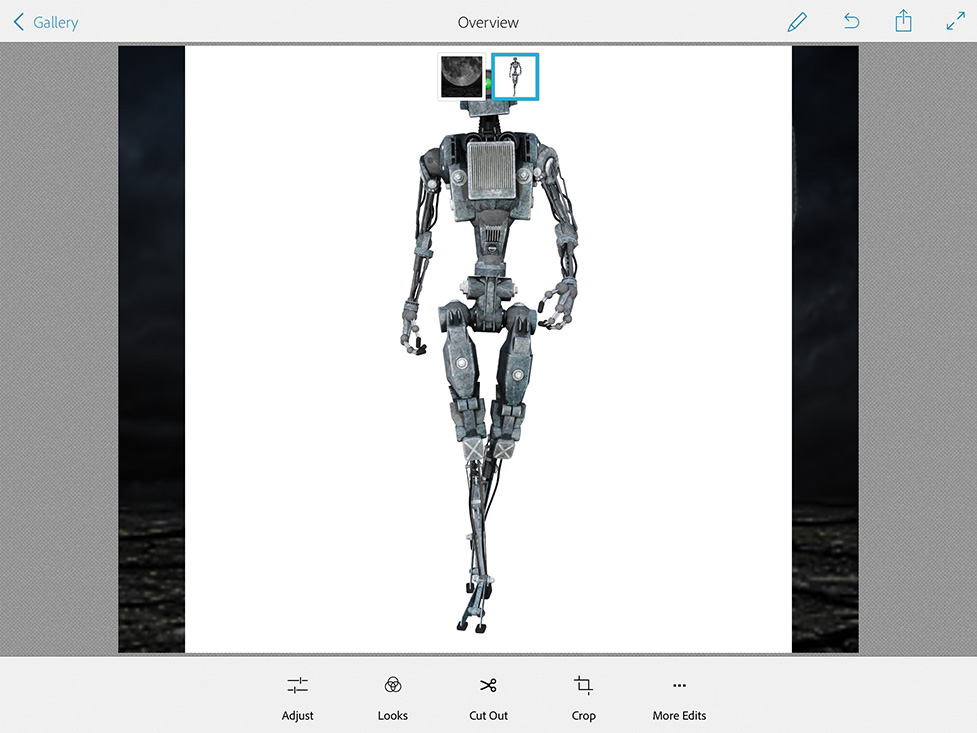
IMG_1016

Cut Out > Remove Robot’s image background

Adjust > Exposure > Move Exposure slider to the left to make robot image absolutely dark
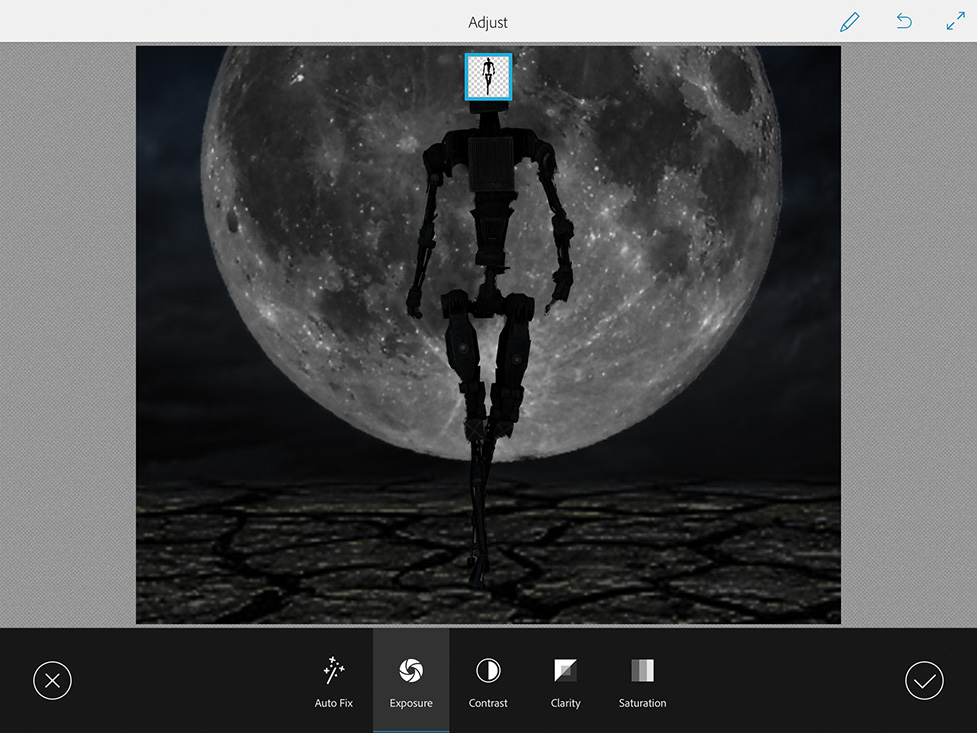
IMG_1017

Holding Robot Layer icon move this layer over our First layer

Click on Looks icon > Natural + look
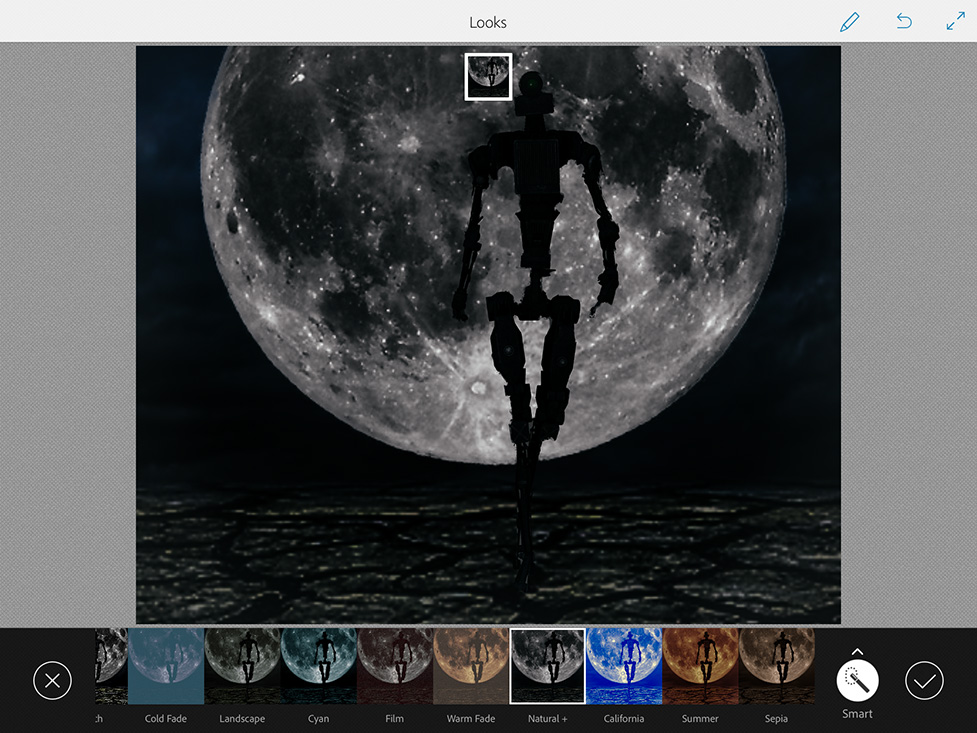
IMG_1018

Adjust > Saturation > Move slider to the left

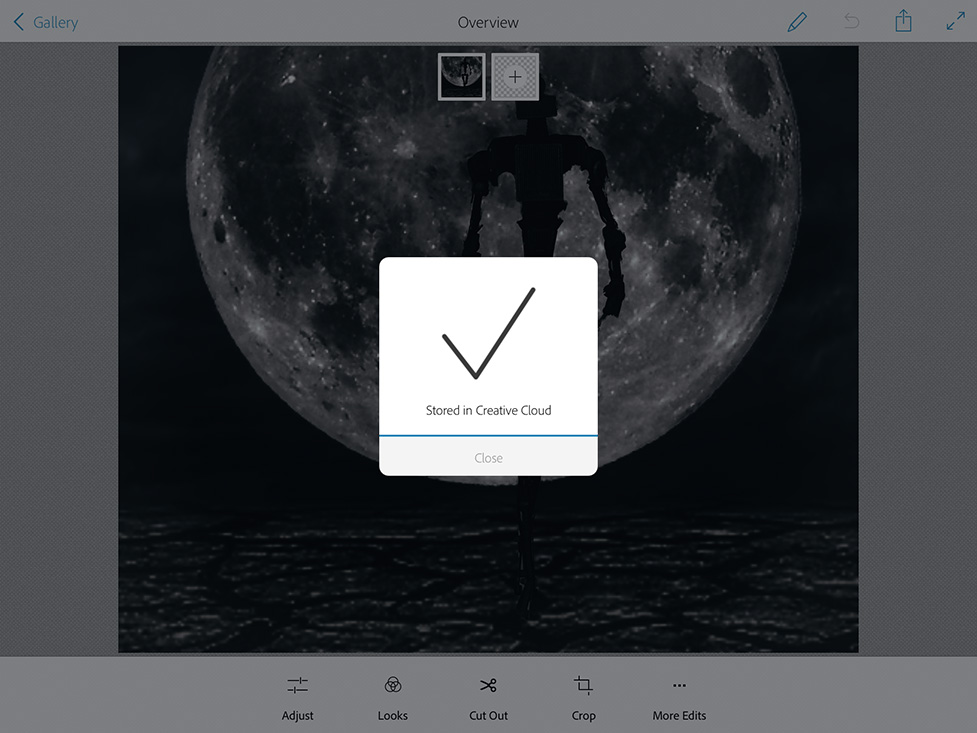
Send to Photoshop > Your image is Stored in your Creative Cloud Photoshop Folder
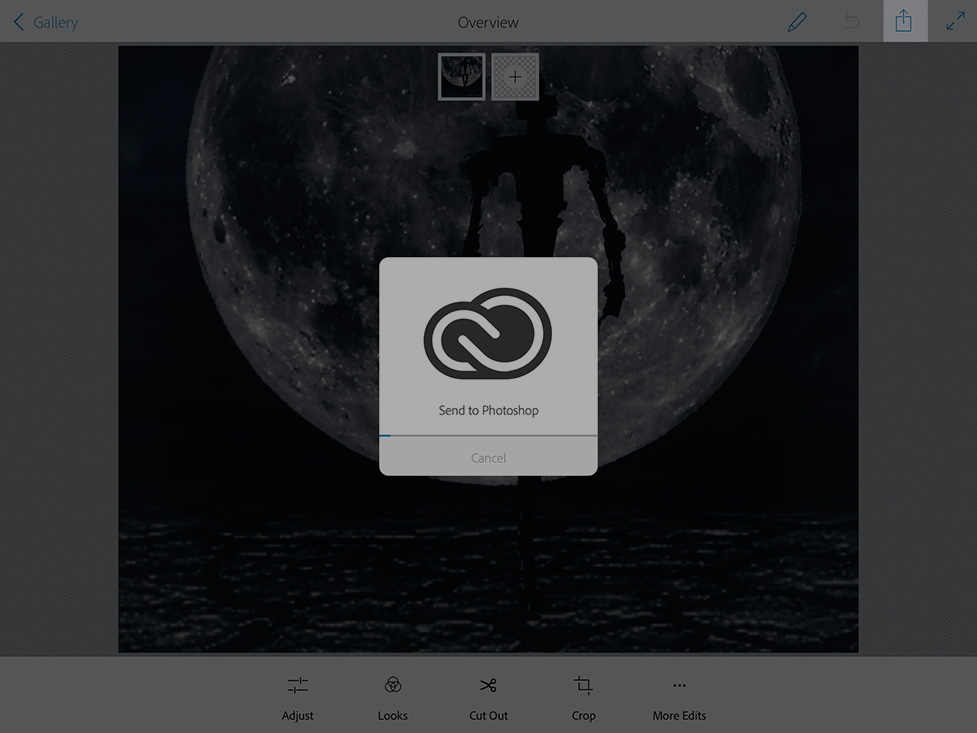
IMG_1019

IMG_1020

Open your Photoshop Mix image in Photoshop
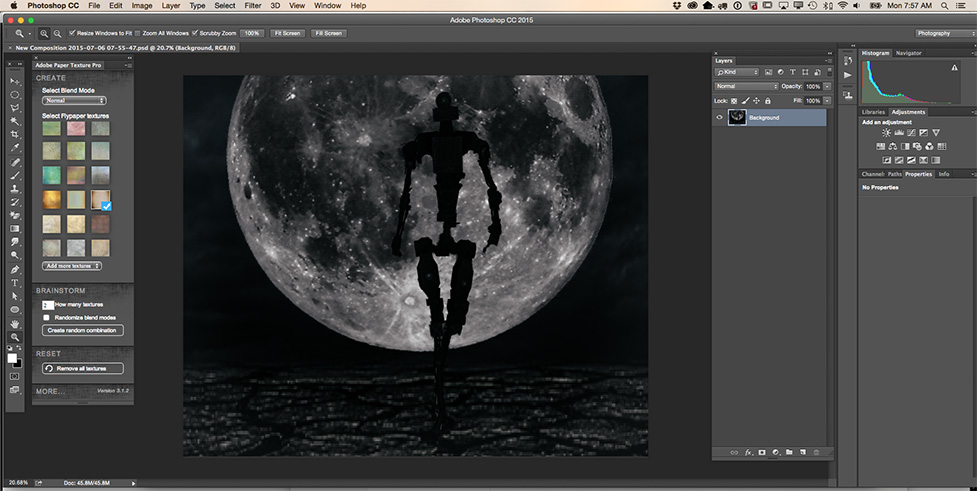
Screen Shot 2015-07-06 at 7.57.02 AM

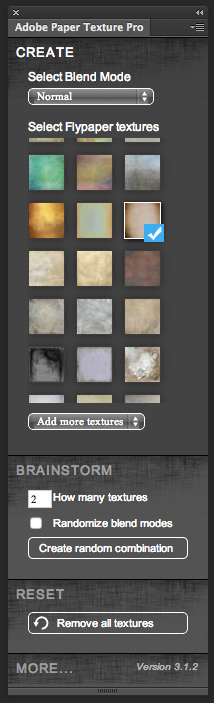
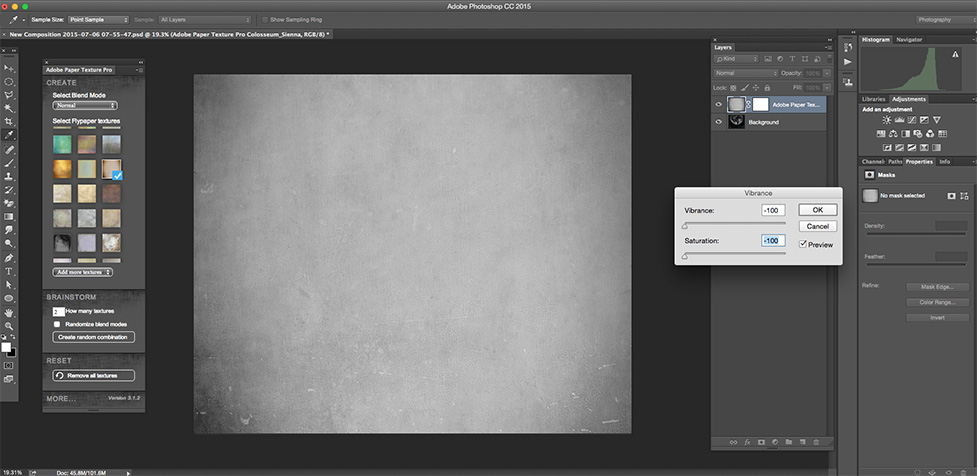
Adobe Paper Texture Pro

Screen Shot 2015-07-06 at 7.59.21 AM

Chose any paper texture you like to work with > Image > Adjustment > Vibrance
Screen Shot 2015-07-06 at 7.59.50 AM

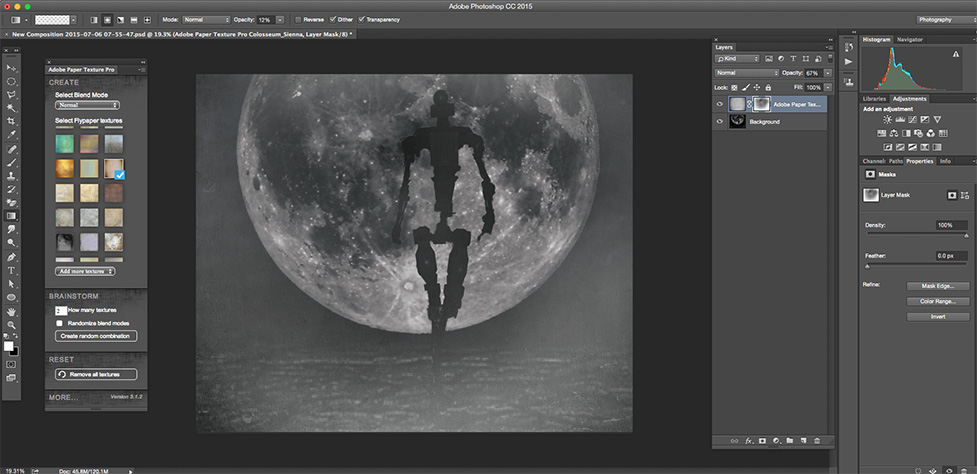
Make Layer opacity = 67% > Gradient Tool ( with opacity = 18% )

Screen Shot 2015-07-06 at 8.03.39 AM

Apply mask to highlight the moon and robot
Screen Shot 2015-07-06 at 8.04.57 AM

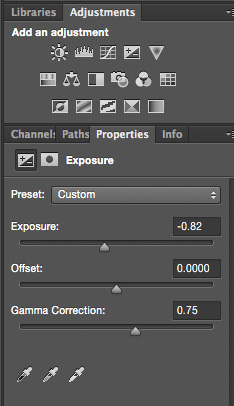
Adjustment Layers > Exposure
Screen Shot 2015-07-06 at 8.05.50 AM

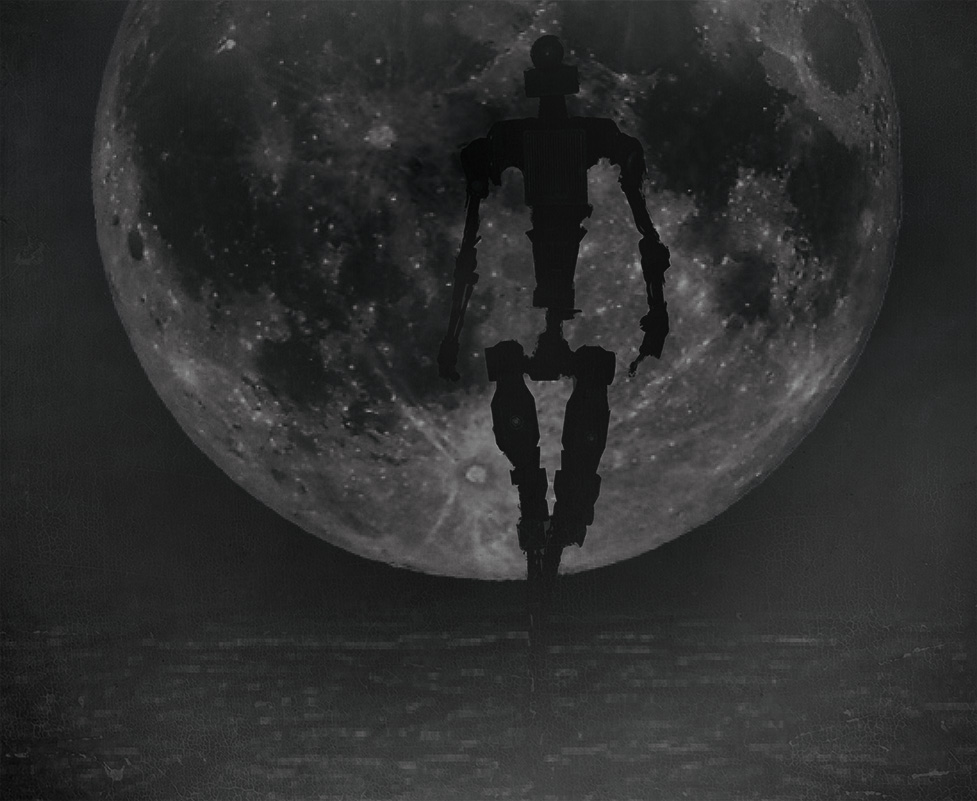
Final

Adobe Mobile Apps

I created new FREE Adobe Mobile Apps group on LinkedIn. Join, discover, learn, and share all about Adobe mobile Apps.

Join Here

Victoria Pavlov Studio

From Moleskine to Adobe Illustrator and Photoshop

From Moleskine to Adobe Illustrator and Photoshop

Moleskine

Be Creative

Adobe Illustrator

Be Creative

Adobe Photoshop

Be Creative

Moleskine and Adobe Mobile Apps

I created Valentine’s Days image using different Adobe mobile apps: Adobe Sketch, Adobe Brush, Adobe Line, and Adobe Draw. What image is your favorite?

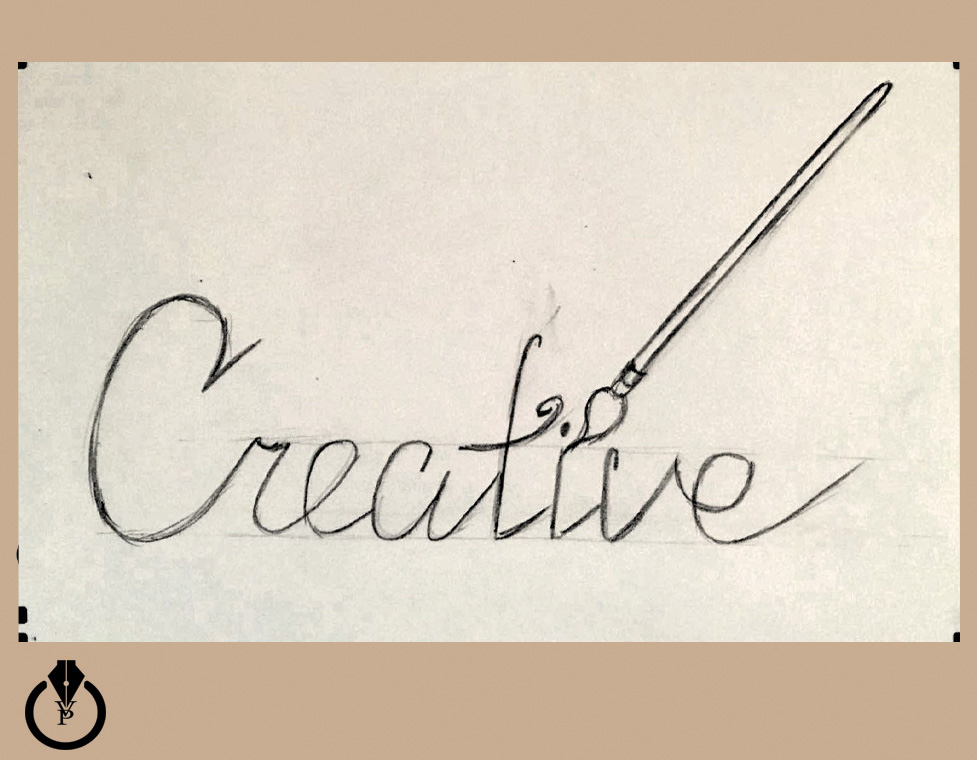
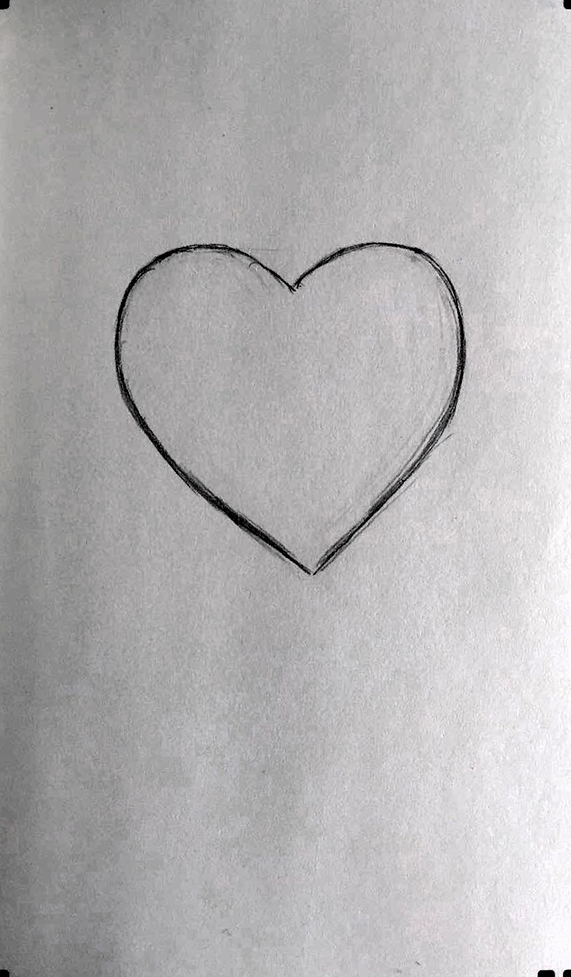
Image 1: Original image created with Moleskine Smart Notebook

1

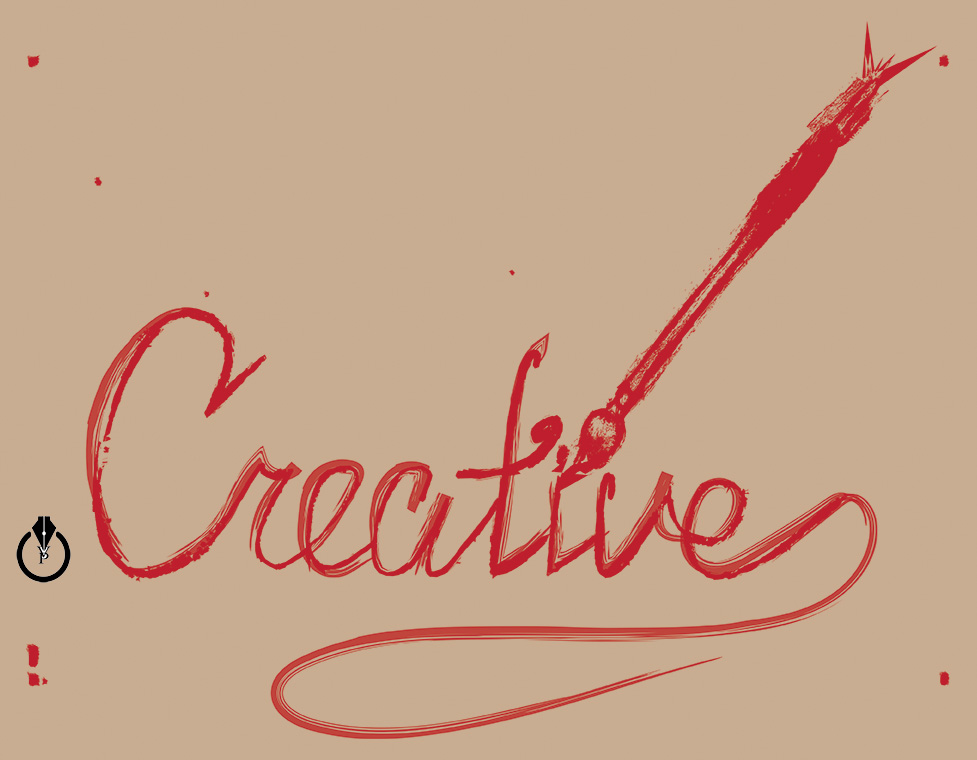
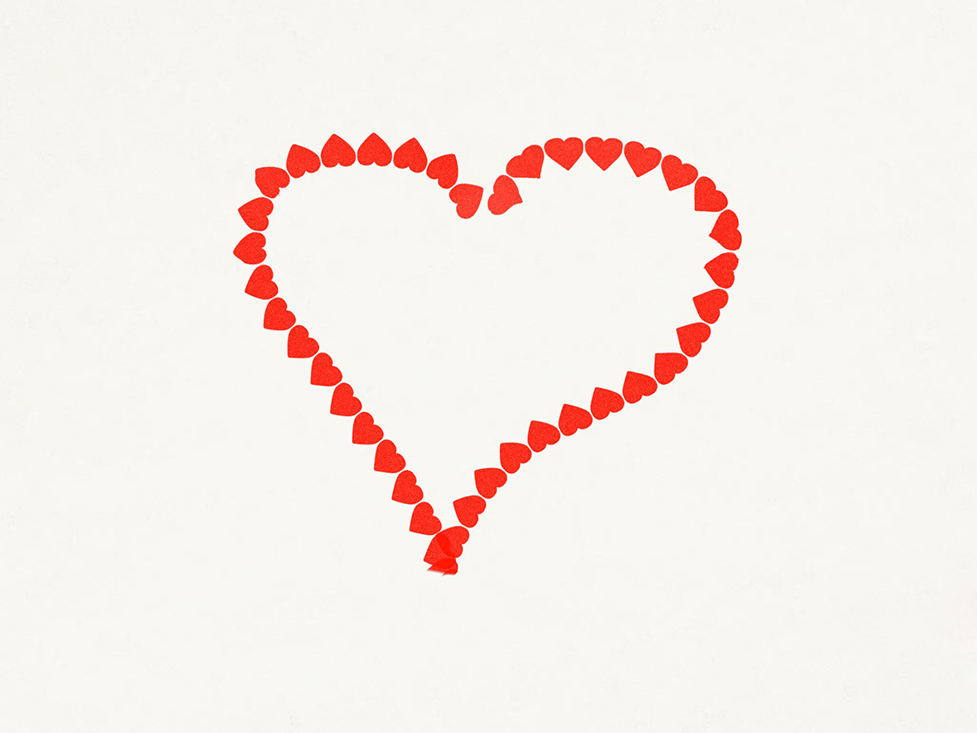
2: Brush created with Adobe Brush

brush

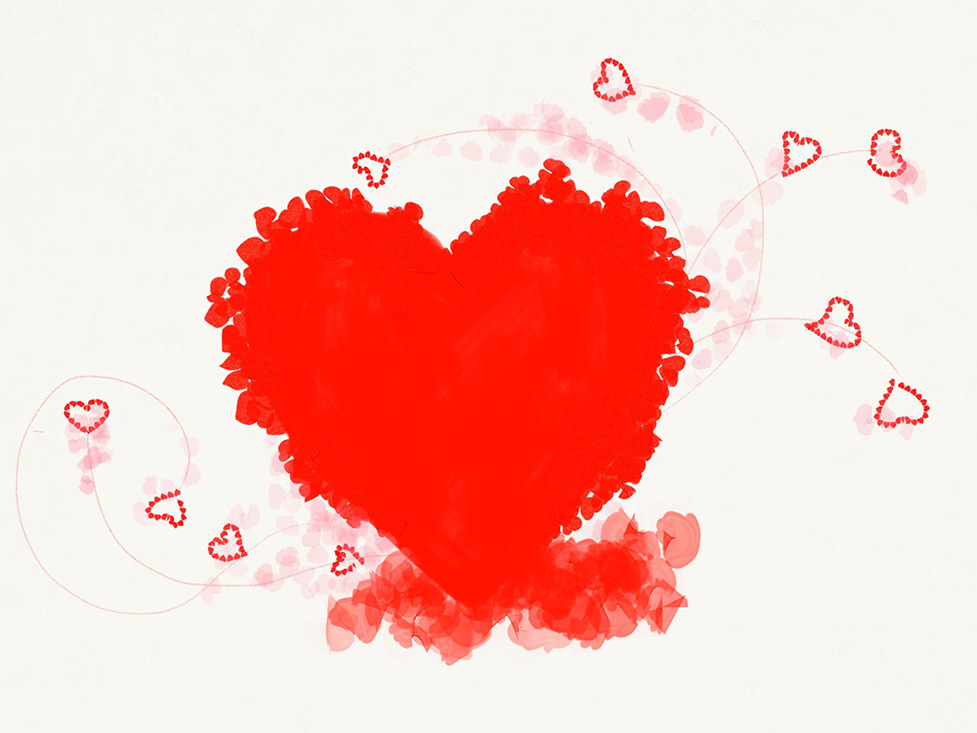
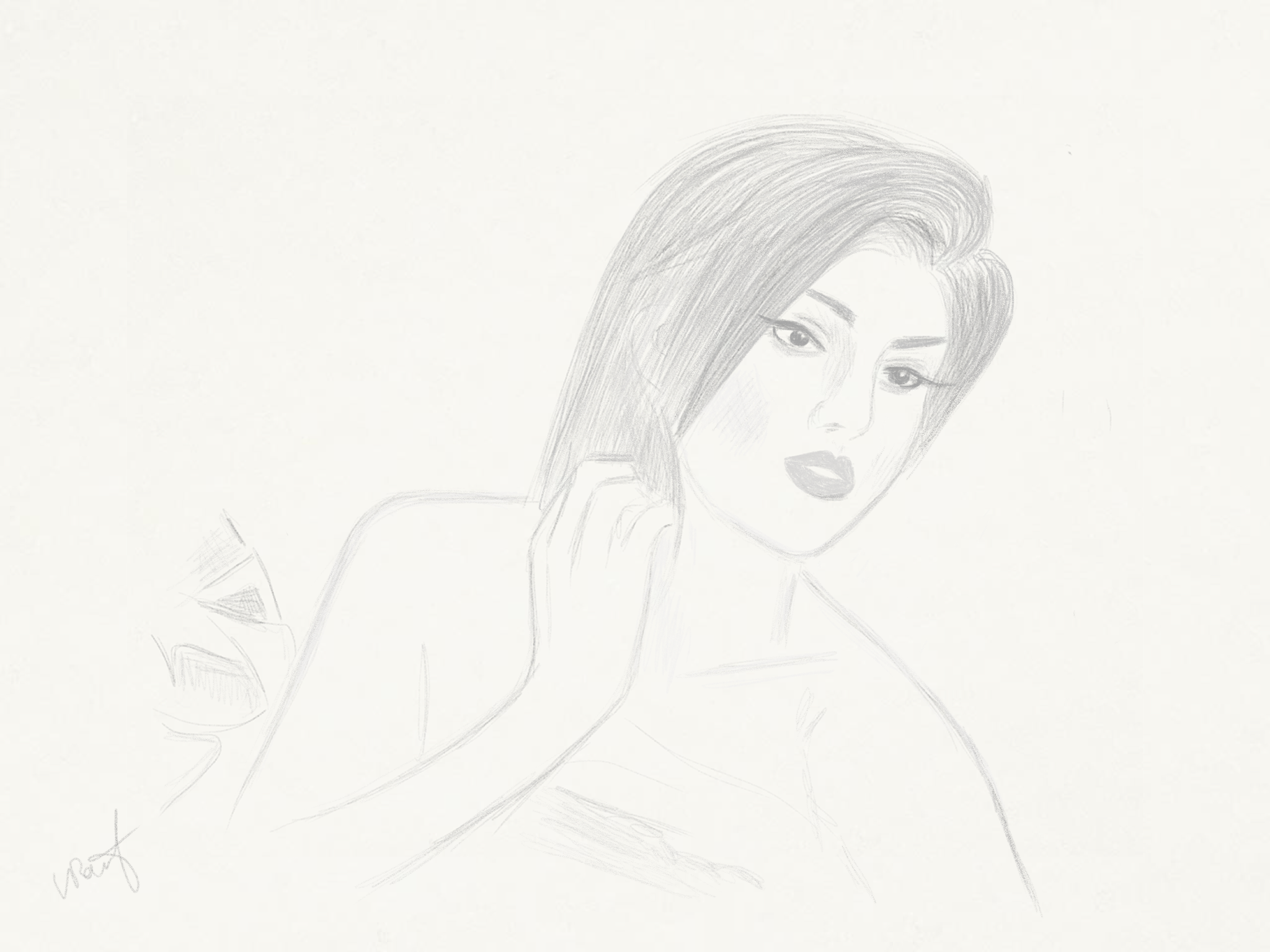
3: Image created with Adobe Sketch

sketch_c

4: Image created with Adobe Line

line

5: Image created with Adobe Draw

draw

draw

PaintCan

Download PaintCan now and turn your photography into a beautiful art! Download

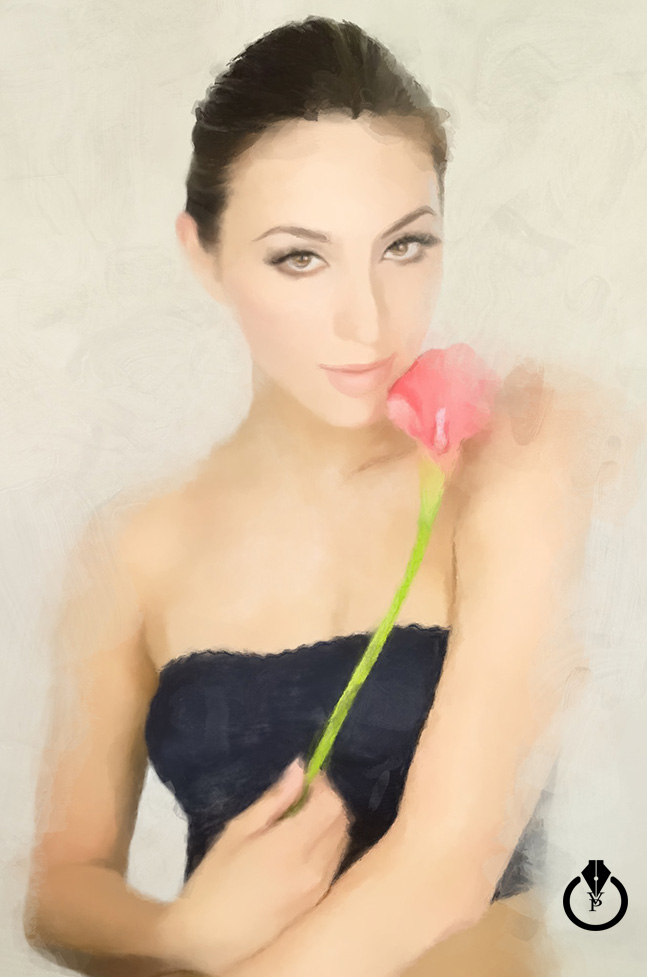
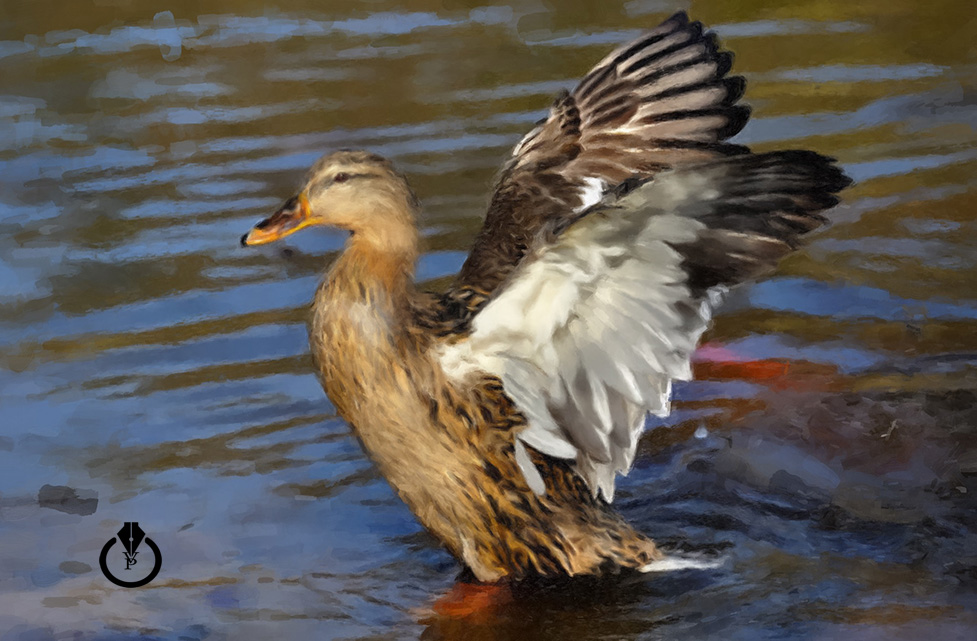
Painting with PaintCan

Painted with PaintCan

Adobe Sketch

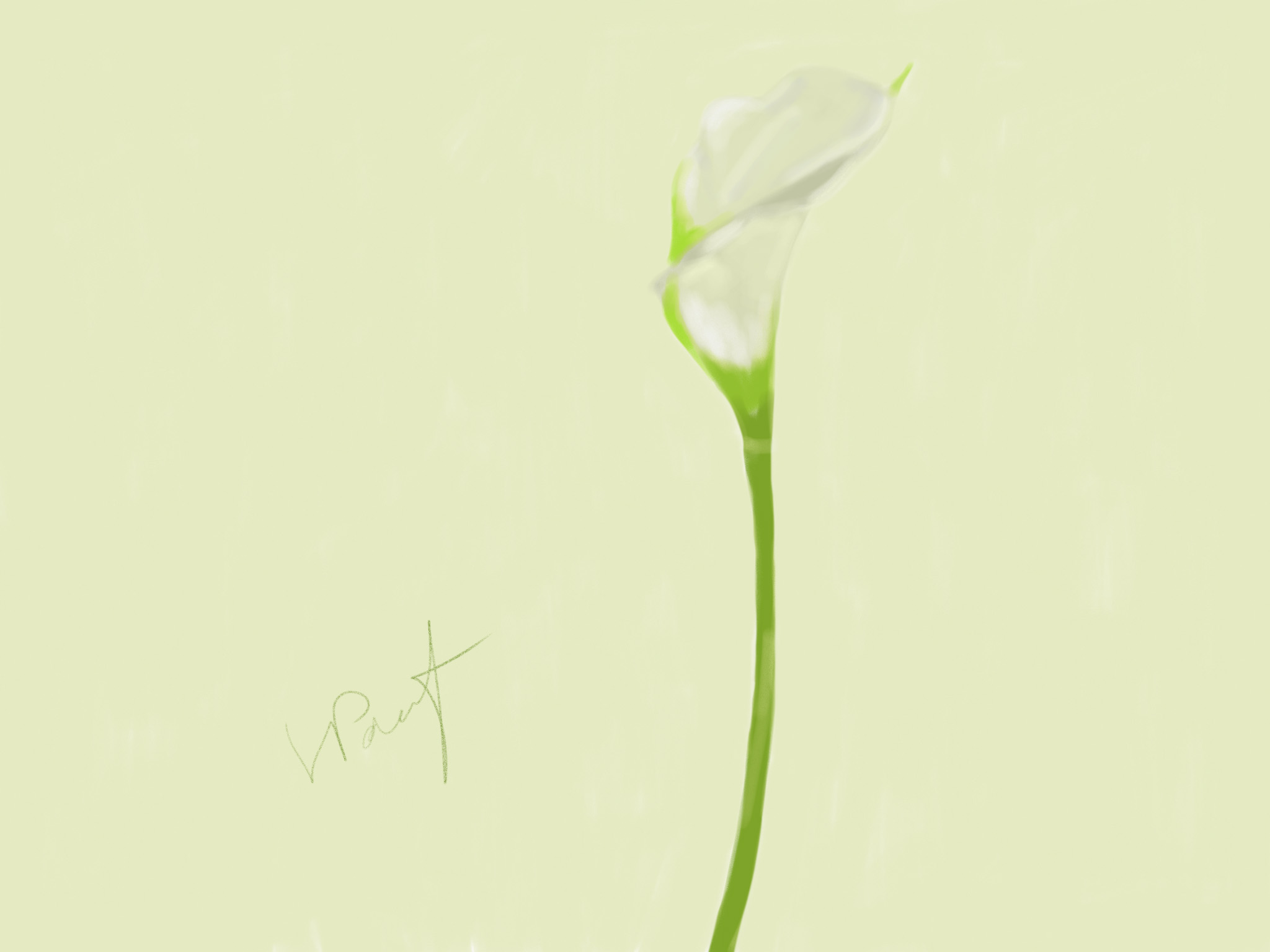
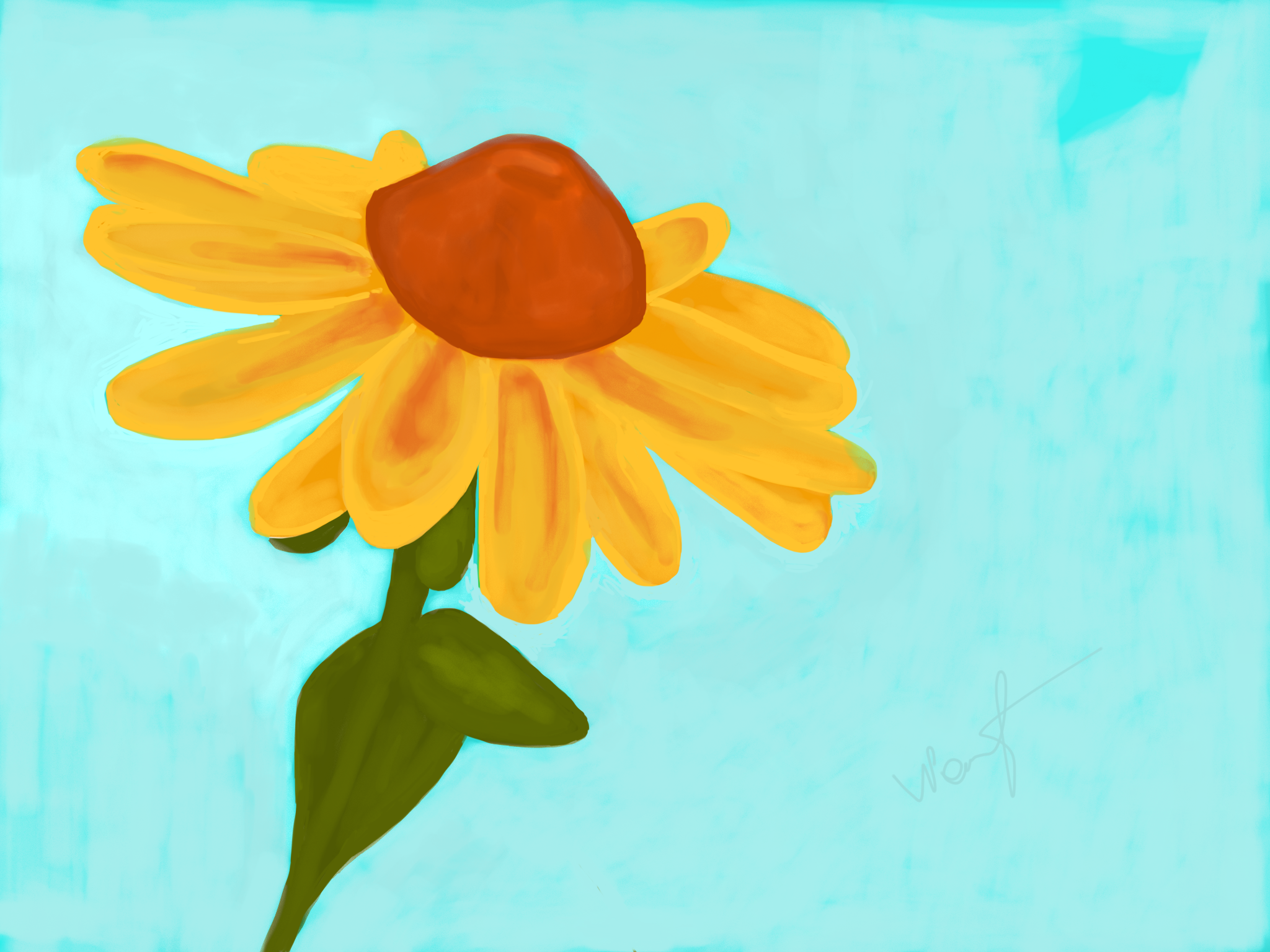
Flower created with Adobe Sketch and Adobe Ink & Slide

Flower_01_4_15

Adobe Sketch

Adobe Sketch and Adobe Ink & Slide

Project - Sketch 1_93

Project - Sketch 1_81

Project - Sketch 1_83

Project - Sketch 1_89

Project - Sketch 1_63

Project - Sketch 1_77

Project - Sketch 1_48

Project - Sketch 1_54

Project - Sketch 1_57

Project - Sketch 1_7

Project - Sketch 1_11

Project - Sketch 1_23

Project - Sketch 1_36

Project - Sketch 1_42