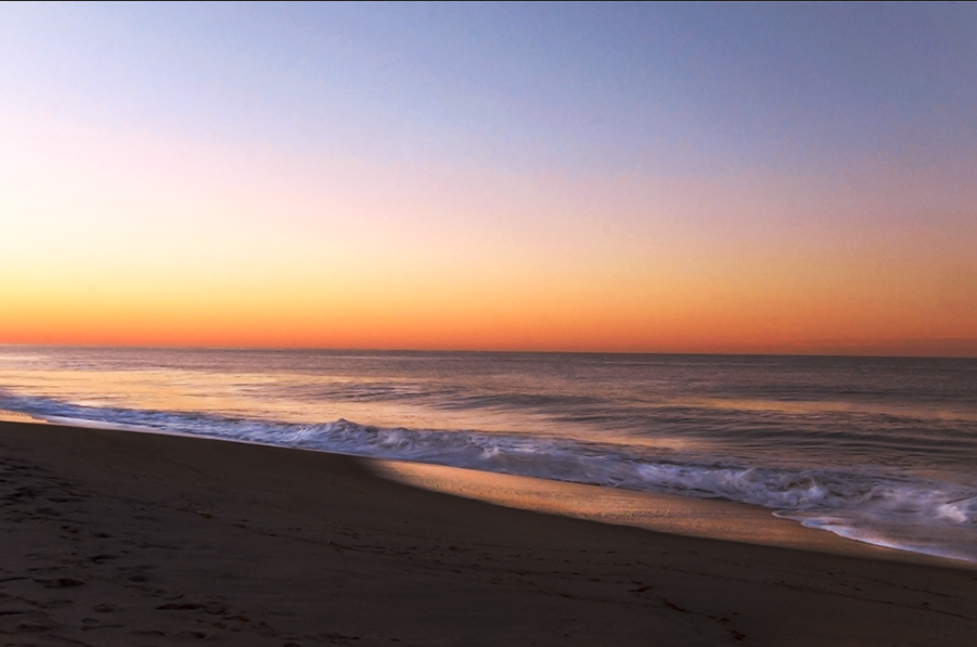
Photo Retouching in Adobe Photoshop CC 2014 using Camera Raw
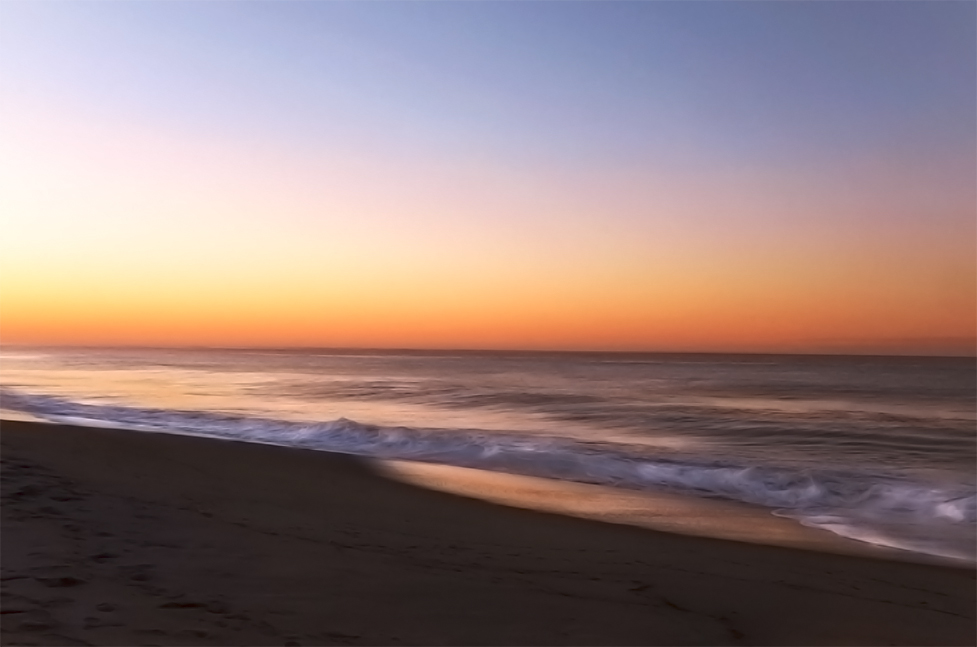
Before / After Example
YouTube Video

Adobe Sketch and Adobe Ink & Slide
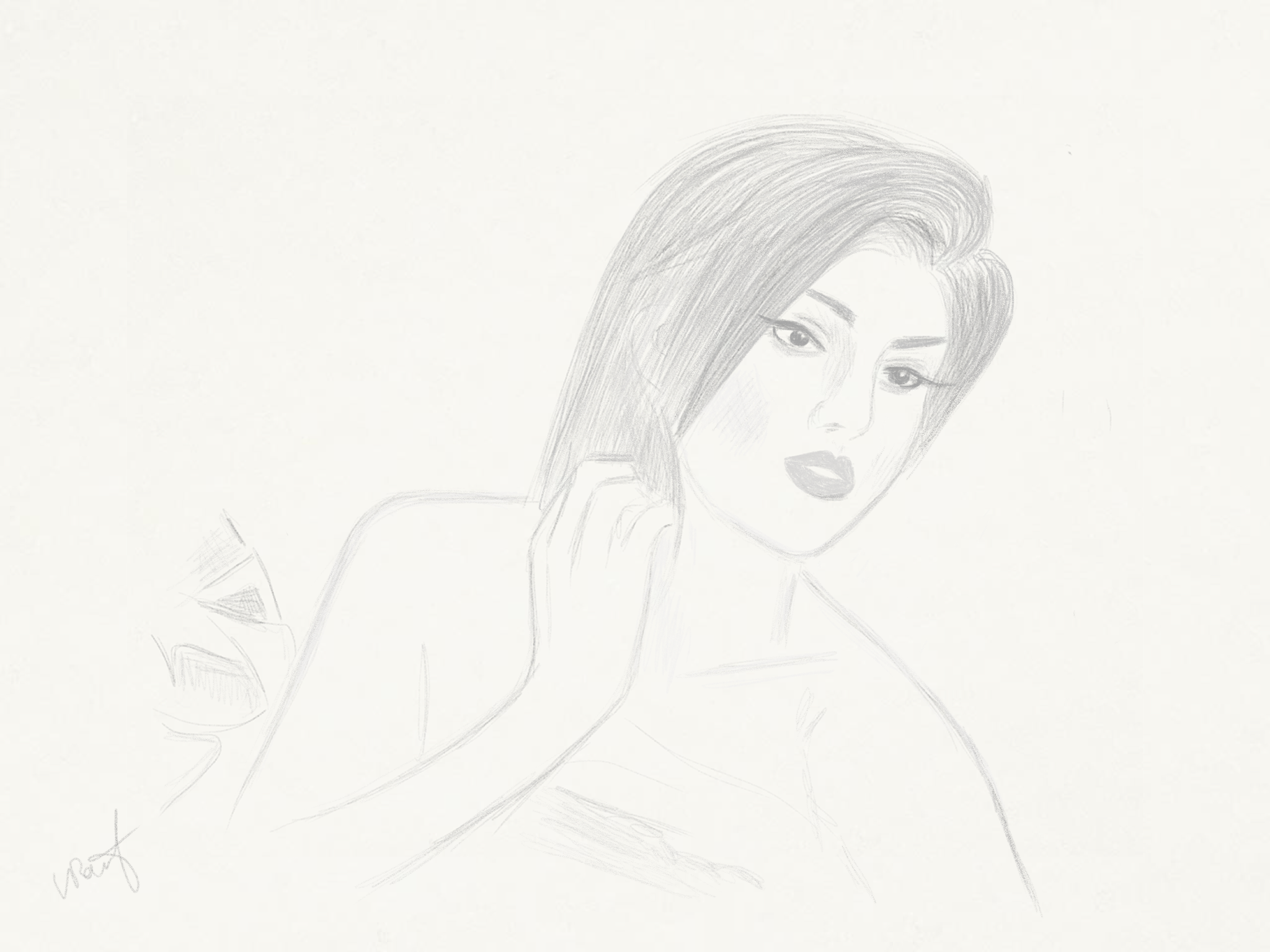
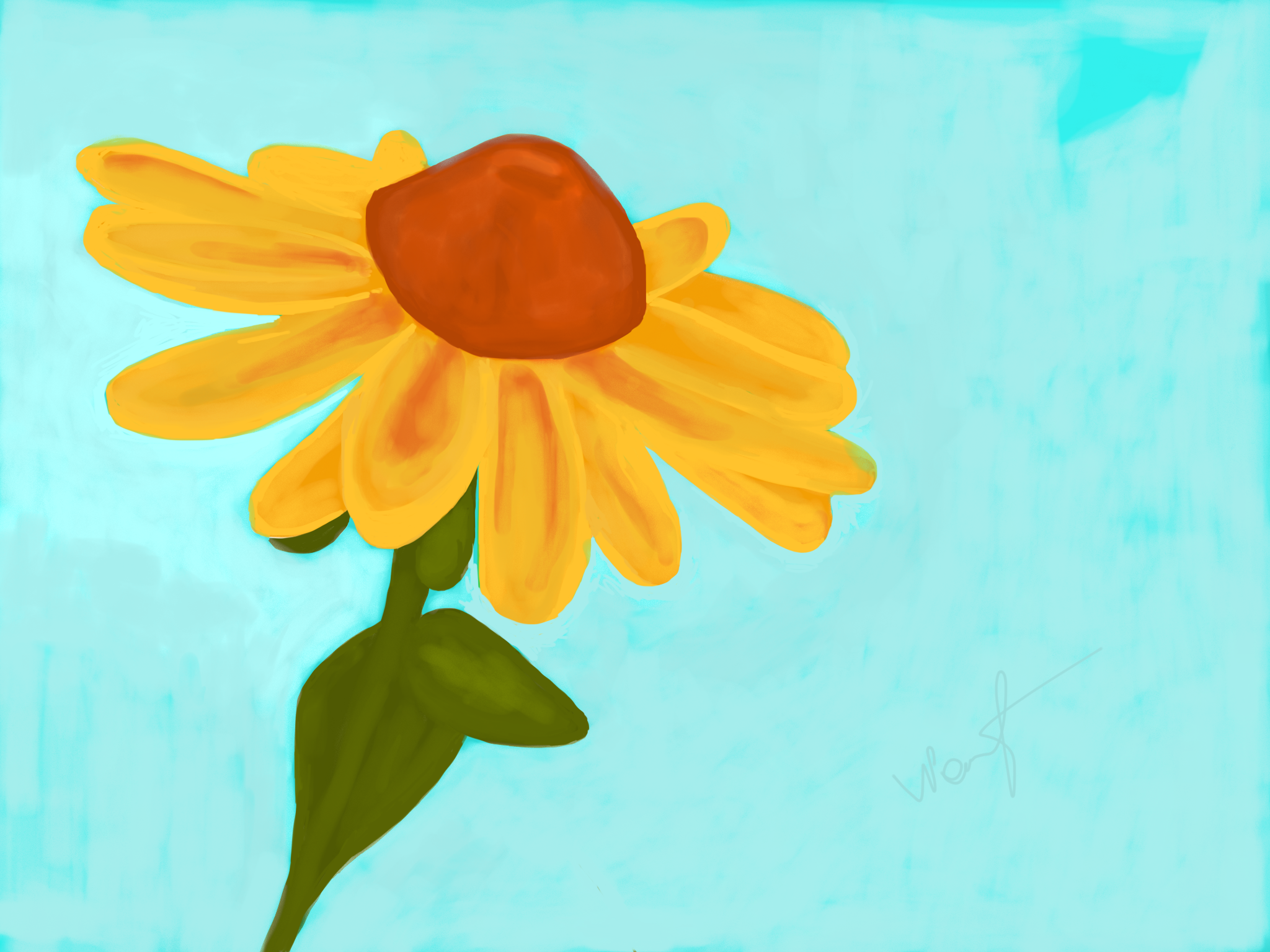
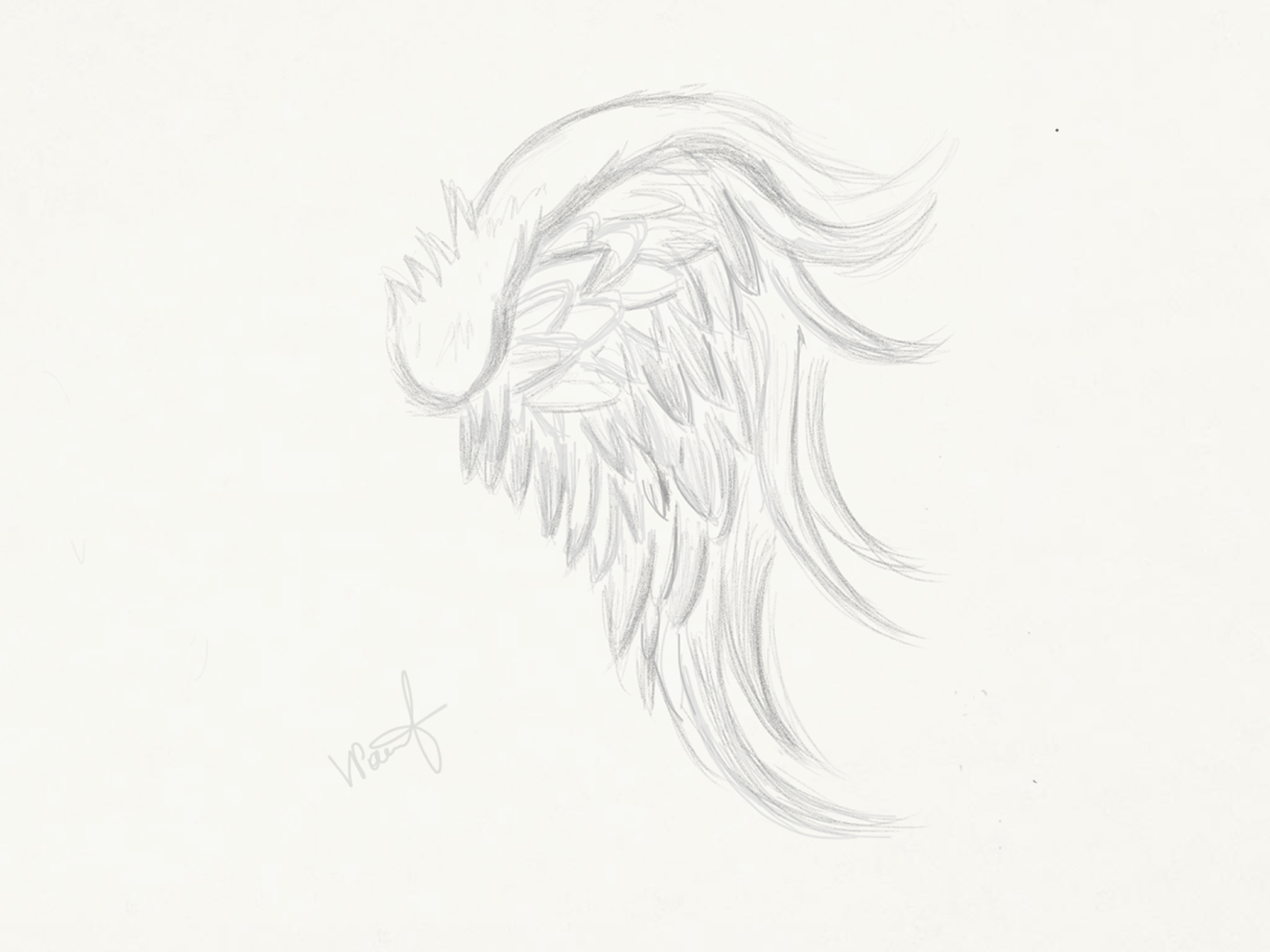
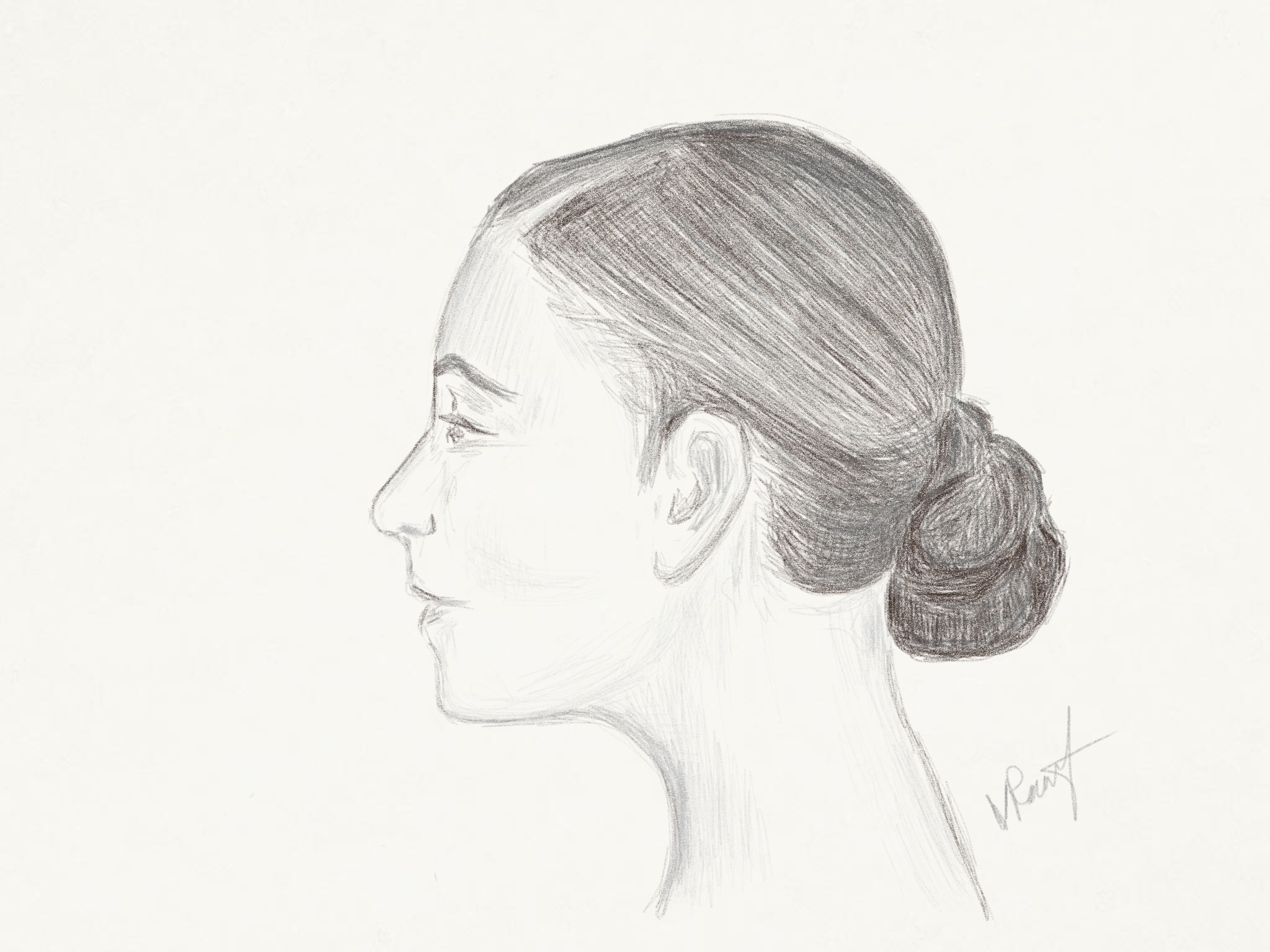
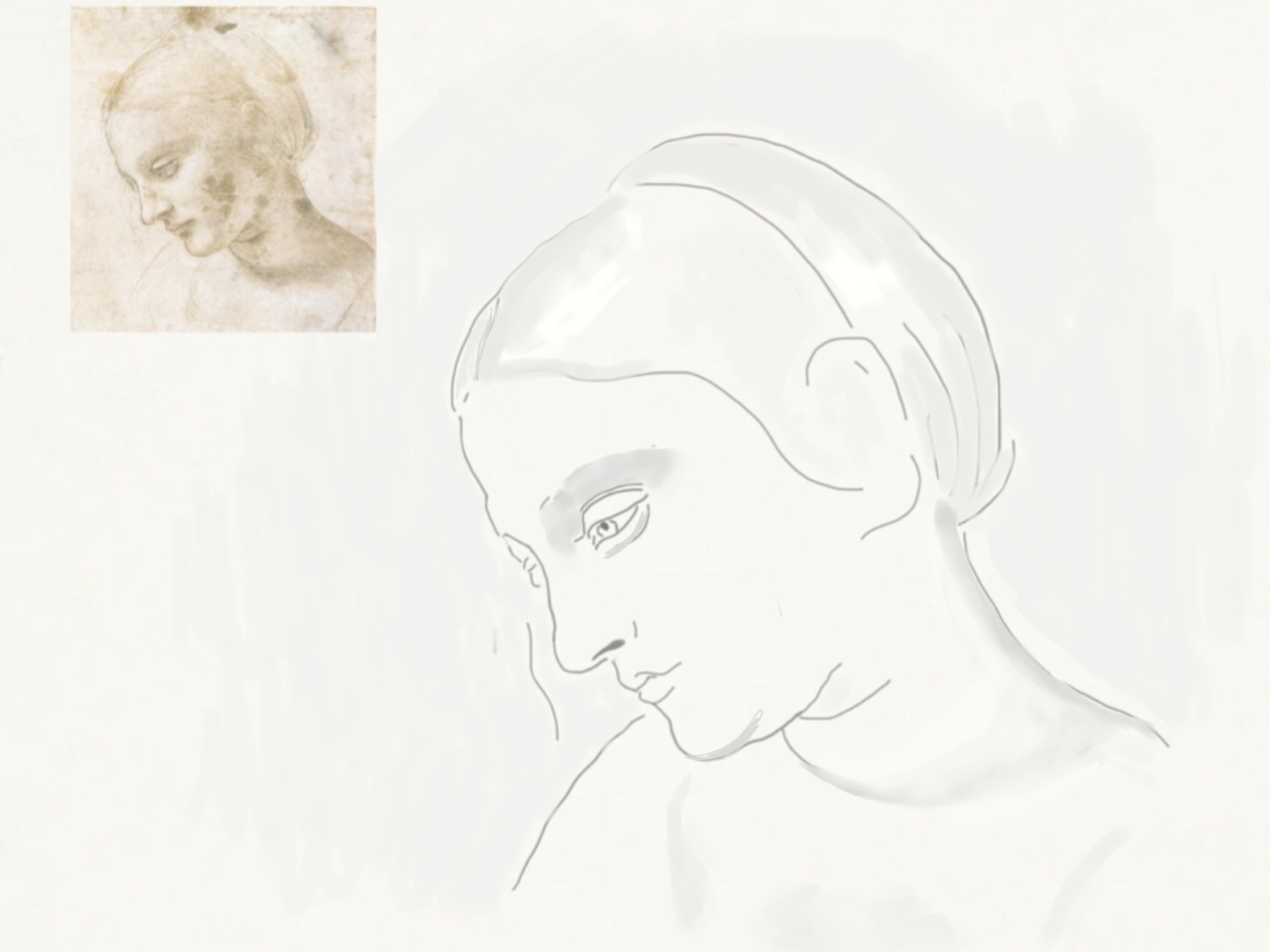
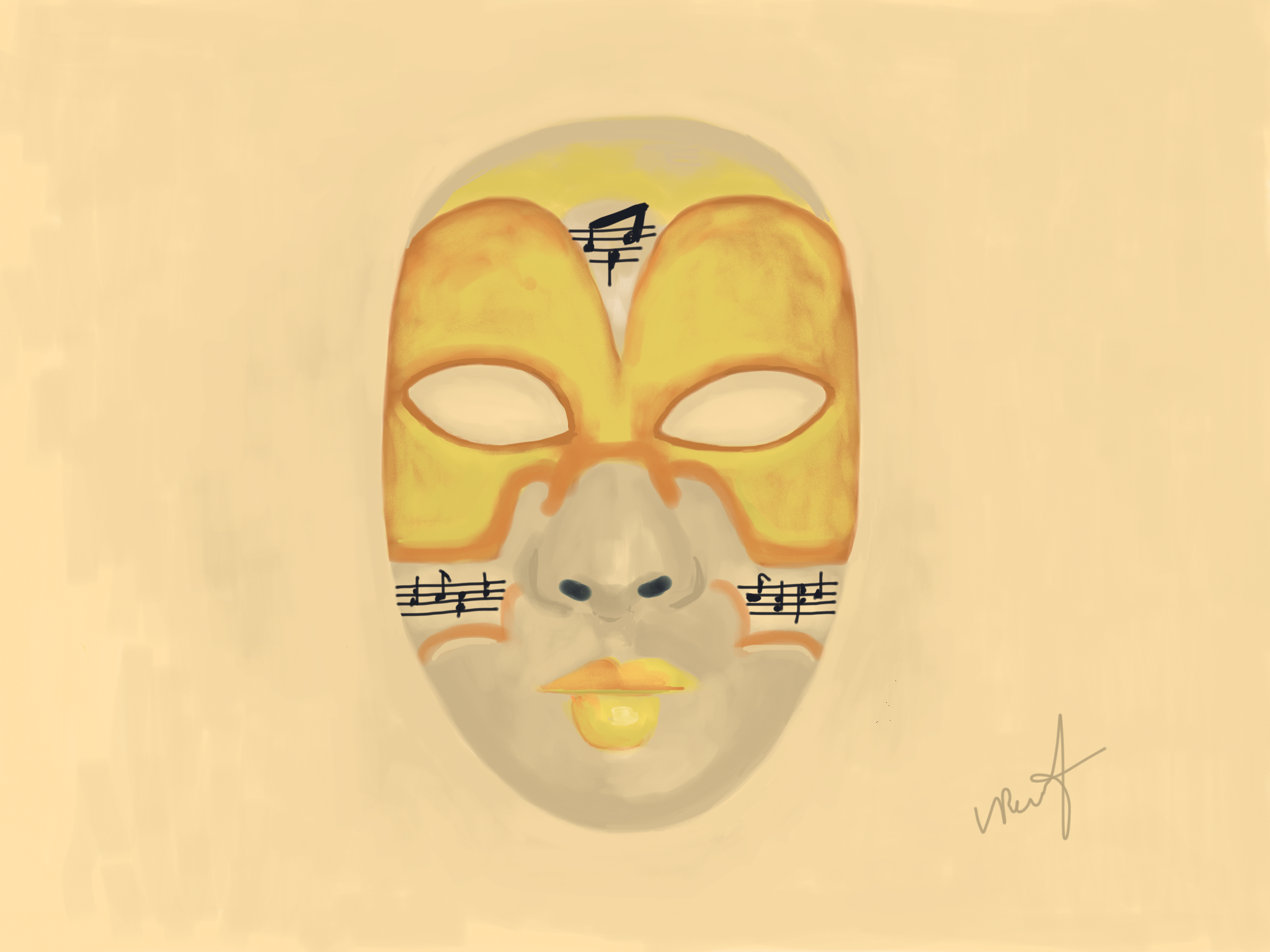
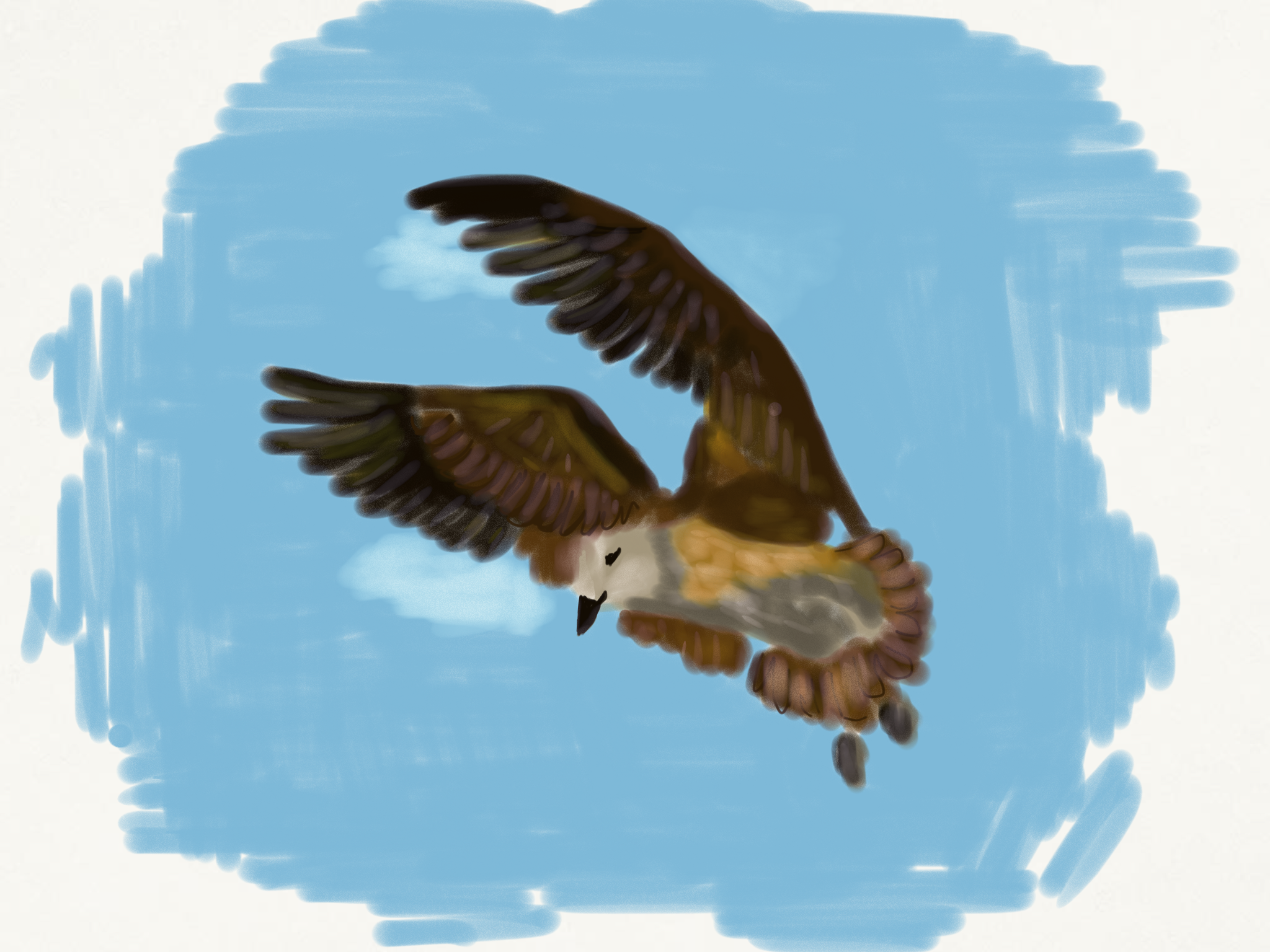
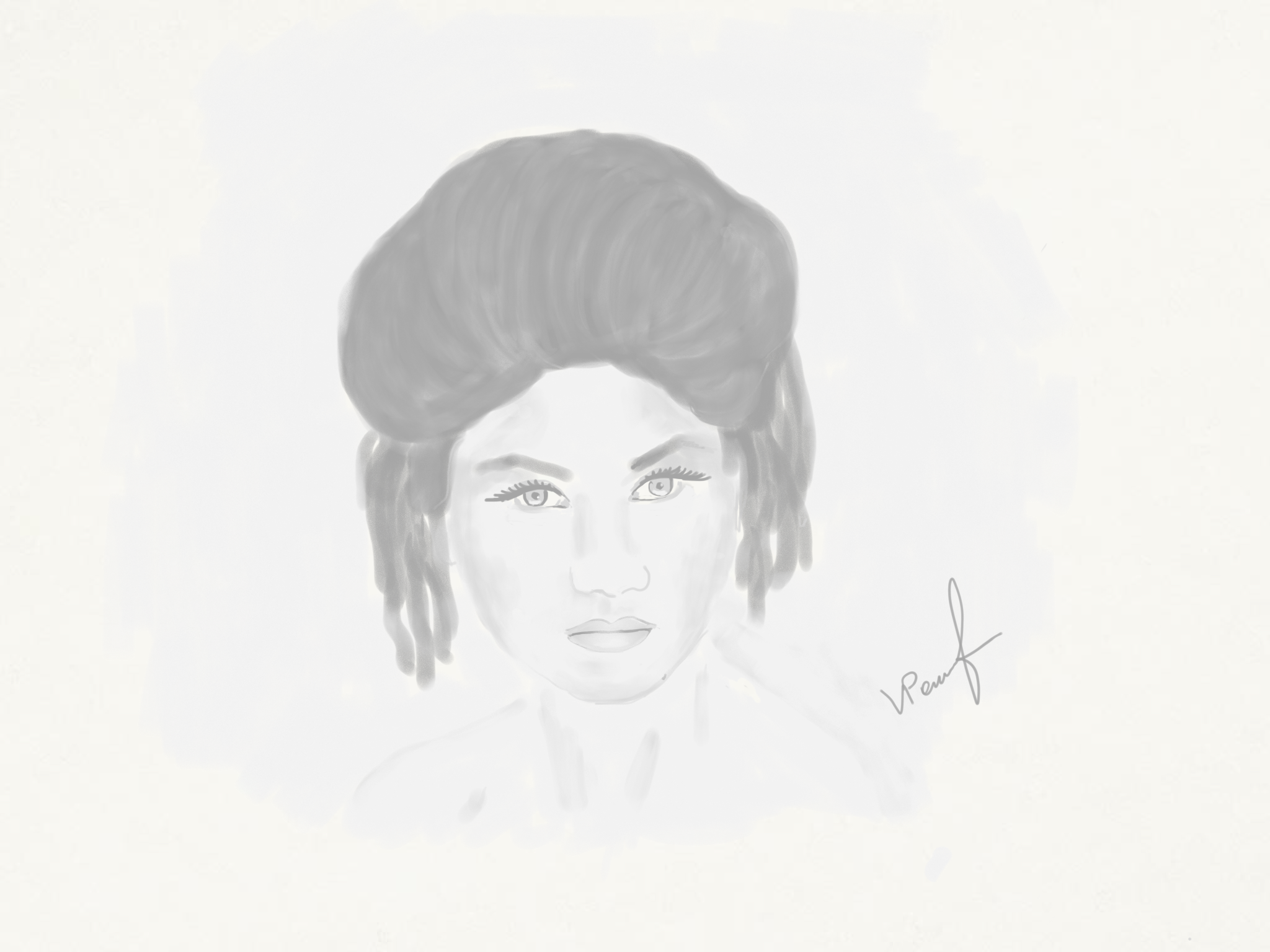
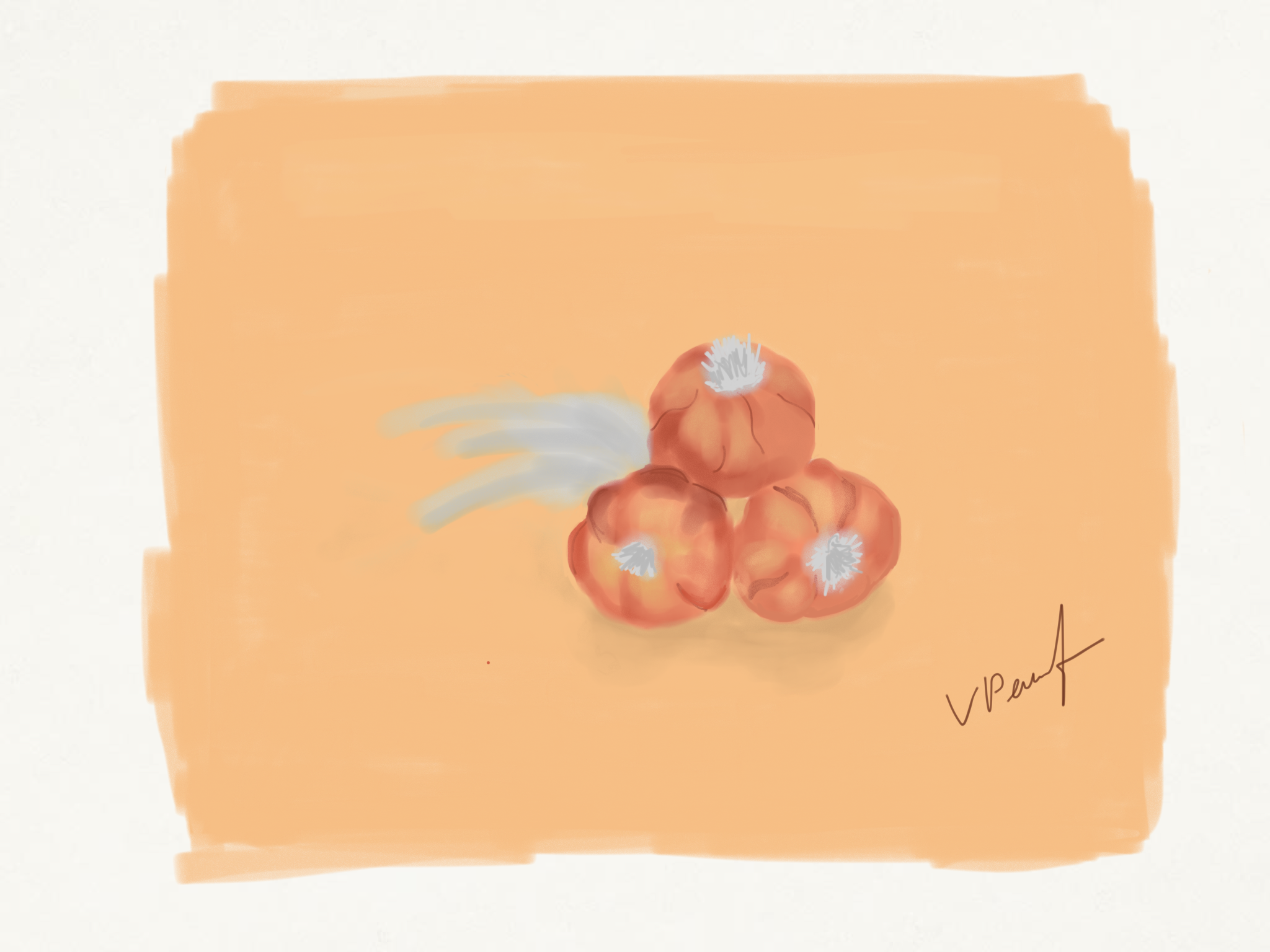
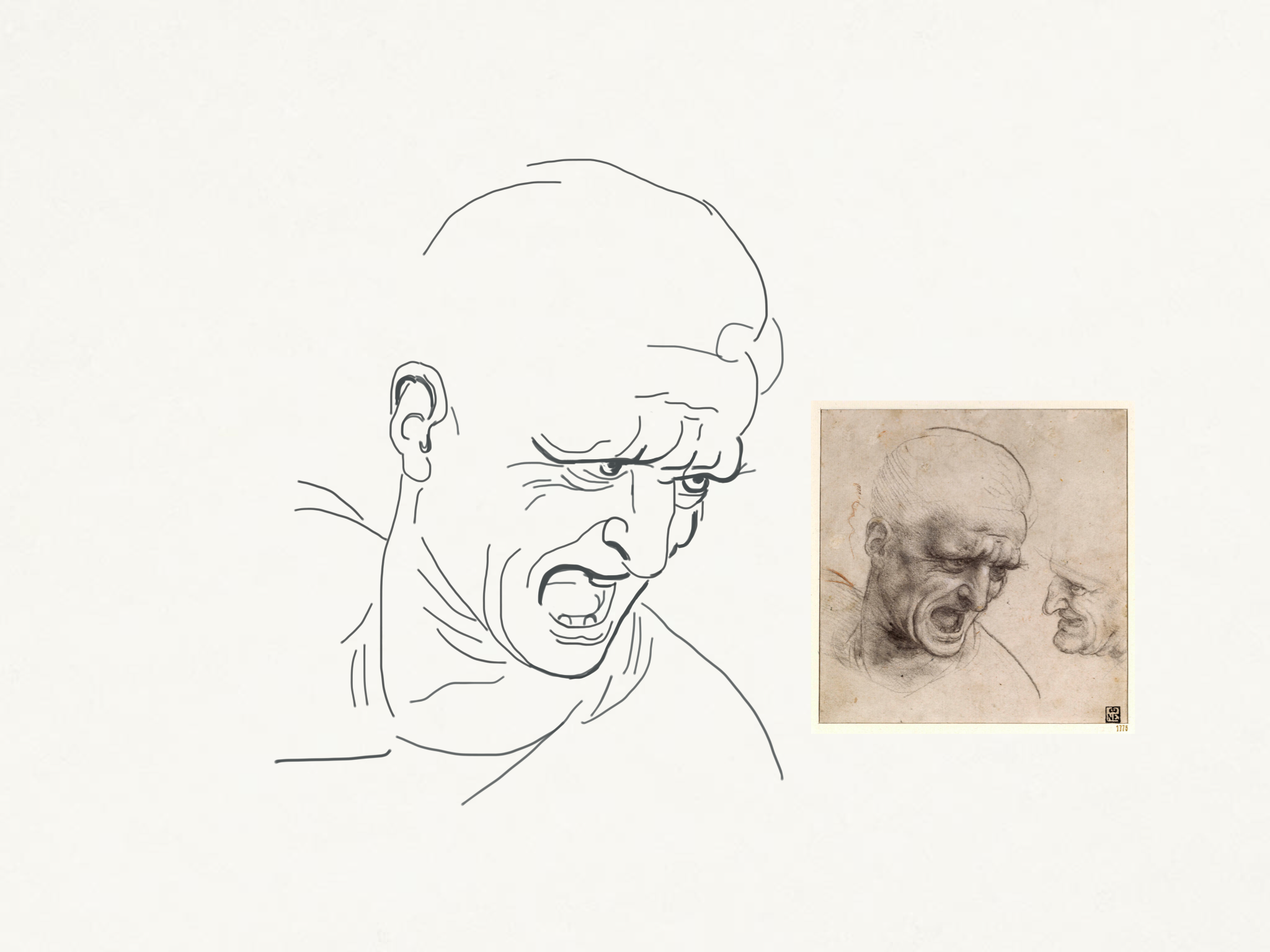
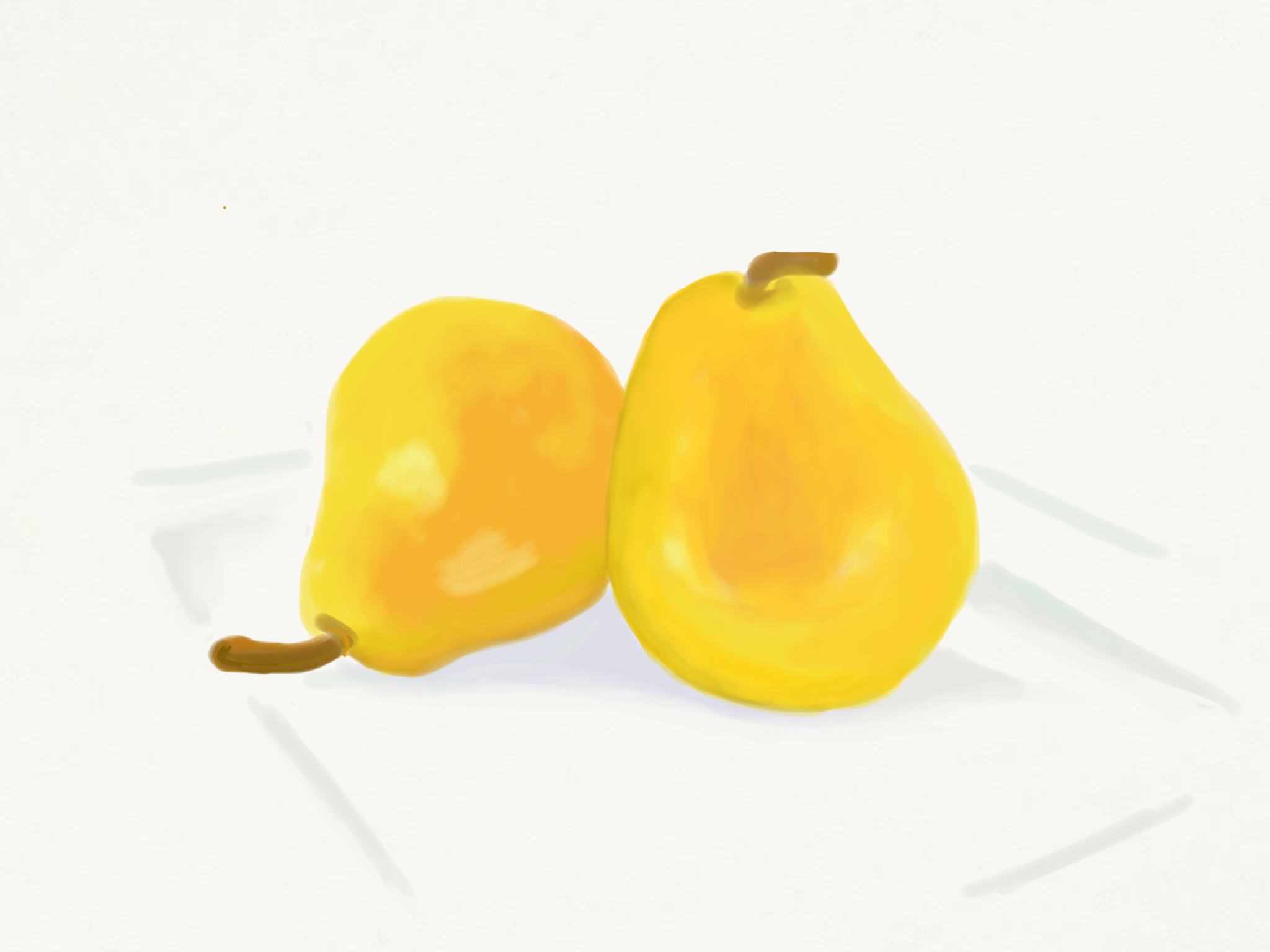
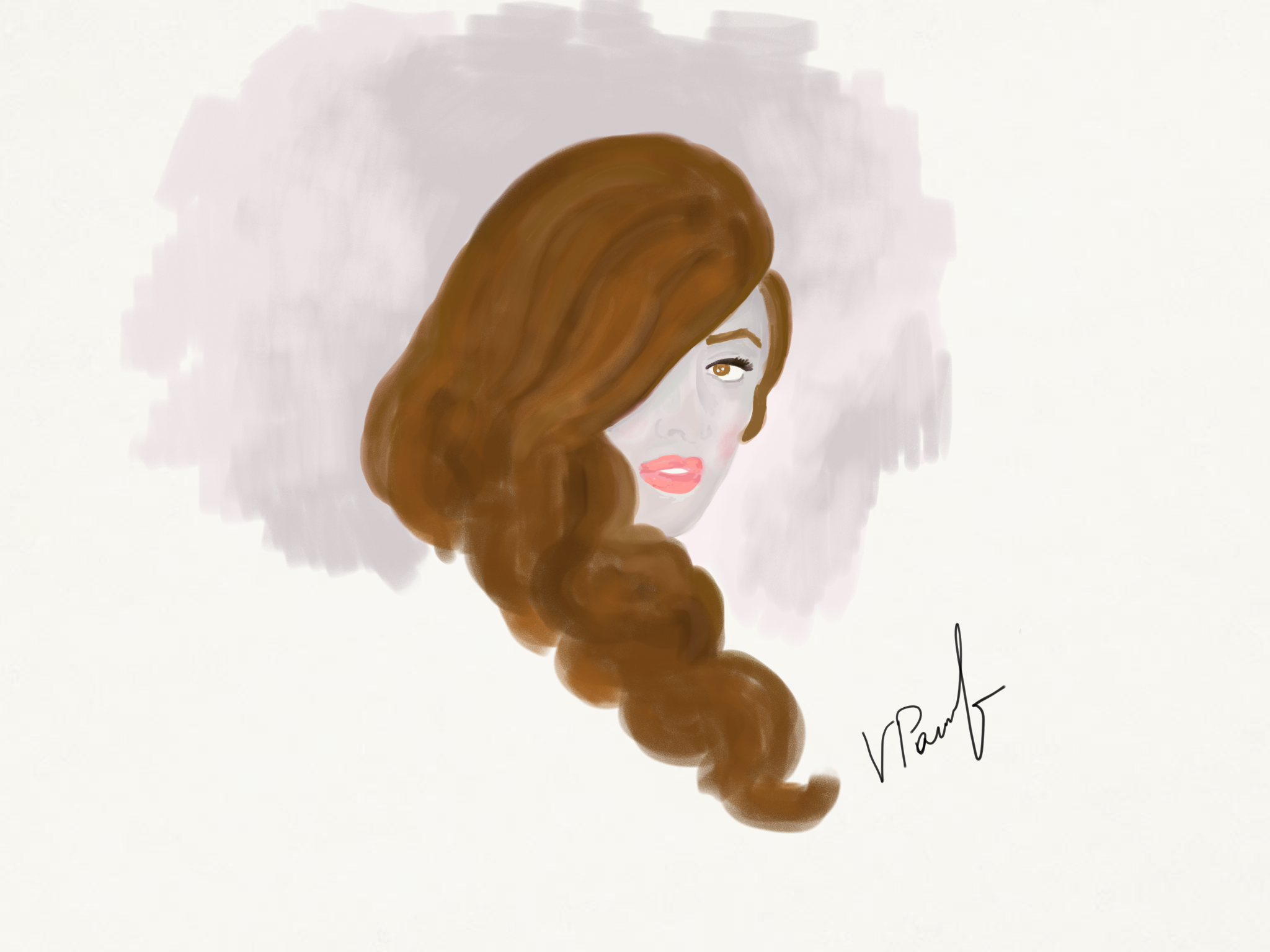
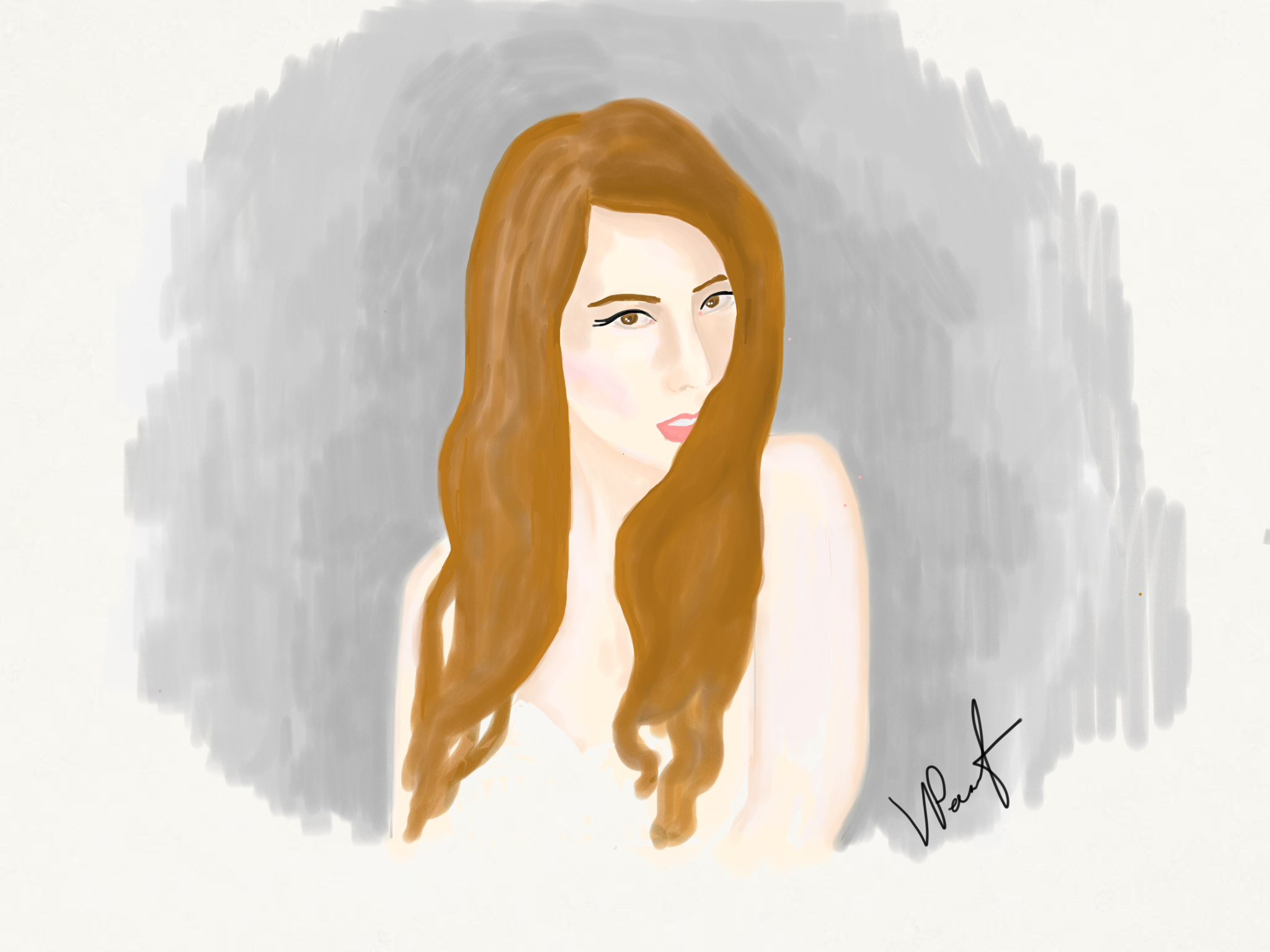
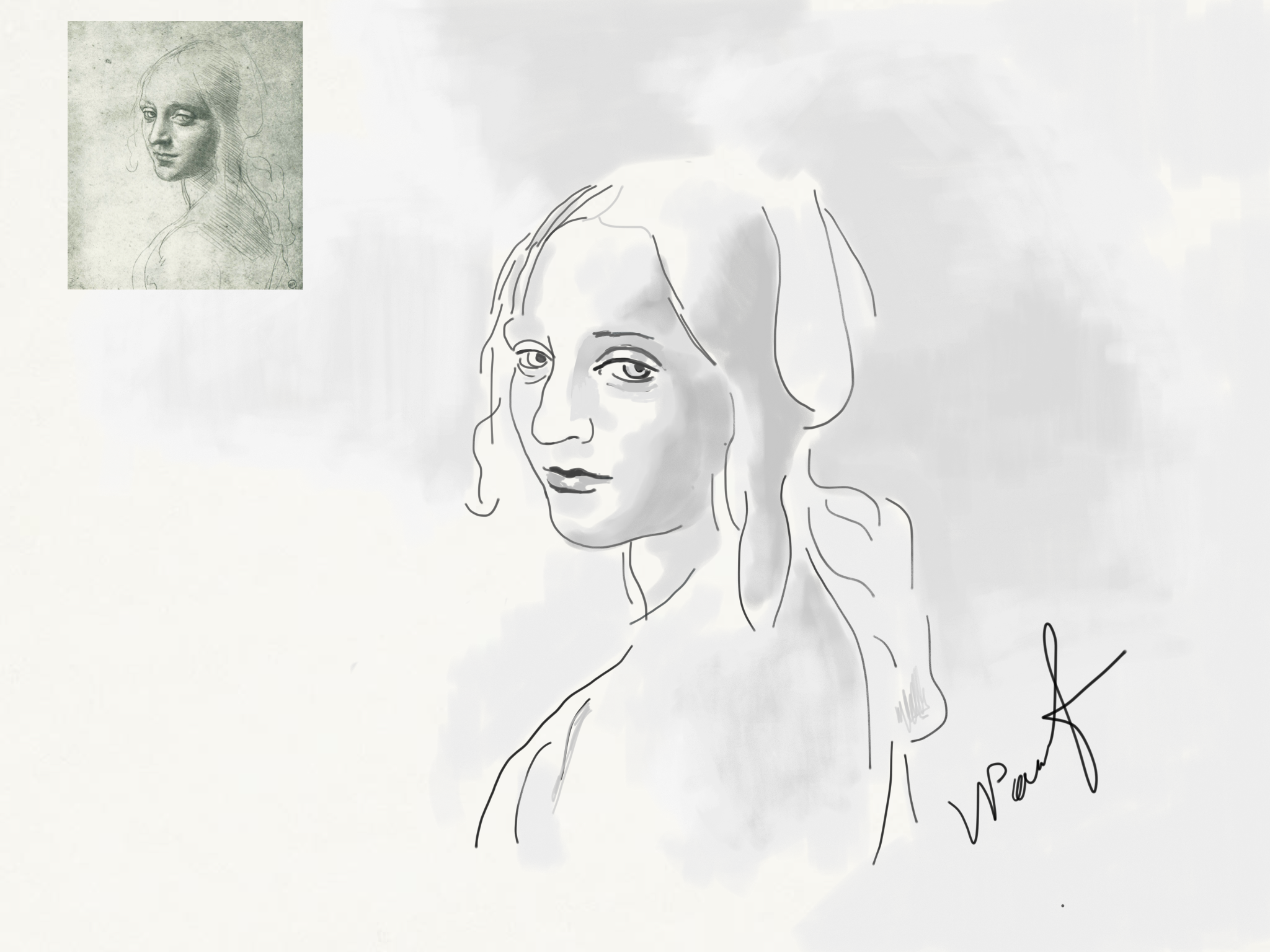
Speed Painting in Adobe Photoshop CC 2014. YouTube
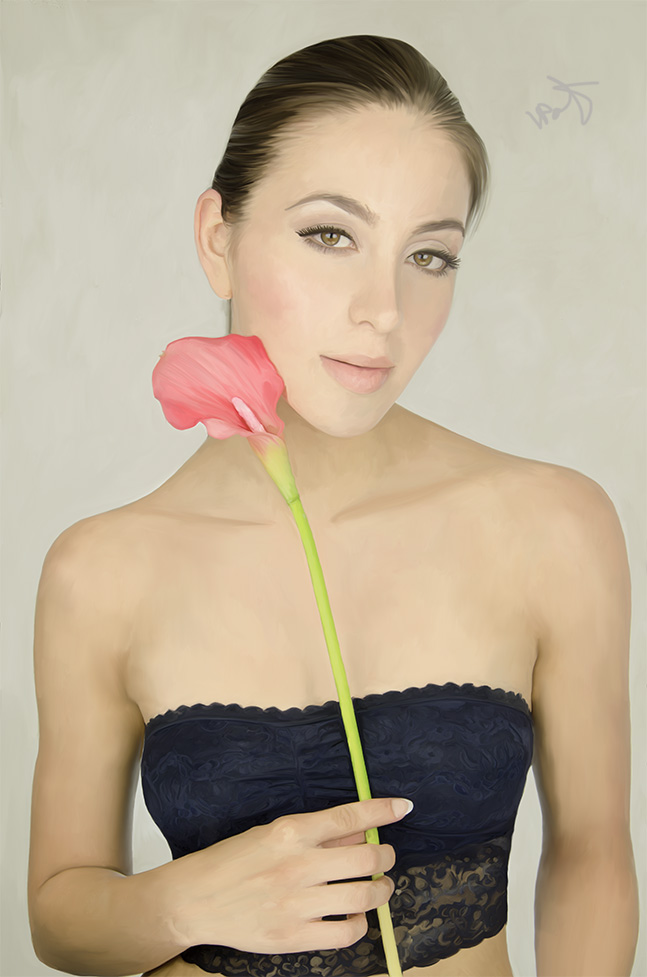
Kuler is the best web based application that allows you to create,change,and share themes. You can create theme based on your favorite image or from the color wheel.
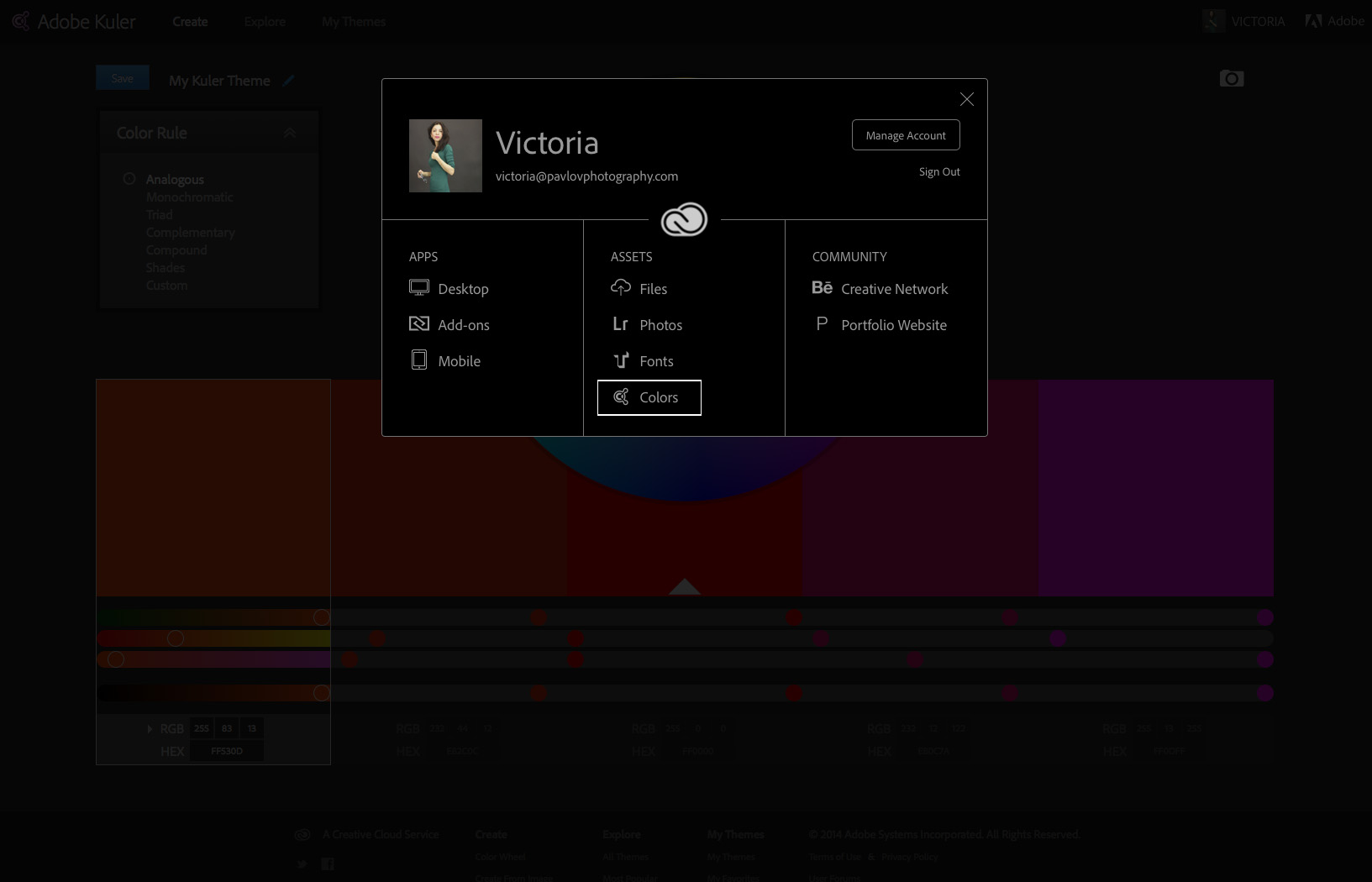
Login to your Adobe Creative Cloud account – click on Colors
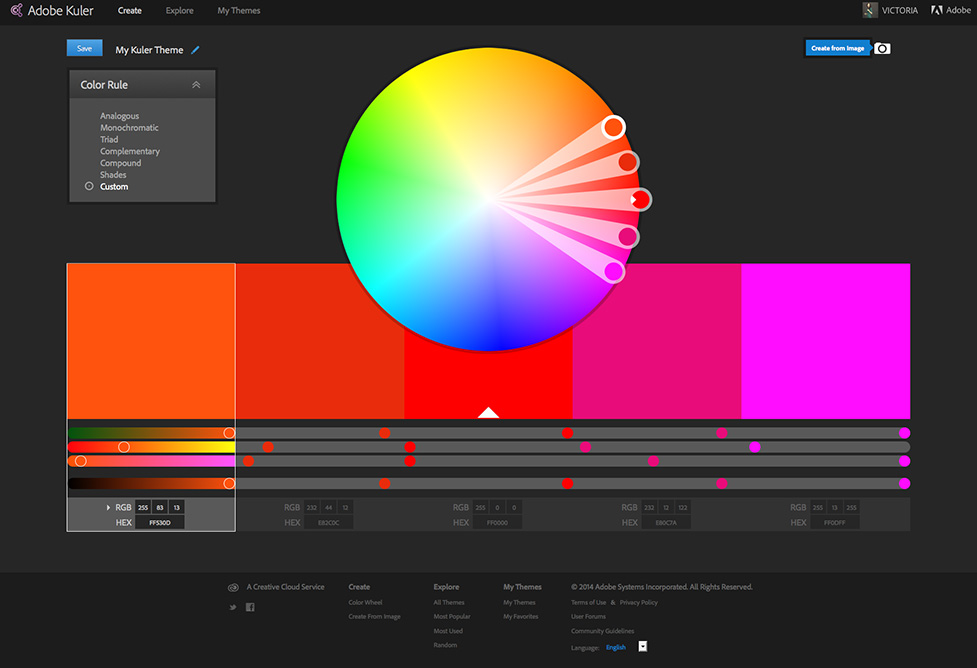
Click on camera icon from your Kuler page to create palette from image.

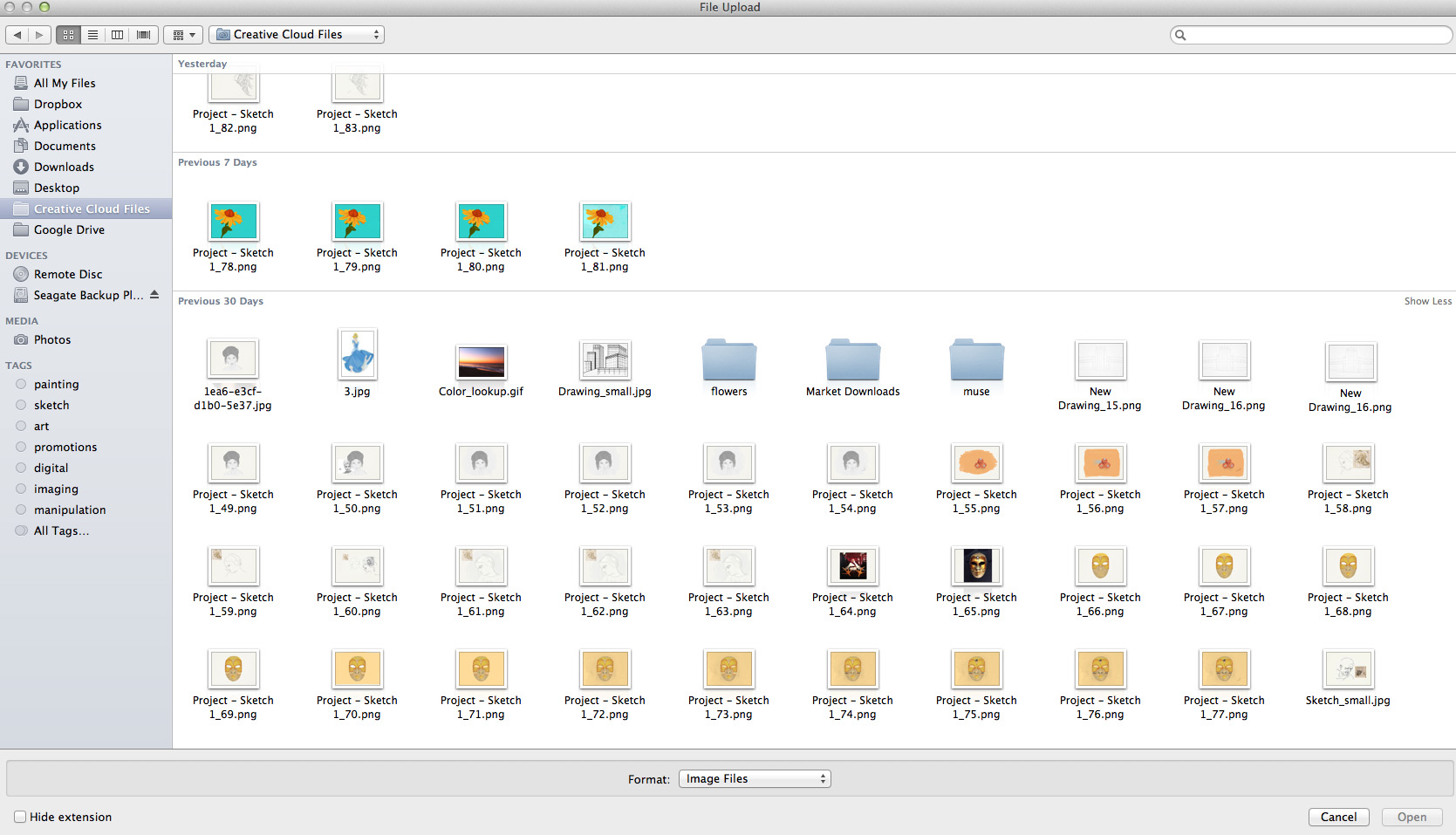
Choose any image you want to work with
And now Kuler will automatically pick colors from your image for its palette based on the Color Mood you wish to work with.
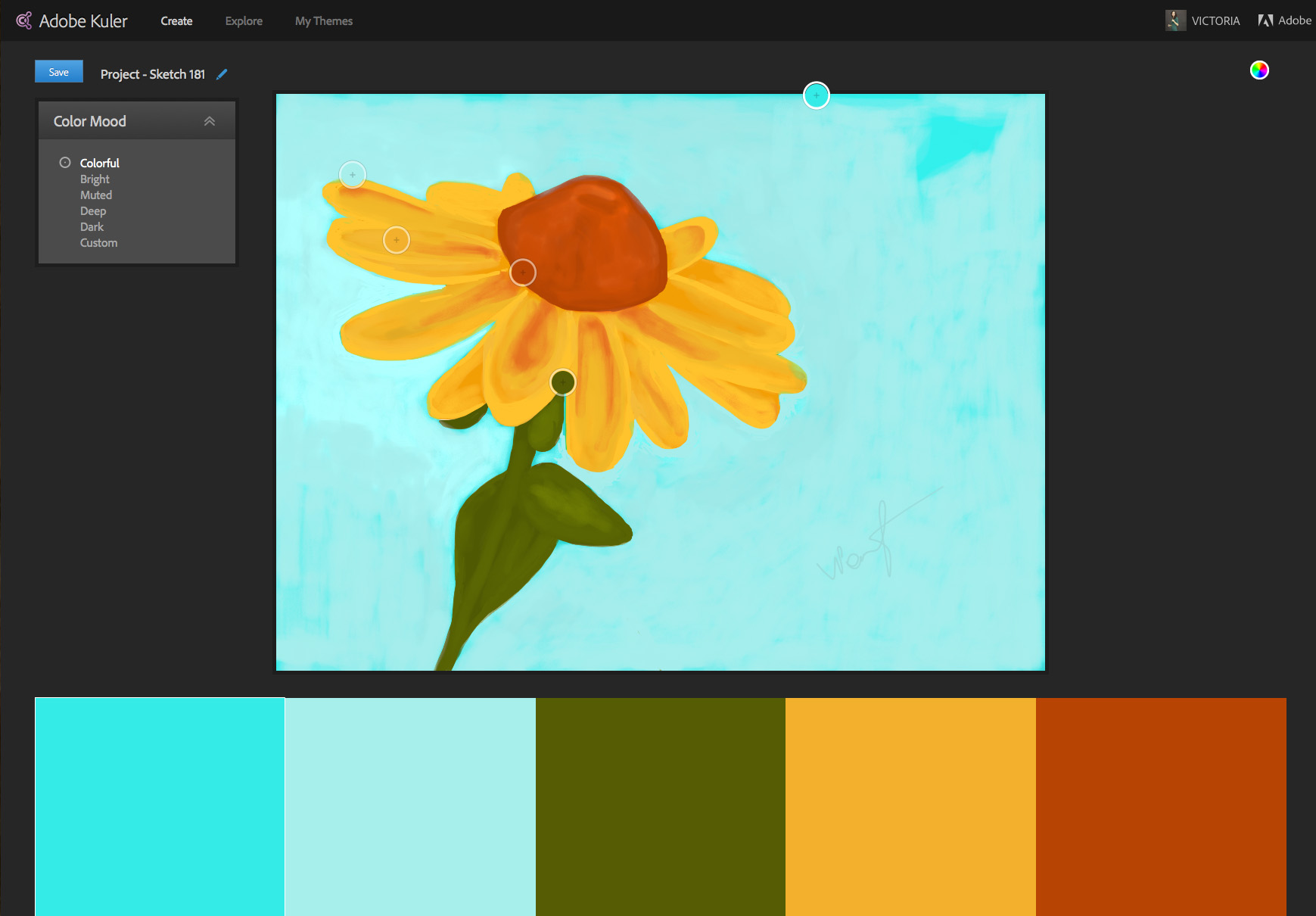
Adobe Kuler gives you seven different Color Mood choices to work with:
1 Analogous
2: Monochromatic
3:Triad
4:Complementary
5:Compound
6: Shades
7: Custom
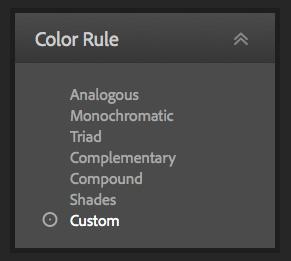
Go through different Color Moods to see what mood you like most. You can pick your own color: click and drug the color selectors on the imageto the area of the image you like.
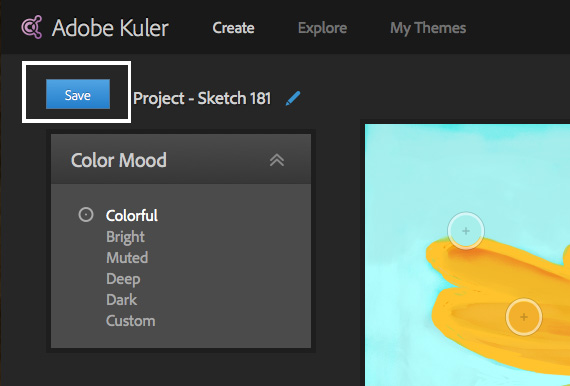
Give your palette a name and save it.
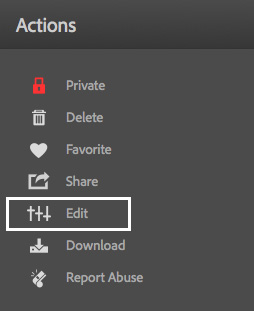
If you want to edit your palette – click on Edit Icon
Now you can edit your palette. Choose the color slider of any color that you prefer to edit and adjust it.
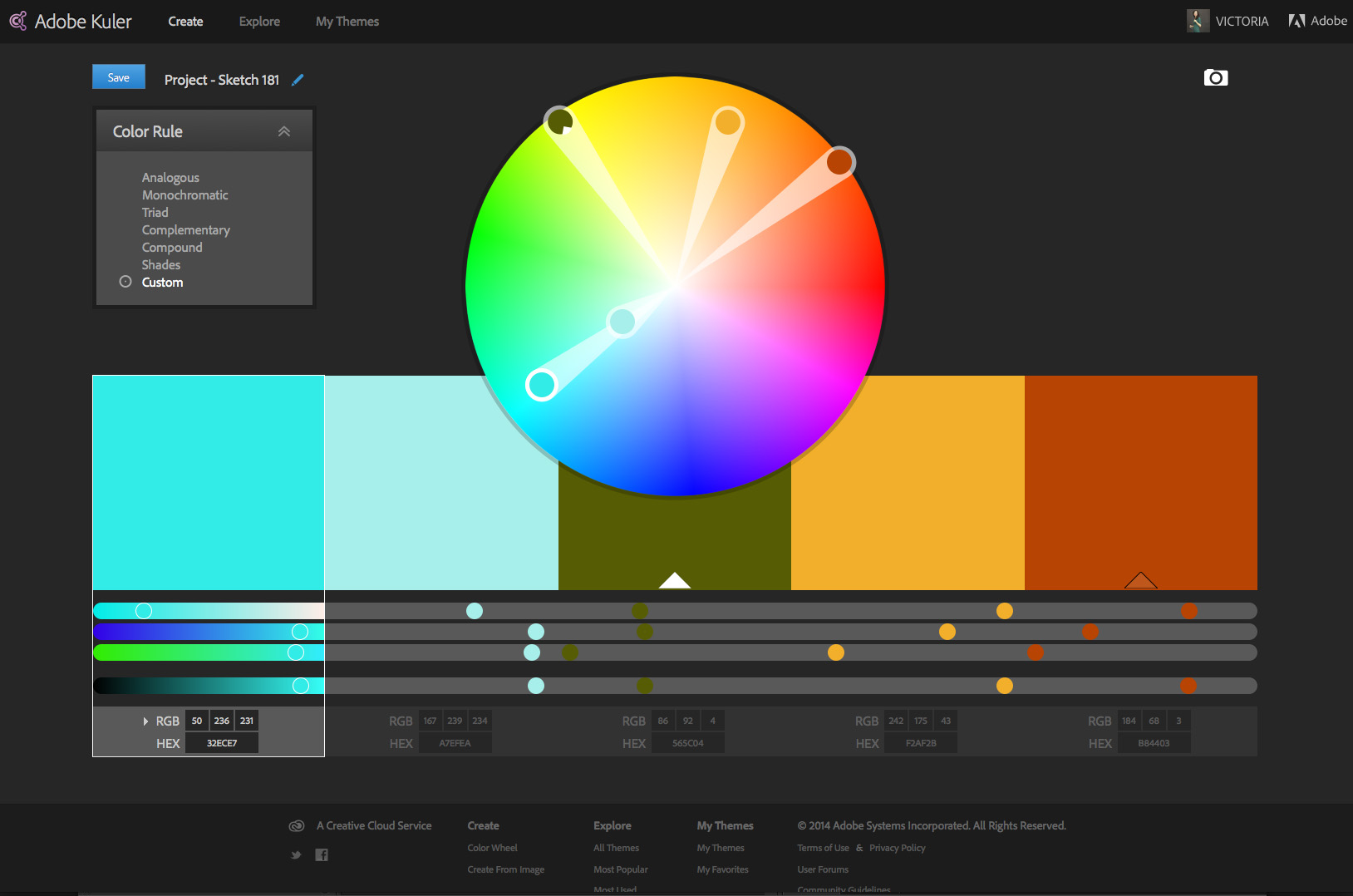
Save your palette. You will have two options to save it. Choose any you want to.

Now you can share and download it
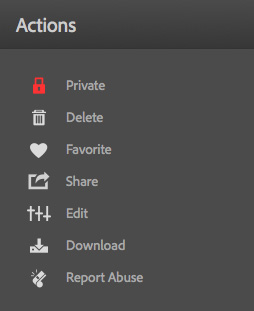
My Themes
Create new document
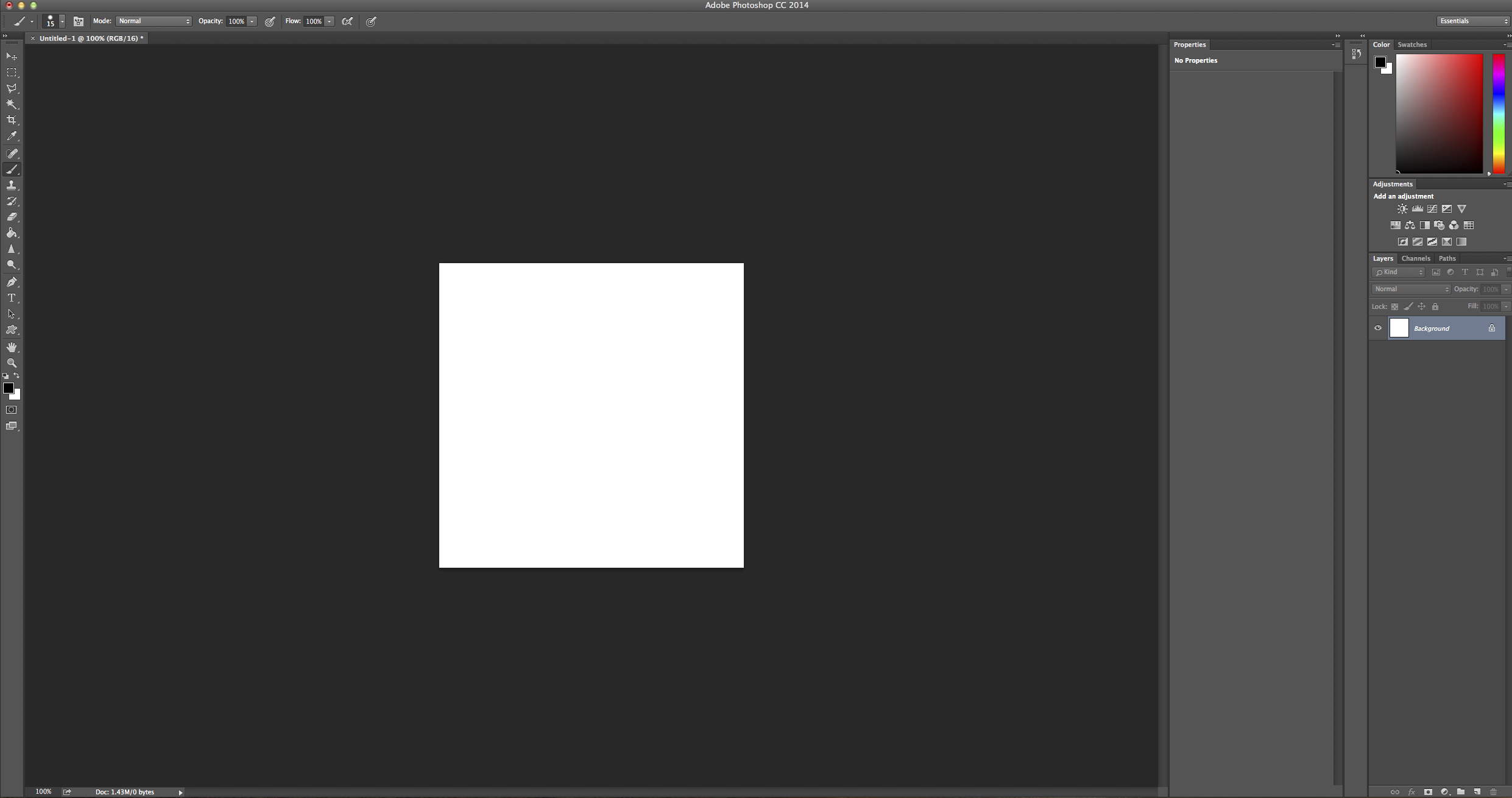
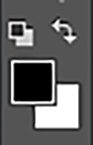
Set the foreground color to black
Create any shape, line, object you want to
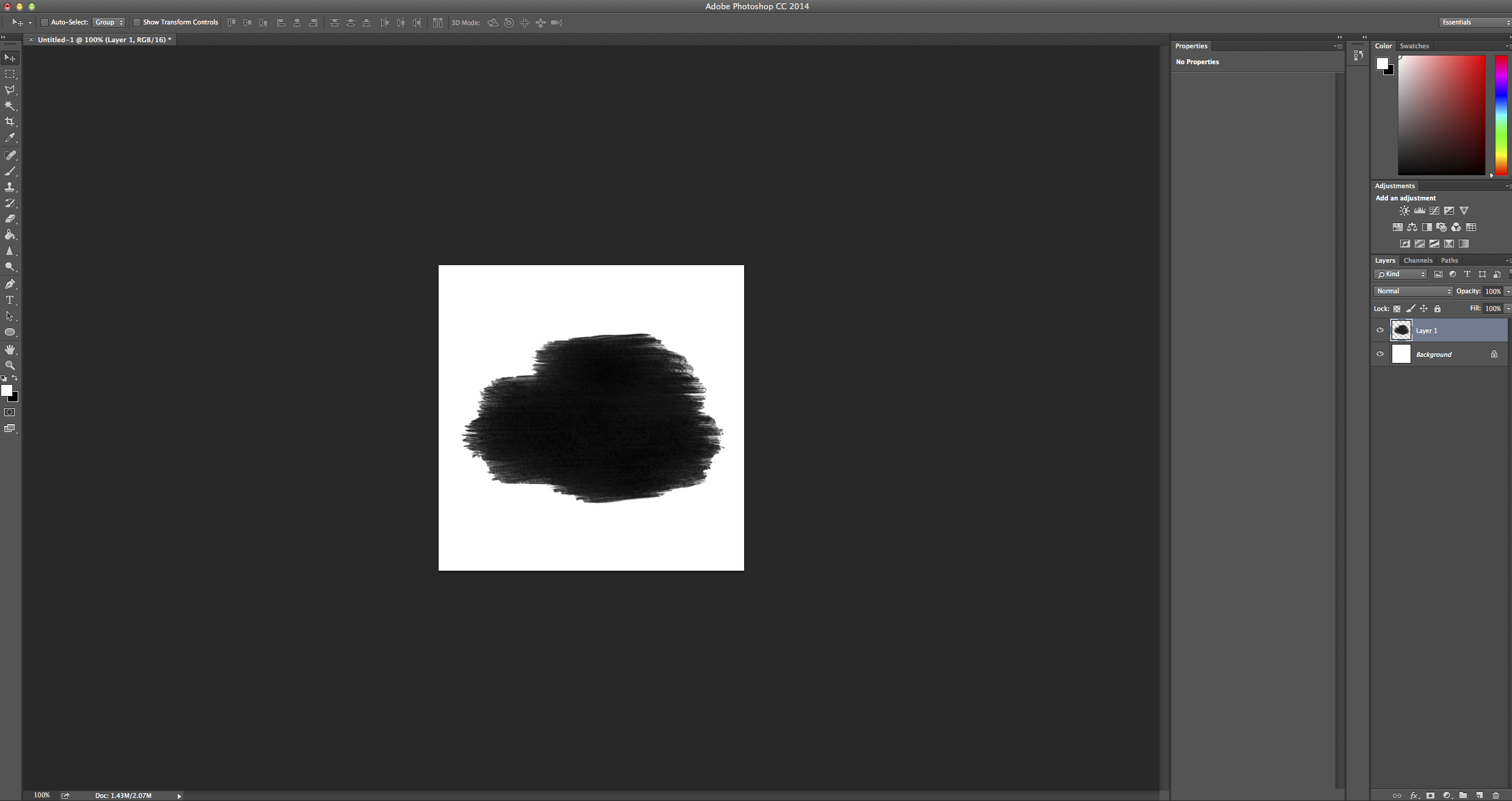

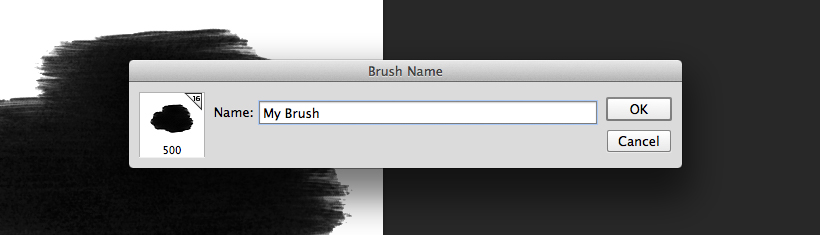
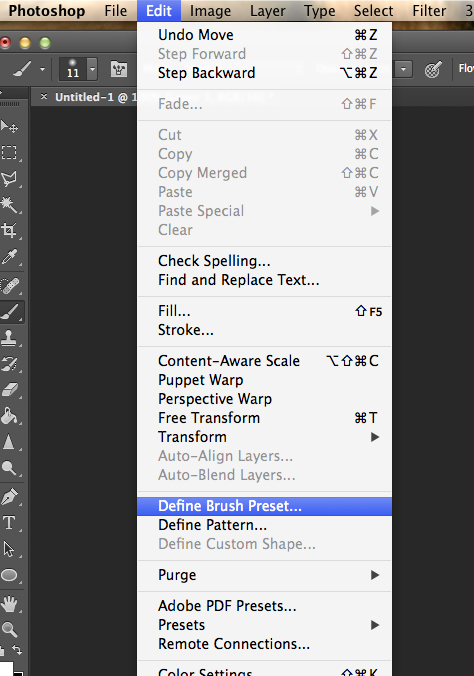
Define Brush Preset ( create new brush)
Give to your new brush a name