Tag Archives: digitalart

Drawing effect with Adobe Photoshop

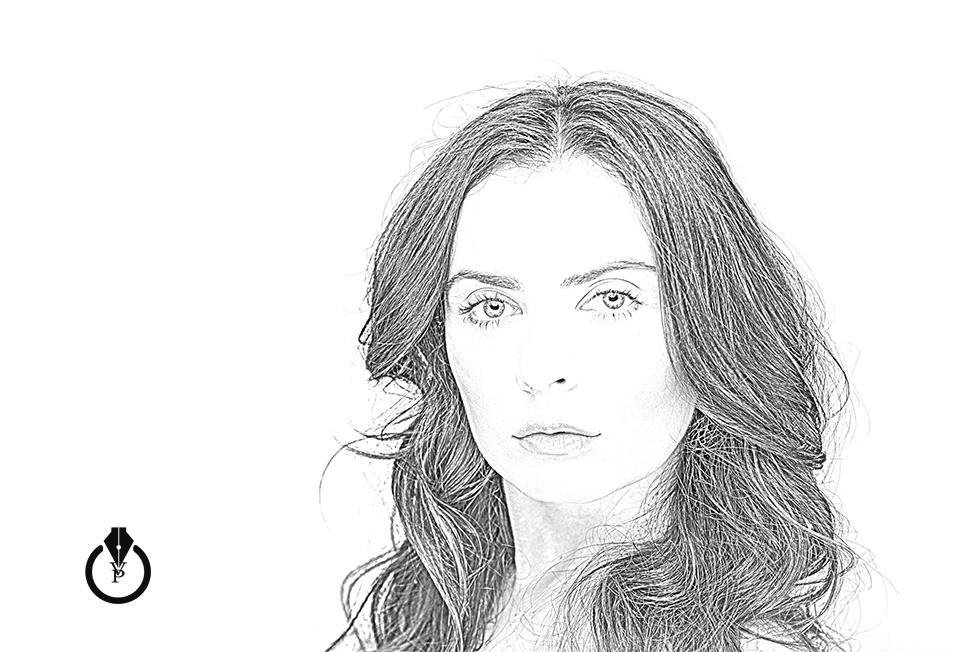
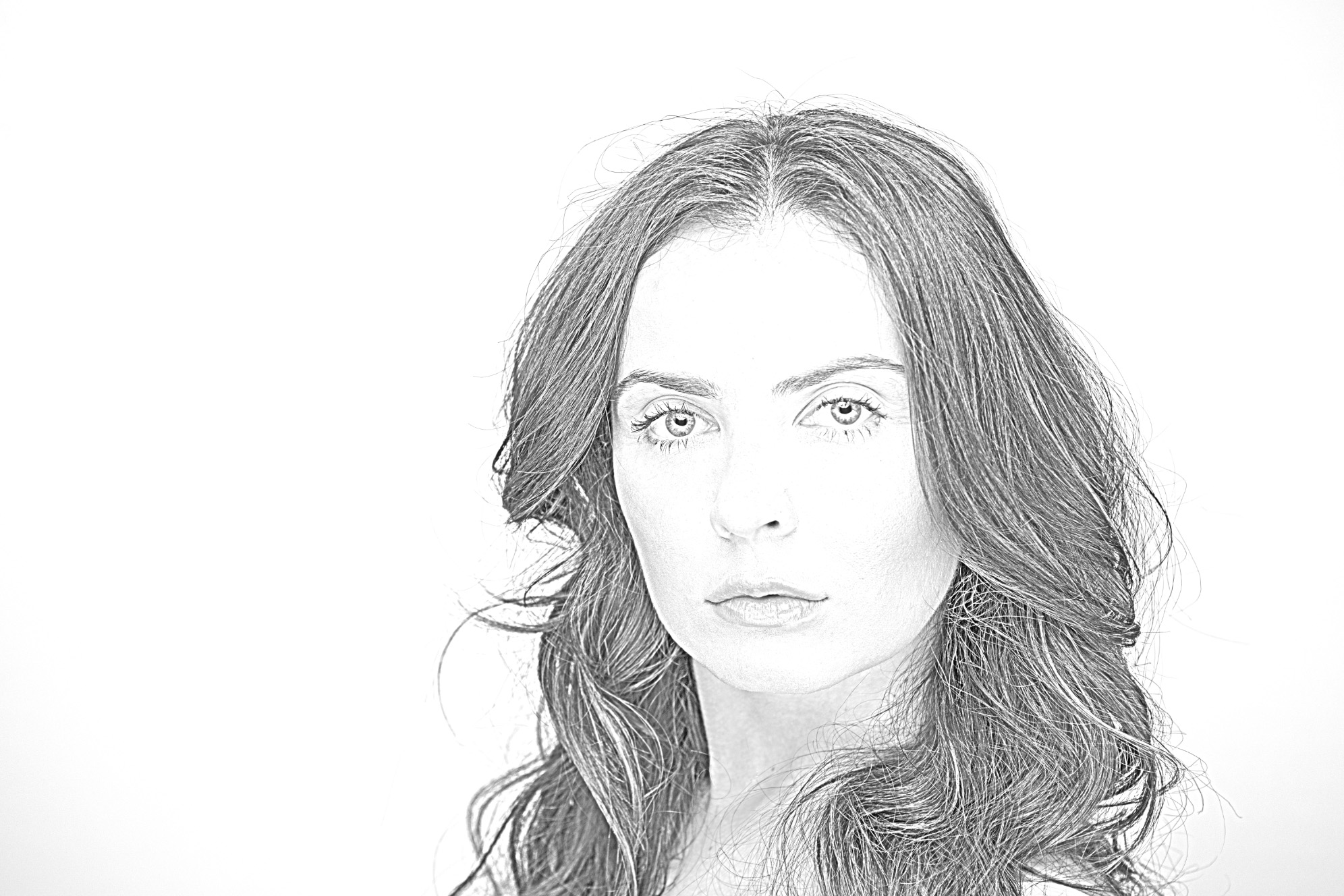
How to convert your photo into a drawing  using  Adobe Photoshop CC.

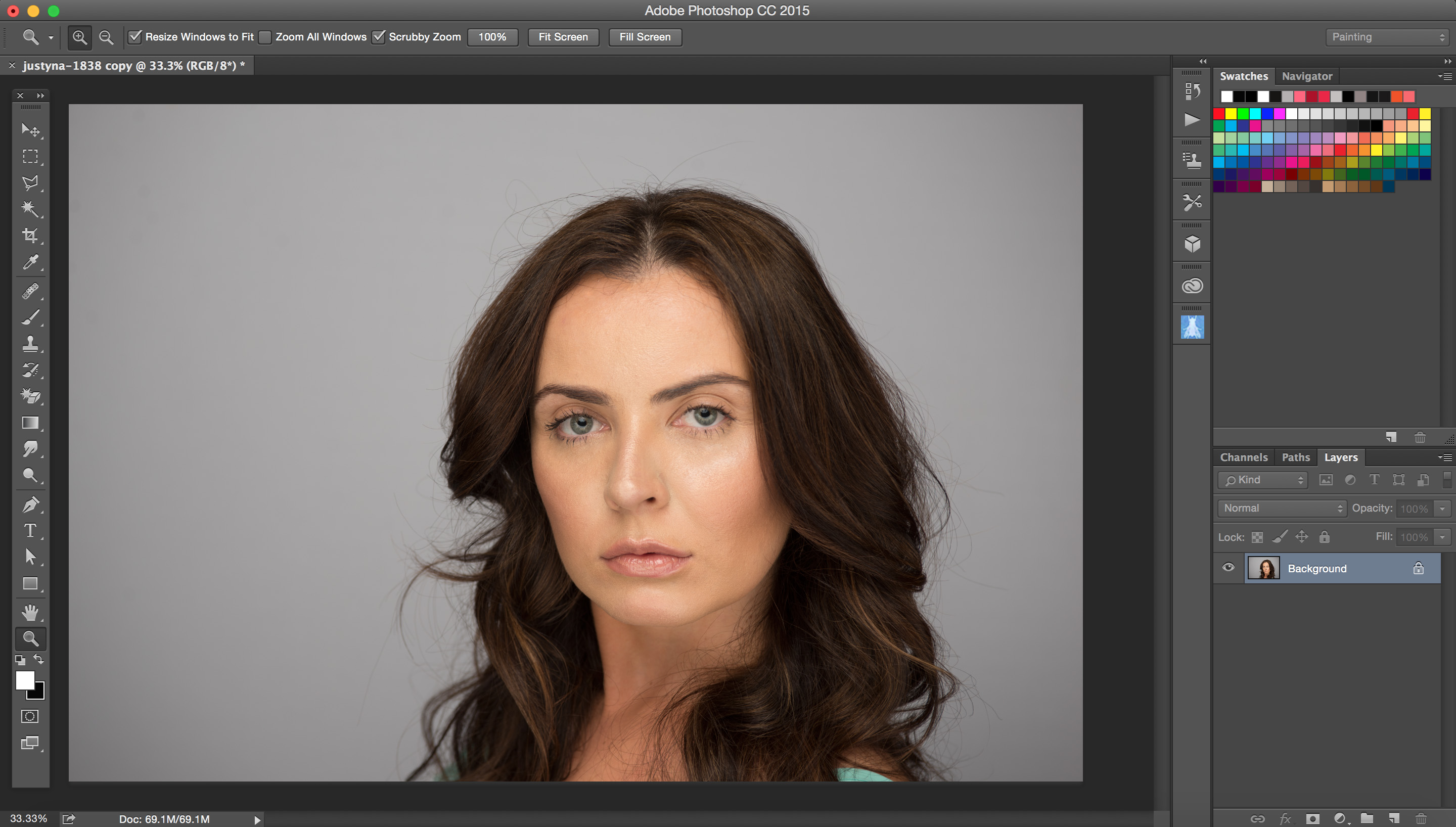
Open your image you want to work with
Tutorial


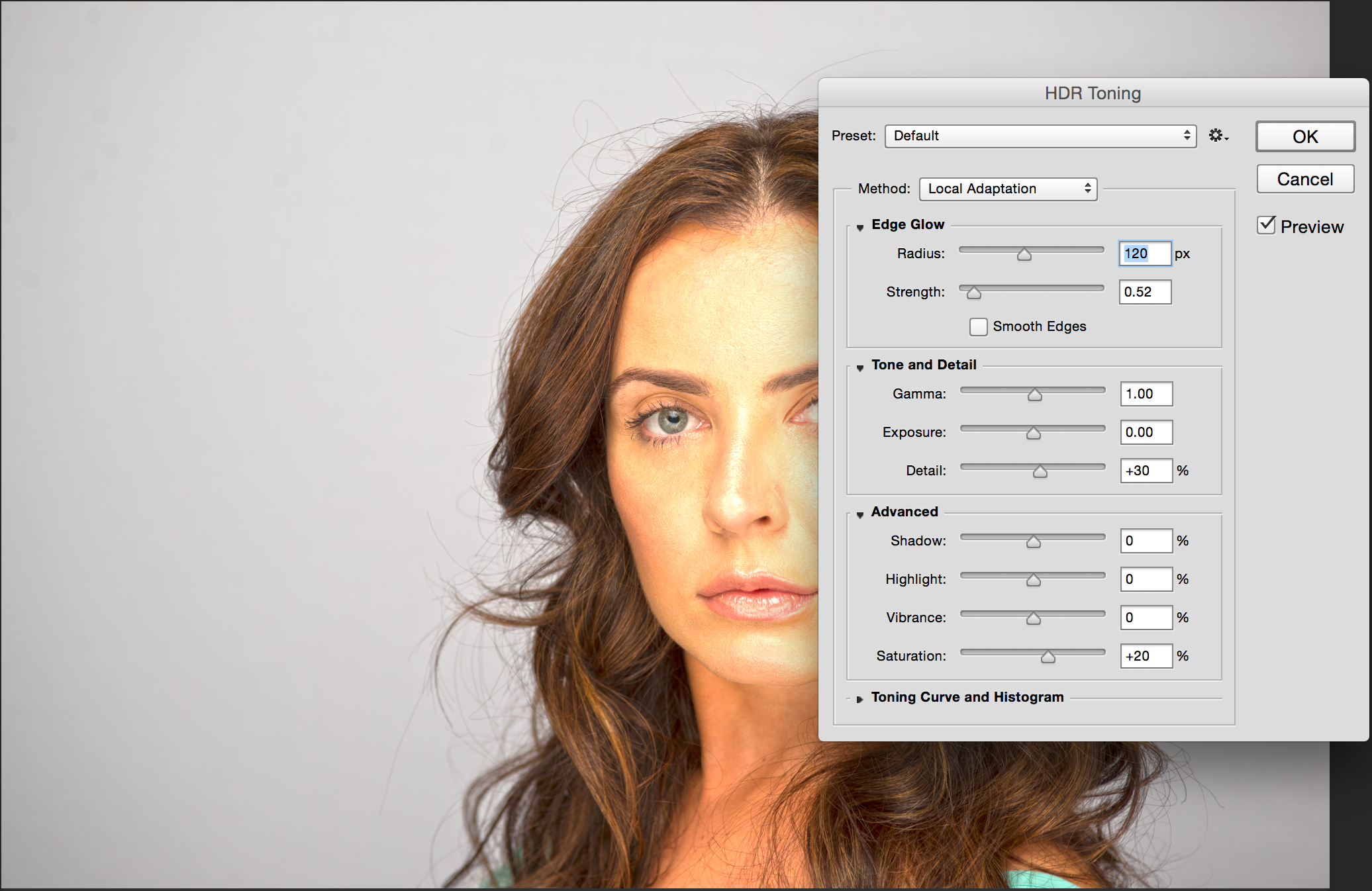
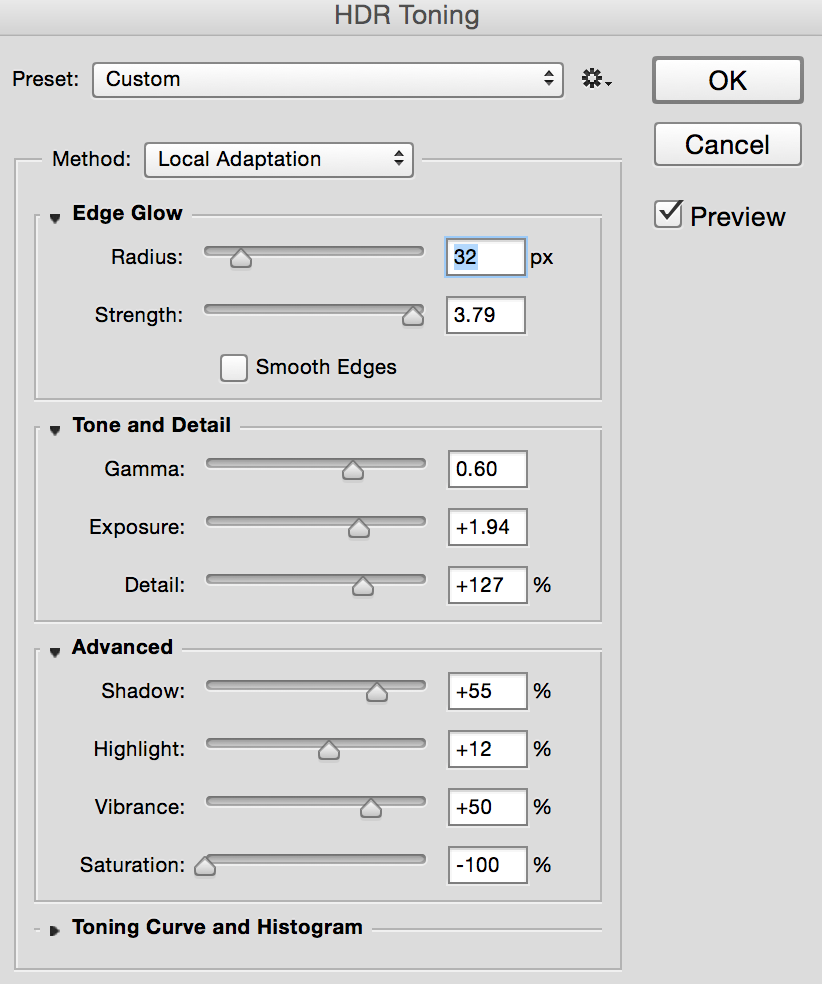
1: Image > Adjustments > HDR Toning
Screen Shot 2015-07-23 at 5.38.29 PM

Screen Shot 2015-07-23 at 5.42.14 PM

Tutorial


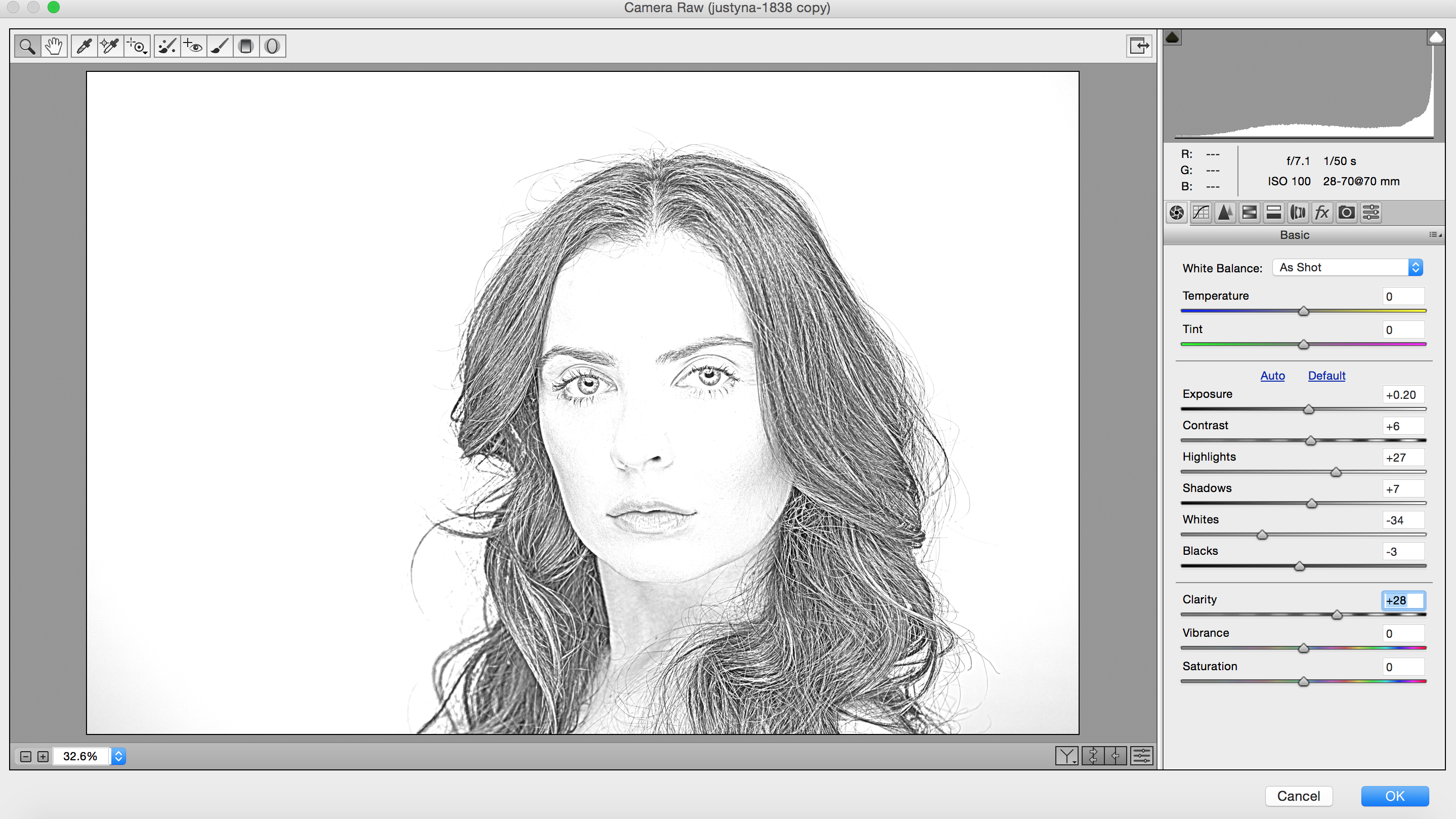
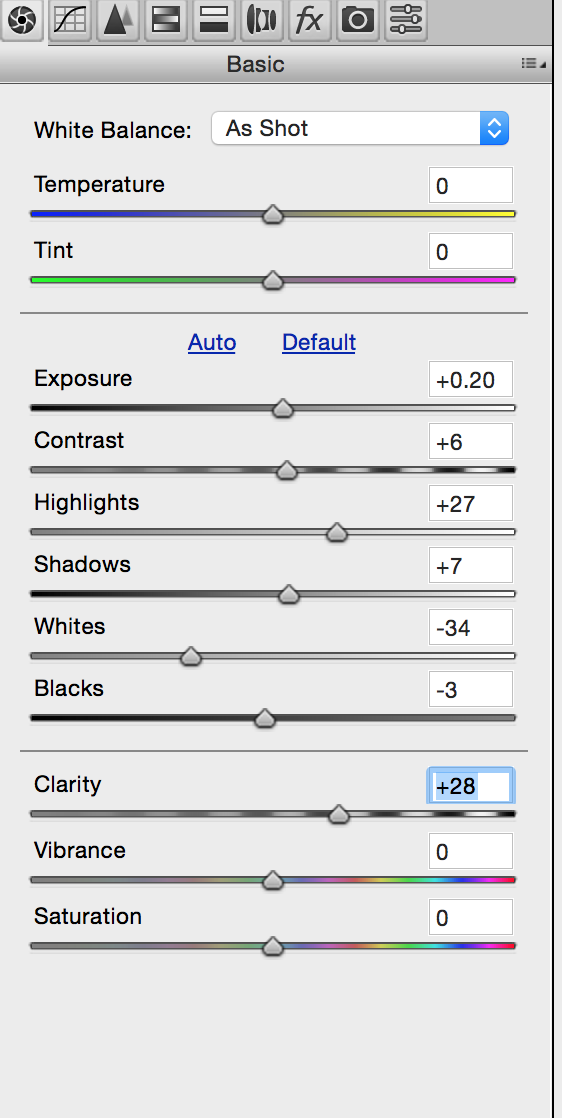
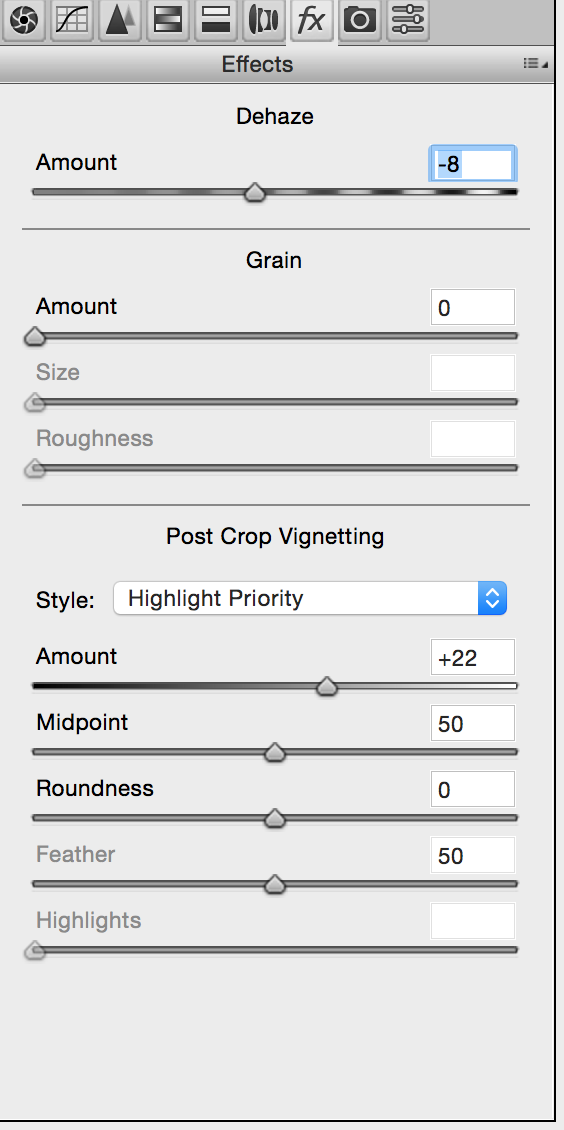
2: Filter > Camera Raw Filter

Screen Shot 2015-07-23 at 5.45.32 PM

Screen Shot 2015-07-23 at 5.45.40 PM

Screen Shot 2015-07-23 at 5.46.20 PM

! Move Dehaze slider to the left. Moving Dehaze slider to  the left or to the  right you will control how light or dark your pencil stoke is
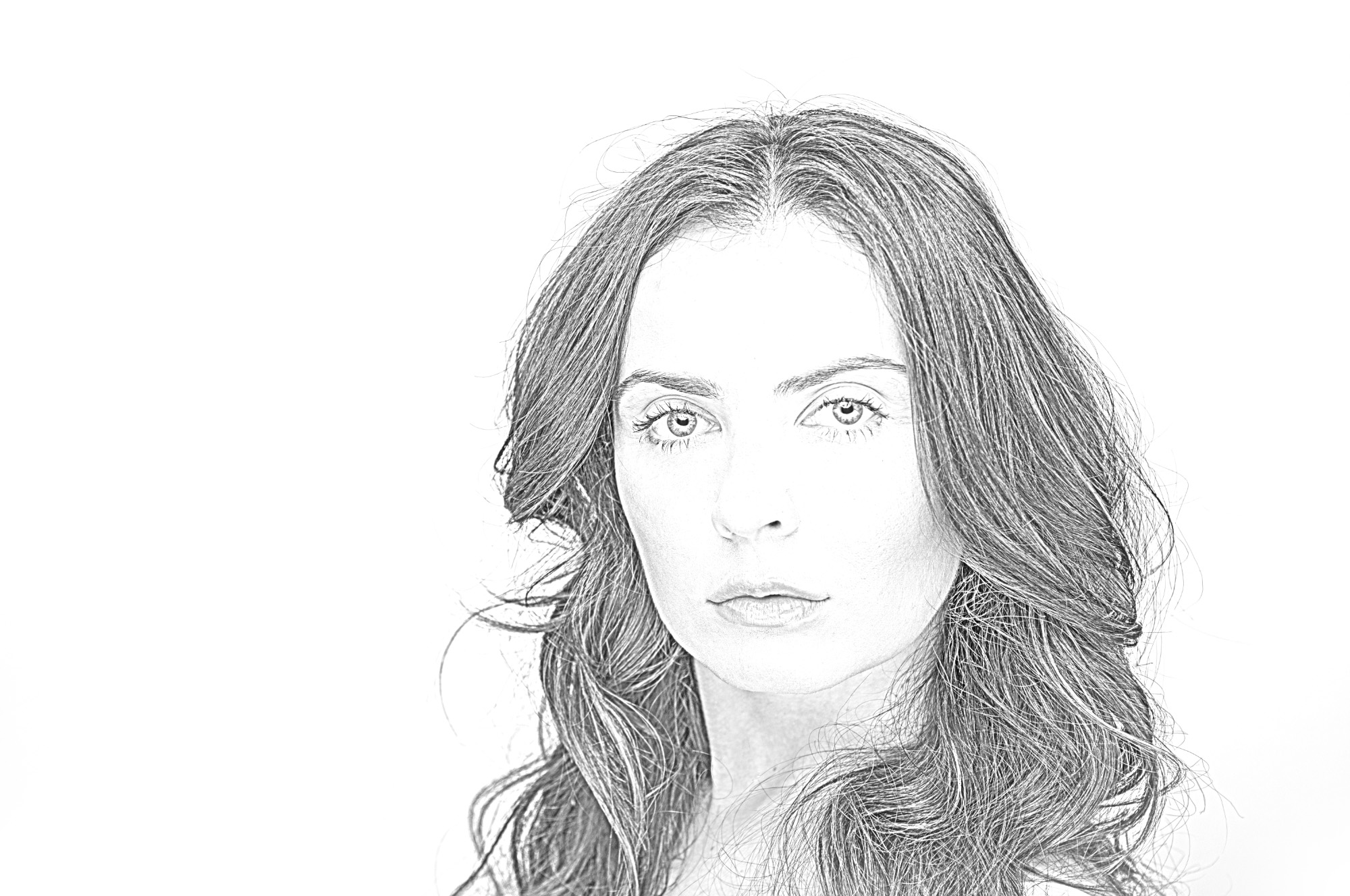
7


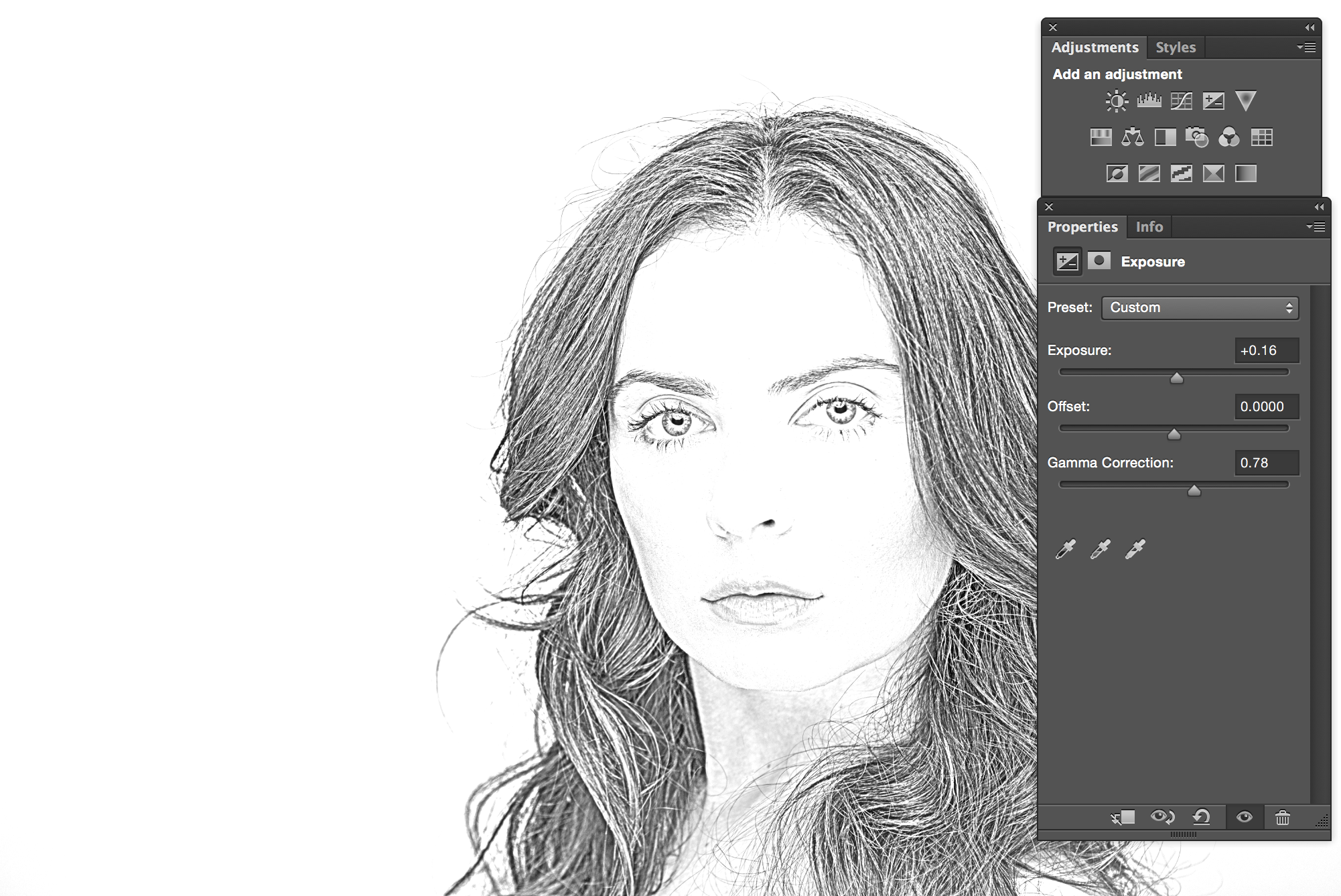
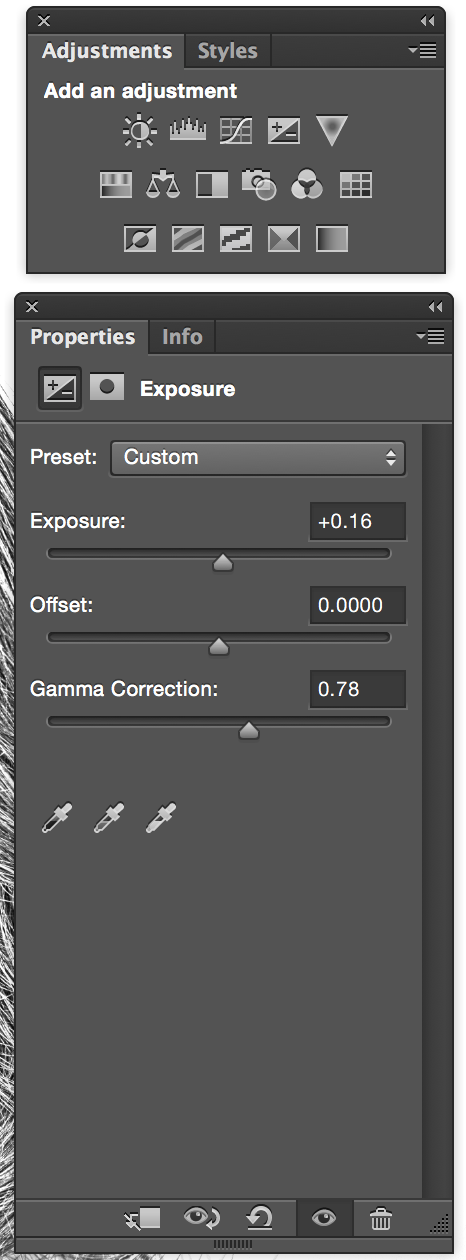
3: Window > Adjustments > Exposure

Screen Shot 2015-07-23 at 5.58.01 PM


Screen Shot 2015-07-23 at 5.58.21 PM

Drawing Effect Tutorial


Fotolia


Fotolia


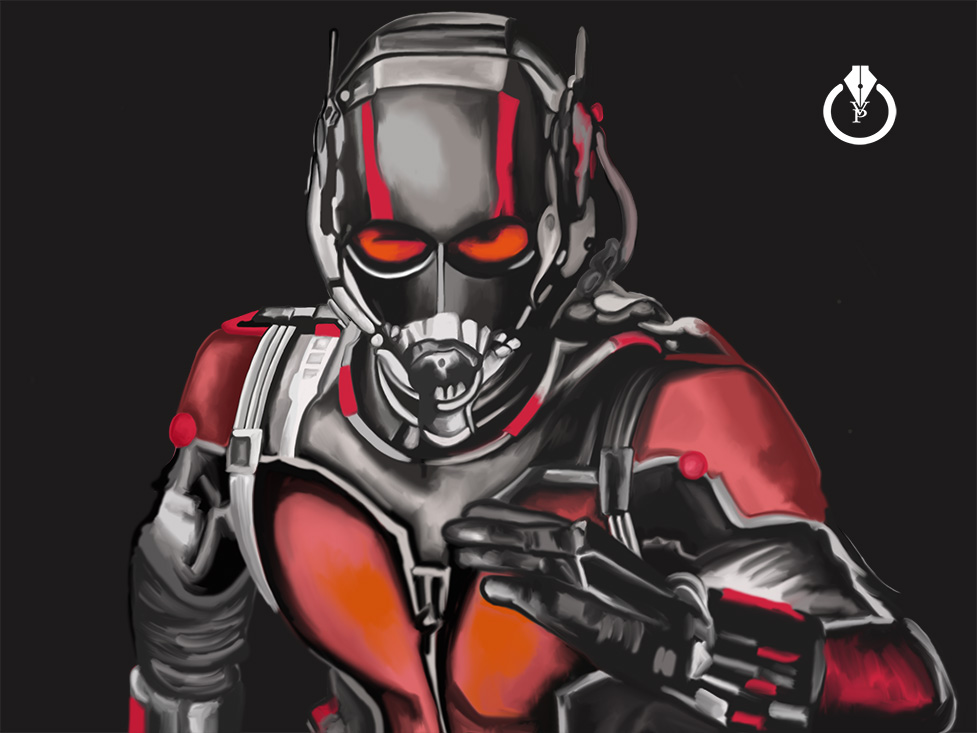
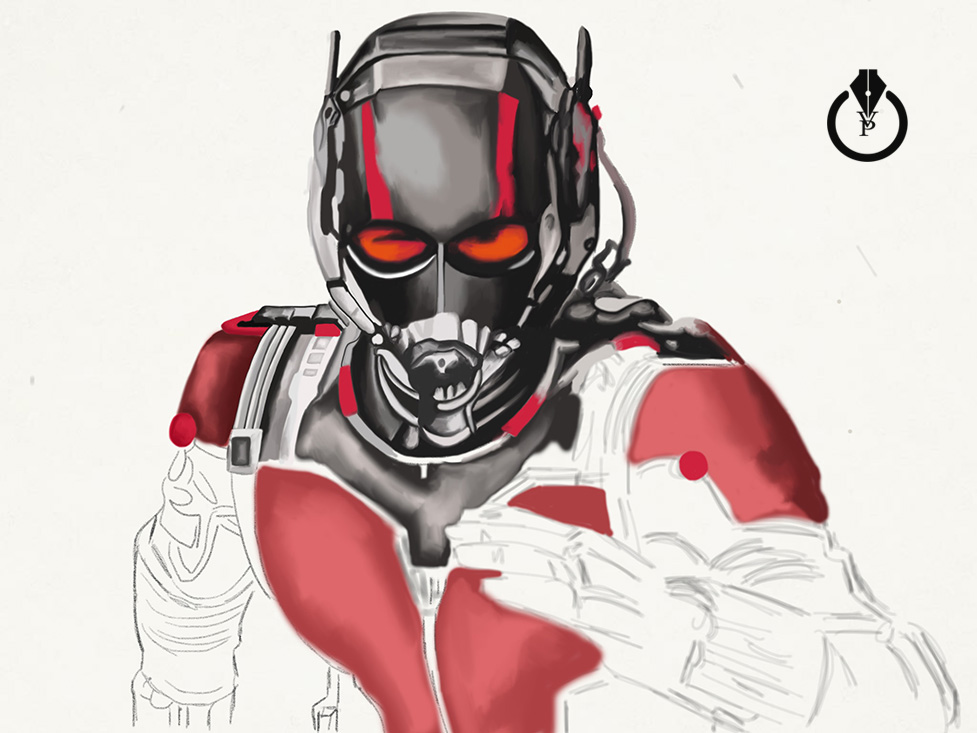
Ant-Man Painted with Adobe Photoshop

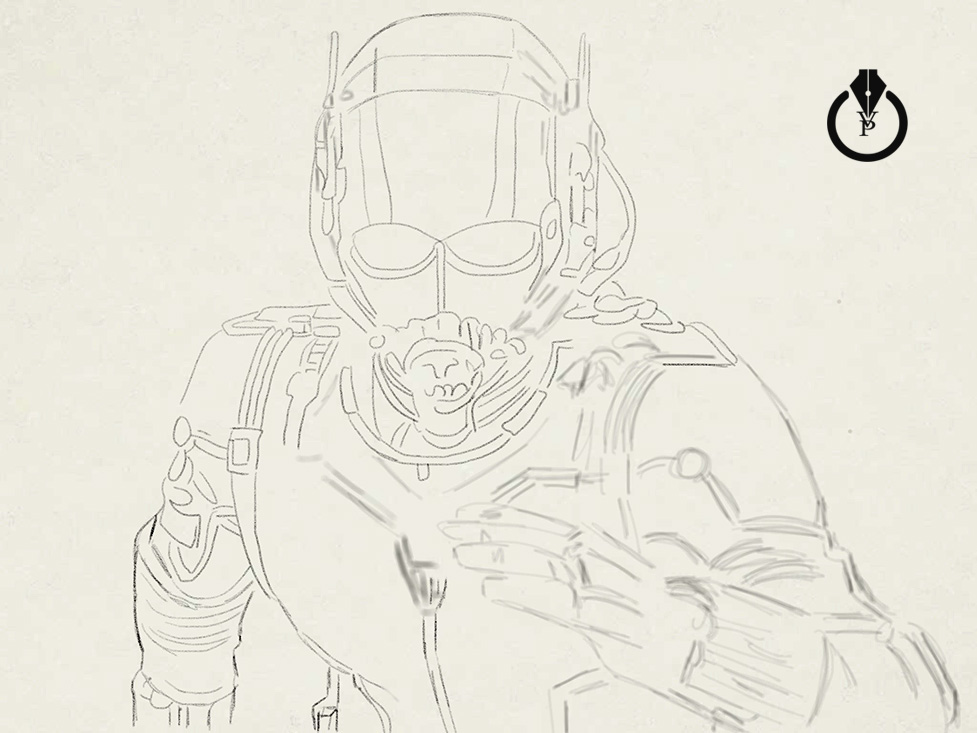
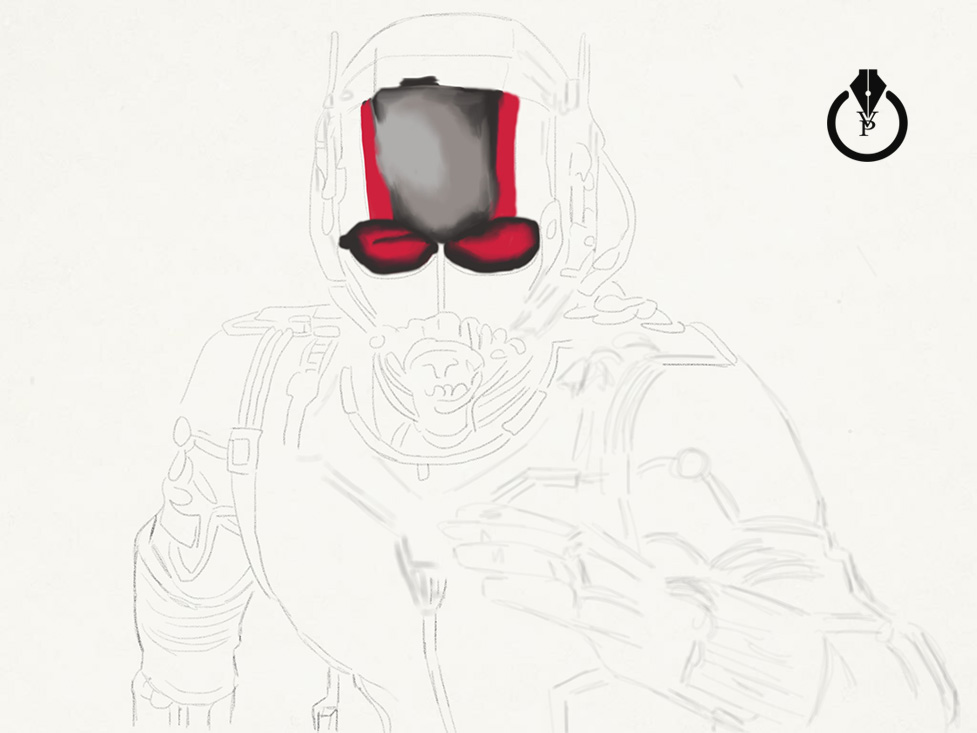
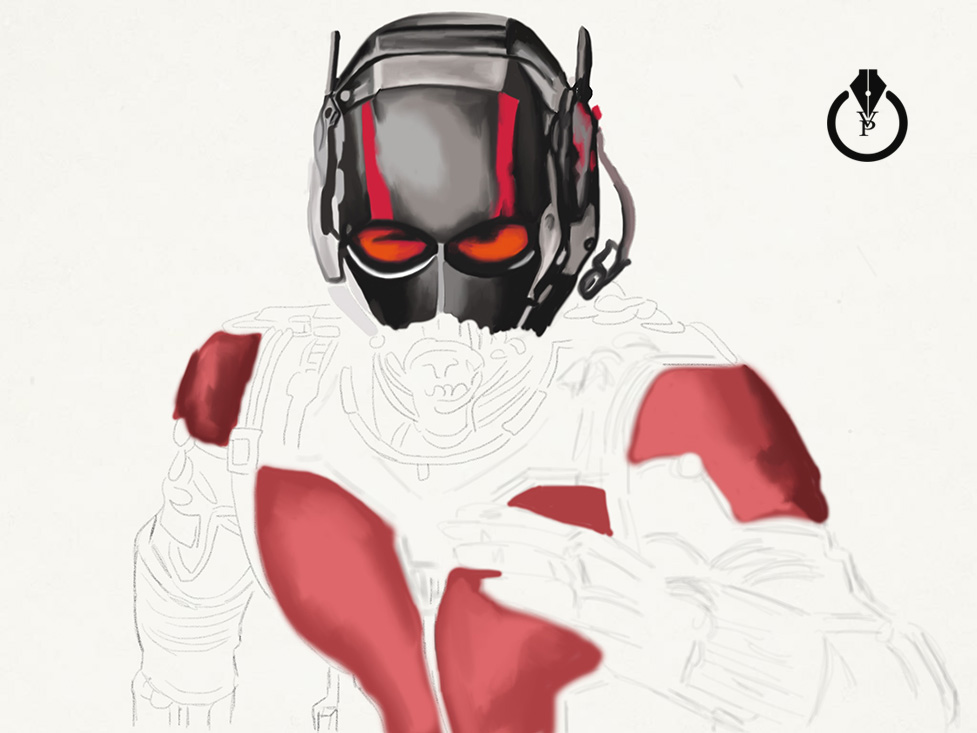
Ant-Man painted with Adobe Sketch, Adobe Ink, Adobe Photoshop and Wacom

Created with Adobe Sketch, Adobe Ink, Adobe Photoshop CC and Wacom

Created with Adobe Sketch, Adobe Ink, Adobe Photoshop CC and Wacom

Created with Adobe Sketch, Adobe Ink, Adobe Photoshop CC and Wacom

Created with Adobe Sketch, Adobe Ink, Adobe Photoshop CC and Wacom

Created with Adobe Sketch, Adobe Ink, Adobe Photoshop CC and Wacom


How to Make a Movie Poster with Adobe Photoshop Mix

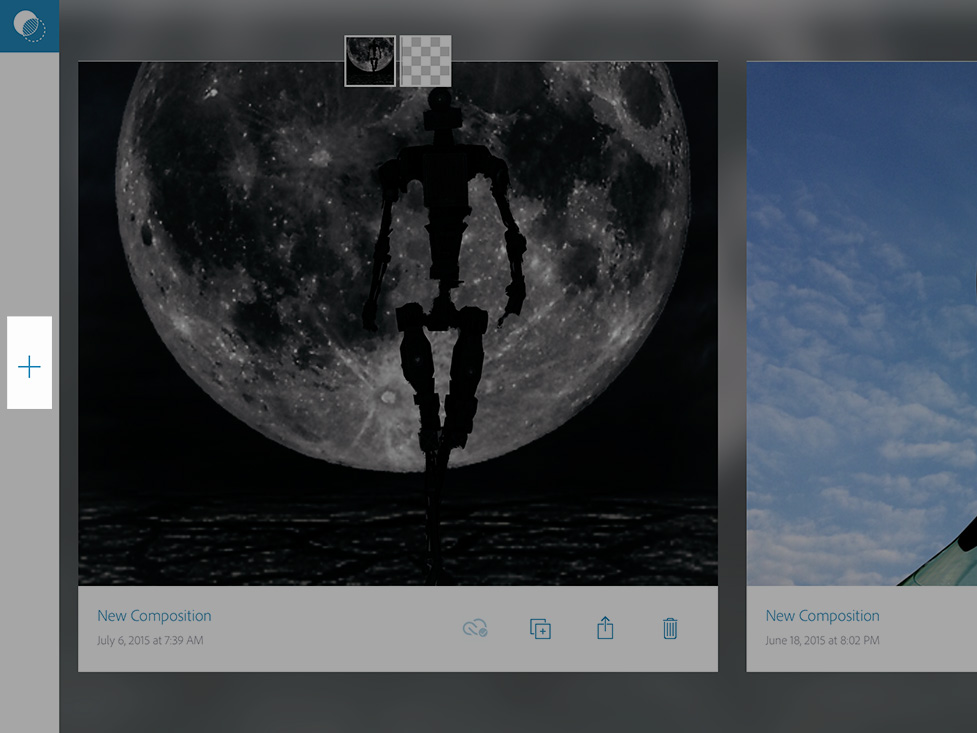
Click on + icon

IMG_1021

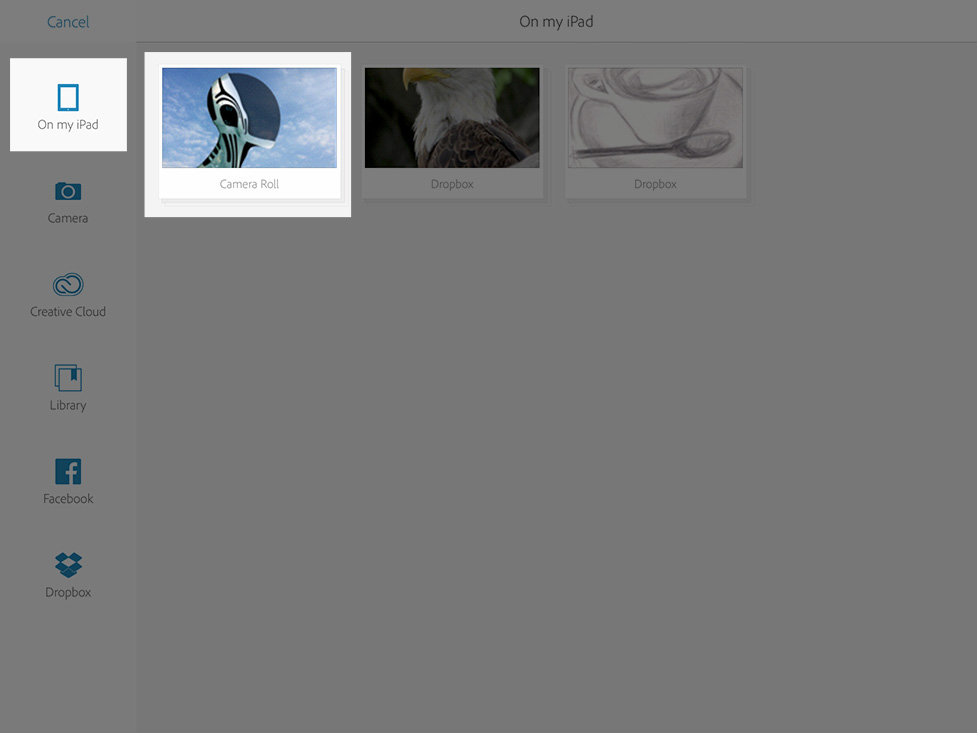
Click on Camera Roll icon

IMG_1006

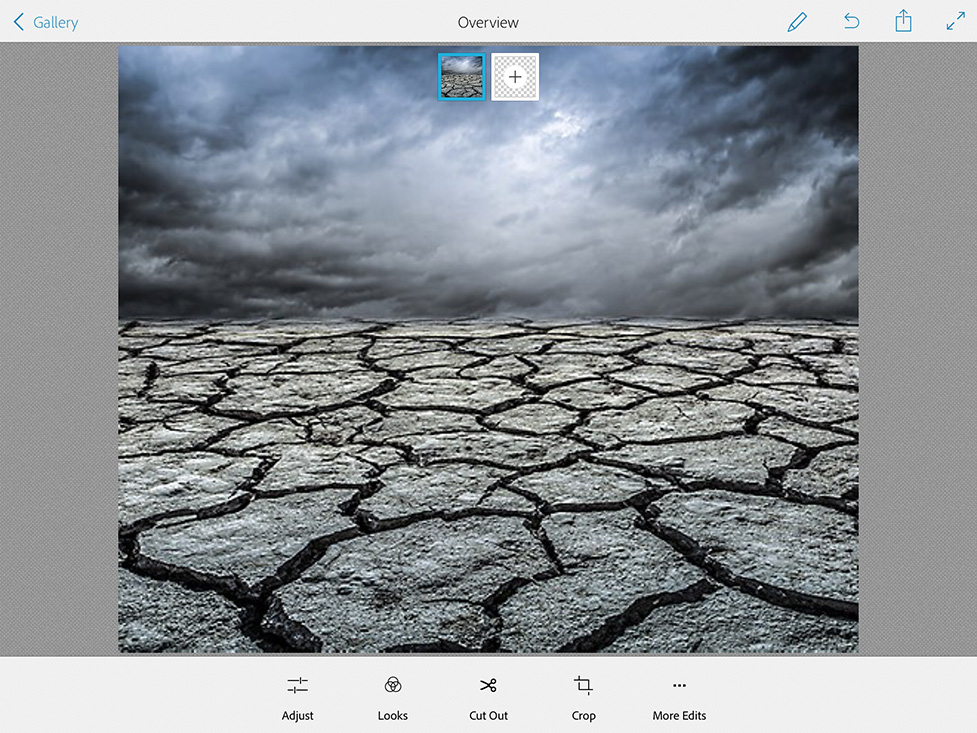
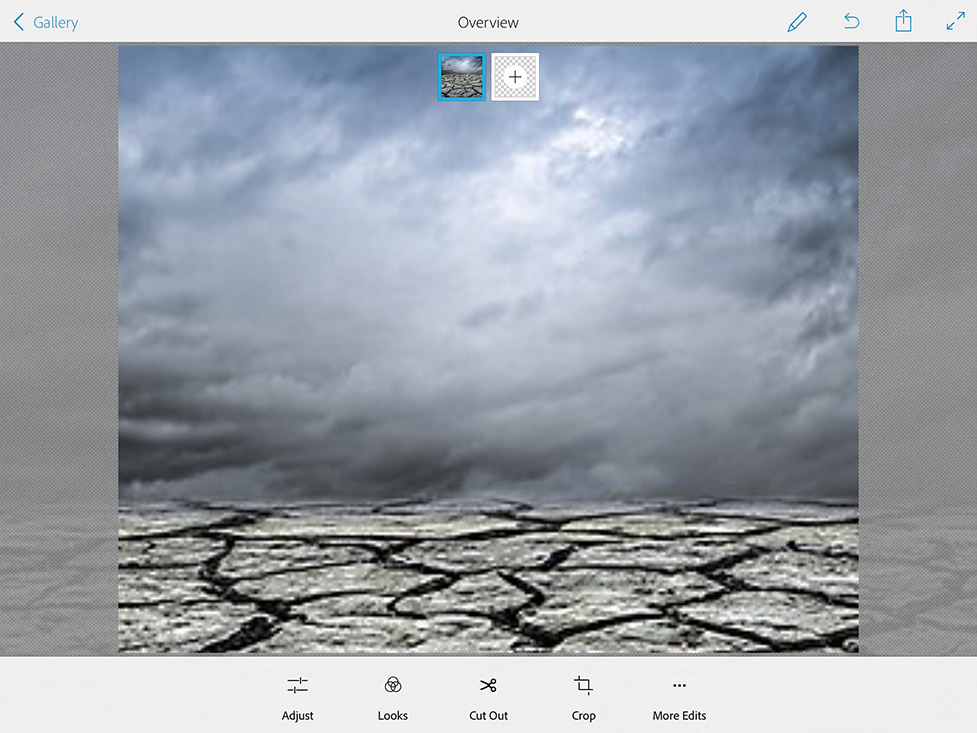
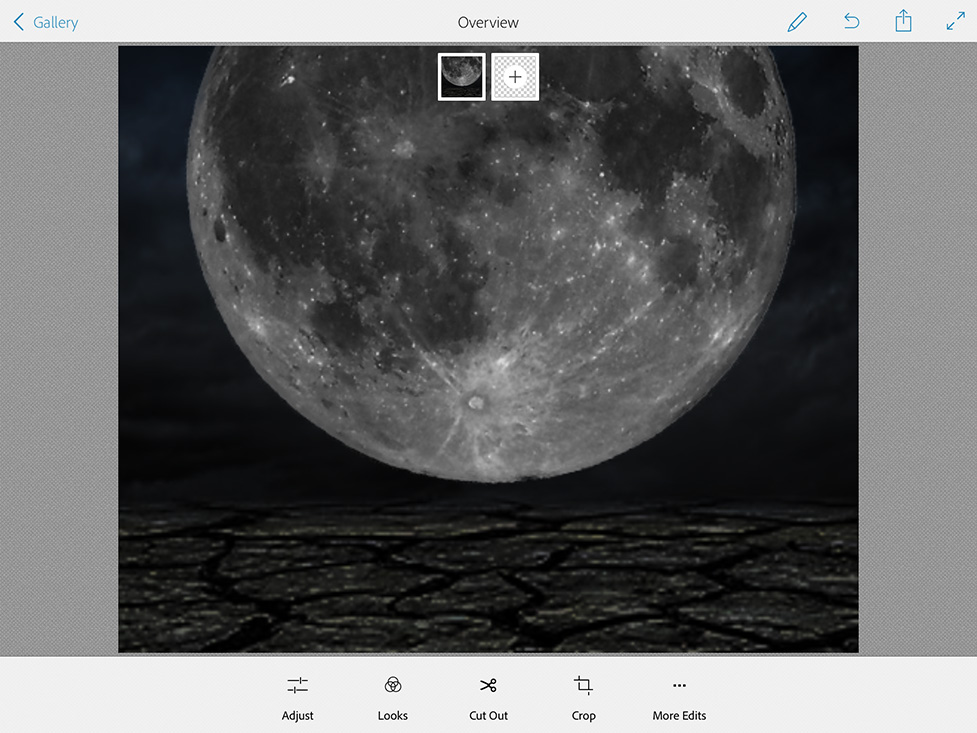
Choose your first ( and it will be our background ) image

IMG_1008

Resize your image

IMG_1009

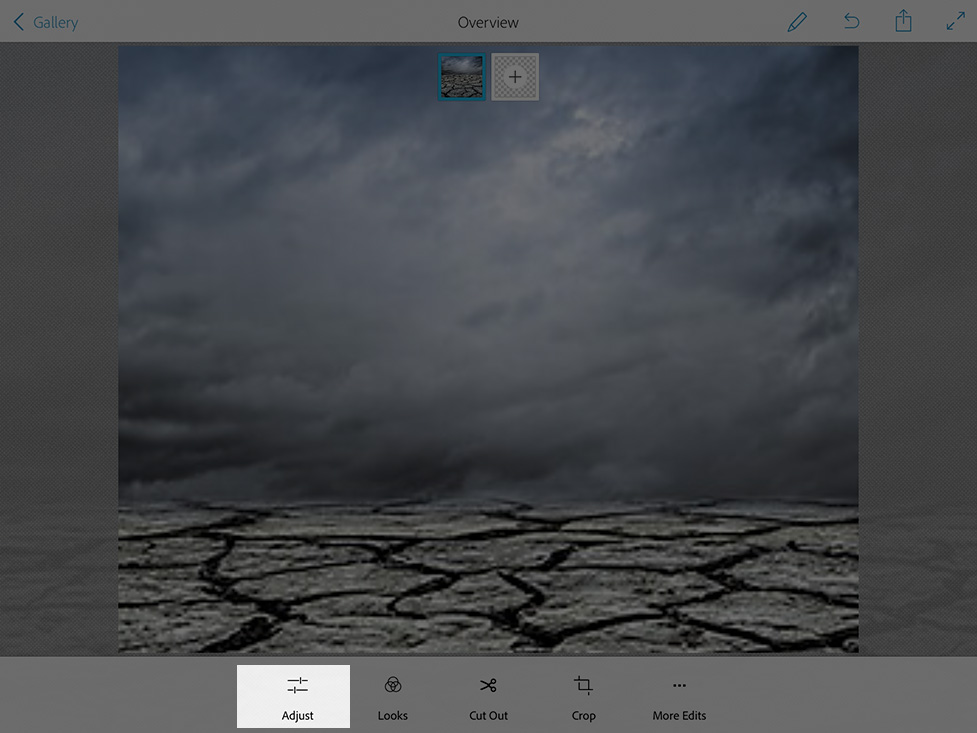
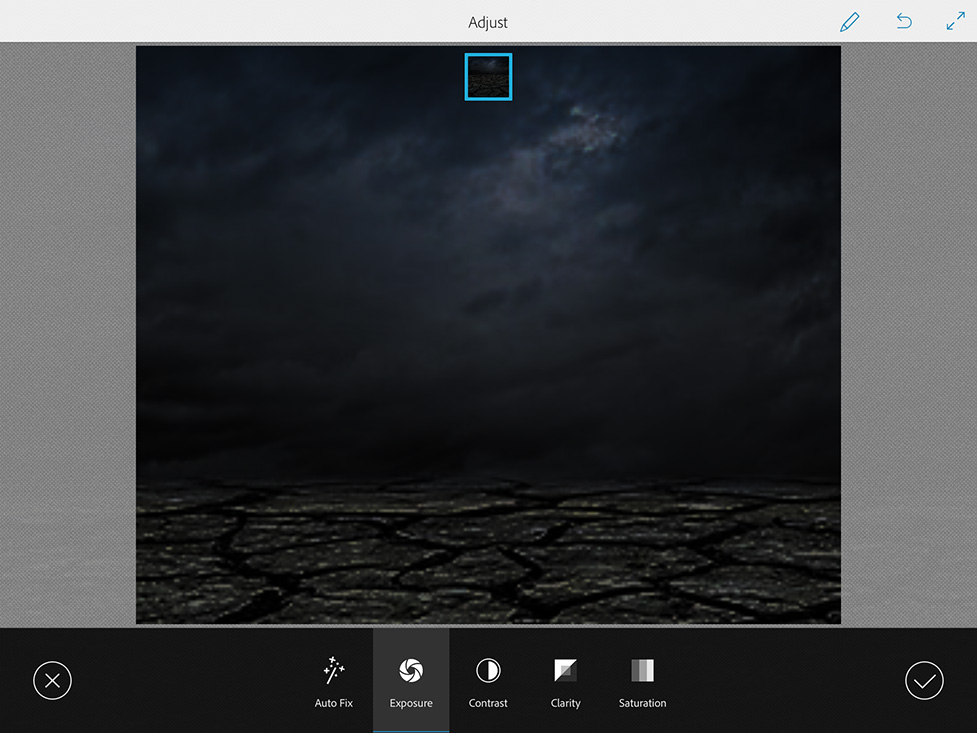
Adjust > Exposure ( move exposure’s slider all way to the left to apply the Night Time Effect to our background layer)

IMG_1009C
IMG_1010

Click on the second layer icon and add your second image

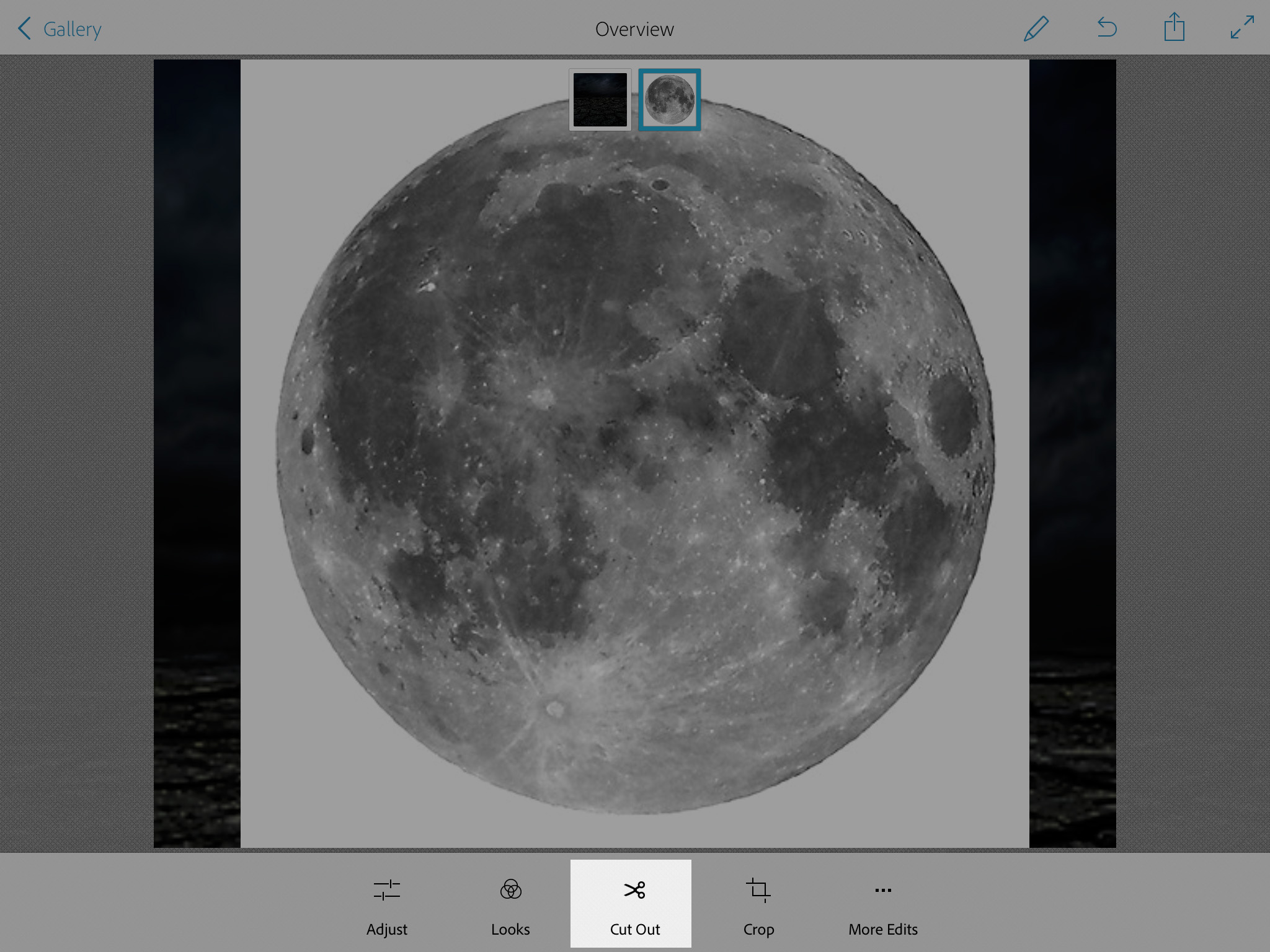
Click on Cut Out icon. Now we need to remove the Moon’s background.
IMG_1012

Resize the Moon’s size

Adjust > Exposure ( move exposure’s slide to the left to make the moon darker )

Holding the Moon Layers move this layer over our Background layer
IMG_1015

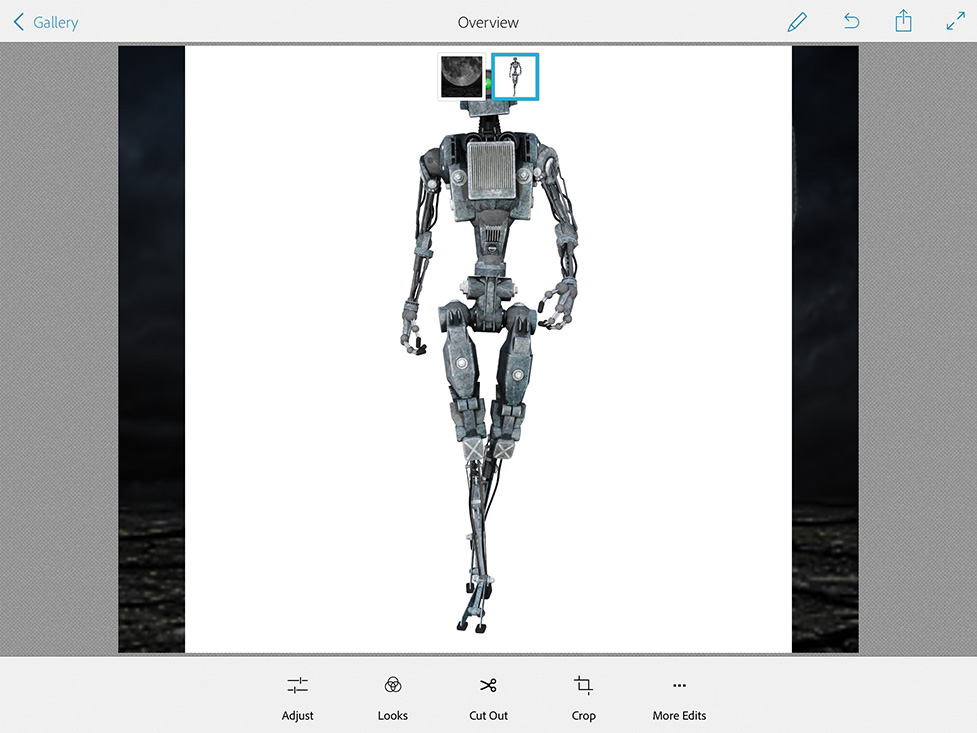
Now we have another “empty” layer. Click on the “empty” layer and chose the robot image

IMG_1016

Cut Out > Remove Robot’s image background

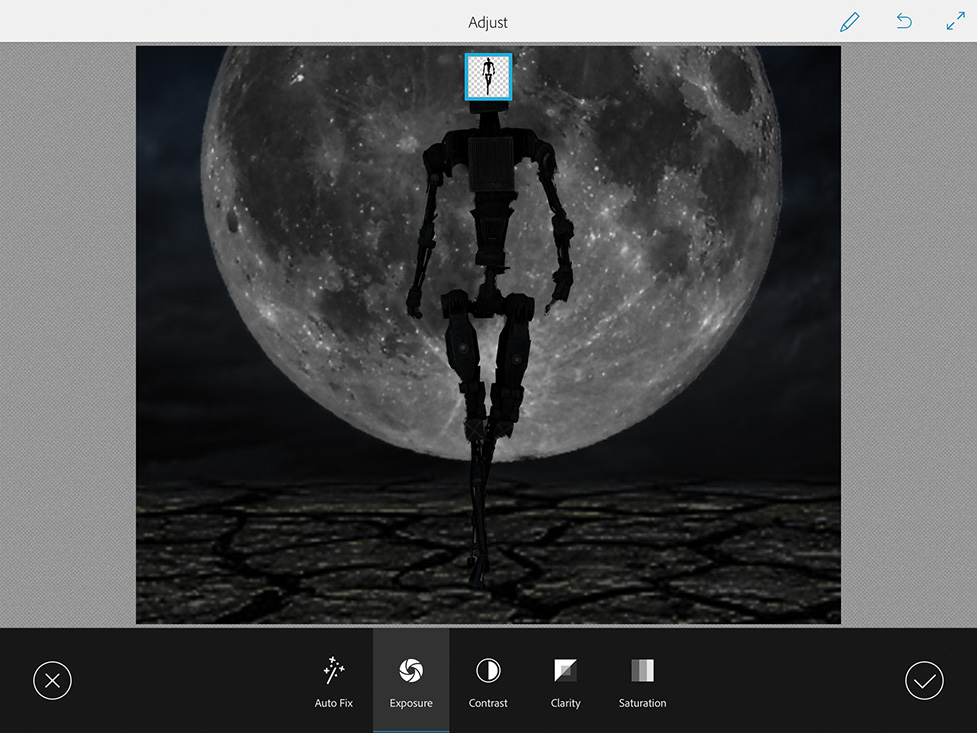
Adjust > Exposure > Move Exposure slider to the left to make robot image absolutely dark

IMG_1017

Holding Robot Layer icon move this layer over our First layer

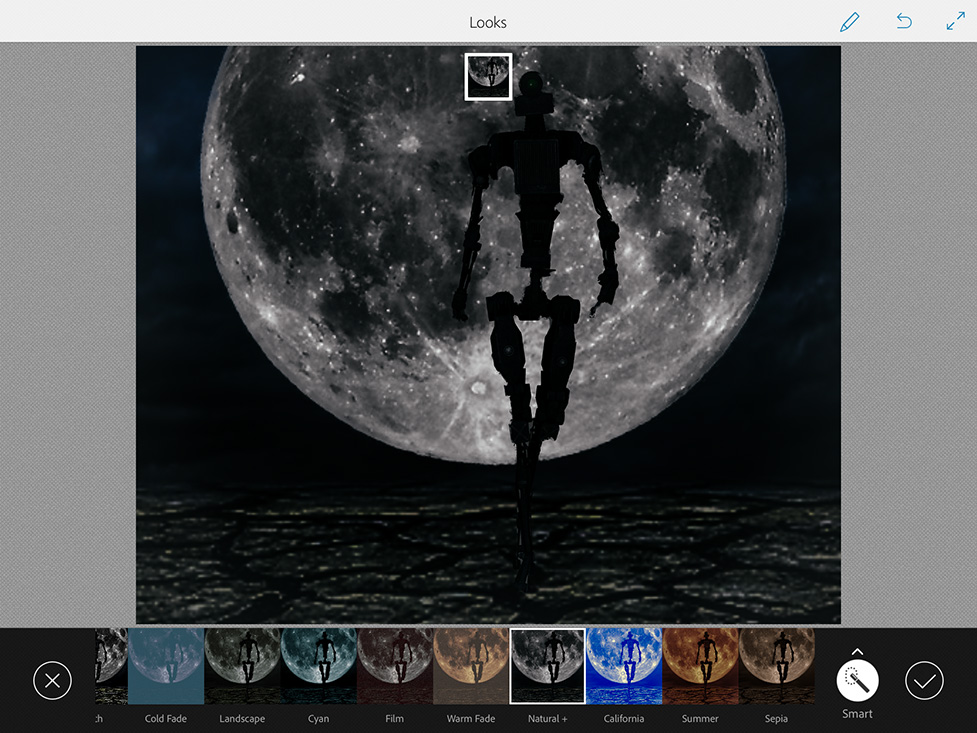
Click on Looks icon > Natural + look

IMG_1018

Adjust > Saturation > Move slider to the left

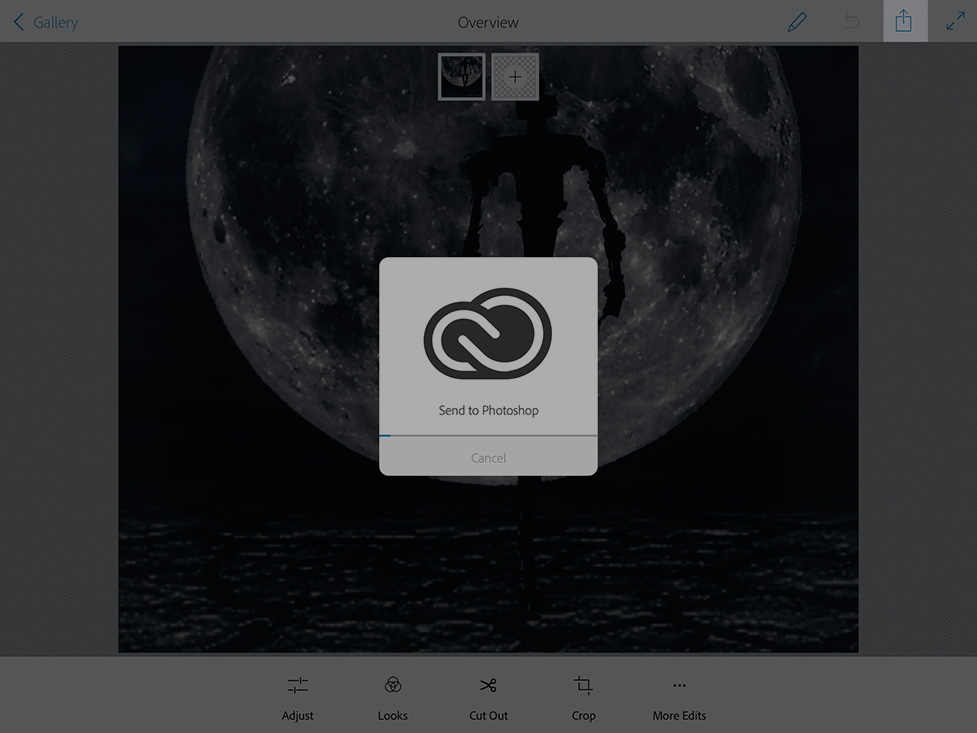
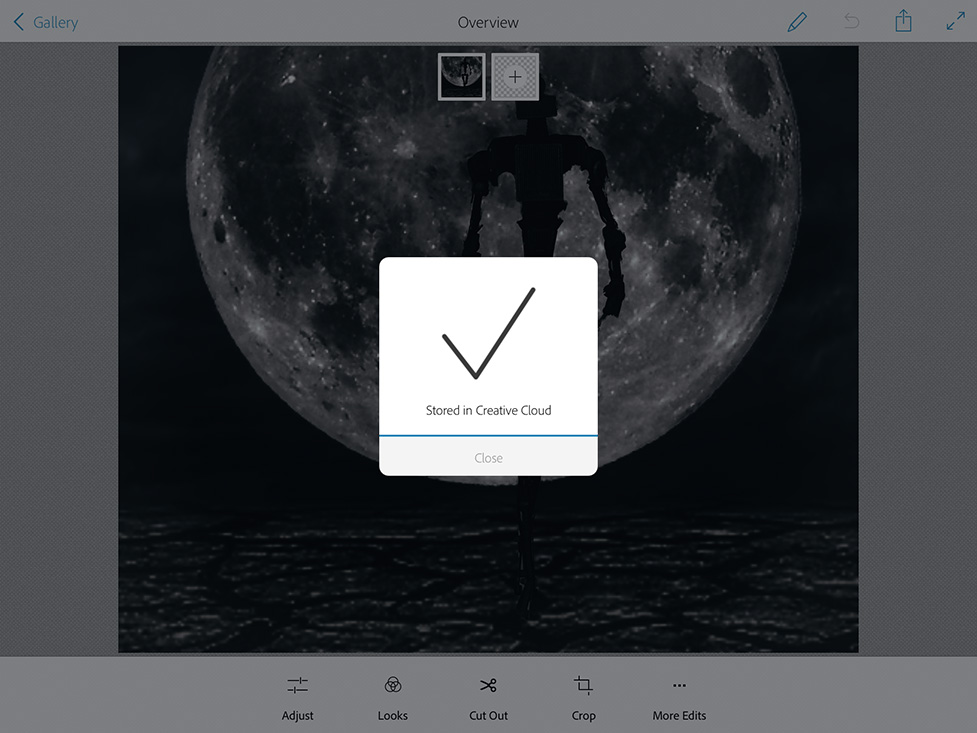
Send to Photoshop > Your image is Stored in your Creative Cloud Photoshop Folder

IMG_1019

IMG_1020

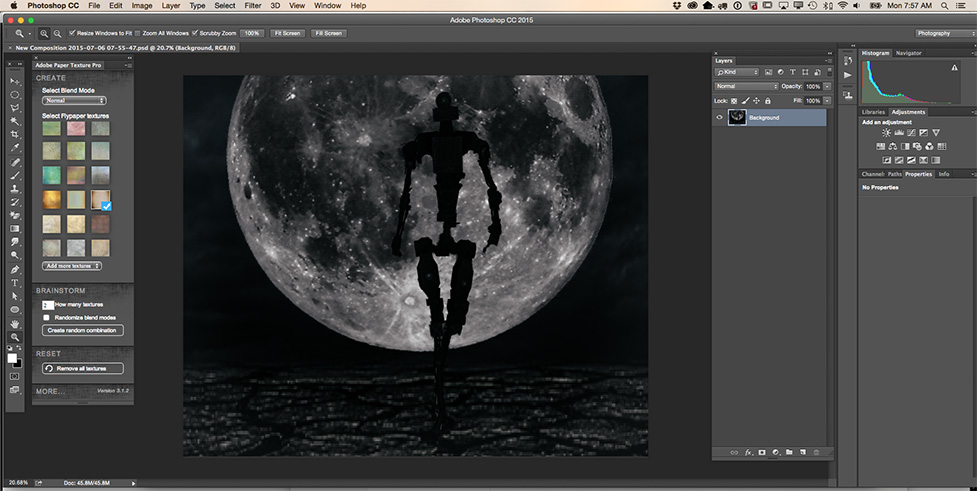
Open your Photoshop Mix image in Photoshop

Screen Shot 2015-07-06 at 7.57.02 AM

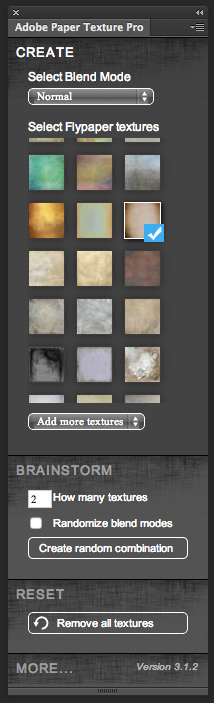
Adobe Paper Texture Pro

Screen Shot 2015-07-06 at 7.59.21 AM

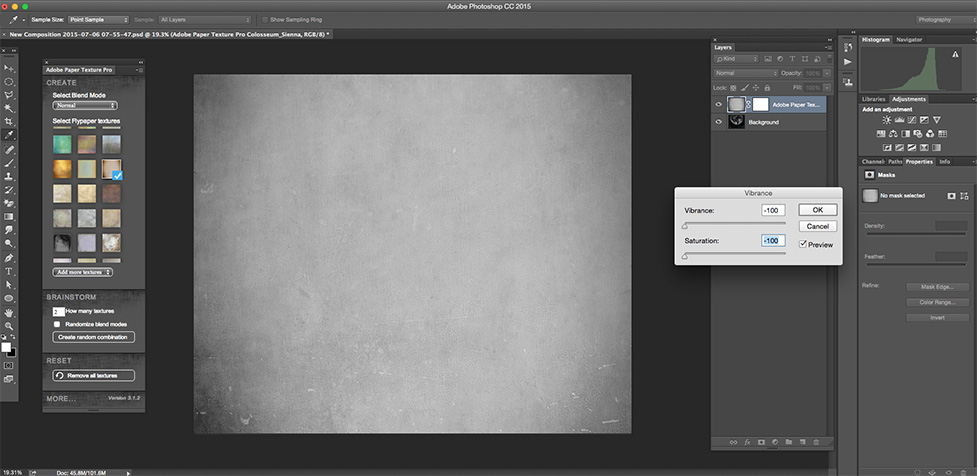
Chose any paper texture you like to work with > Image > Adjustment > Vibrance

Screen Shot 2015-07-06 at 7.59.50 AM

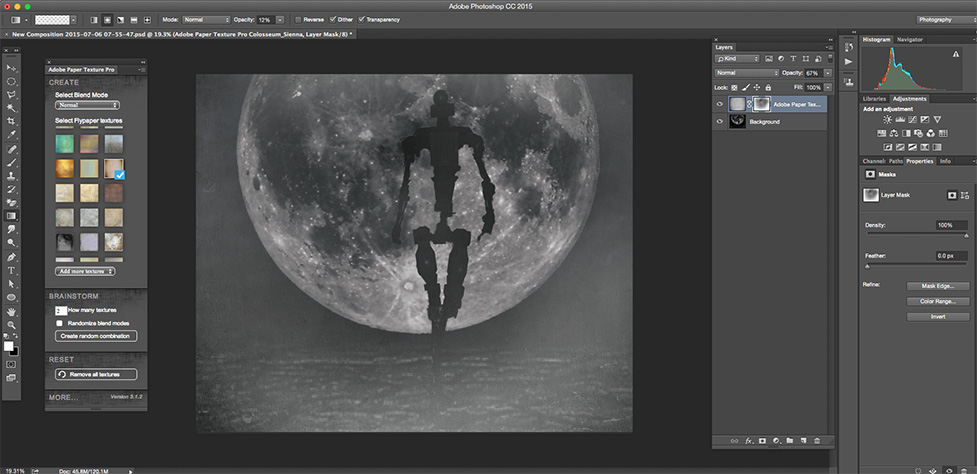
Make Layer opacity = 67% > Gradient Tool ( with opacity = 18% )

Screen Shot 2015-07-06 at 8.03.39 AM

Apply mask to highlight the moon and robot

Screen Shot 2015-07-06 at 8.04.57 AM

Adjustment Layers > Exposure
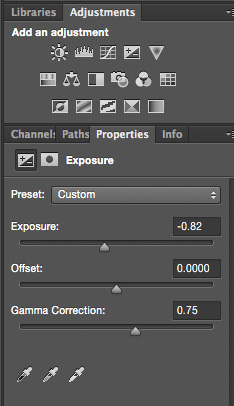
Screen Shot 2015-07-06 at 8.05.50 AM

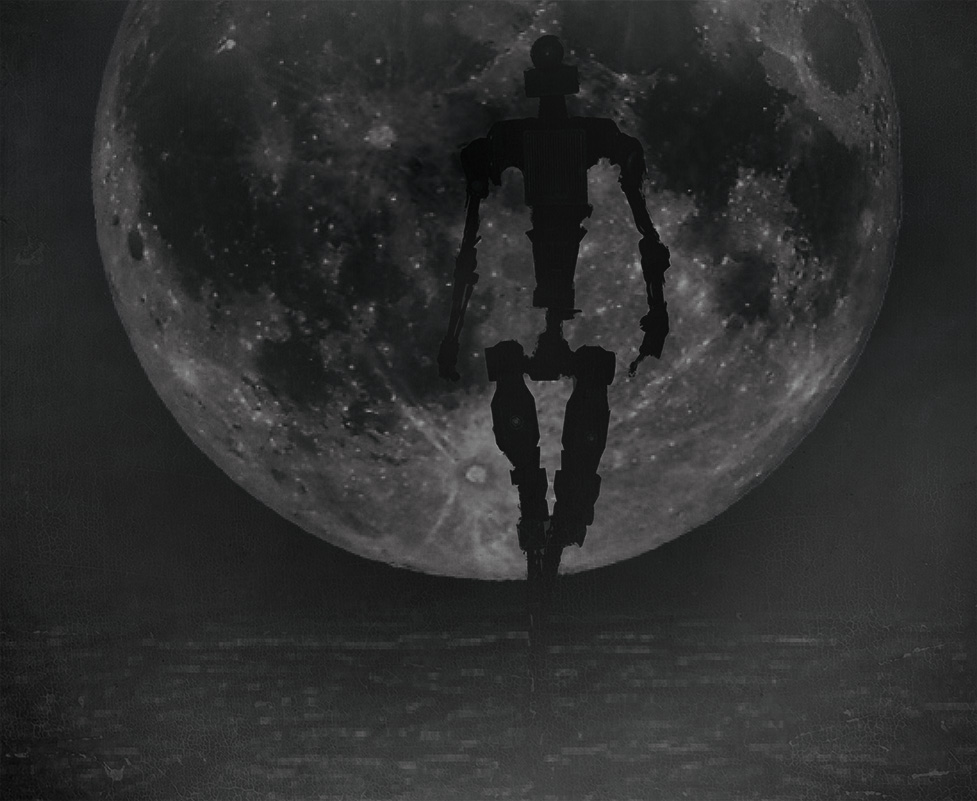
Final

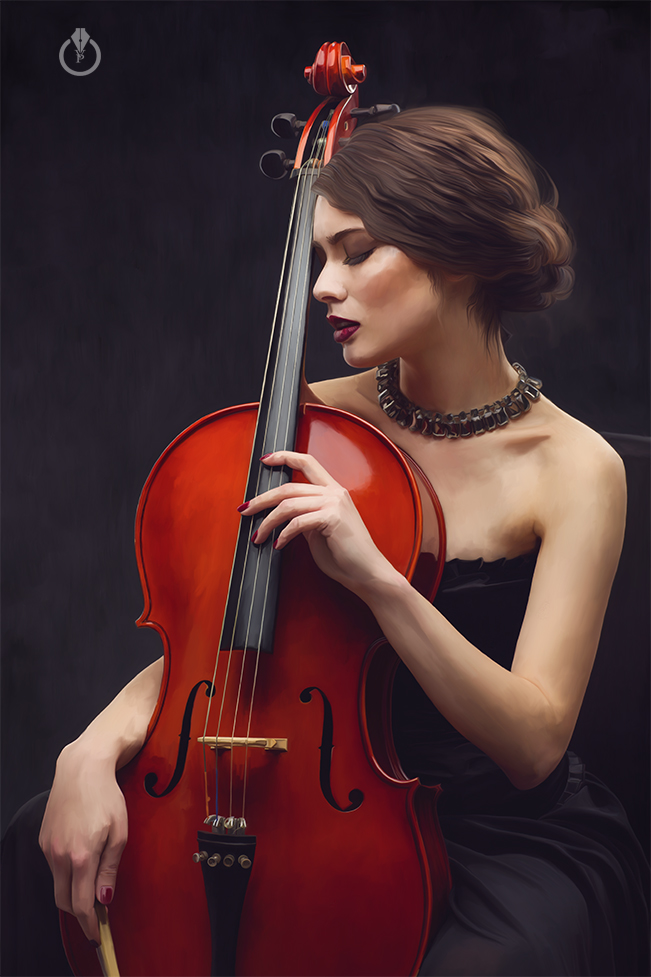
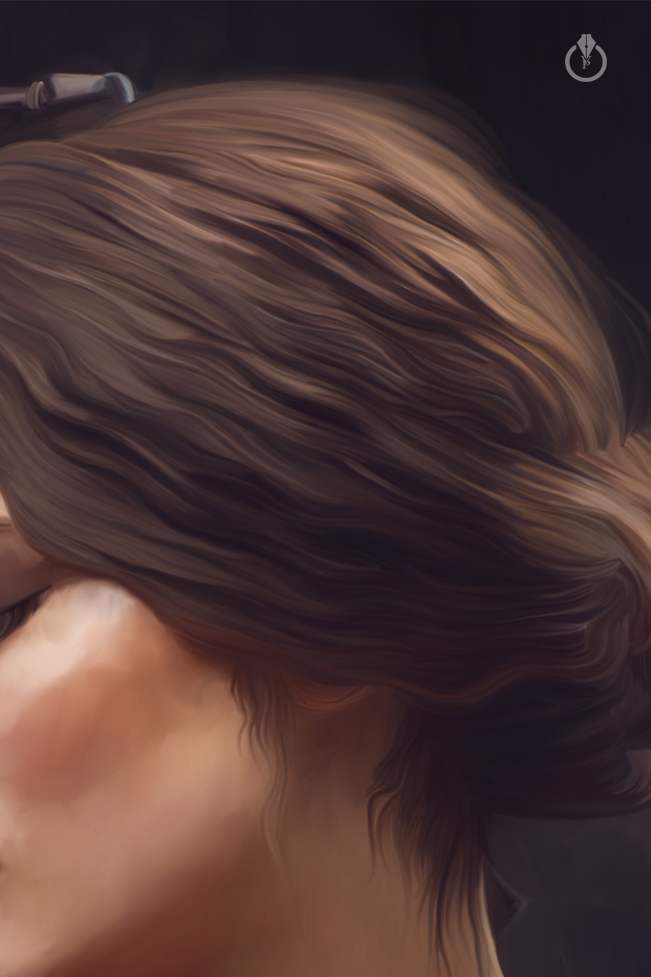
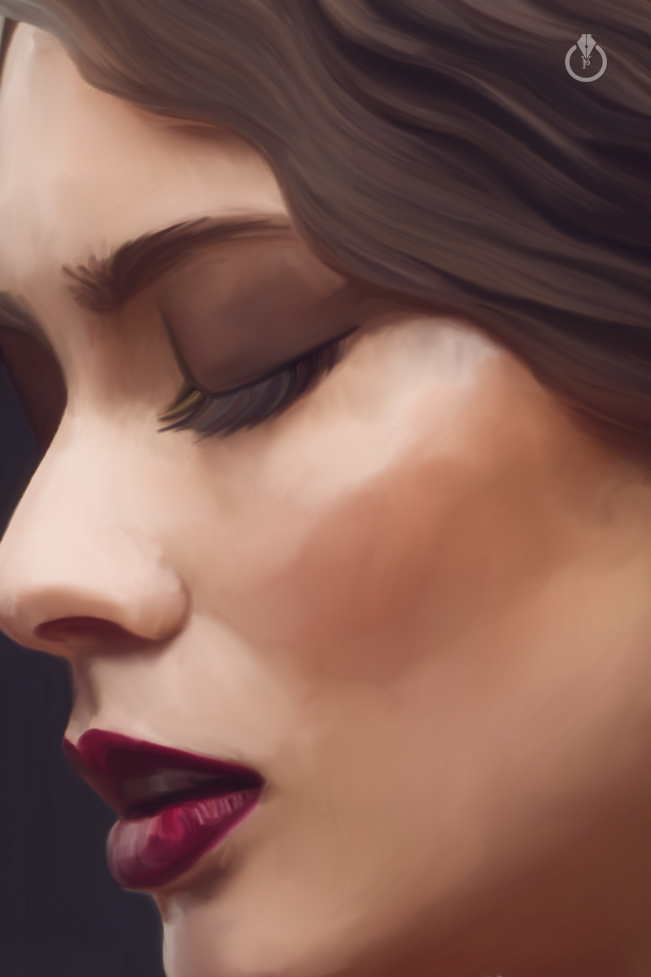
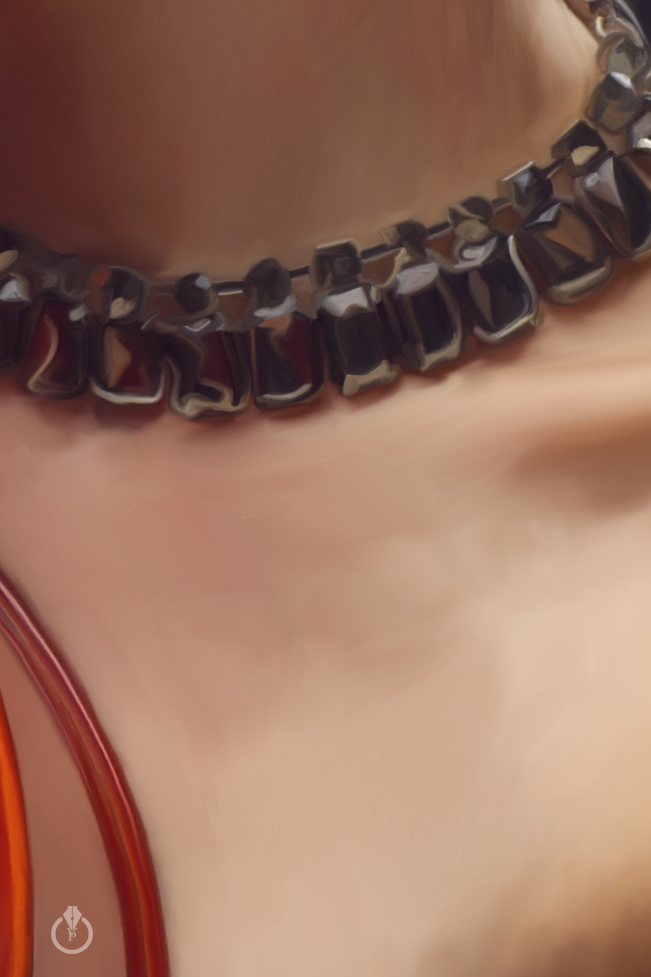
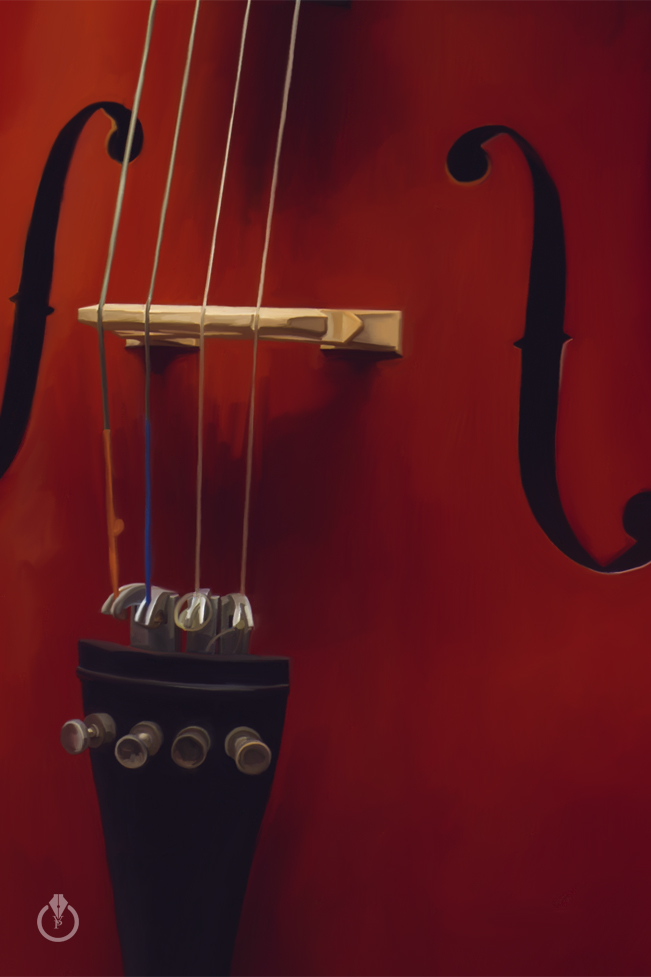
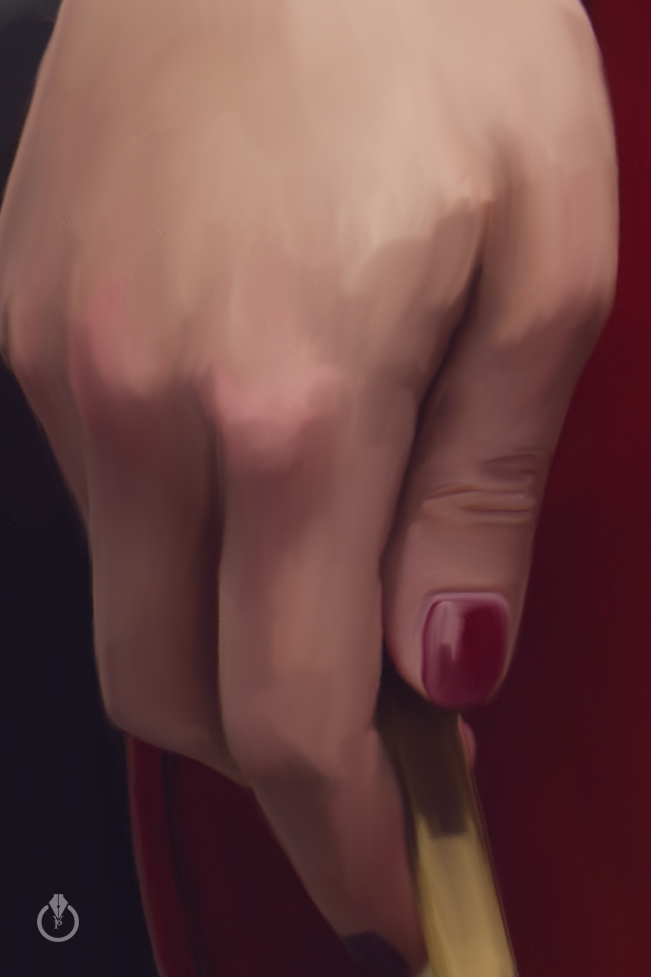
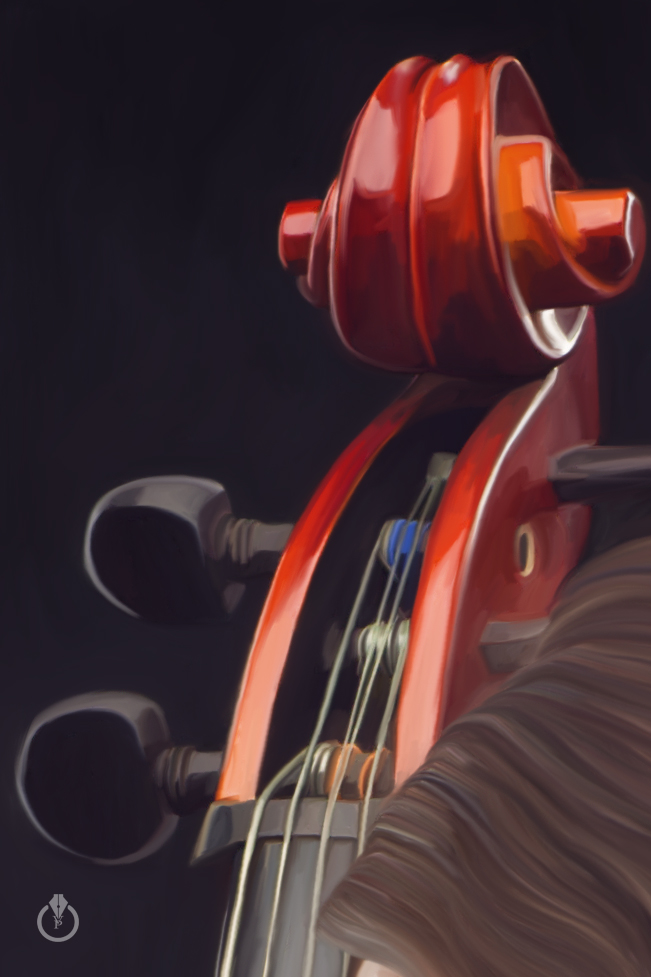
Musician

Musician painted in Adobe Photoshop CC and Wacom using Mixer Brush Tool
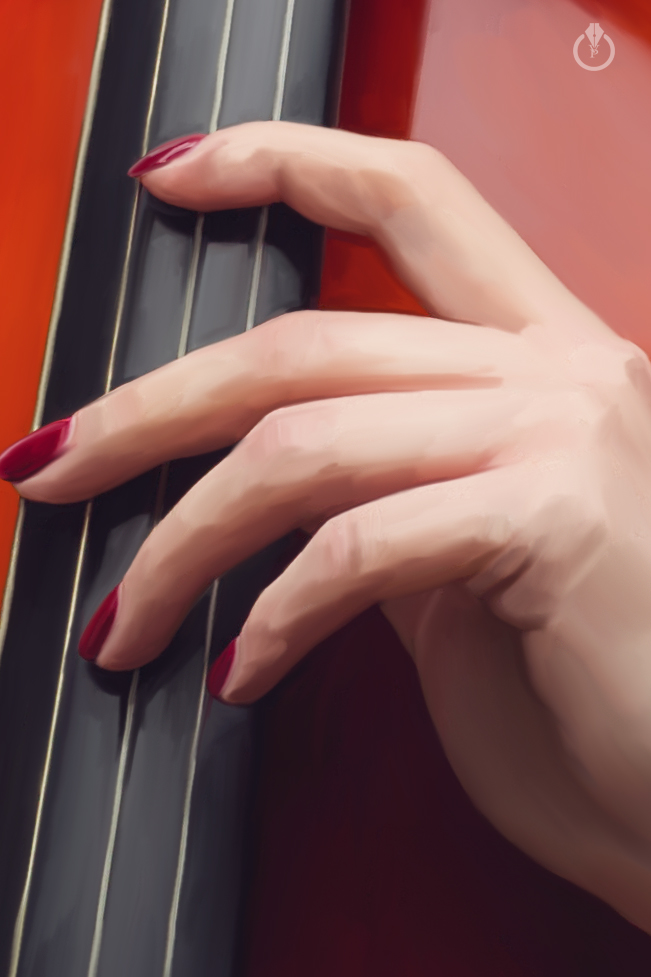
Painted with Adobe Photoshop CC & wacom

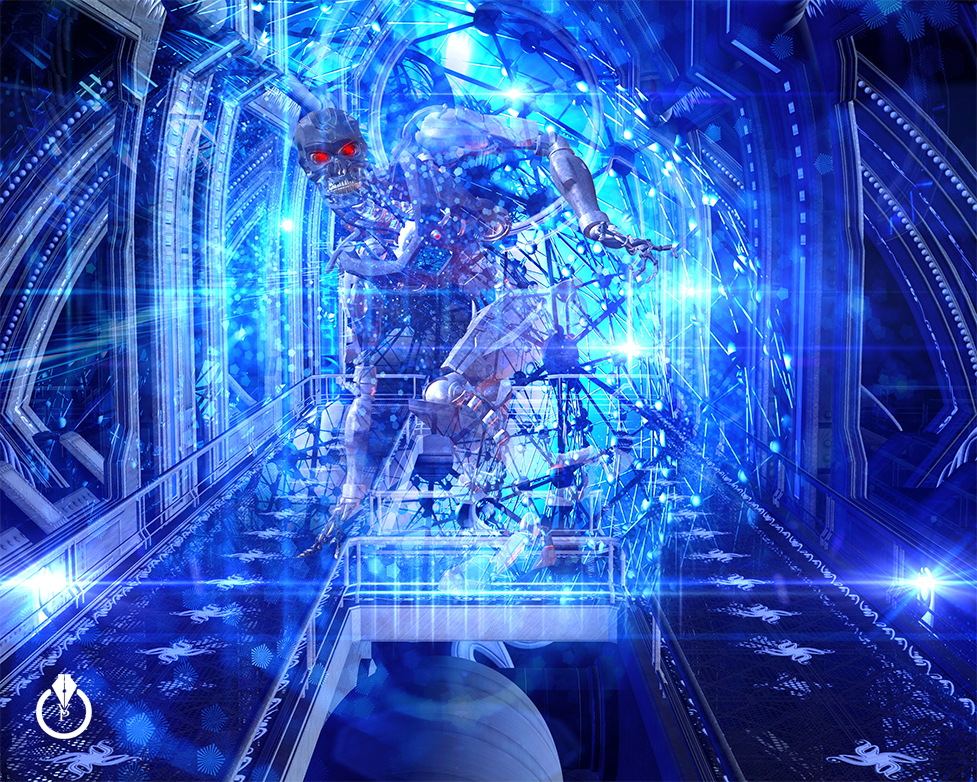
Terminator

Terminator ( inspired by Terminator Genisys Movie )

The Terminator

The Soul

The Soul painted with Adobe Photoshop CC and Wacom.
I used three stock images from Dollar Photo Club and Fotolia

The Soul

My digital painting

Some of my digital paintings with Adobe Photoshop

YouTube Video

“Warrior” Tutorial

How to create Warrior Image with Adobe Photoshop

Final

Warrior Tutorial