A big influence and inspiration for me as a digital artist is music. I LOVE music and I always inspired by it. As I am always saying ” music is the strings of an artist soul”. I can’t listen to the same melody/song over and over, day by day (yes, I have my music library with music I can listen to over and over, year by year) but I need a “new” song every day. I love classical, pop and many other styles and until Apple introduced Apple Music I would struggle with my music library (Can you imagine having to buy new music ever day? Yes, impossible). And now I am very happy: I can have just about ANY song by ANY artist at any time, I can follow my favorite artists, I can add songs to my playlist(s), share song/album, and make them available offline, buy my favorite song/album, and I have my favorite radio stations. After some period of time Apple is learning what I love and suggesting music for me (based on the song/album I added to my Favorites). All are available on any of my devices: iPhone, iMac, MacBook Pro, Apple Watch, or iPad. And the best part: any membership plan is MUCH cheaper than the one or two albums I used to buy an every month (and first 3 months of your membership is free). And I did not mention about teenagers. ALL teenagers are music fans and they need more and more and more music every day! For families with more than one child sometimes it is very problematic to give them all music they want. Now with the Apple Music Family Plan you can do it! For any one who really loves music, Apple Music is the best and the right place for all your needs. Apple Music is Good for me and it’s GREAT with the Family Plan.
All posts by victoriapavlov
My Favorite Scanner App is Scanner Pro
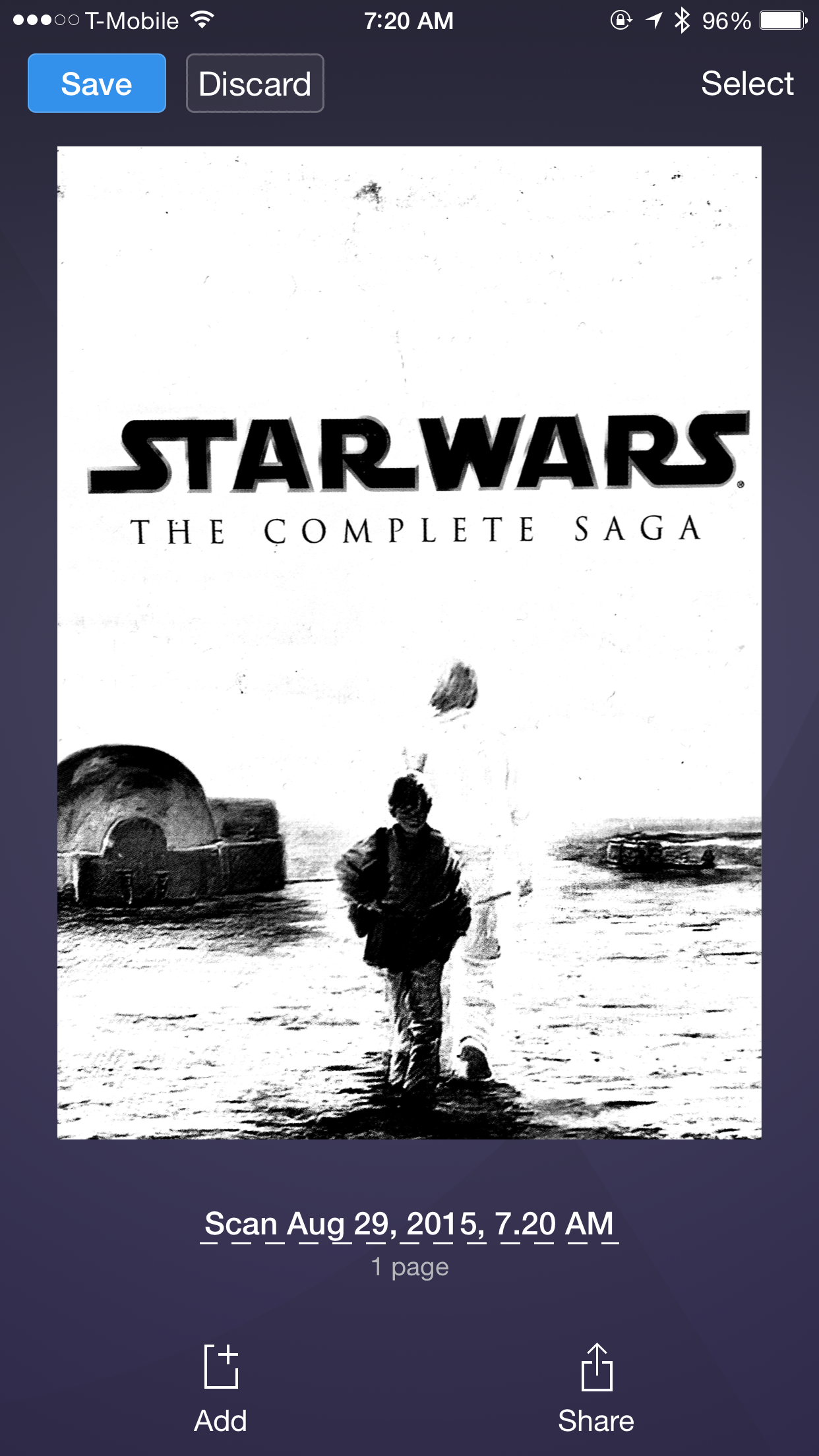
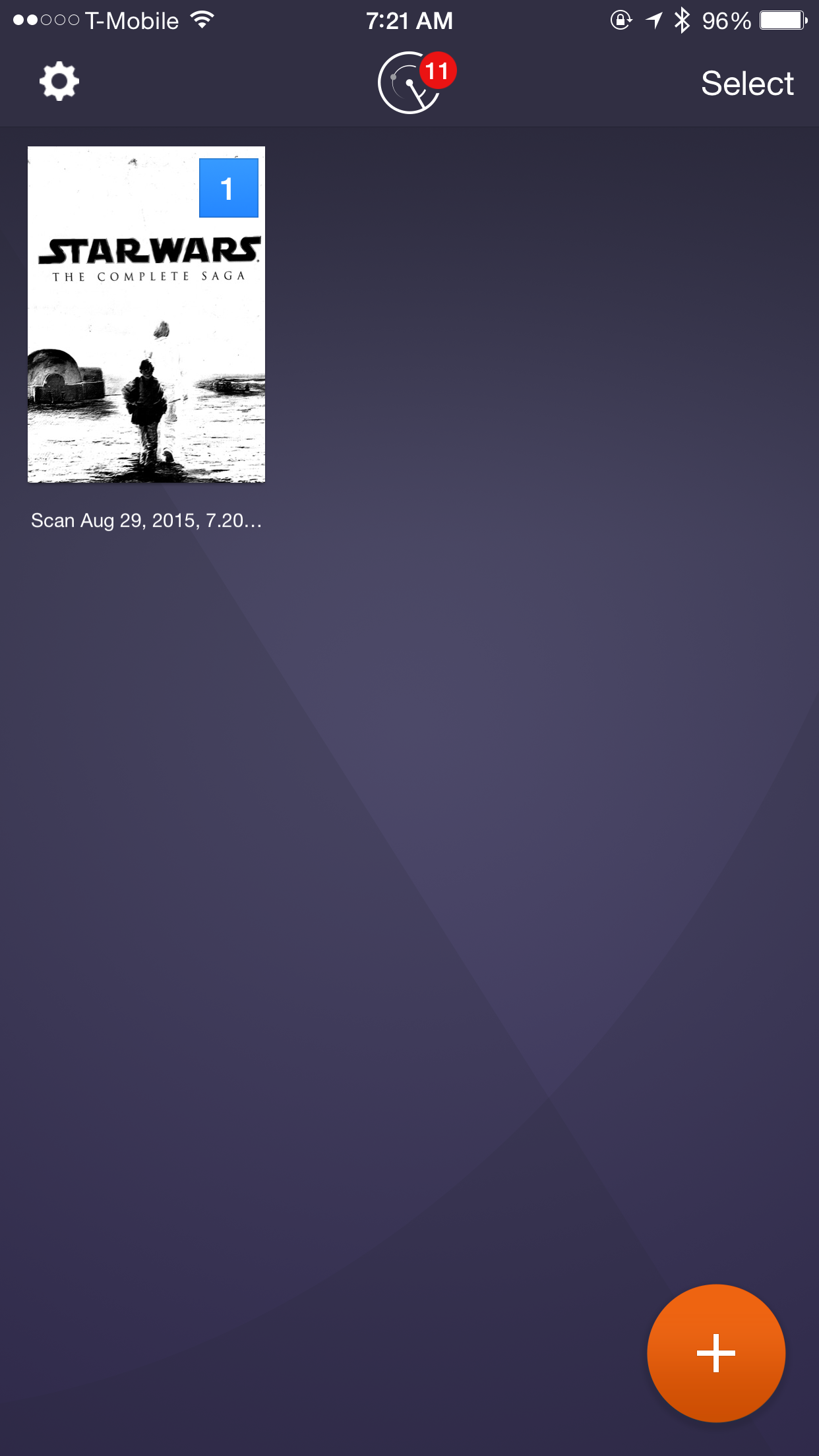
One of my favorite business apps is Scanner Pro by Readdle . With Scanner Pro I can scan any document, paper, receipts, or just an image and save or share it using my mobile device. A great app for just $2.99!!!!
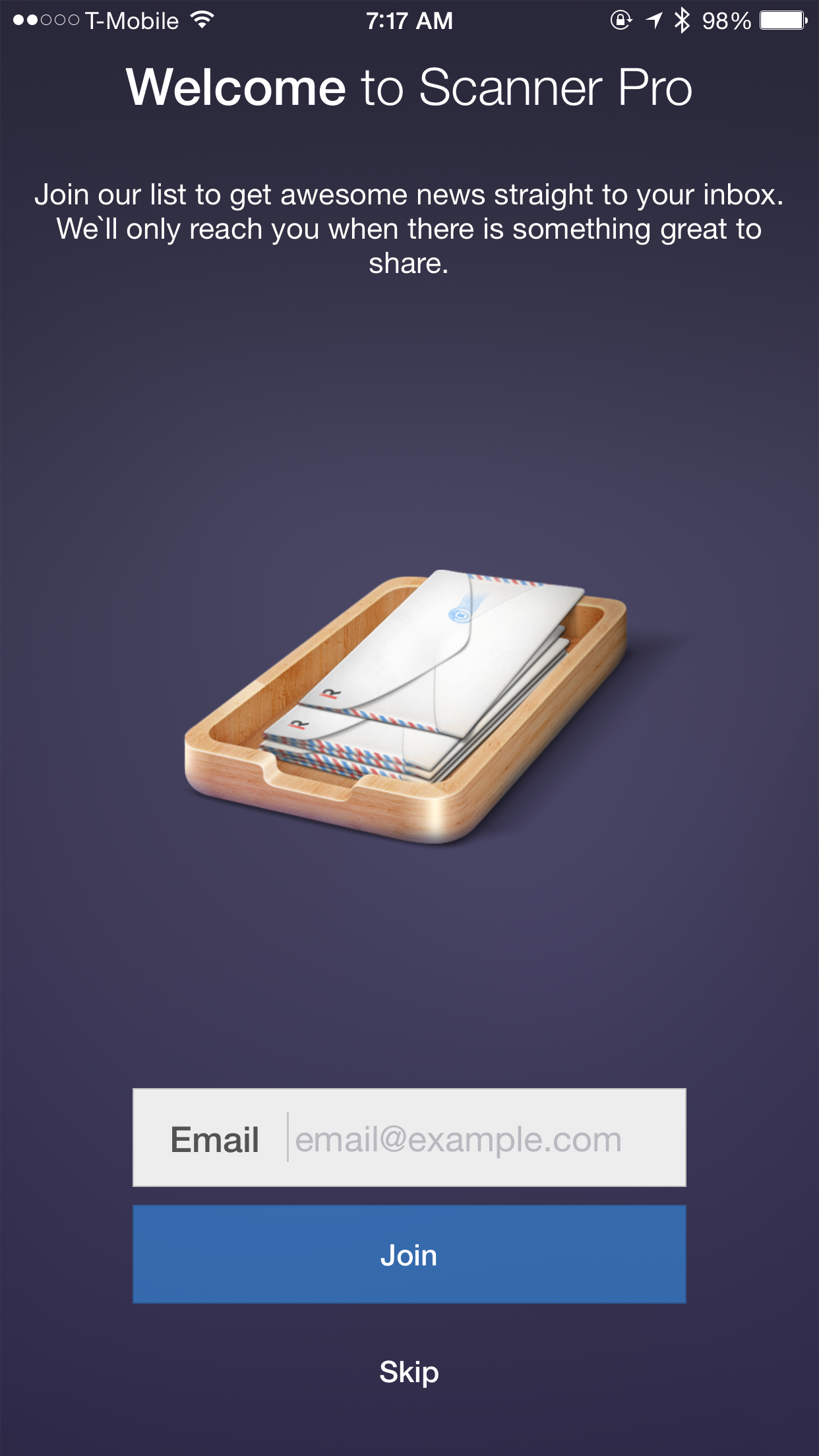
When you first login to your app the welcome screen will ask you to join. Simply enter your email address and now you are ready to turn your mobile device to portable scanner.
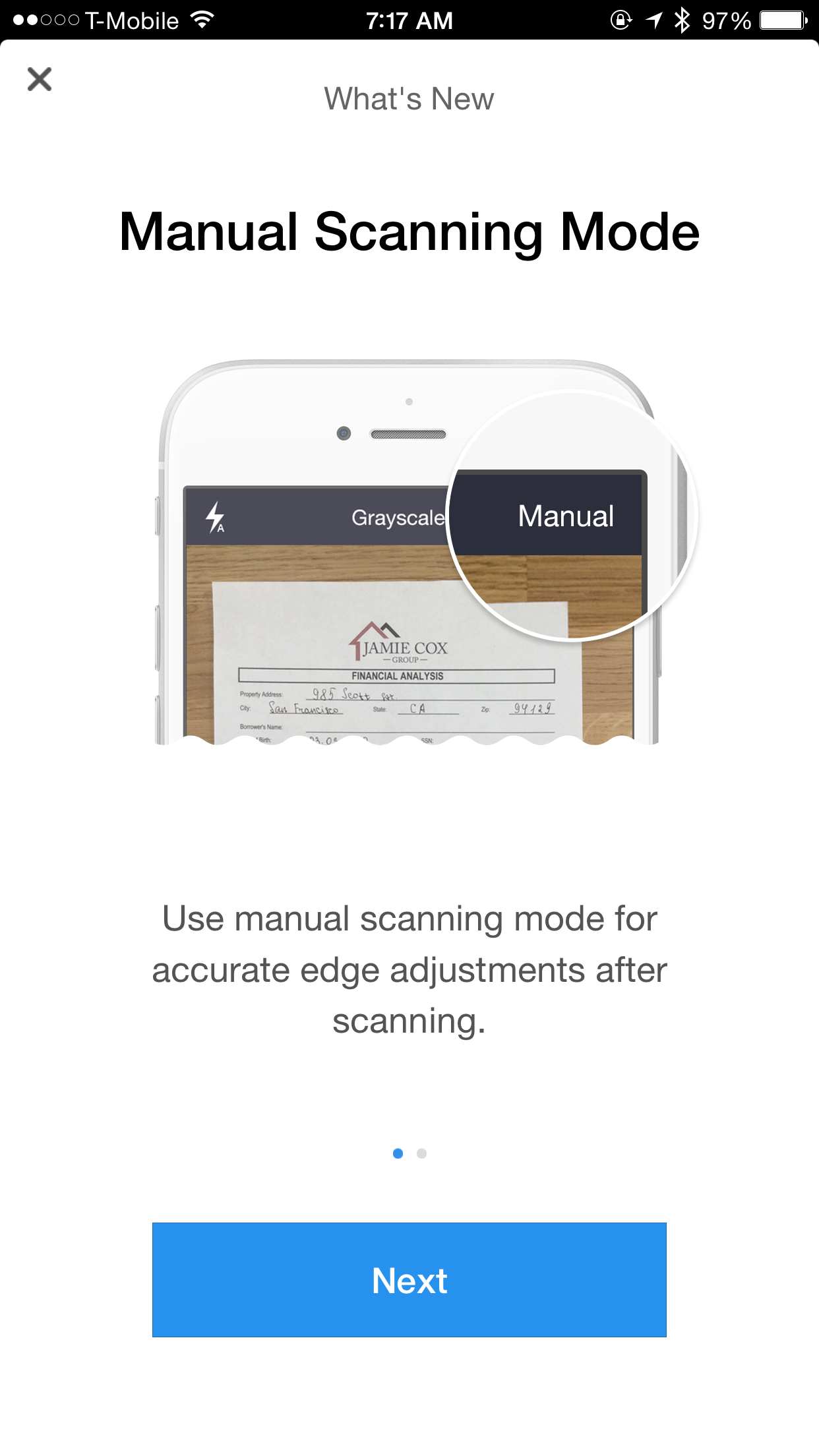
I am always using the manual scanning option for accurate edge adjustments after scanning.
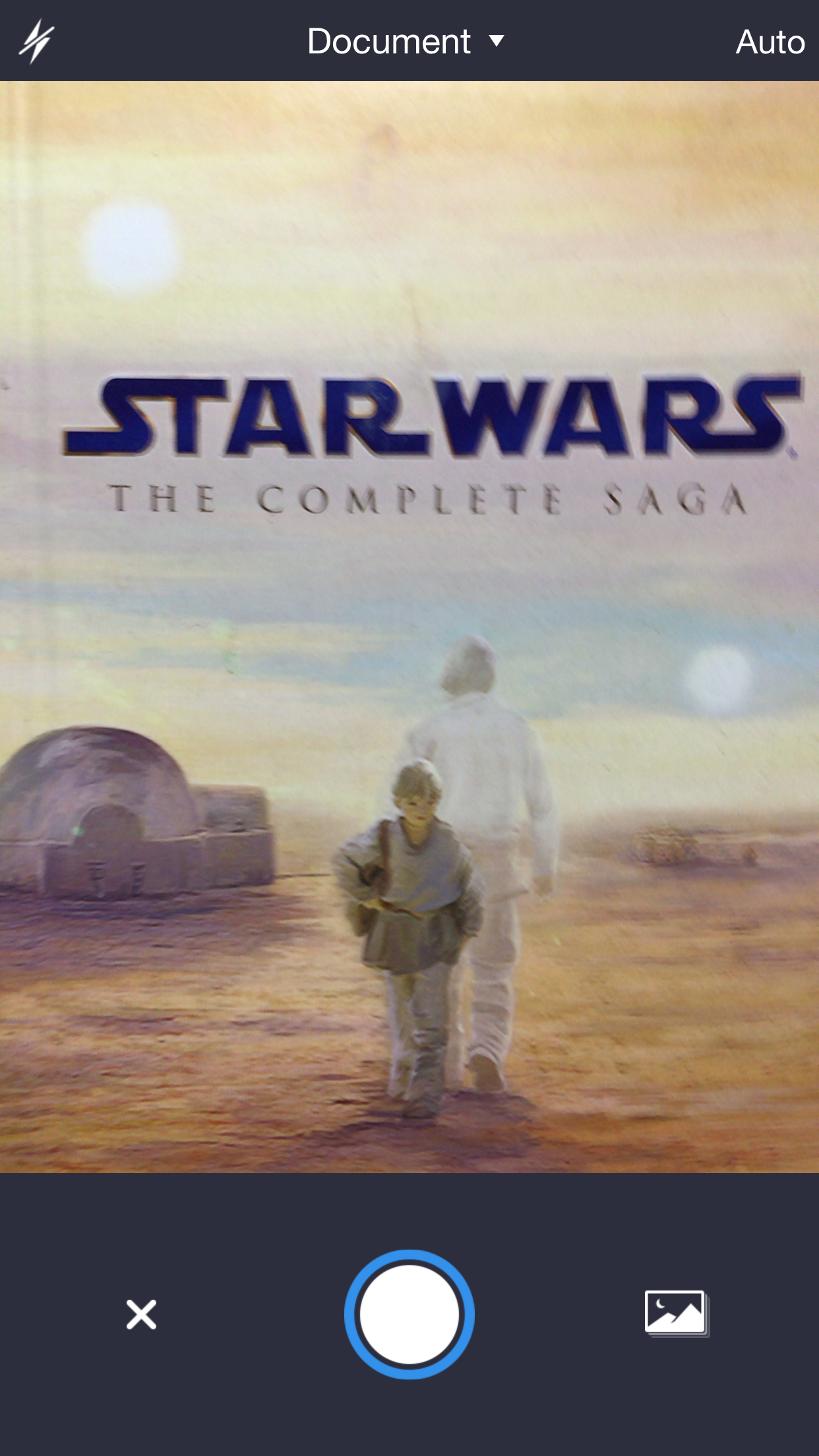
Take a Picture of your paper, document, images you want to scan (also you can scan from your Camera Roll )
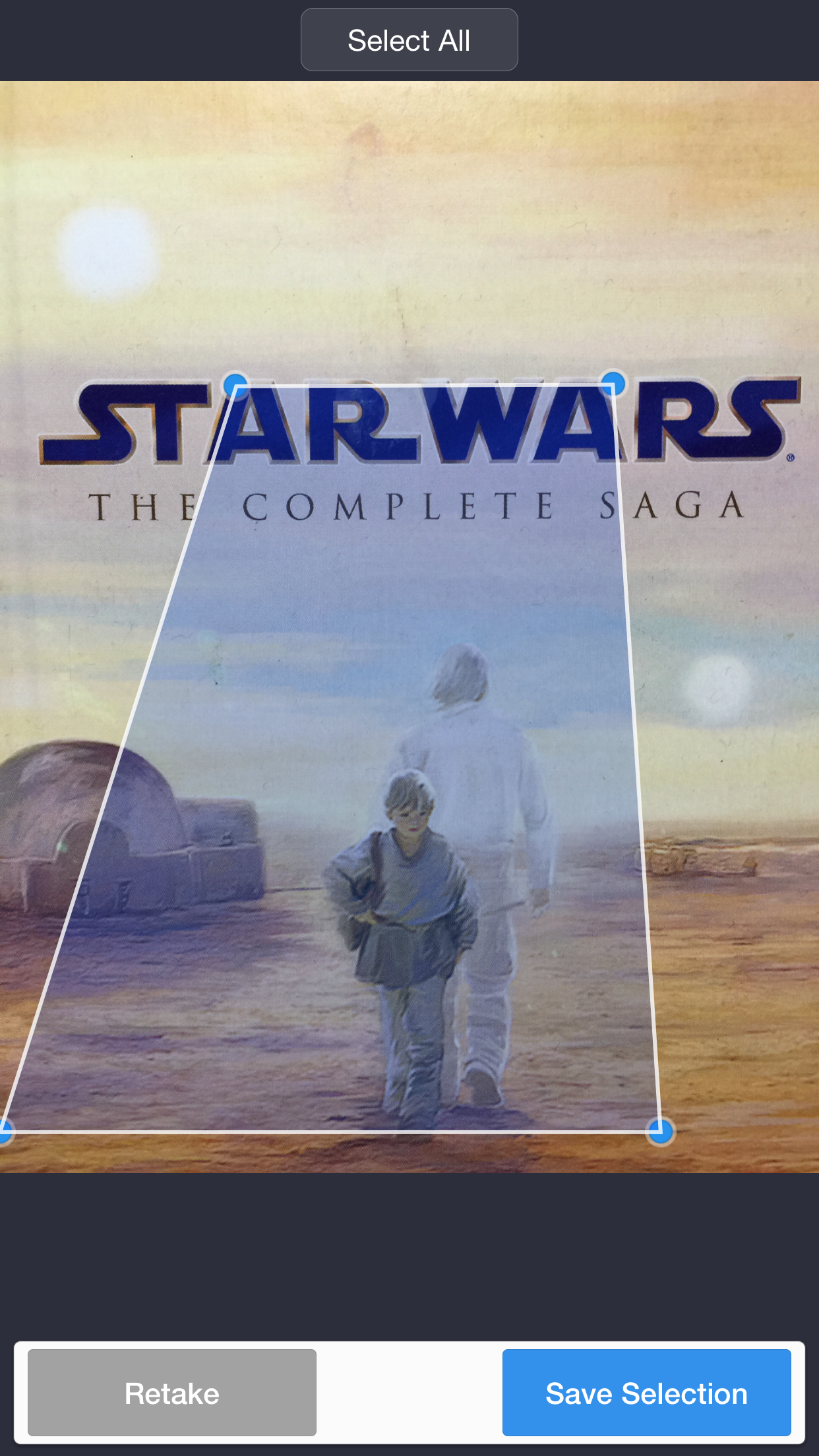
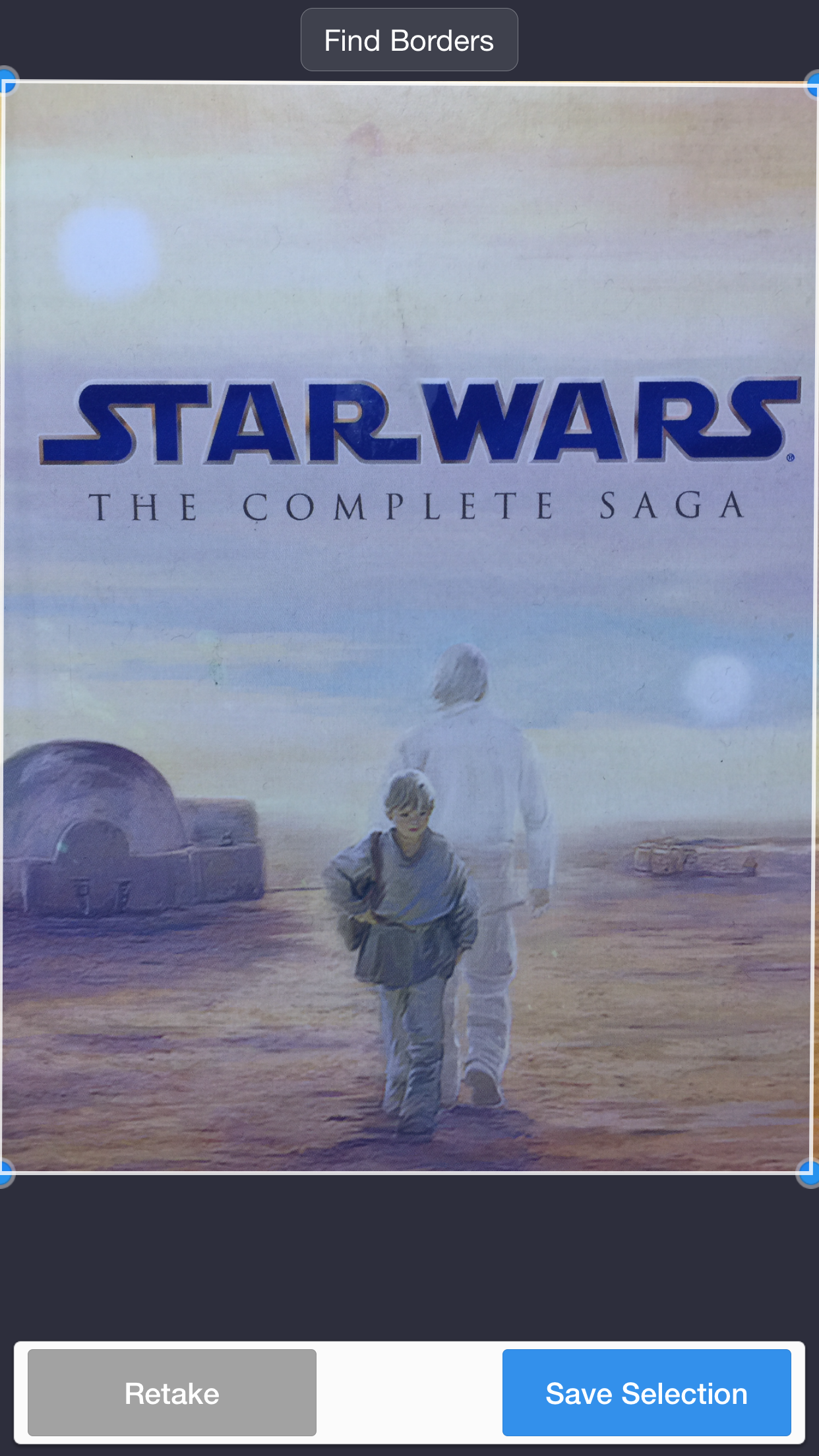
And now you can manually adjust edges of your scan to fix the persepective
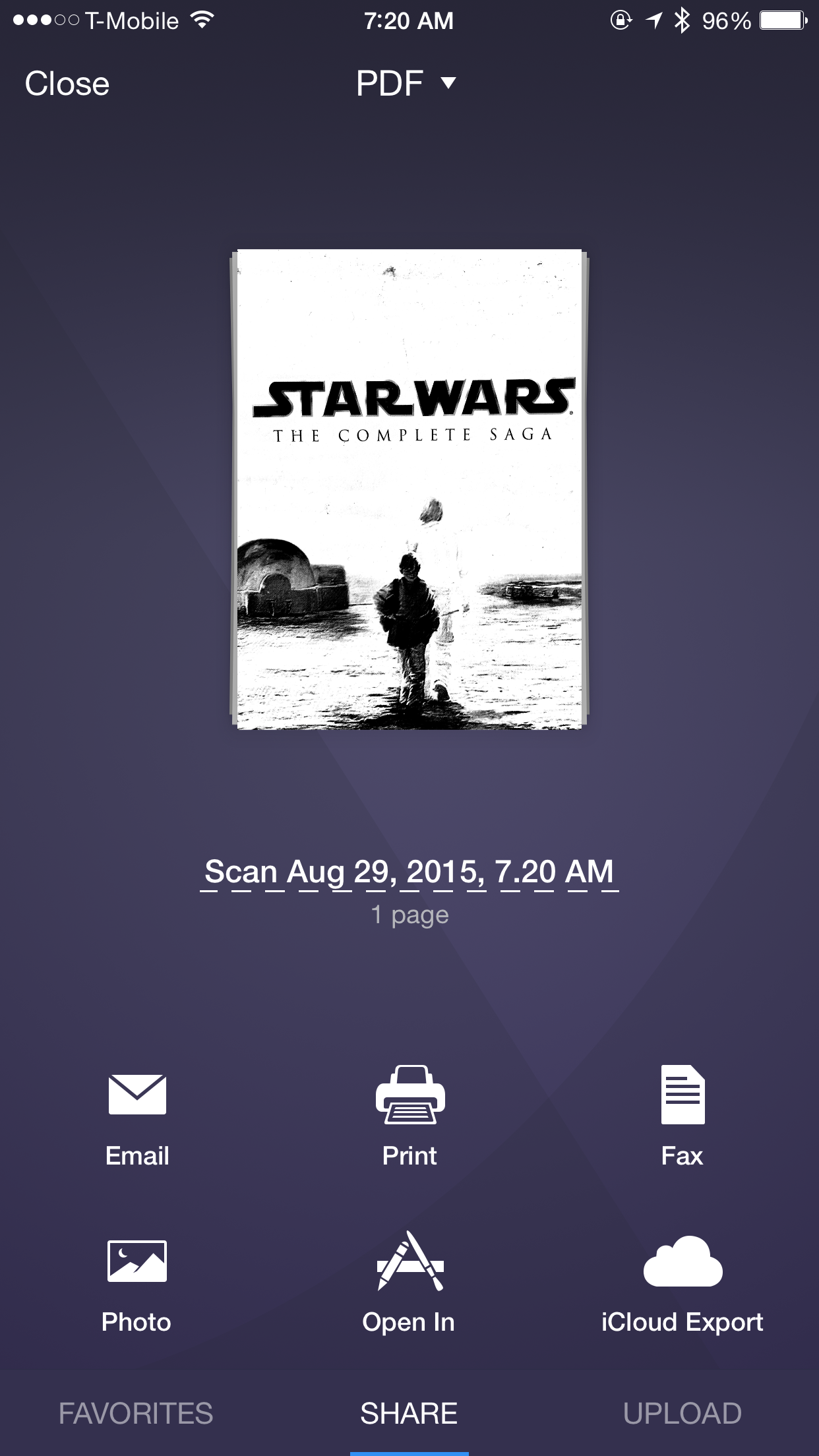
Now you have MANY options to share your scanned document
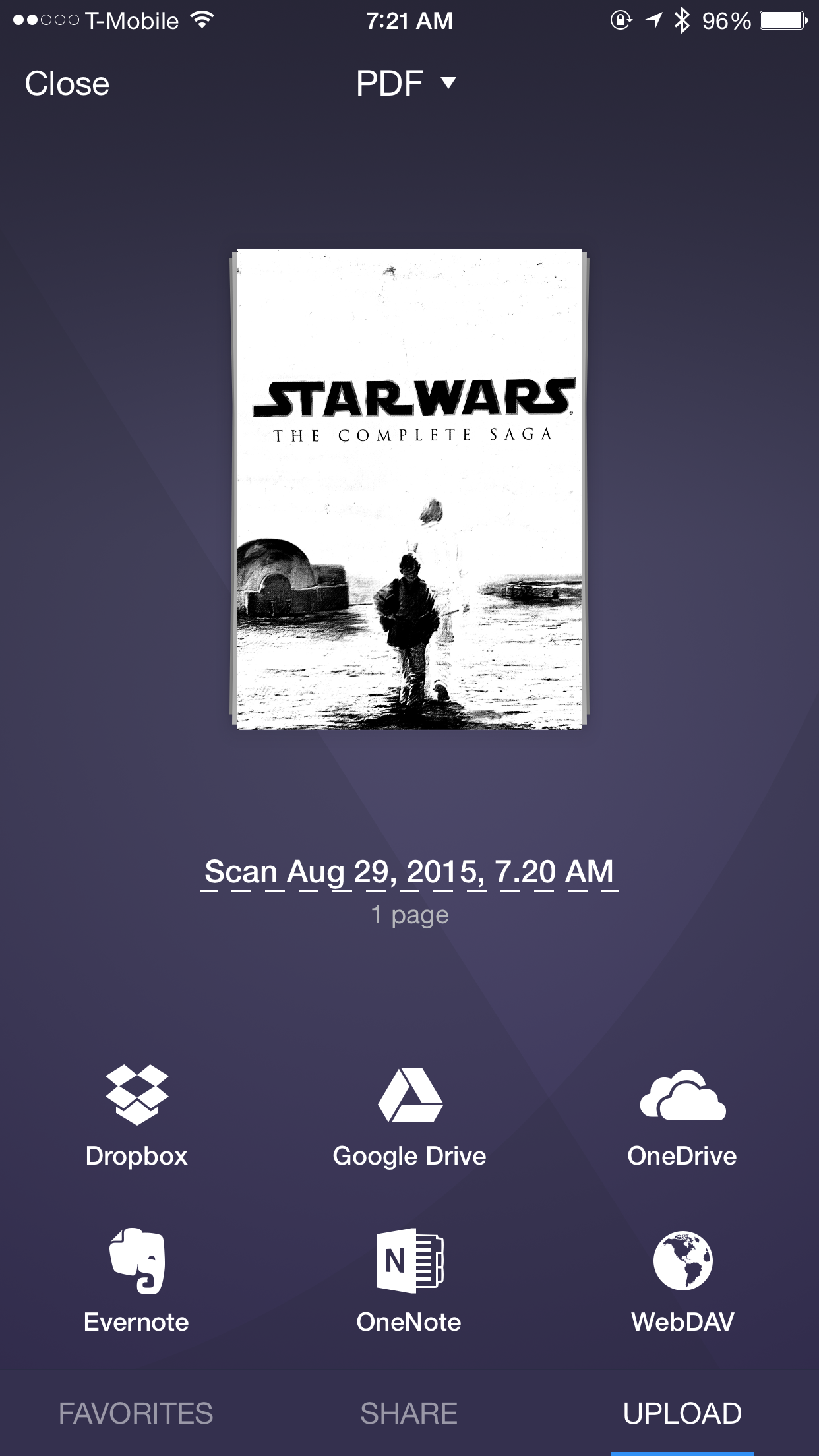
Also you have MANY different choices to upload your document to cloud services like Dropbox, Google Drive, OneDrive and more!
With Scanner Pro it doesn’t matter where I am. I don’t need to be at my office to scan a document. My mobile device is my pocket scanner now!
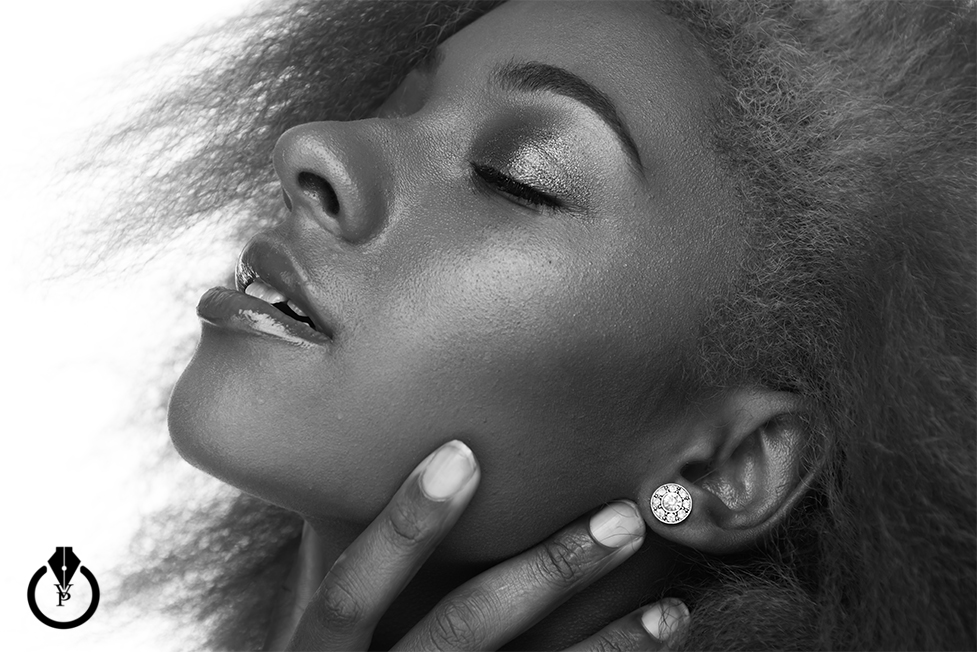
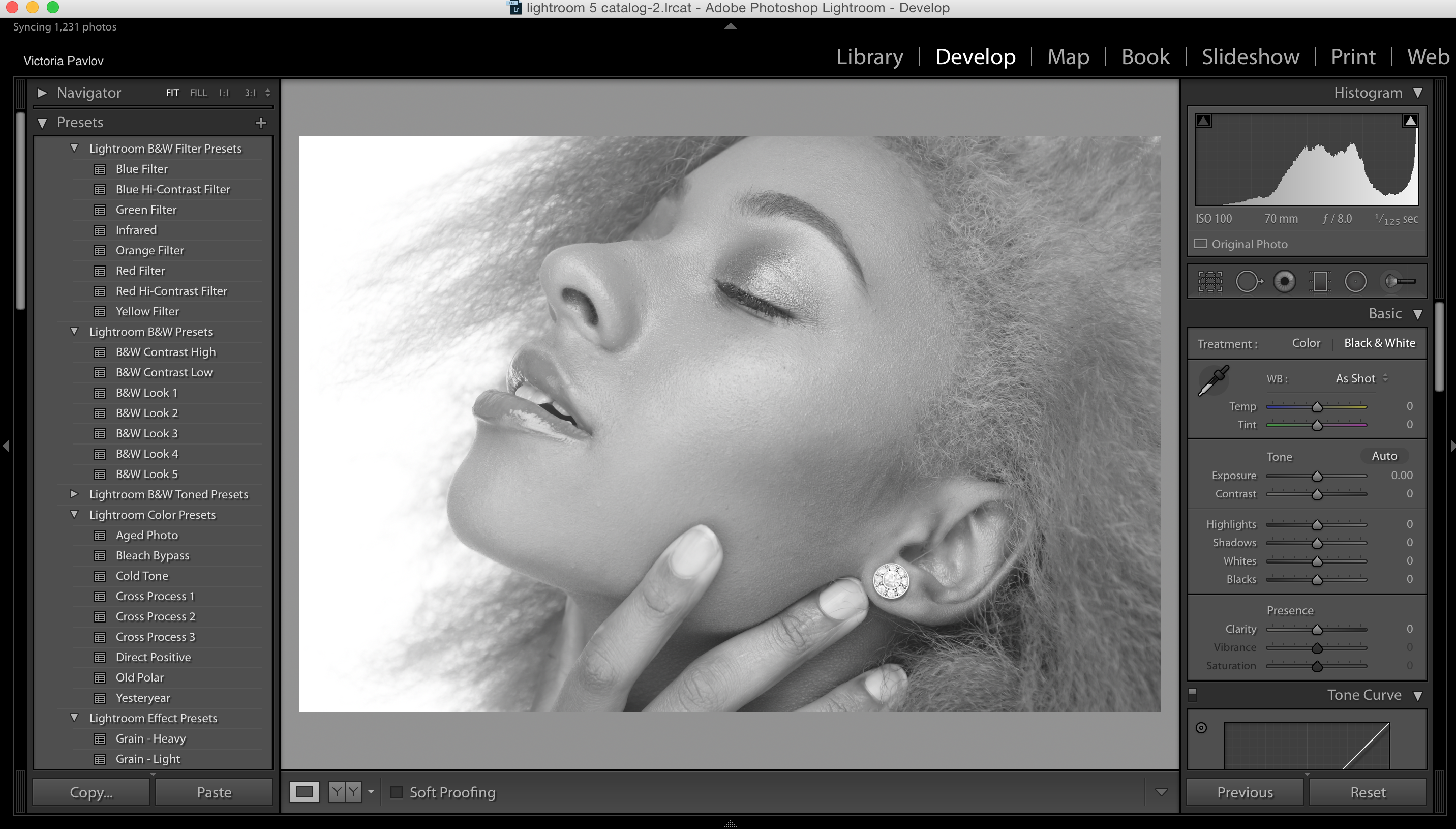
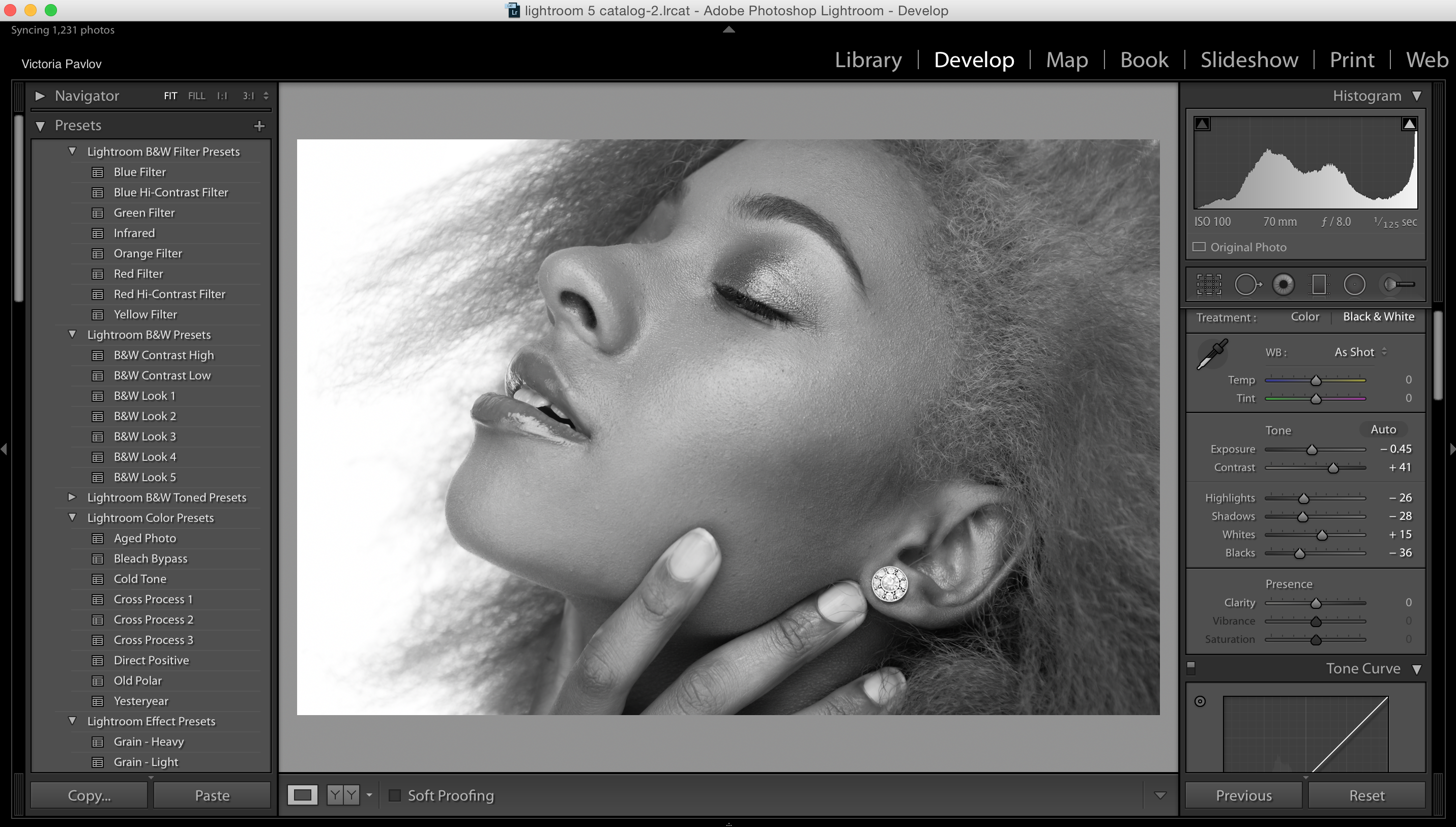
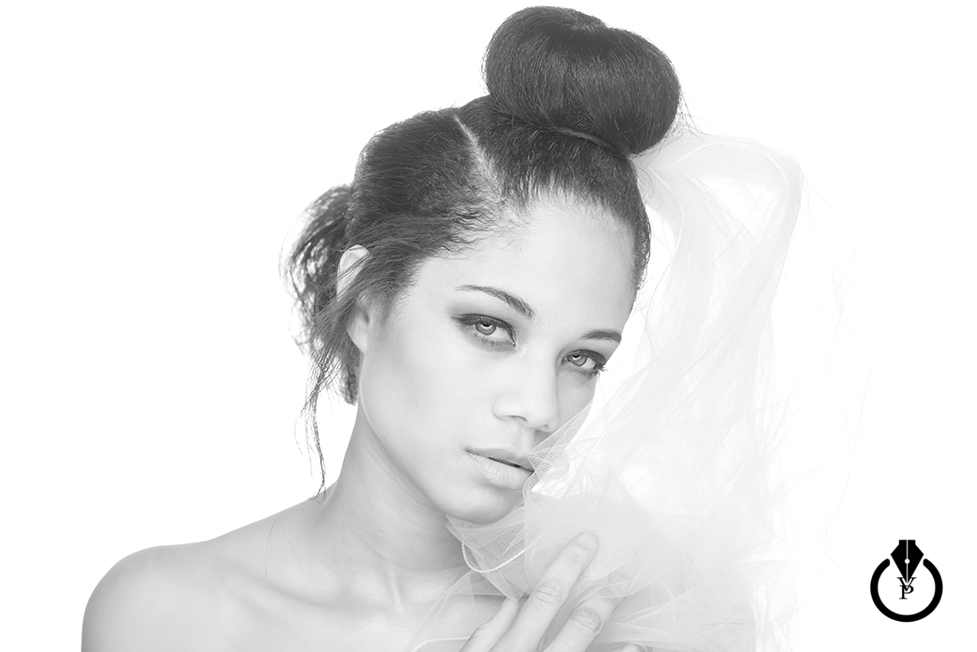
Black & White with Adobe Lightroom CC
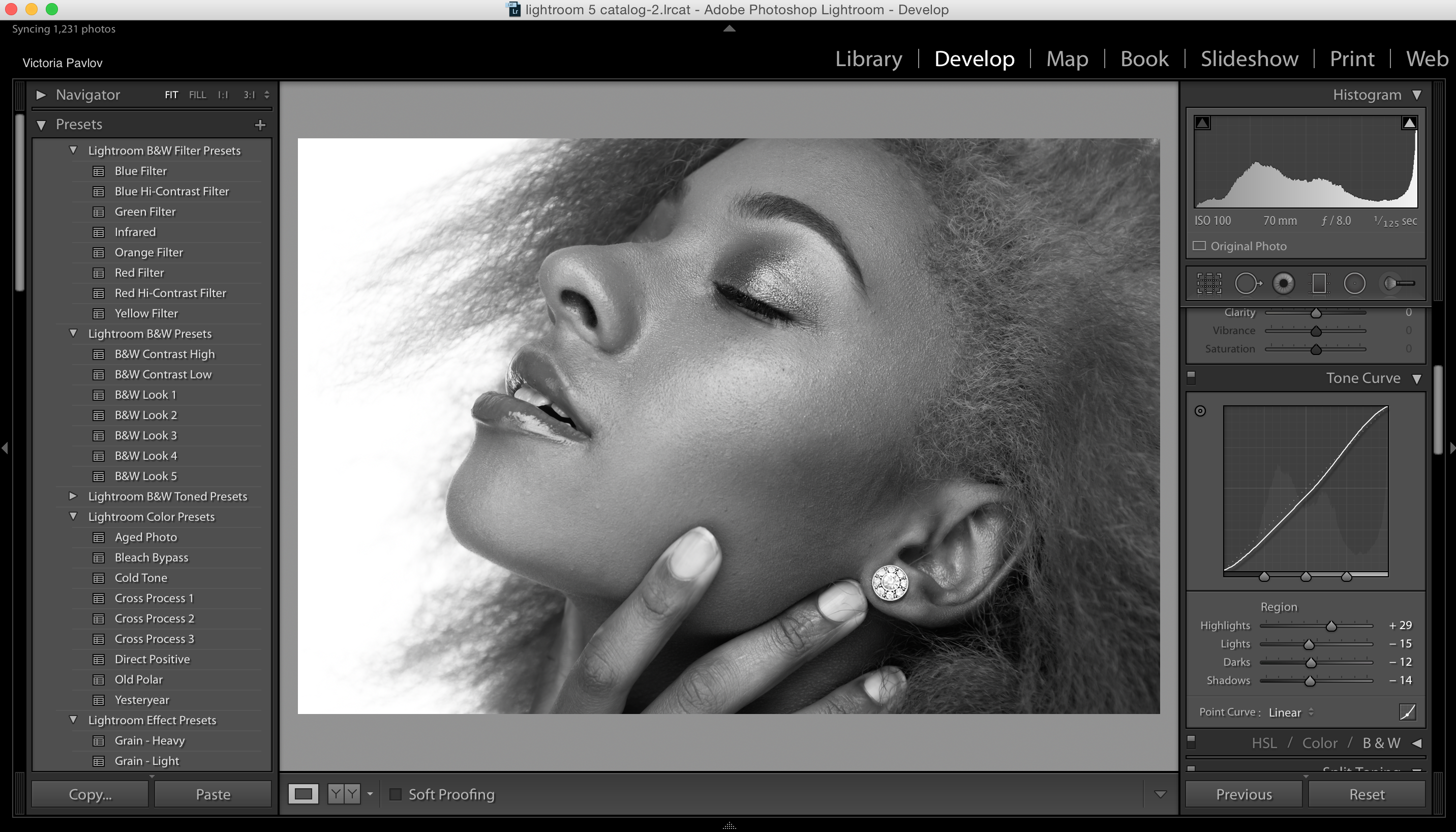
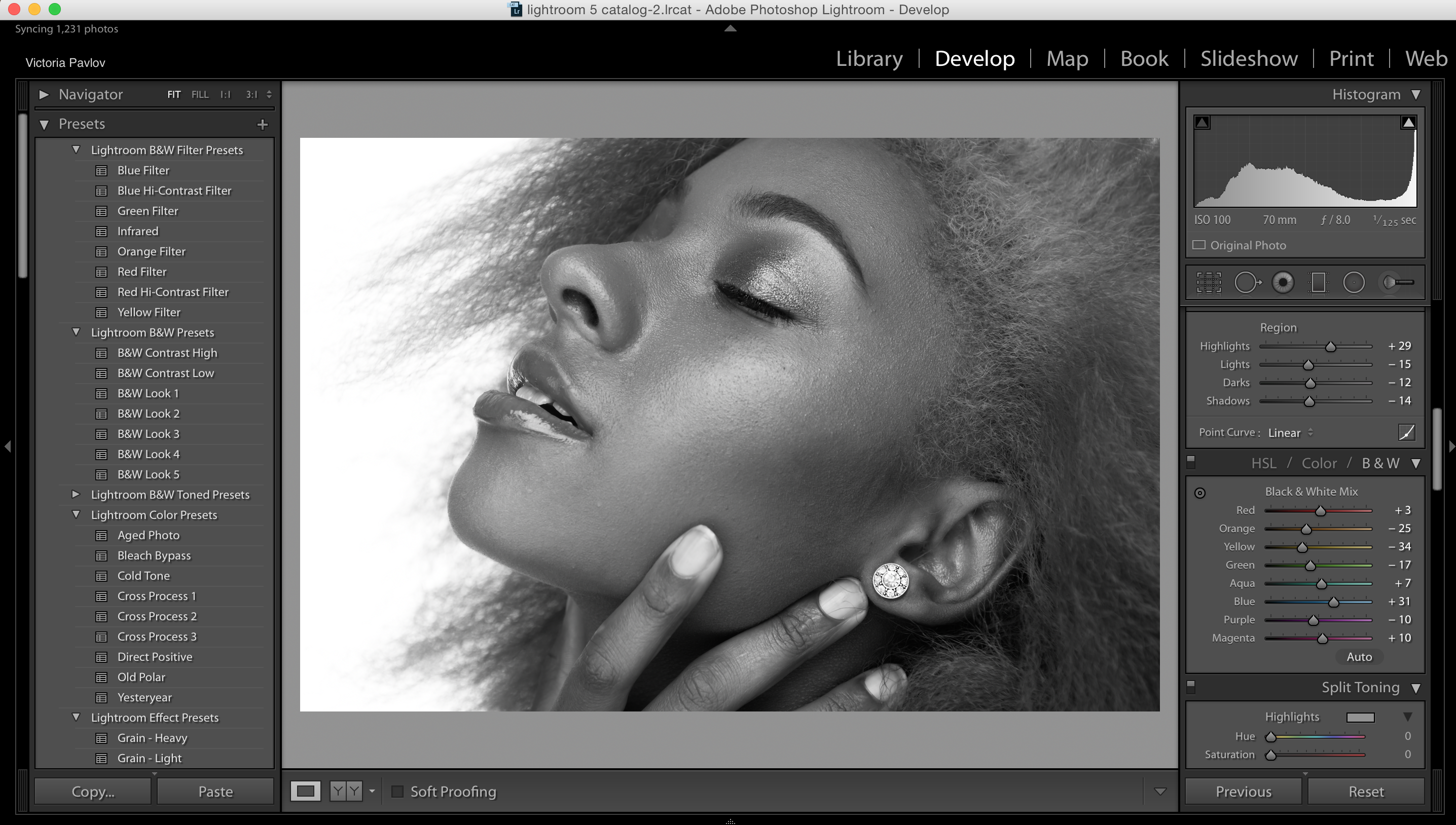
Today I will show you how to create a Black & White image in Adobe Lightroom in only 3 steps
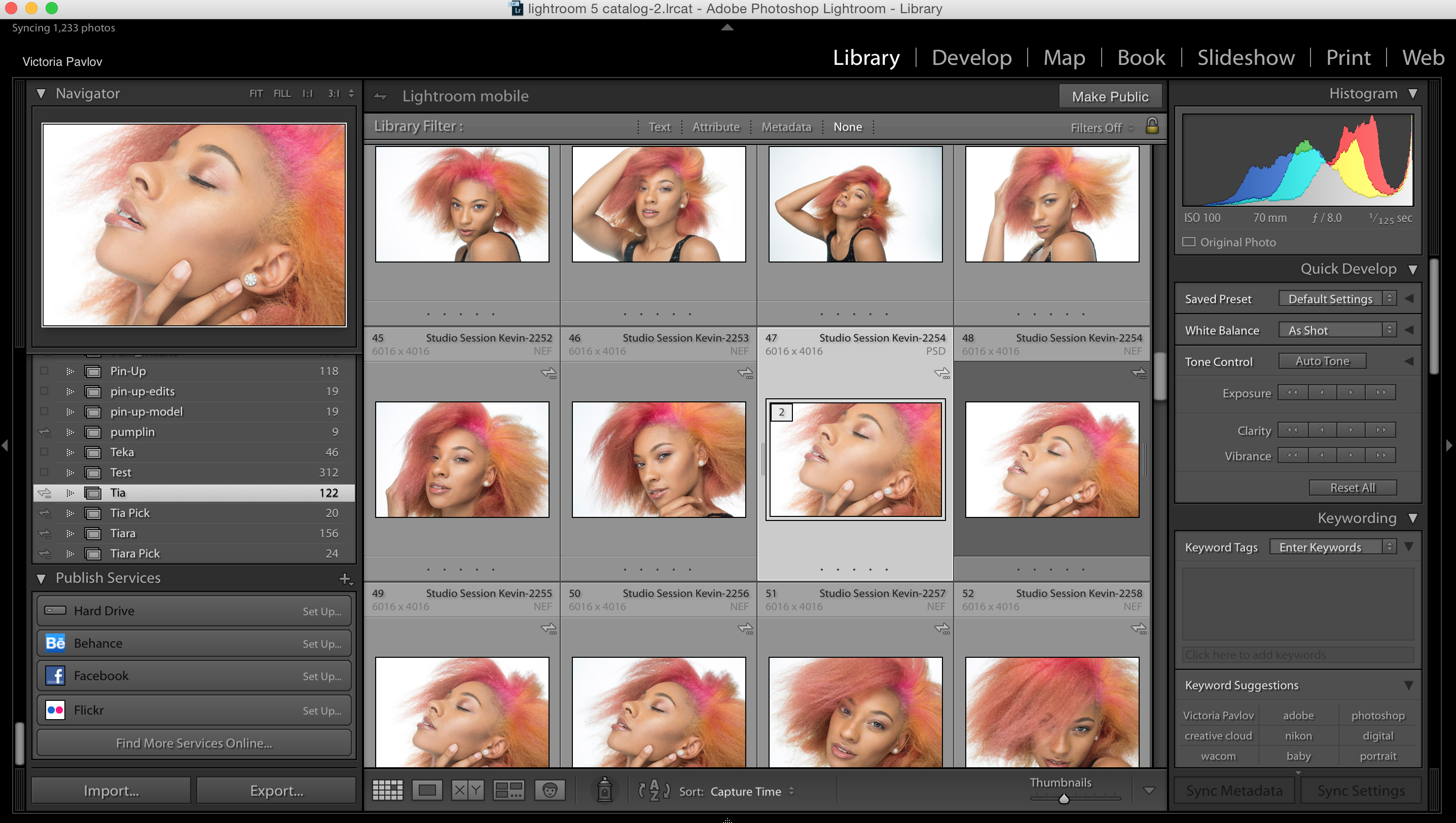
Select the image you want to work with

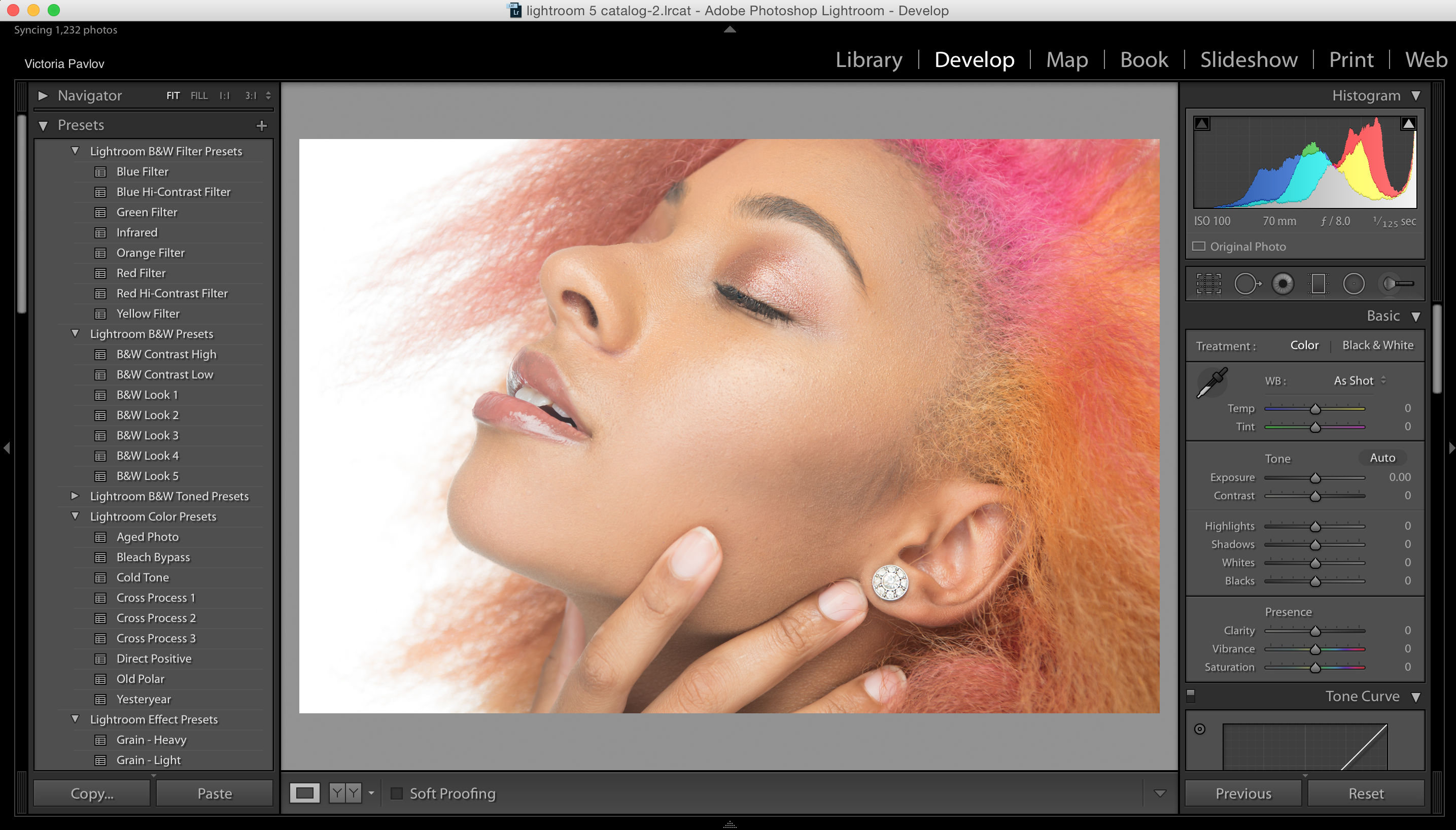
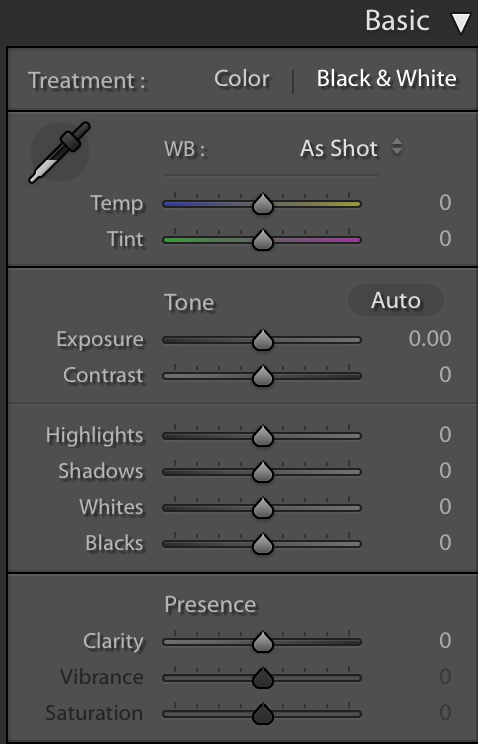
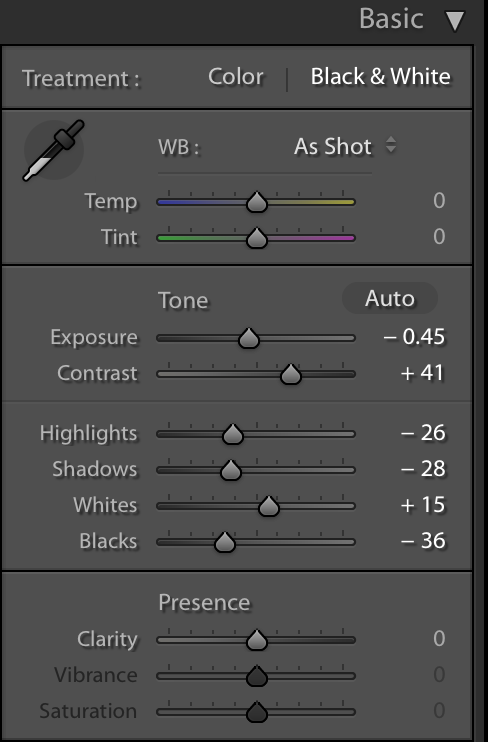
1: Choose Black & White from the Basic panel

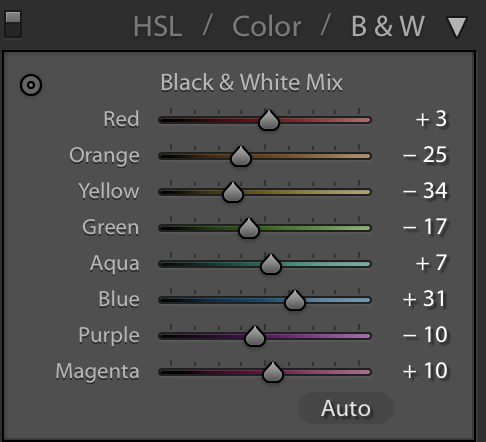
Adjust the sliders to get the look you want or use mine below

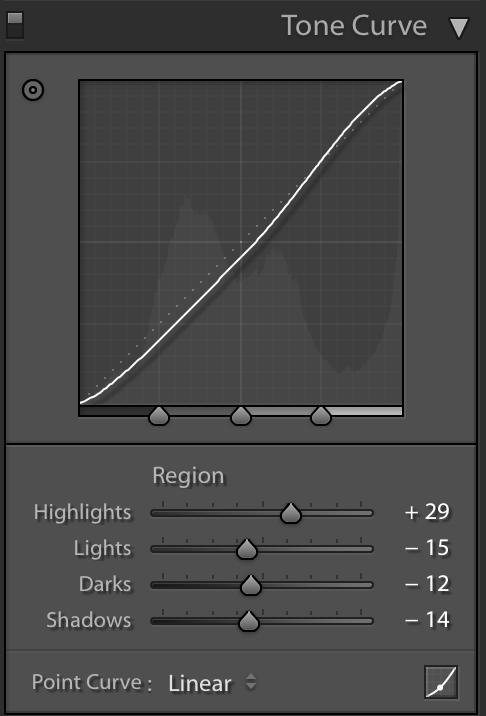
2: Using Tone Curve panel change numbers of each slider ( Highlights, Lights, Dark, Shadows )

3: Change numbers of each B & W slider (it will depend of your image)
Life is Good Series
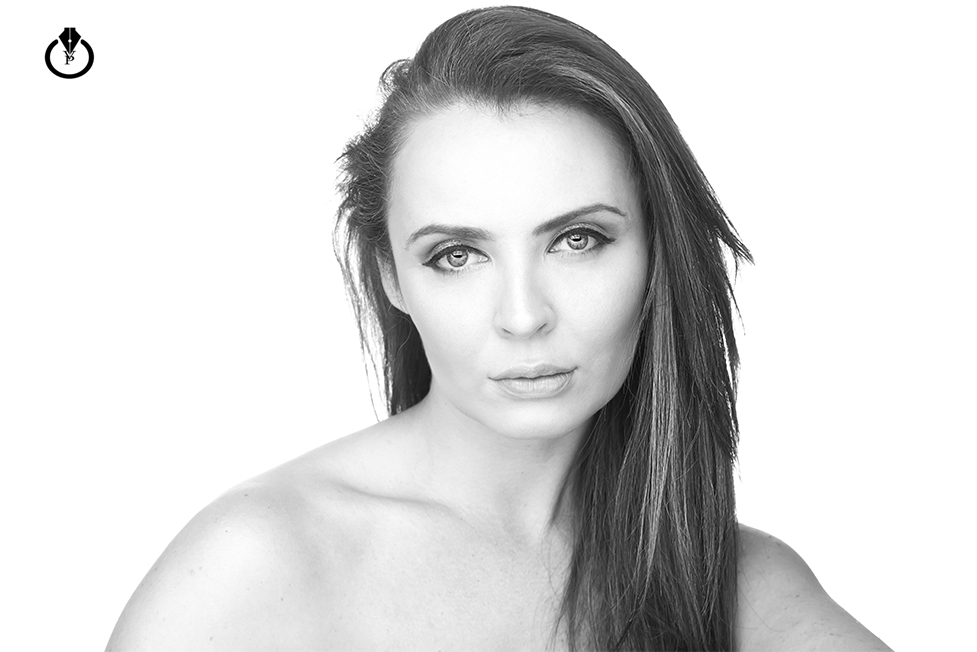
I am very excited to show you the results from the first session of my ” Life is Good’ series. This series is VERY important and personal to me. Life is Good is series of the cancer survivors and cancer patients images. With my series of images I want to show how GREAT life is. I want to show how strong people are. I am not looking for models for my series (unless the model is a cancer survivor or cancer patient). I am looking for REAL people to show various emotions, to show that every day is gift and that we all should remember that kindness is free. Just a few minutes of your support could save and help someone’s life. All of us could help with the cancer research, donate your time to support the people who are fighting cancer now.
I am an artist and I truly believe (and I know it is based on my own experience) in healing power of art. I started the series “Life is Good” using my favorite tools: Nikon camera ,Westcott lighting, Adobe Photoshop, Adobe Lightroom , Wacom, and my Mixer brush Tool. All my sessions from that series are FREE and I would truly appreciate if any of you could spread the word to let cancer survivors and cancer patients know about it.
And now let me introduce my first image:
Justyna Krolkiewicz:
amazing human being, model and a cancer survivor.
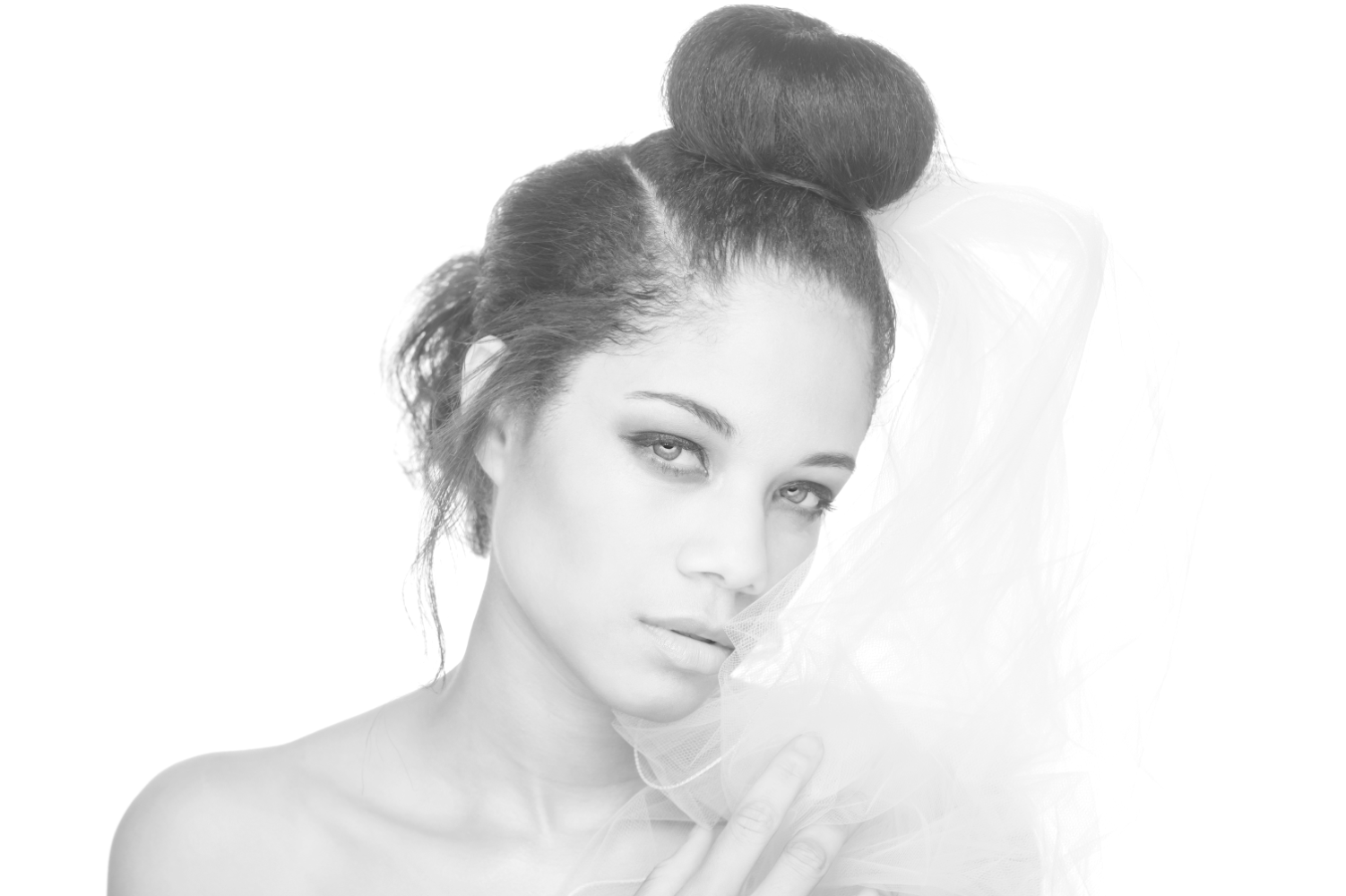
Create Black and White image in 3 steps
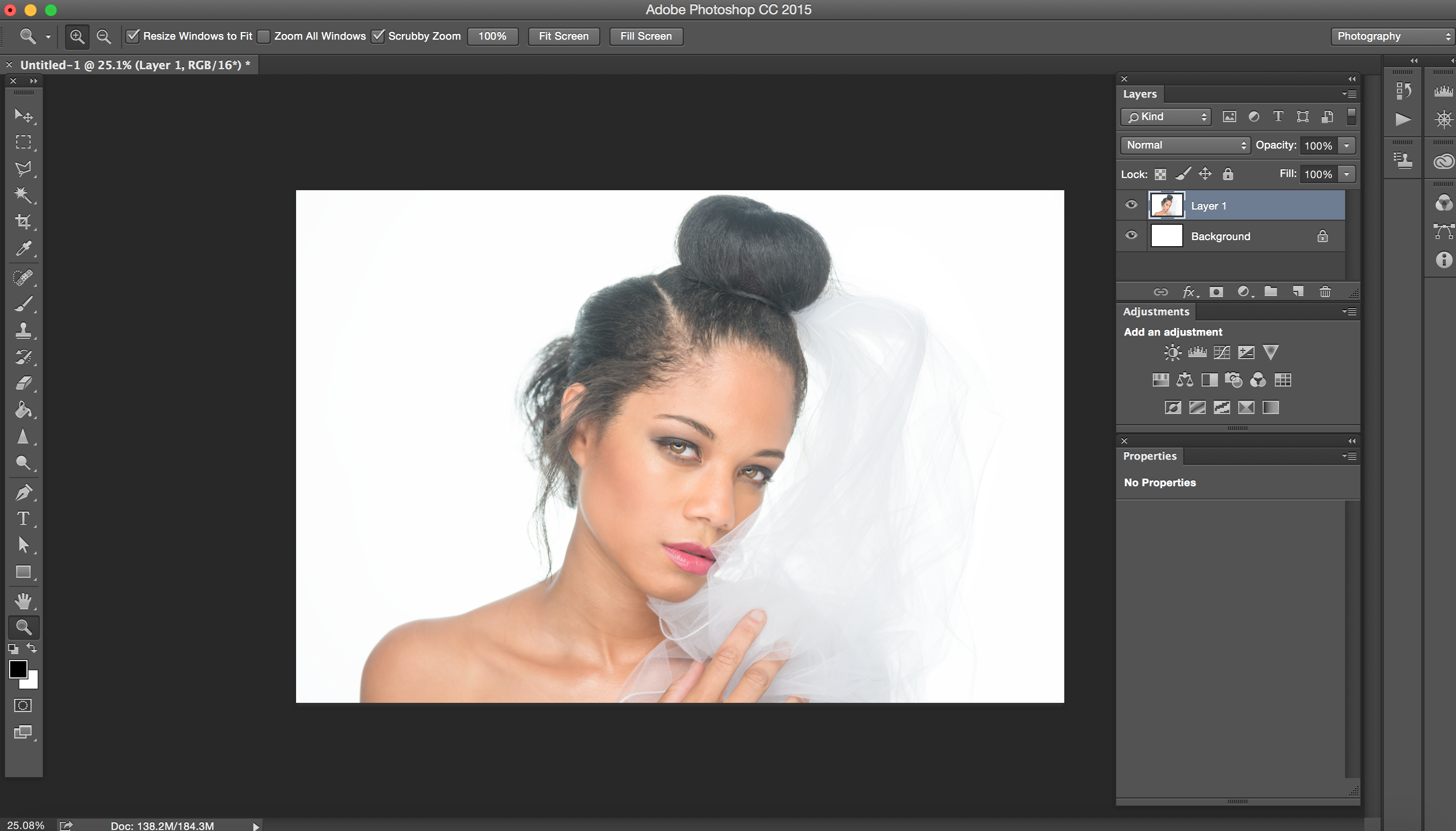
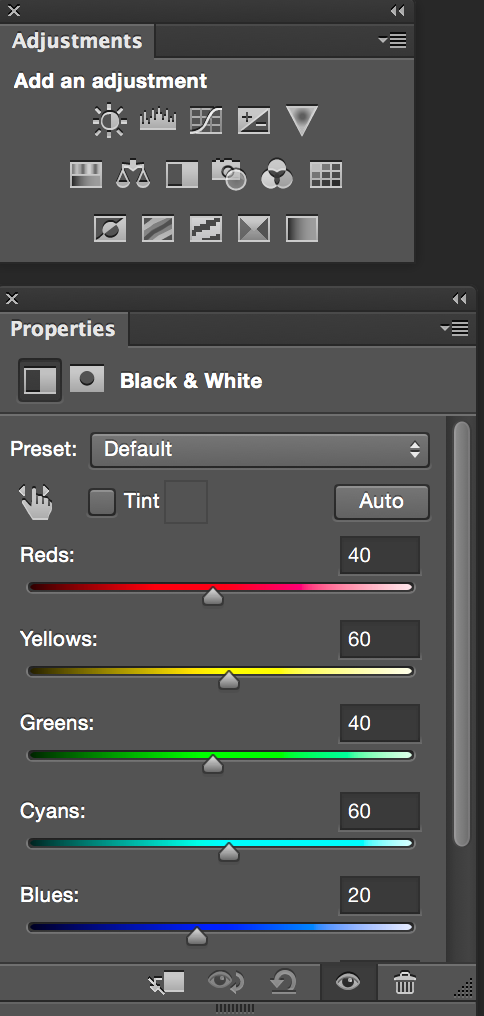
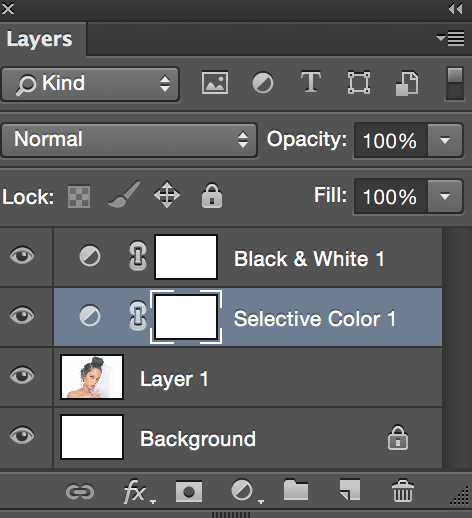
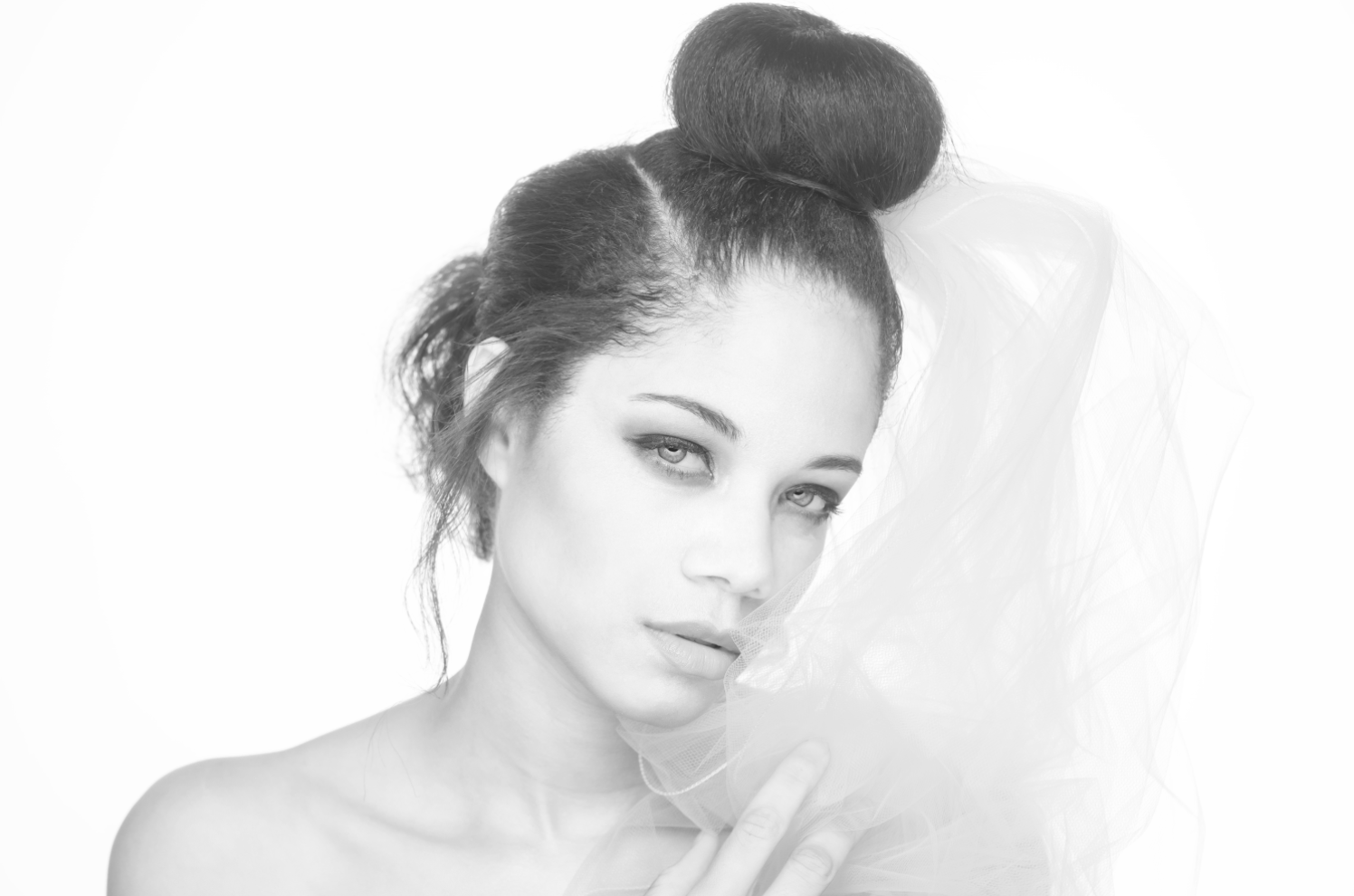
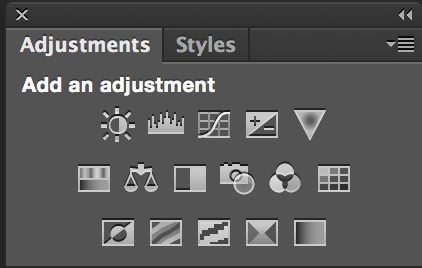
Today I will show you how to create black & white image in 3 steps using Adjustments Layers in Adobe Photoshop CC
Open your image you want to work with

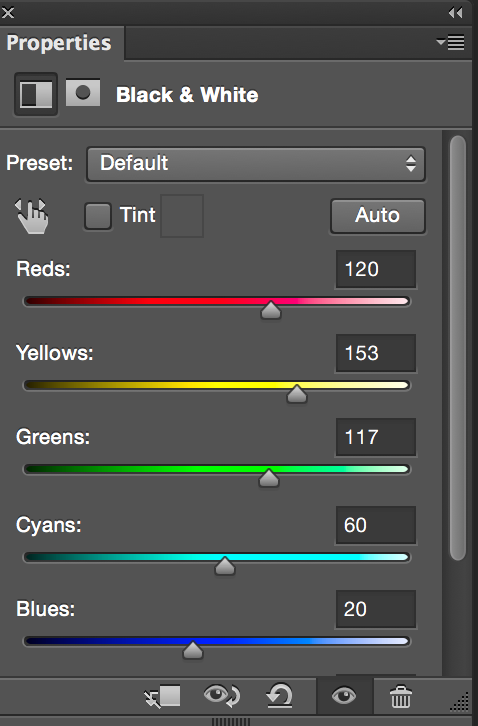
1: Adjustments > Black and White

Using the black slider of each to the right/left you will modify influence of the colors in the resulting of black & white image.
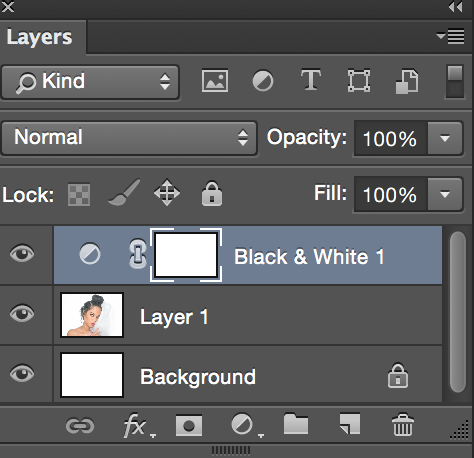
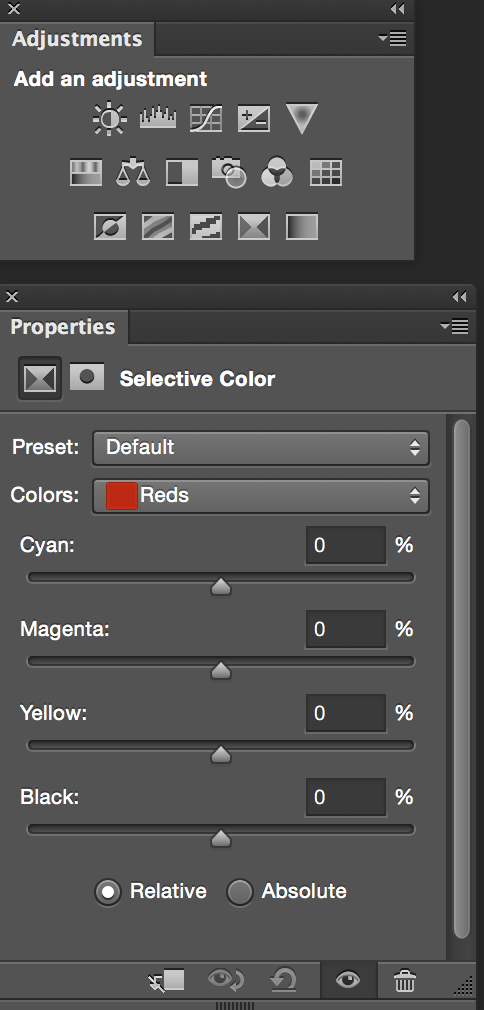
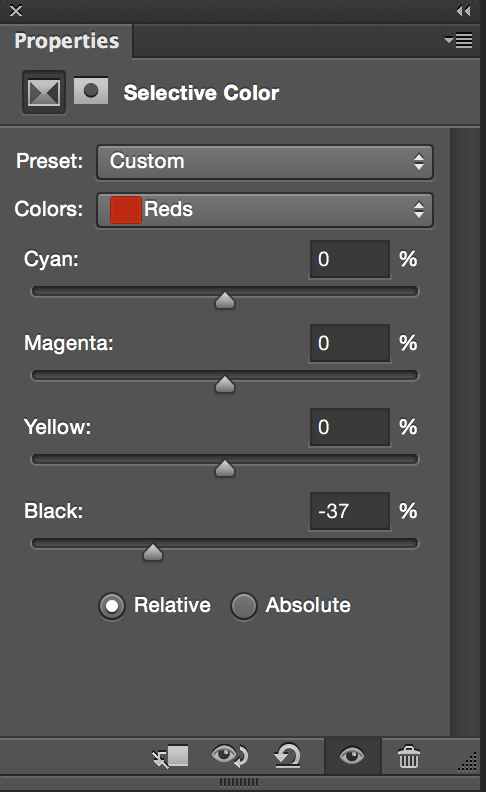
2: Highlight t your image layer ( Layer 1 ) > Adjustments > Selective Color

Change number of the black slider of each color ( move the slider to the left or right)
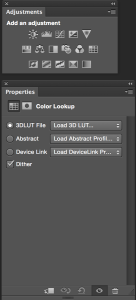
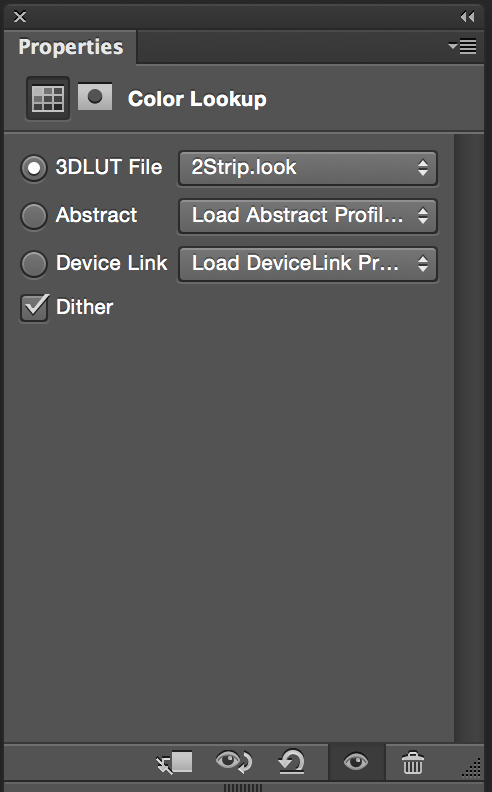
3: Adjustments > Color Lookup >2Strip.look from the 3DLUT File ( selected by default )

5 reasons to use Adobe Stock
I was looking for stock images for a many years and I was not impressed with what I could see on a market until I was introduced to Adobe Stock.
I am professional photographer, digital artist, and educator. I am working and teaching Adobe Photoshop, Adobe Muse, Adobe Dreamweaver, Adobe Premiere Pro, Adobe Lightroom, and all Adobe mobile applications and I found that Adobe Stock is the BEST source for my design, photography, painting, education workflow. Why?
Reason 1:
I’ve heard many people say: ” I am a professional photographer, designer and I am not using any stock images”. Hmmmm so if you need any professional image, background, graphic image to build your clients “travel with us” website you will go around the world to take pictures of the places were your client offers services? And keep in mind that as usual our clients don’t know what image(s) they will use and they are depending on us to show them at least a few examples that they can choose from. So if you multiply all the costs of traveling around the world, and the time just to take pictures, your price for client’s website will rise up significantly and I am not talking about the extra time that you need to build the website. My question is: will your client wait at least 7 extra months and pay 99% more than he/ she should pay just to let you use your own images? The answer is NO and NEVER.
So reason #1: use Adobe Stock images to make your workflow more productive along with building great communication between you and your client.
Reason 2:
When you working on your client project and you’re not sure which image you or your client will use with your design, simply download a “preview” version of the image(s) your want to use, finish your design, project, show it to your client and if your client approves your design simply click on Adobe Stock image > License image and you will visually see that your Preview image will be replaced with high resolution, ready to use royalty free image. You don’t need to do any EXTRA steps that will increase your workflow time and your client will receive the final copy of the approved project in no time!
So reason 2: Fast and stress free workflow
Reason 3:
Quality
Adobe Stock is a worldwide library (40 million +) of the best photographers, digital artists, designers. All images are with HIGH quality ready to use right away.
Reason 4:
The price
You have many optiosn to subscribe to Adobe Stock
1: As a Creative Cloud member you are saving 40% of the monthly plan!!!!!!
10 images a month
US $29.99 / mo
Annual plan, paid monthly
- Add to a Creative Cloud subscription
- Additional images at US$2.99
- Rollover up to 120 images
2: 10 Images a month
US $49.99/mo
Monthly plan
- Additional images at US$4.99
- Rollover up to 120 images
3: 750 images a month
Annual plan, paid monthly
- Additional images at US$0.99
4: Single images are just US $9.99 without a subscription
Reason 5:
If you are a photographer, digital artist, 3D artist, graphic designer you can make money selling your work. You can sell your images, even the ones taken with your smart phone!! You can make money from your work just from your home using your computer!
ParticleShop Plugin for Adobe Photoshop
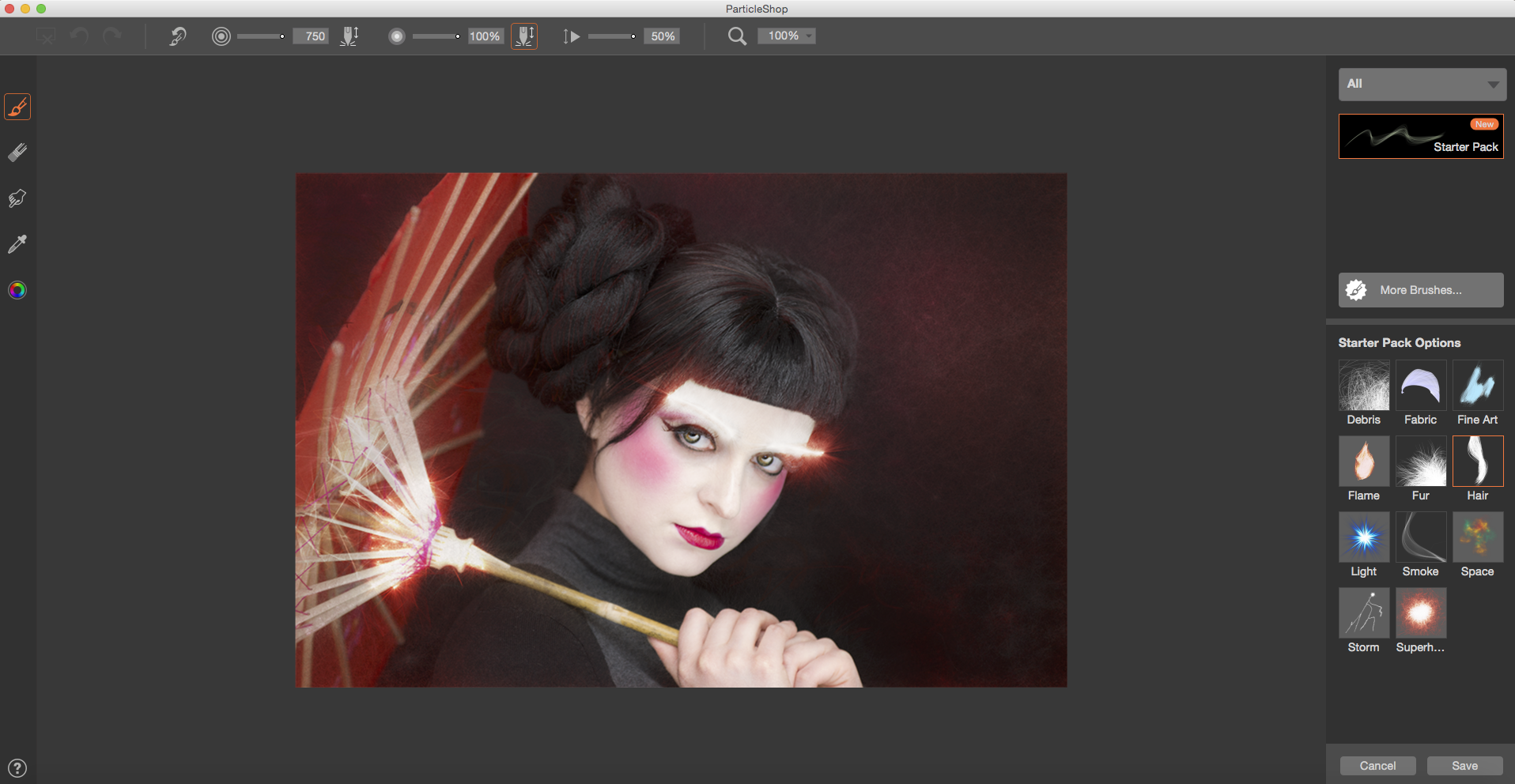
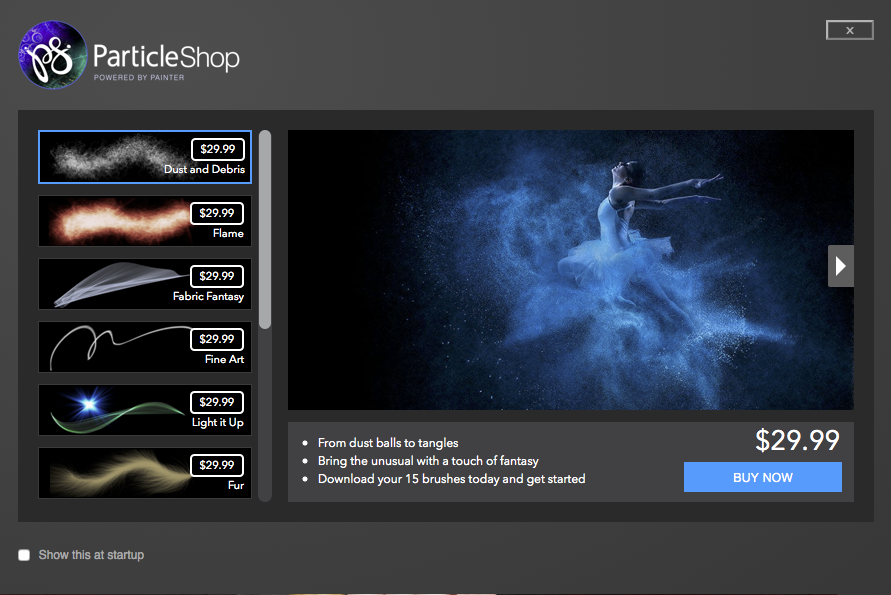
ParticleShop is a brush plugin for Adobe Photoshop.
I was introduced to ParticleShop the brush plugin for Adobe Photoshop at Photoshop World 2015. I liked the demo and I decided to buy and try this plugin ( You can download the trial version to try first).
First of all I want to point out that if you are looking for a great painting plugin this in NOT your plugin. I can’t imagine using this plugin for my type of painting. My primary and one and only application for my all digital painting work is Adobe Photoshop CC and most of the time I am using the Mixer Brush Tool. Also I am using Adobe Sketch ( Adobe mobile drawing application) as well. So if you will ask me what is the best application for a digital painting I will answer: The ONE and ONLY Adobe Photoshop CC.
I am not using any third party plugins. As an Adobe Creative Cloud subscriber the main and primary reason for me to use ParticleShop plugin is that this plugin is works with the newest version of Adobe Photoshop CC 2015 and the one one license you purchase will be installed for Adobe Photoshop CC and Adobe Lightroom as well.
The ParticleShop plugin is a great plugin for any type of artistic retouching. It’s amazing with hair and high fashion retouching, and if you like to apply any effects to your image you’ll probably like it. Because ParticleShop is the brush plugin for Adobe Photoshop you have access to all powerful Adobe Photoshop futures, including layers and if combine the plugin with other Photoshop features you will create a very powerful image. With the ParticleShop plugin you have control over your image, you can control the brush strokes: light, color, and angle. You can apply multiple brush(es) effects in one image. Combine, change the color, and opacity of the brush. You can apply brush strokes effects and return to Photoshop and apply the layer mask, duplicate the layer and continue your workflow using Adobe Photoshop. If after that you want to return to ParticleShop you can do it at any time.
I like the plugin and will use it for sure with my design and art workflow.
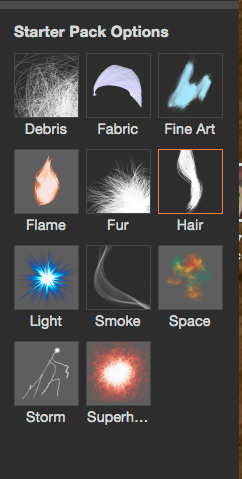
I have only two complaints about the Starter Pack Options:

1: I wish I had at least two different types of each default brushes.
You can buy additional brush packs for $29.99 each but I am not sure I will spend $29.99 for each brush pack (each plugin has 11 brushes and so it would be 11 packs) just after I spent $49.99 for the plugin. If I would have at least two different combinations of each brush as a Starter Pack Options I would feel much better.
2: I had trouble making some of my brushes big enough for my image ( 6016 x 4016 ) even after I made the Brush size by Maximum = 750 ( Starter Pack Options)
![]()
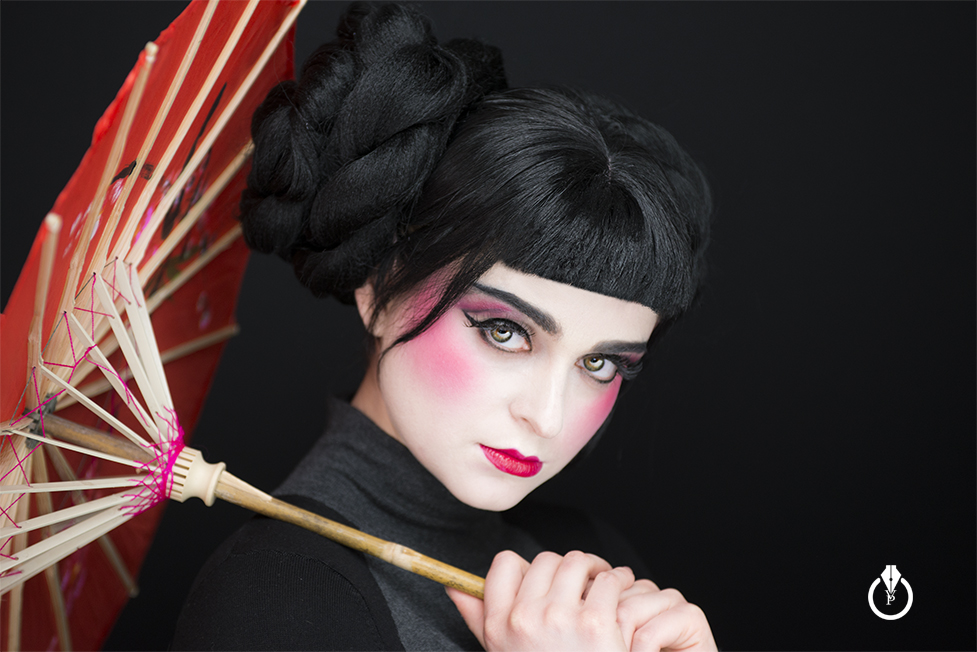
Before
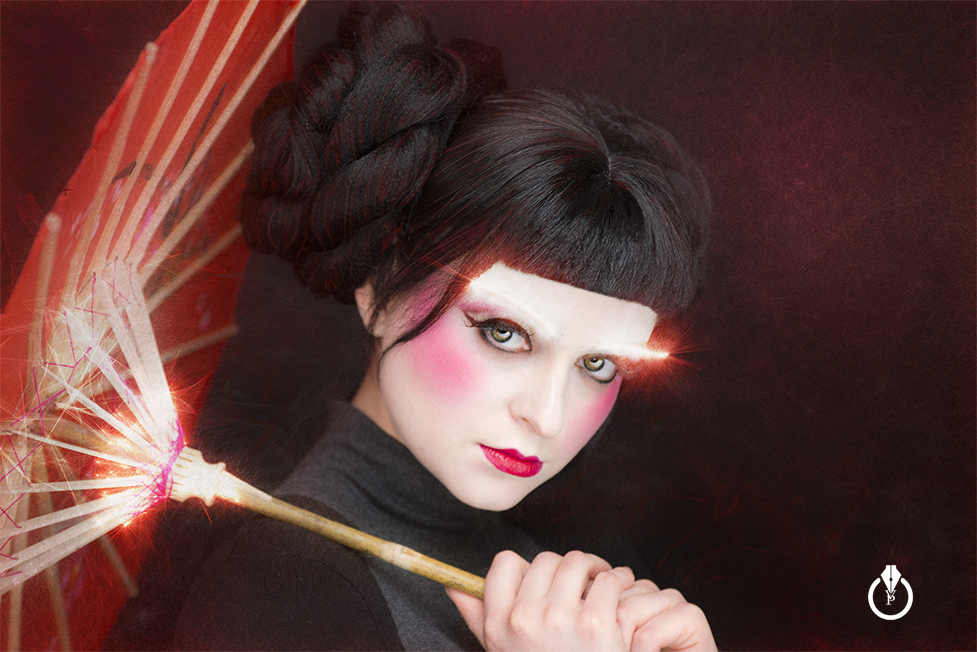
After
Image Manipulation with Adobe Photoshop CC
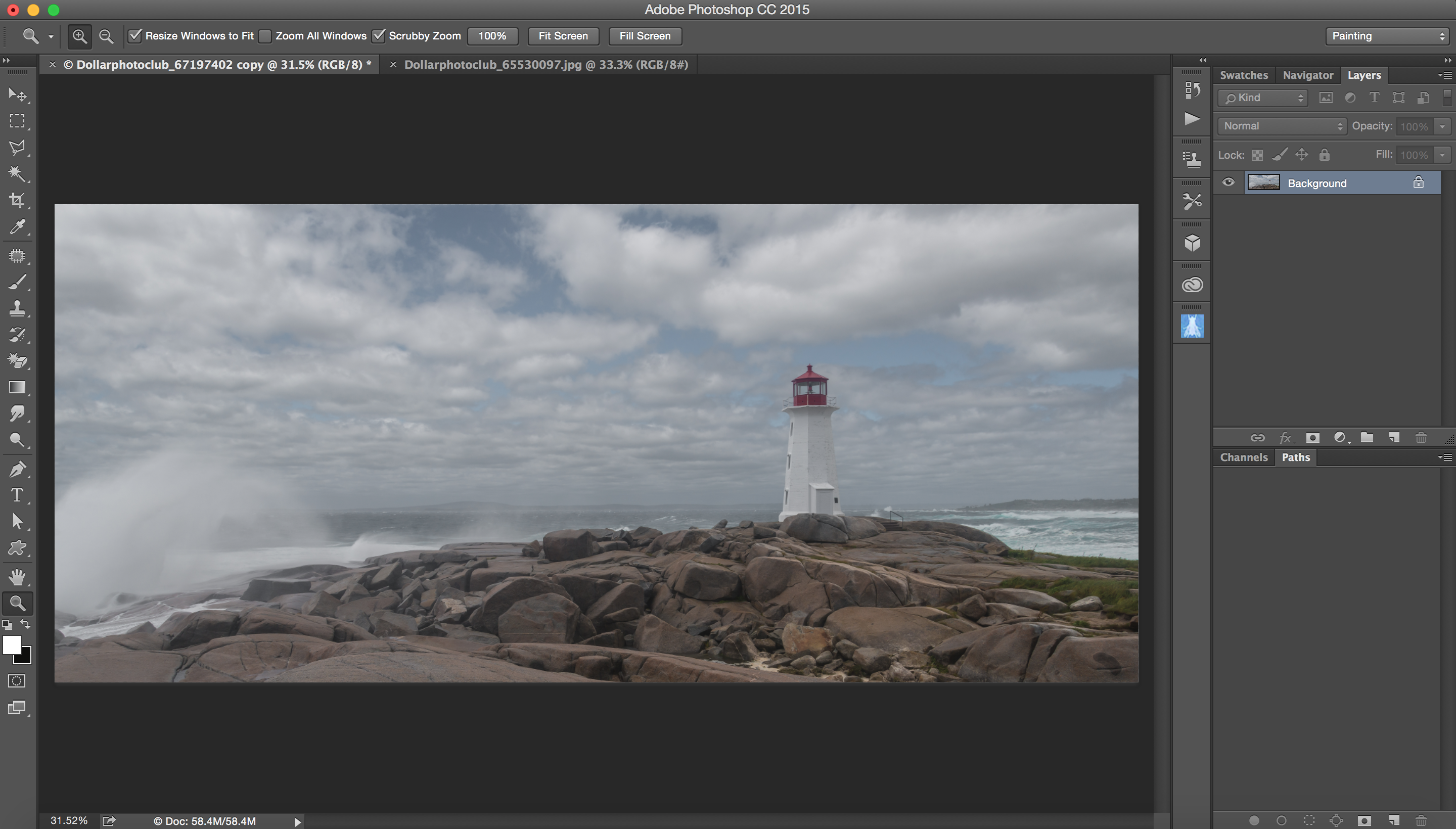
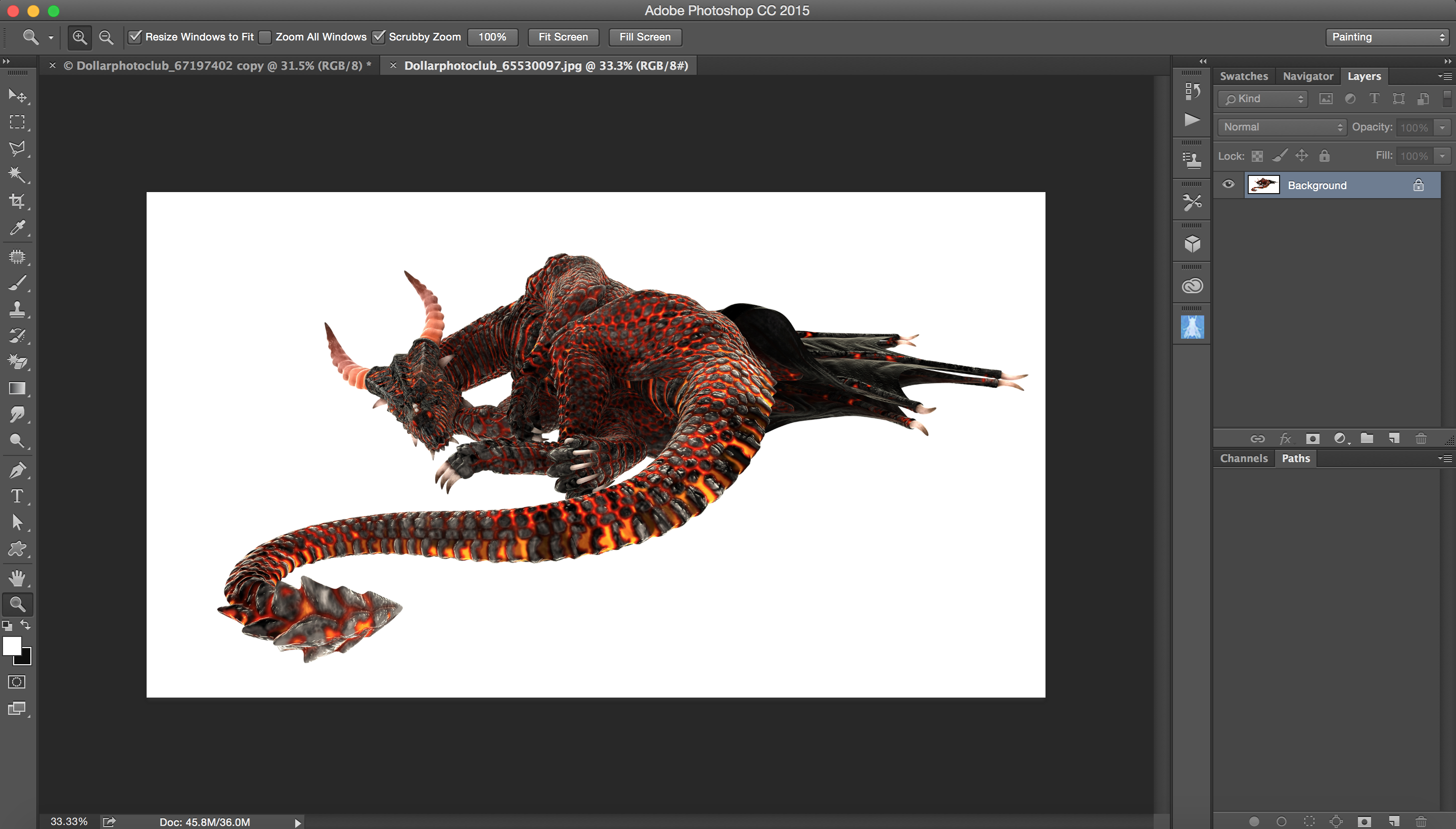
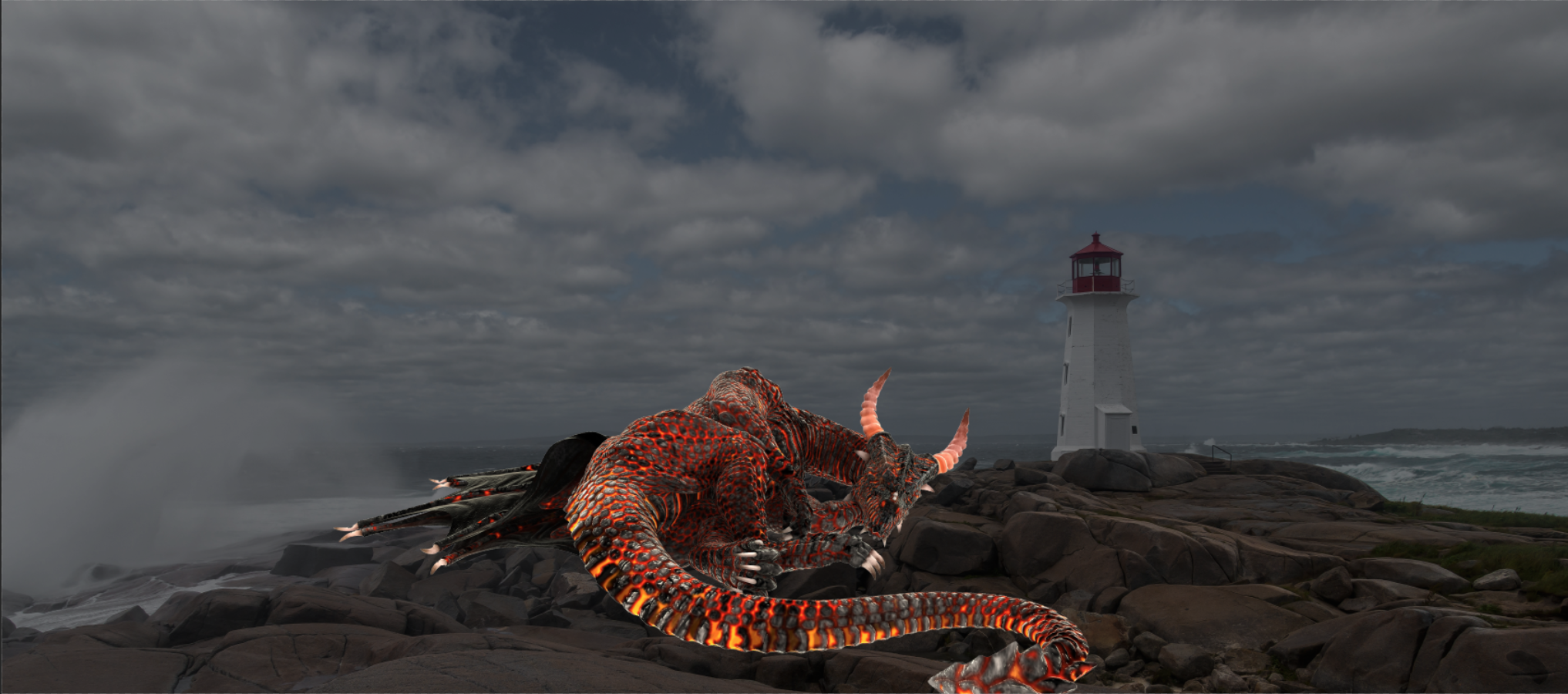
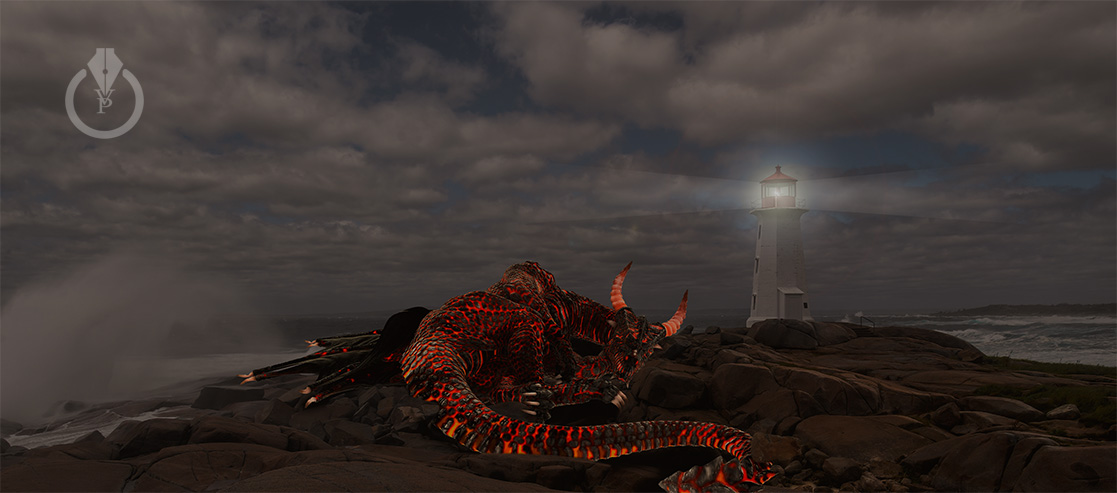
In this tutorial I will show how to create romantic and elegant image using Dollar Photo Club images
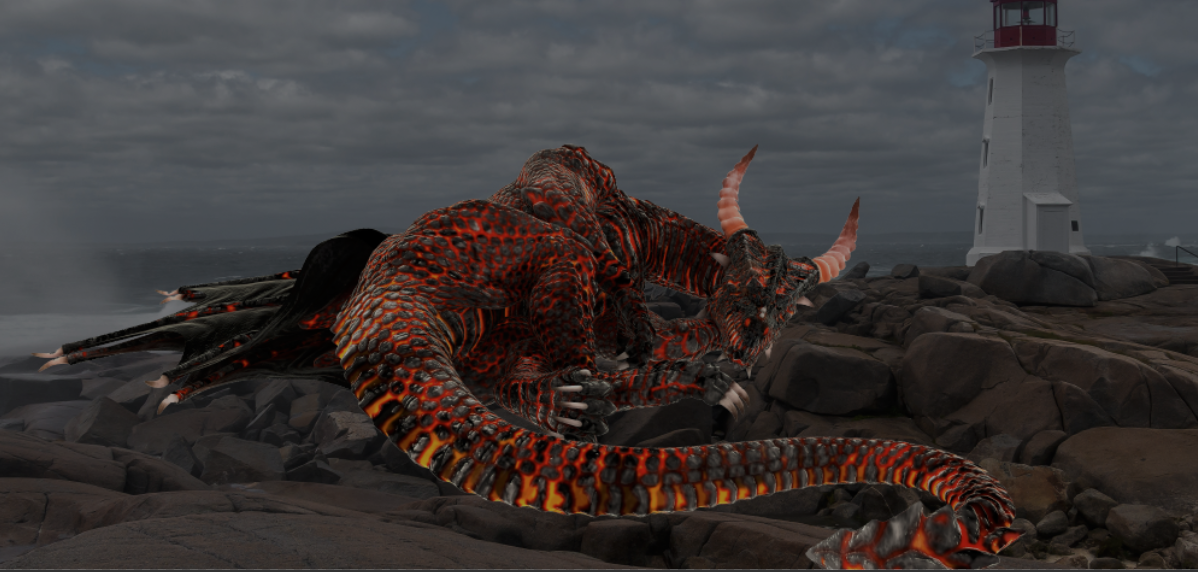
1: Open your first image and this image will be our background image

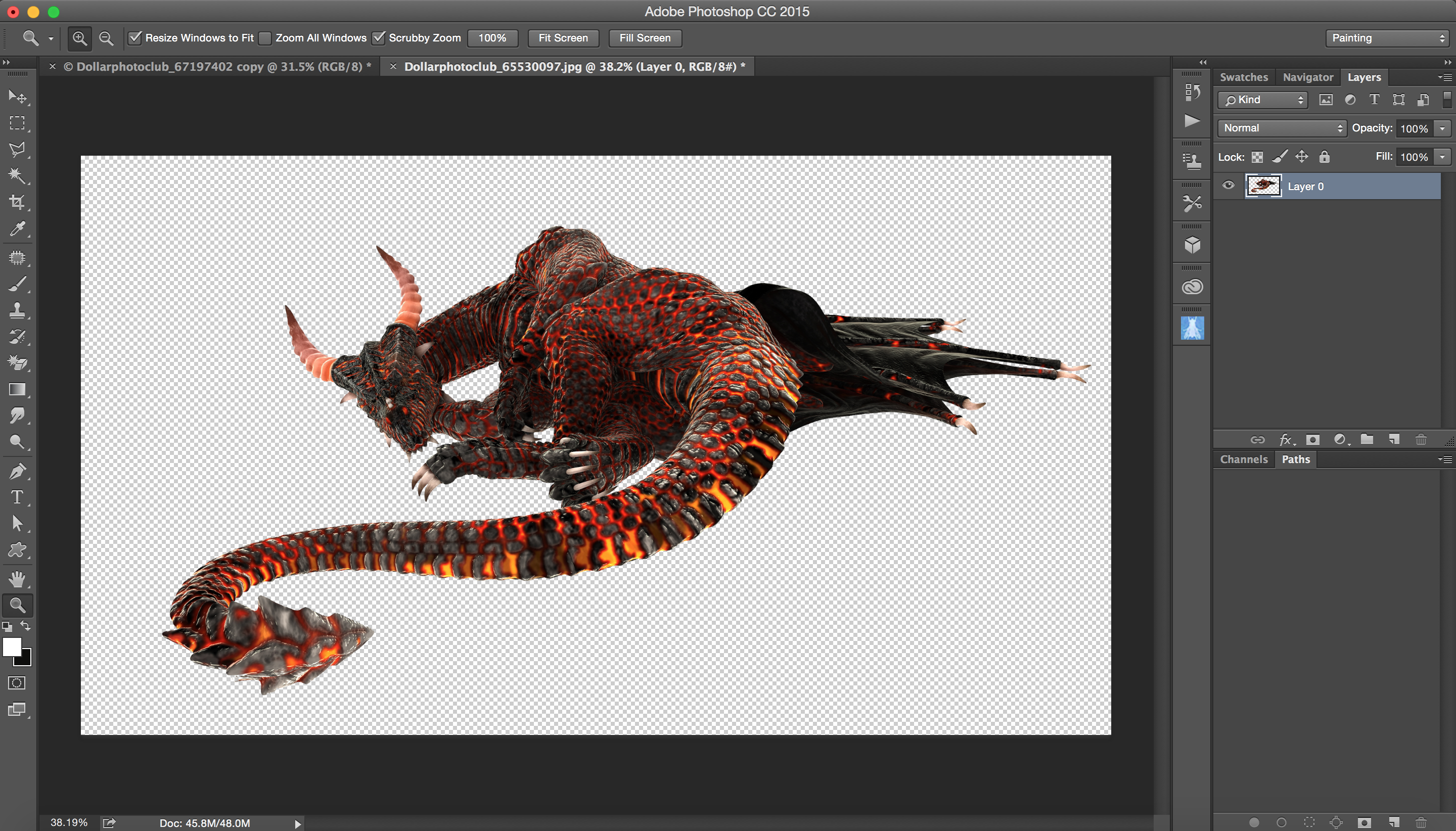
3: Unlock the Dragon’s background layer ( click on a lock icon )
4: Remove the white background ( you can use any method you are comfortable with ). I used the Magic Eraser Tool

5: Select > All > Edit > Copy
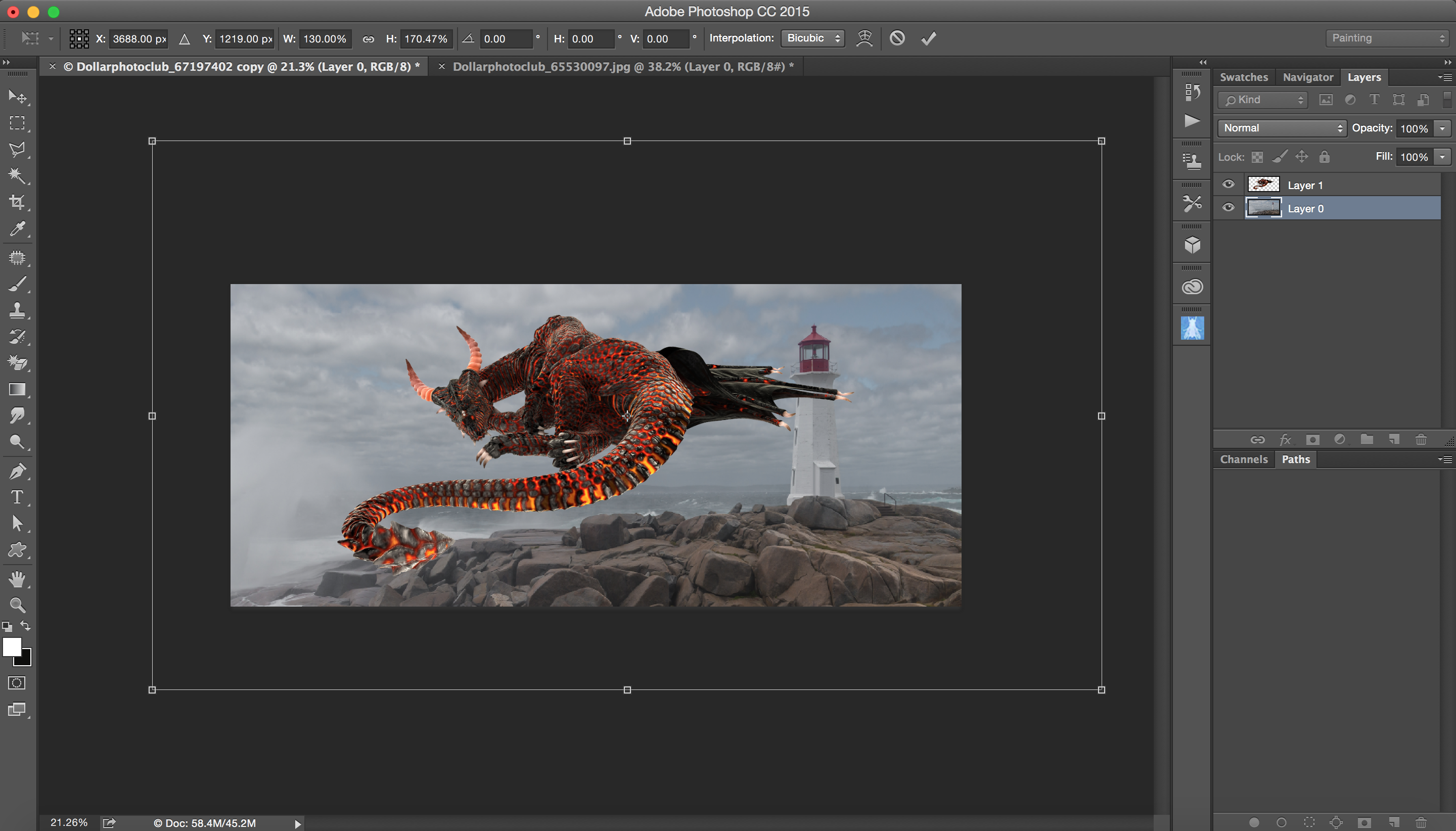
Return to your background image > Edit > Paste

6: Highlight the background layer > Click on the lock icon to unlock the layer > Edit > Free Transform > Resize your background layer

8: Highlight the Dragon Layer > Edit > Free Transform > Resize and change position of your Dragon

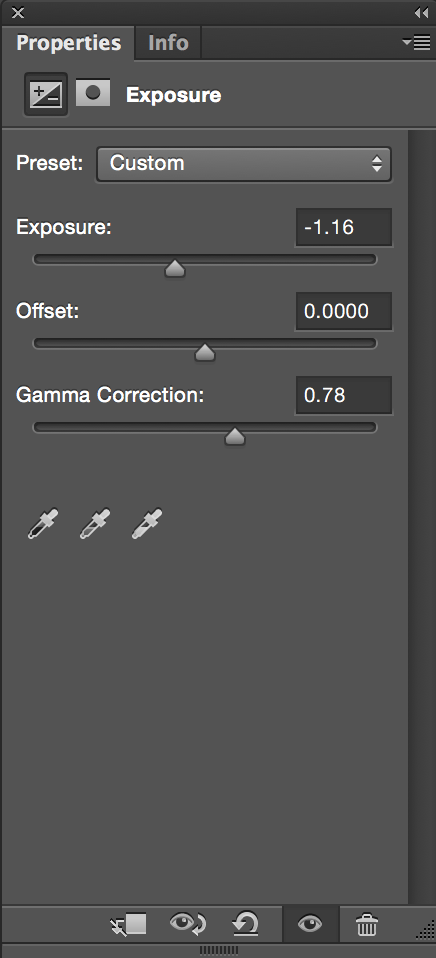
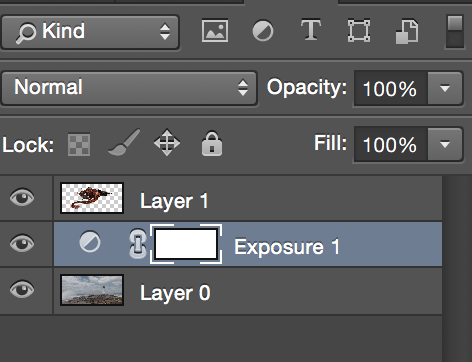
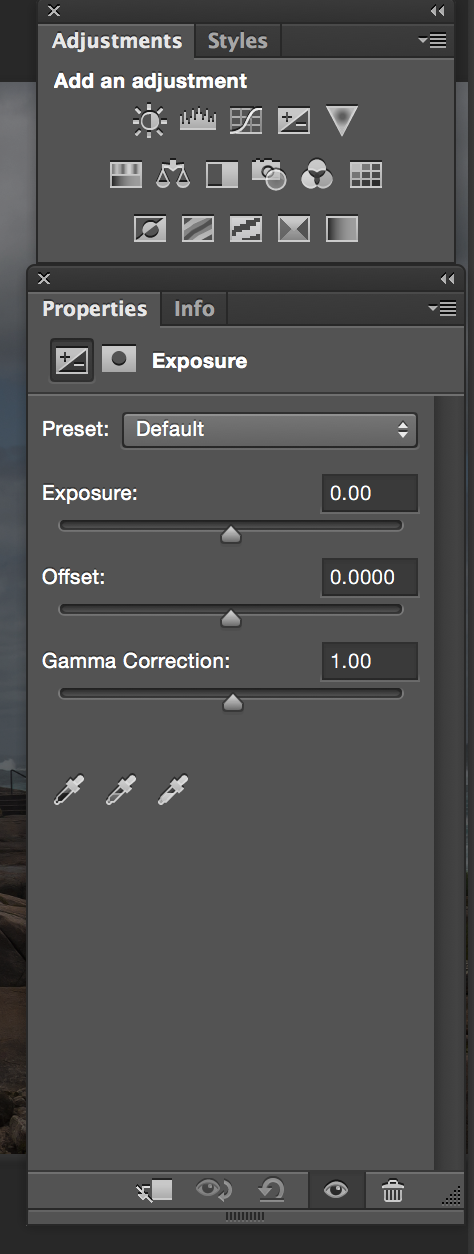
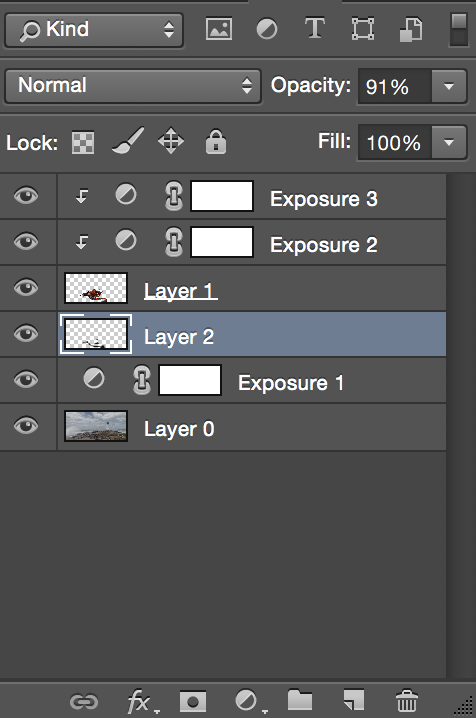
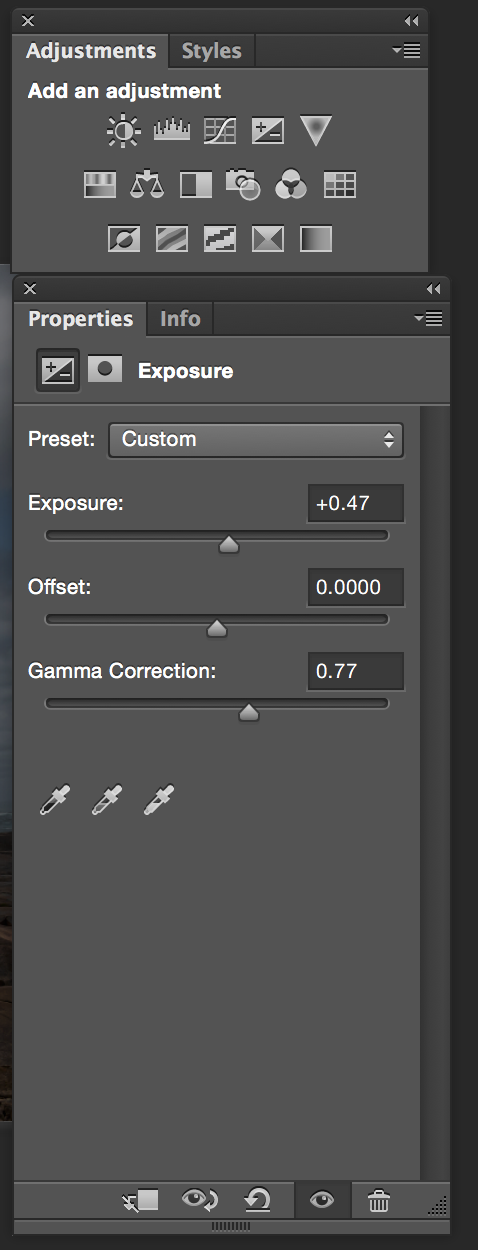
9: Adjustments > Exposure > Click on Clip to Layer to affect only the layers below ( your Dragon Layer)

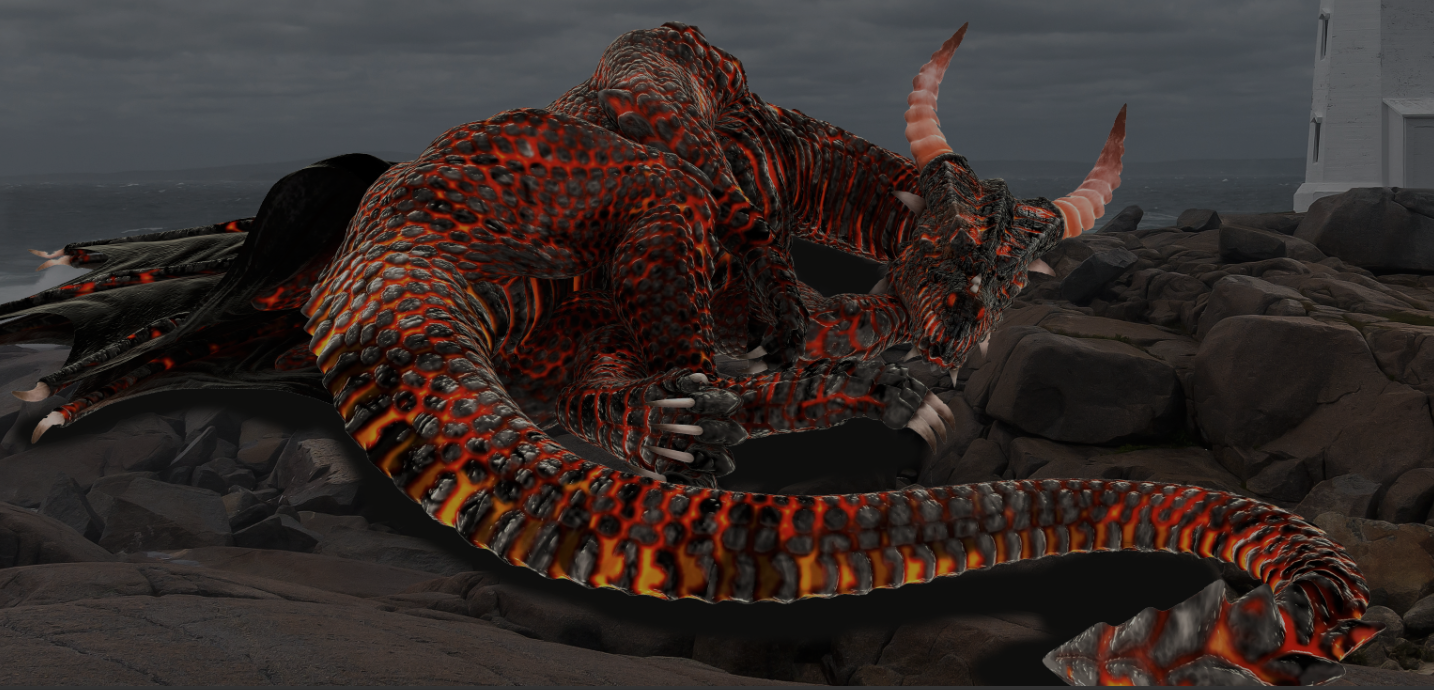
10: Click on your Dragon Layer > Dodge Tool > Highlight some parts of the Dragon’s skin

11: Add empty layer bellow the Dragon’s Layer

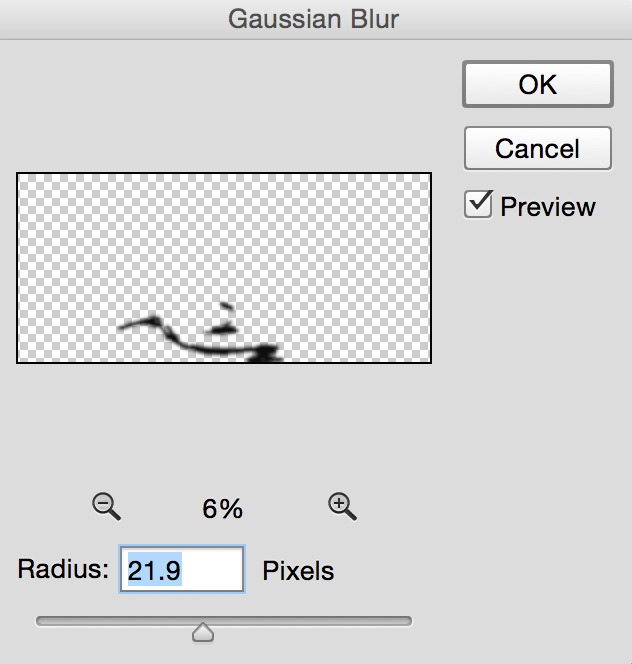
12: Using the brush tool with black color paint the area under the Dragon to apply shadow

13: Filter > Blur > Gaussian Blur > Set the Layer Opacity = 91%
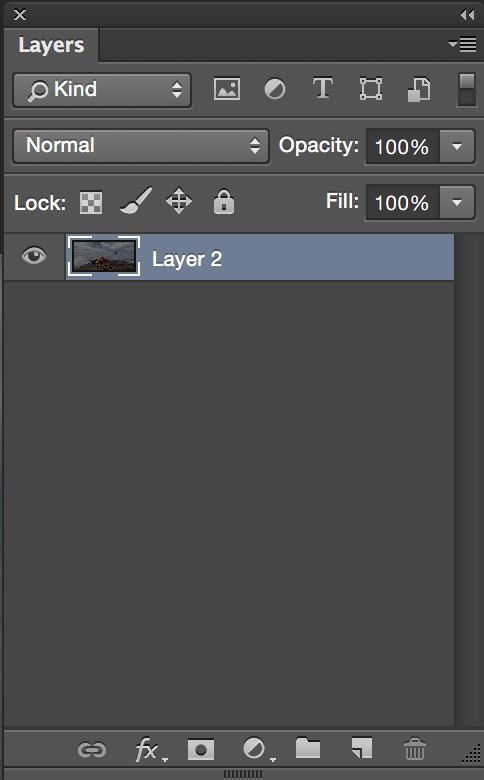
14: Highlight the Dragon Layer > Right Click > Convert to Smart Object > Merge Down > Add Layer Mask > Erase some parts of your Dragon to apply more realistic effect
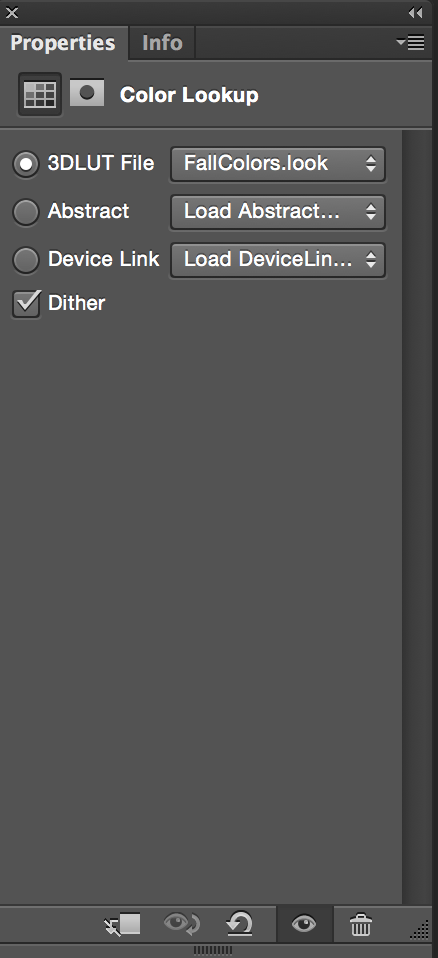
17: Adjustments > Color Lookup > FallColors.Look
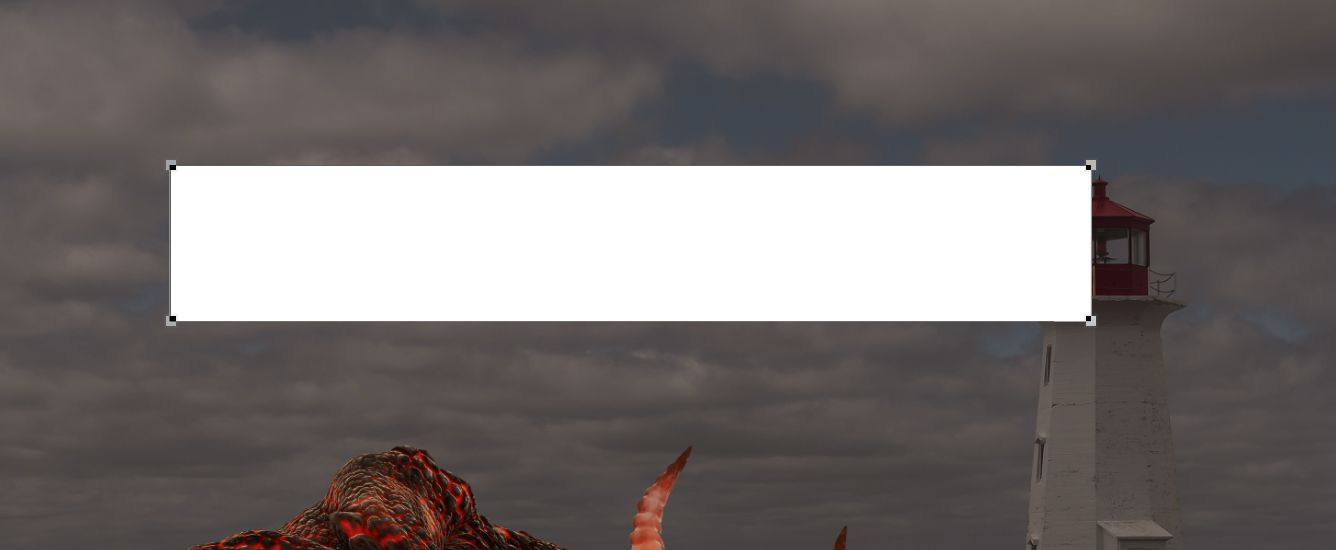
18: Create a new Layer > Rectangle Tool with the White color on it
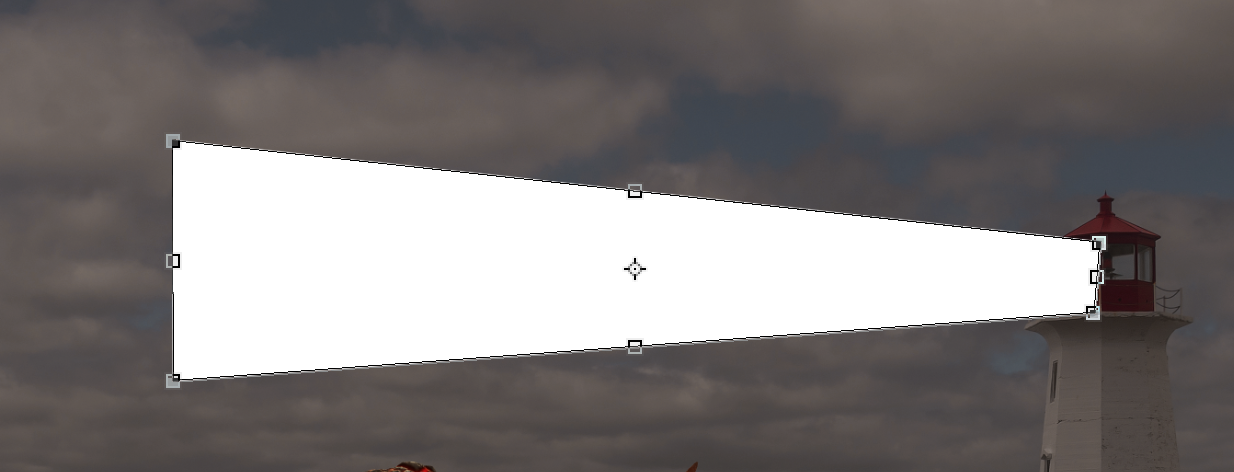
19: Edit > Transform Path > Distort

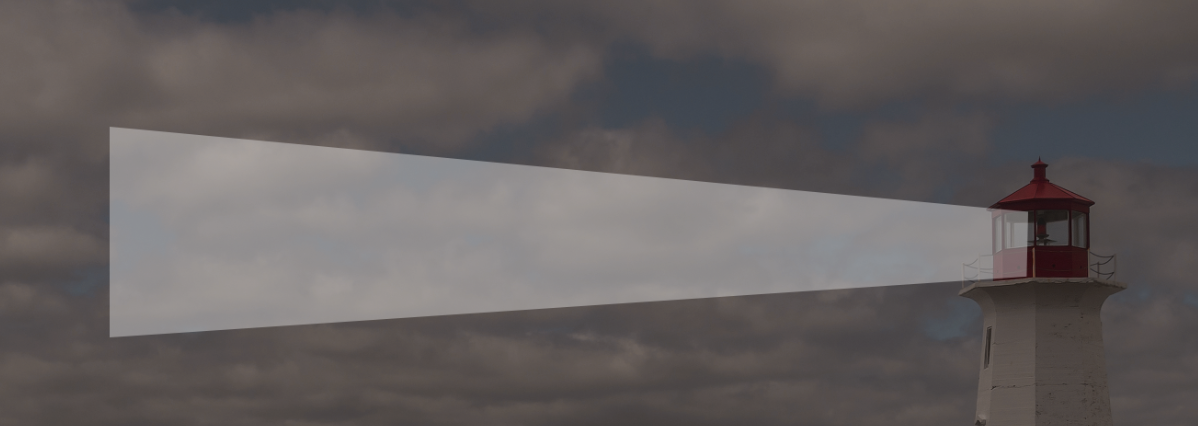
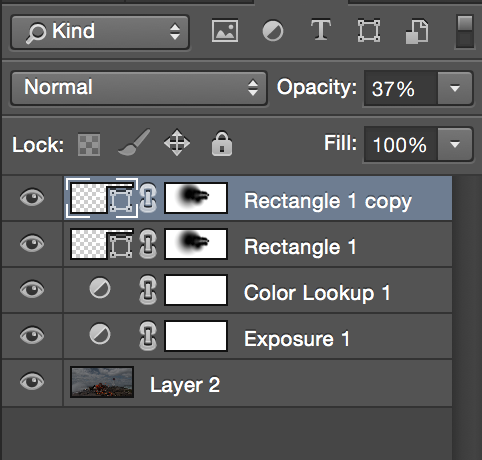
21: Add layer mask > Using Gradient Tool erase ages of your shape
![]()

22: Duplicate Restangle 1 Layer
23: Edit > Free Transform
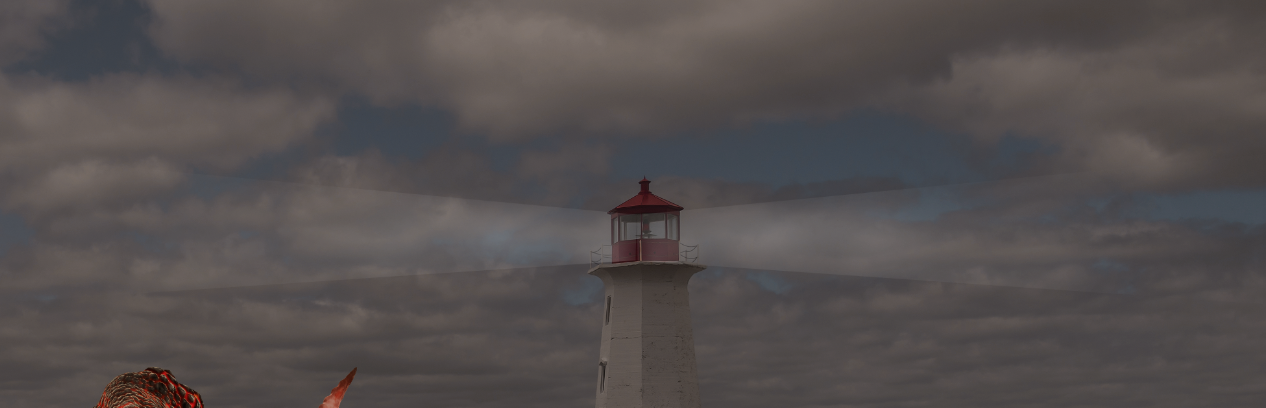
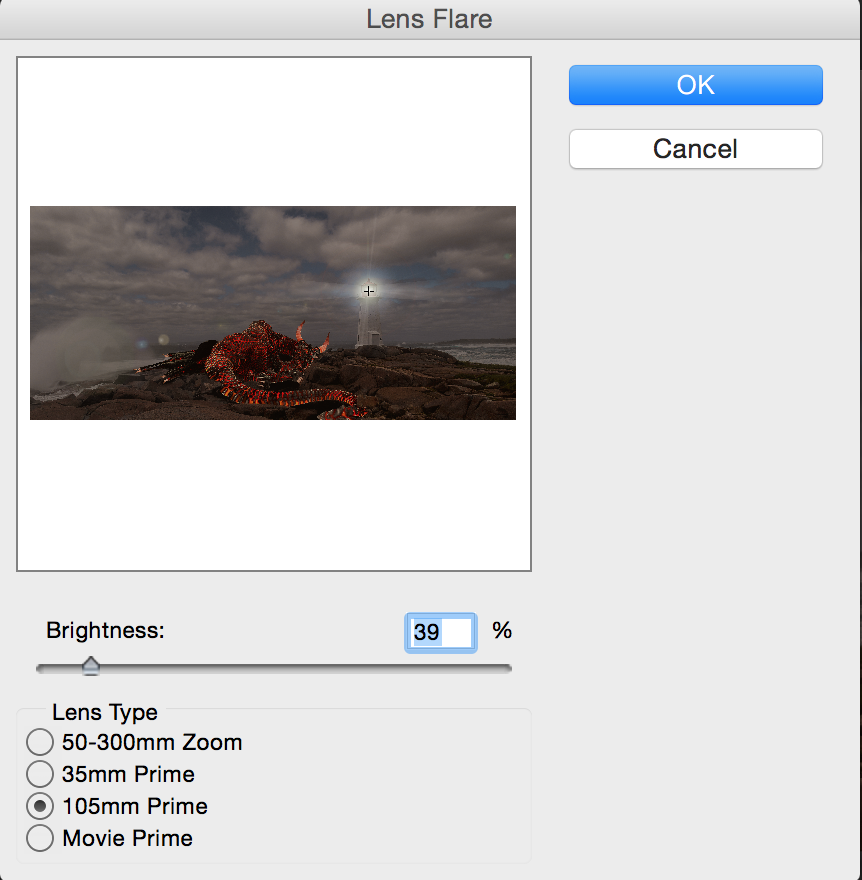
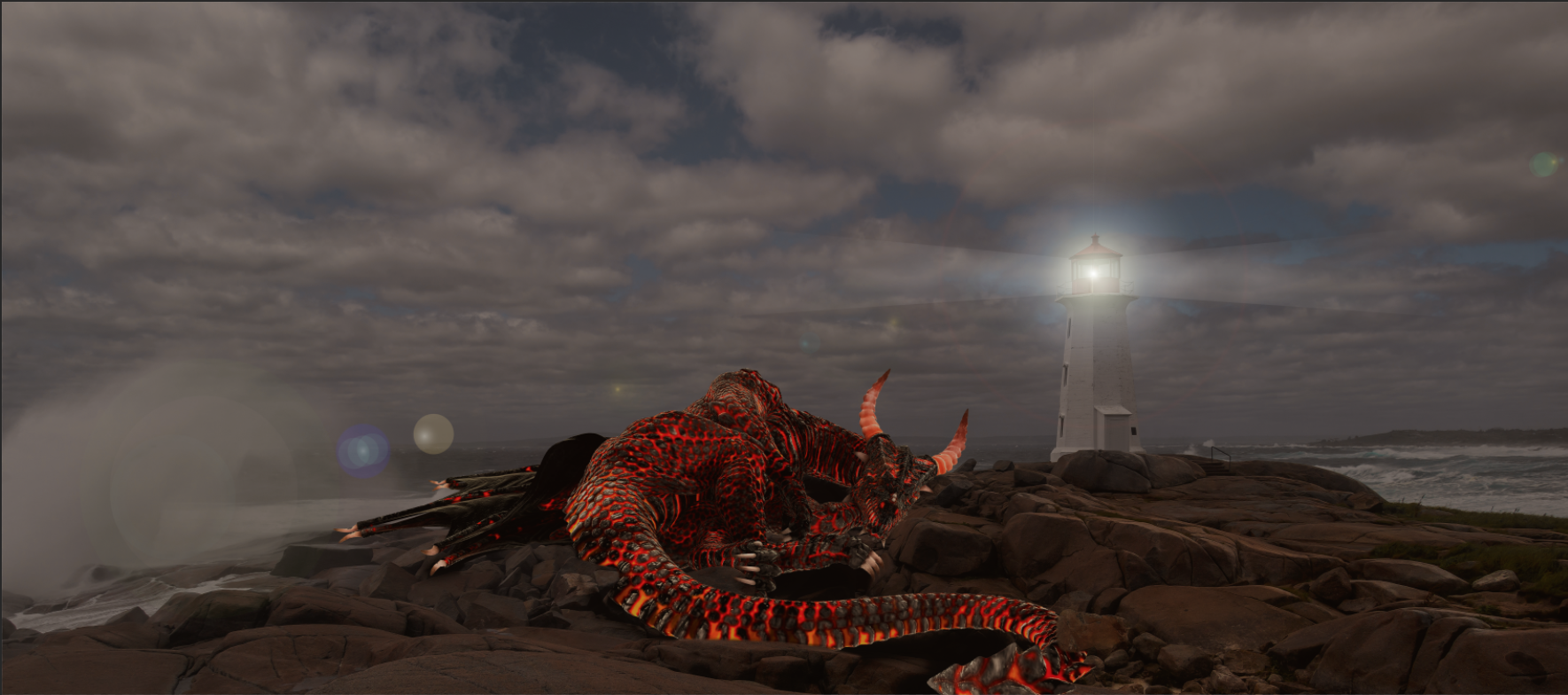
24: Merge Visible Layers > Duplicate your layer > Filter > Render > Lens Flare
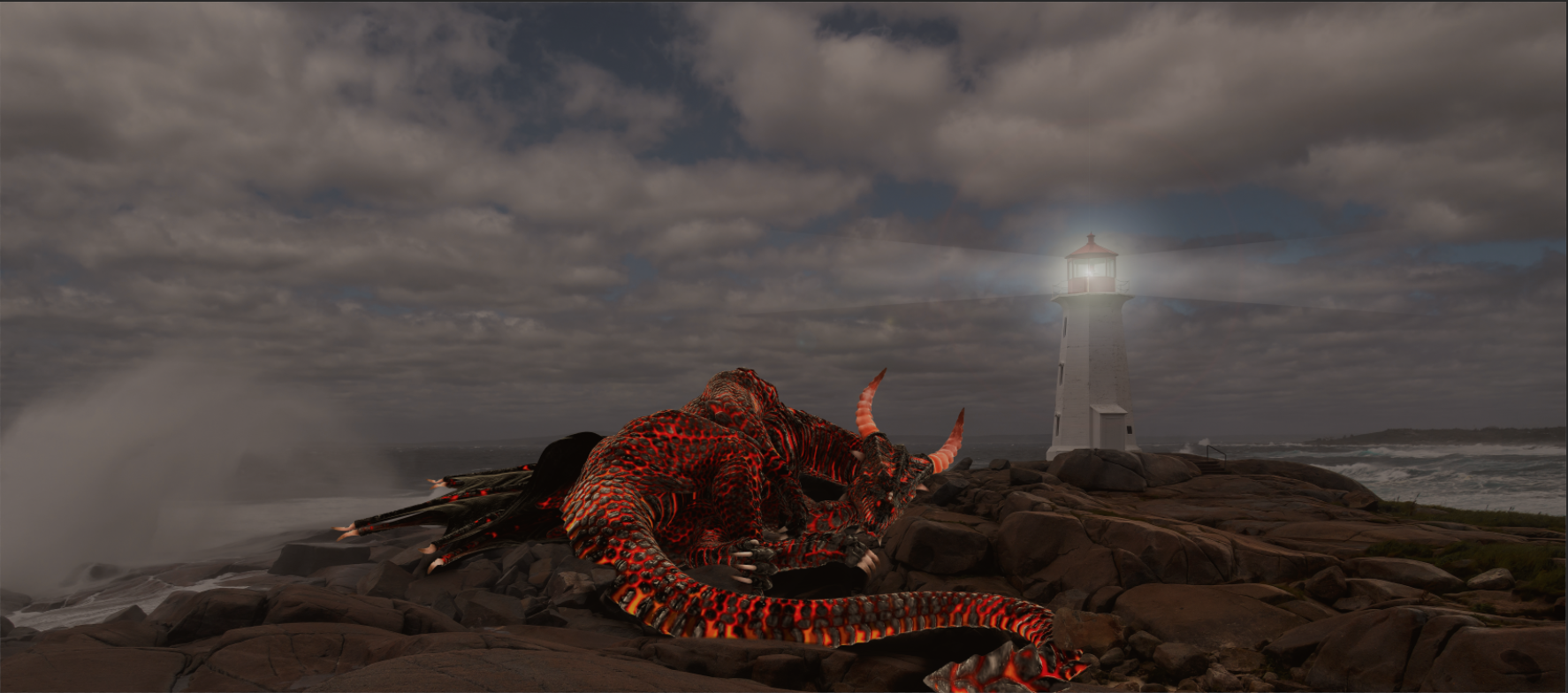
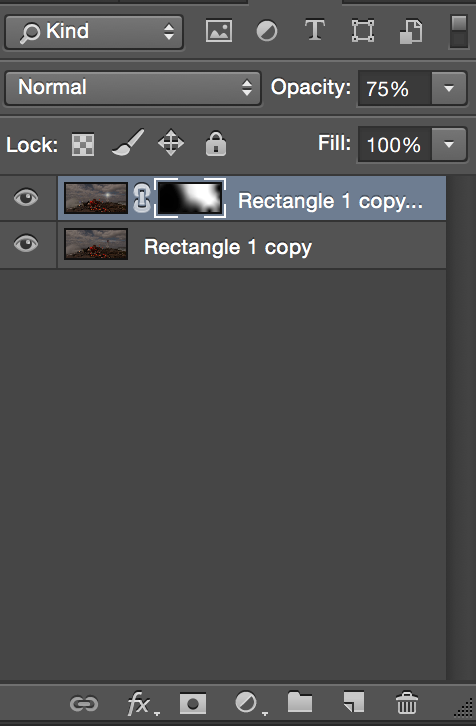
25: Set the top layer opacity = 75% > Add layer mask > Using Gradient Tool erase the lens flare effect from the ages of your layer


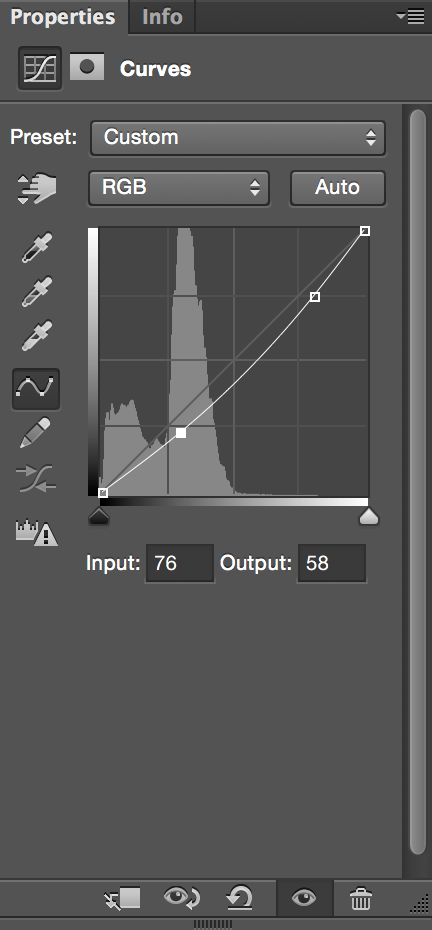
26: Adjustments > Curves
My favorite HDR app for mobile photography
My favorite HDR app for mobile photography is TrueHDR by Pictional LLC. I have been using this app more than year, and have no complains about any of its functionality.
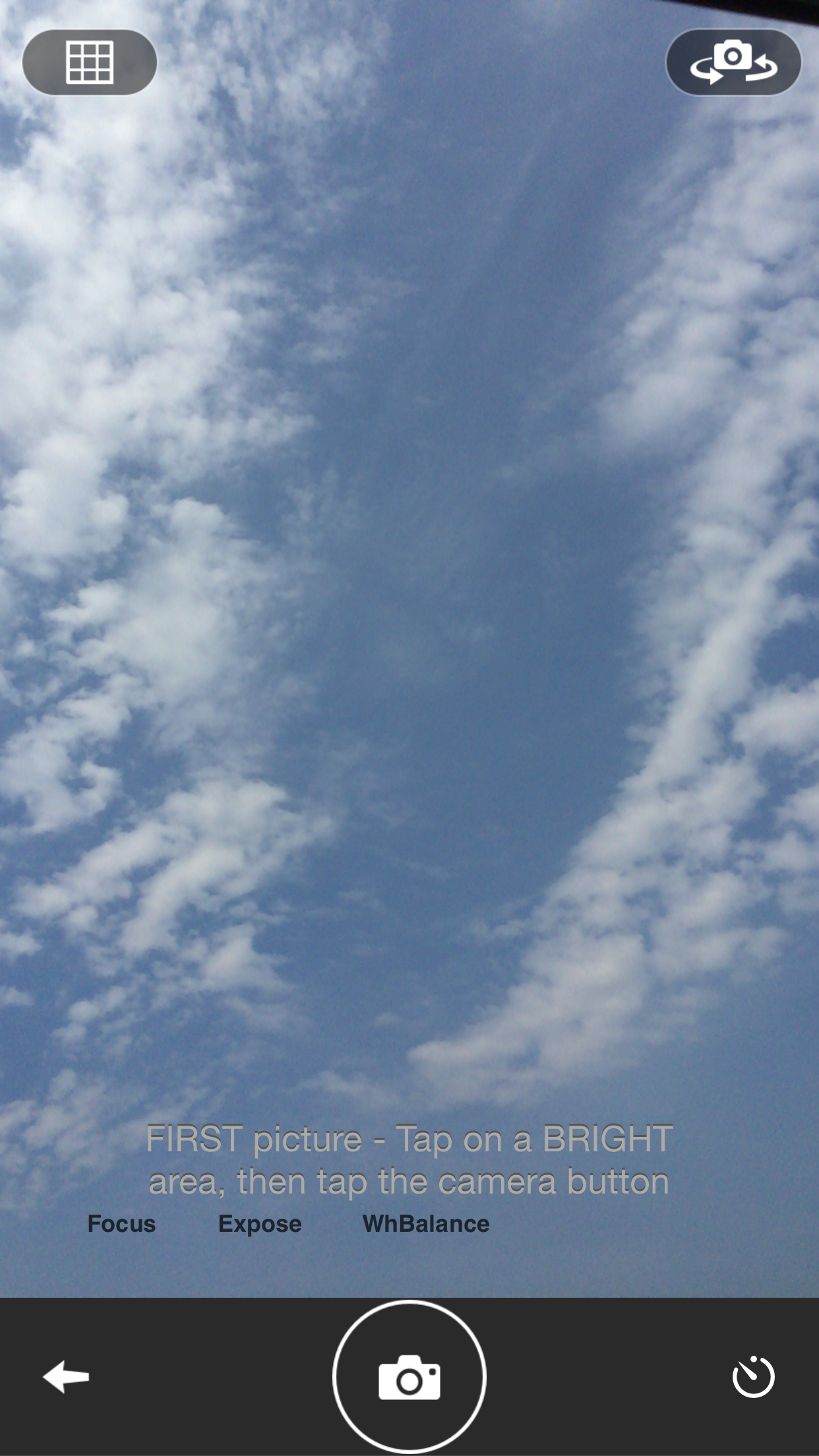
TrueHDR app has few capture modes:
- Auto Capture
- Semi / Auto Capture
- Manual Capture
- Choose Picture
My favorite mode to use is Manual Capture. Using this mode I can manually select Bright and Dark areas to merge them into HDR image. I can select between Natural ( most realistic look) and Enhanced ( vivid colors ) modes.
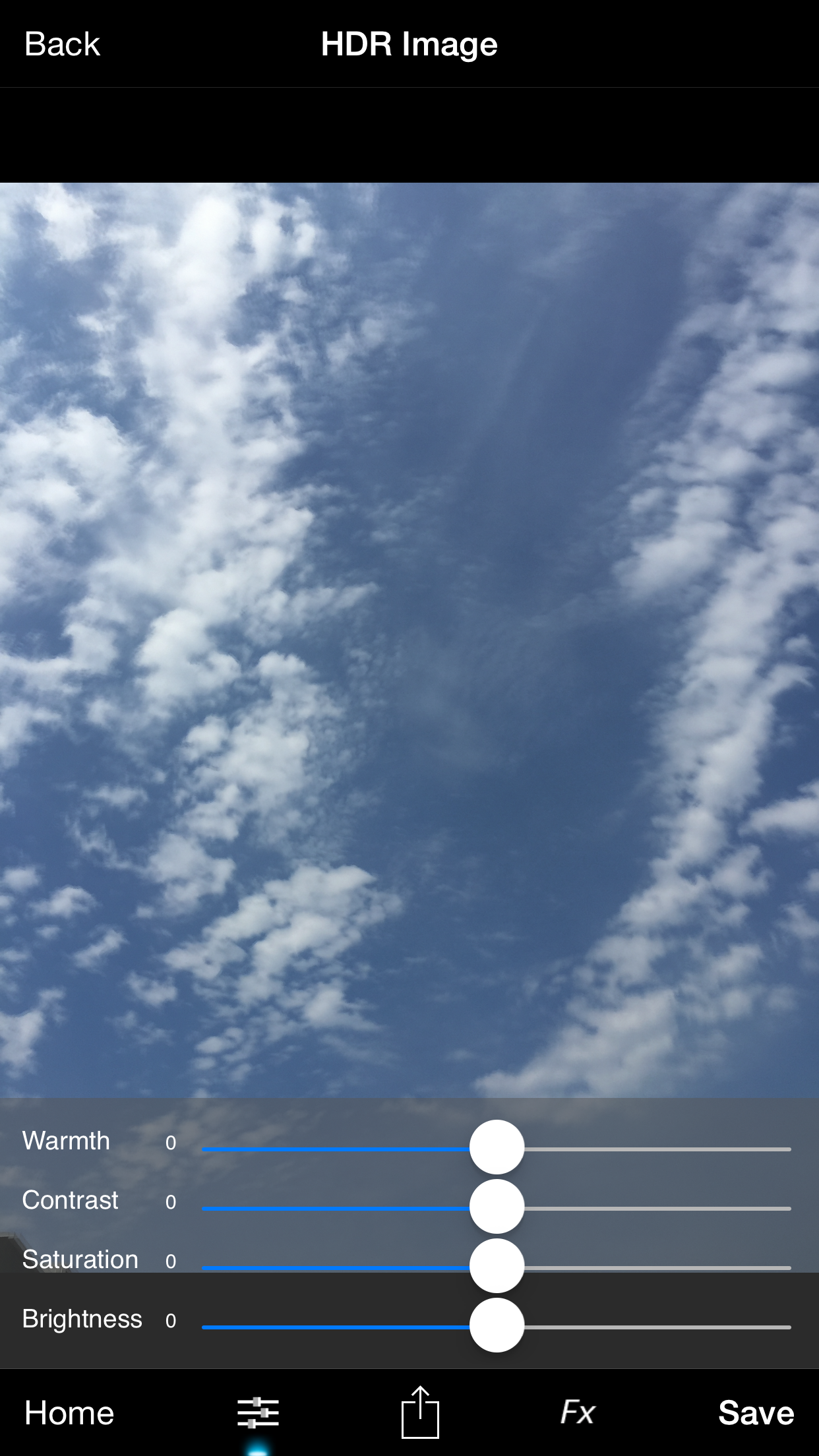
Using custom slider I can control
- Warmth
- Contrast
- Saturation
- Brightness
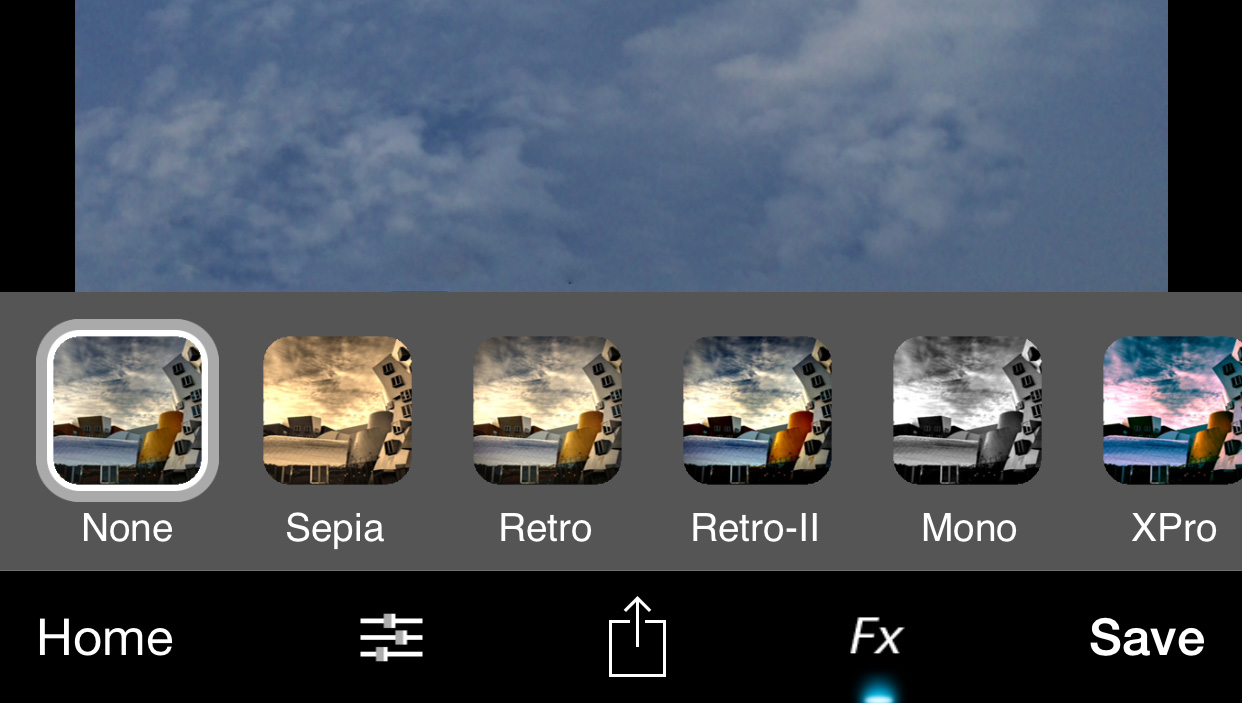
From the effect presets I can choose any effect I want to reapply to my image ( from Sepia to Vignette)
Using many convenient sharing options you can share or print your image directly from your app.

Price: $1.99 and available fro iPhone and iPad!
For iPhone:
For iPad:
How to share your Creative Cloud Folder
For me it is most important to have control over sharing my assets. I am a digital artist and my primary applications are Adobe Creative Cloud Apps. No surprise that I prefer to store and share my current files I am working with using Creative Cloud. I am very happy with all options to have control over my shared assets and permissions.
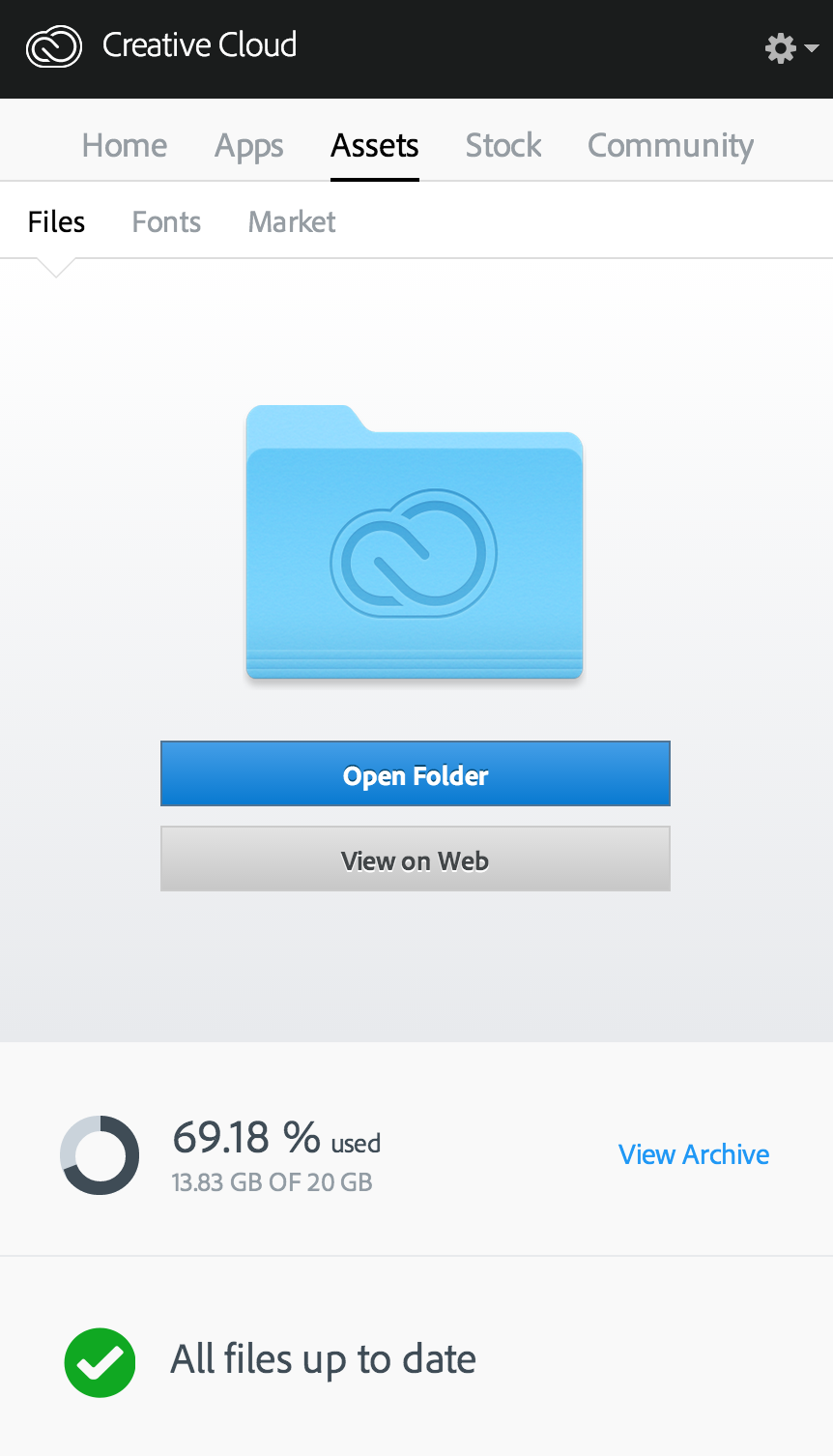
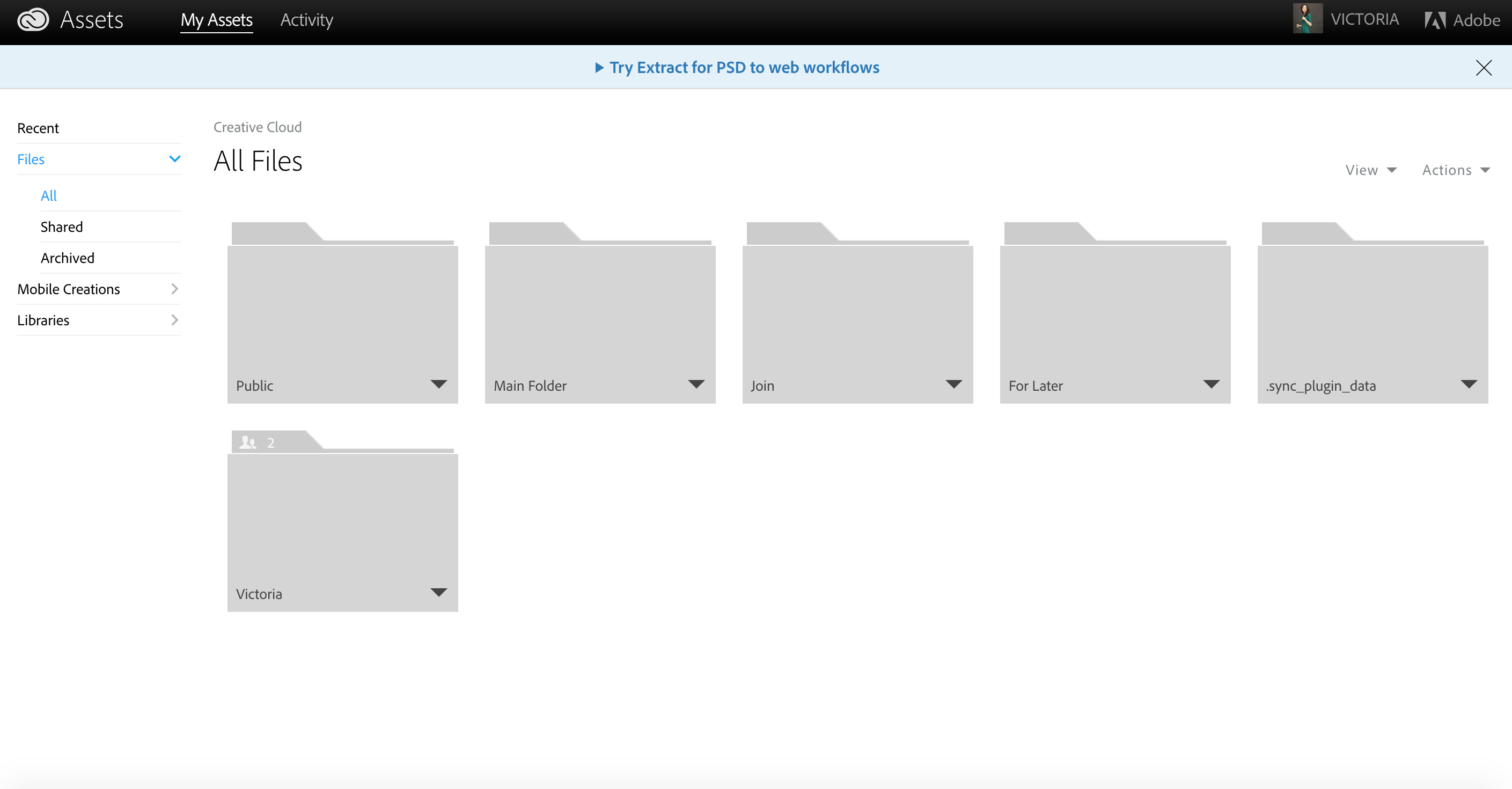
1: Click > View on Web
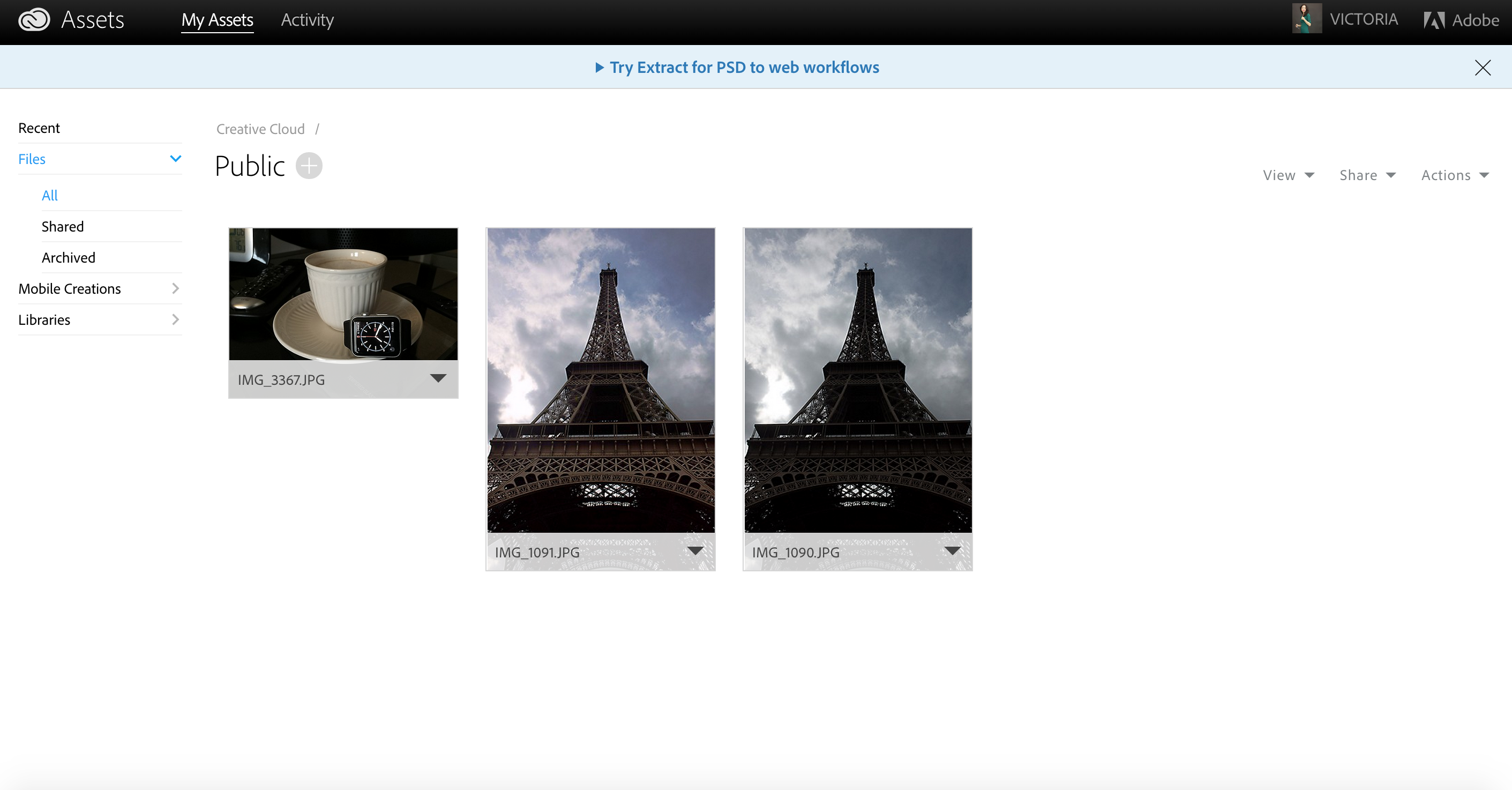
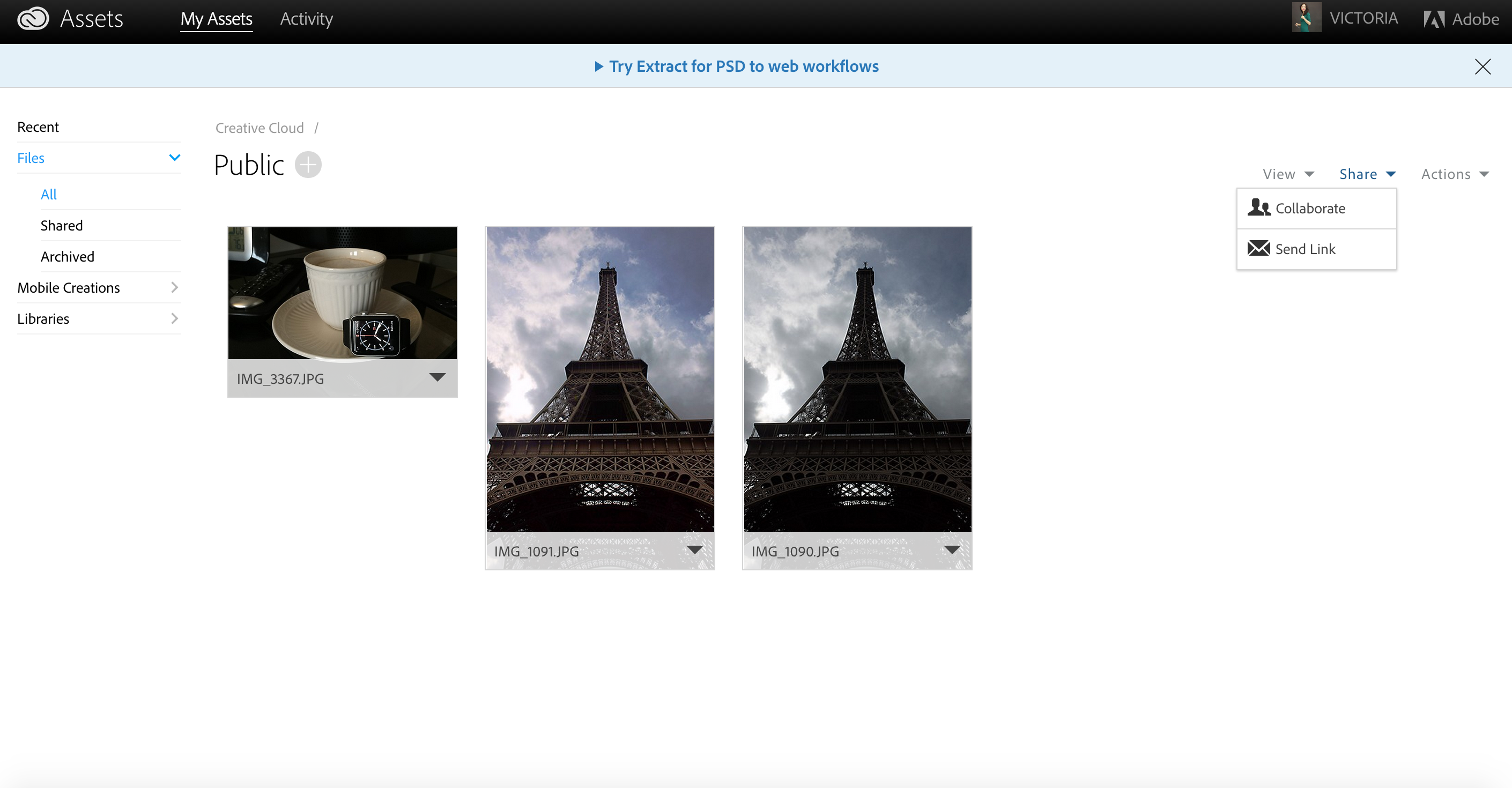
2: Click on a folder you want to share
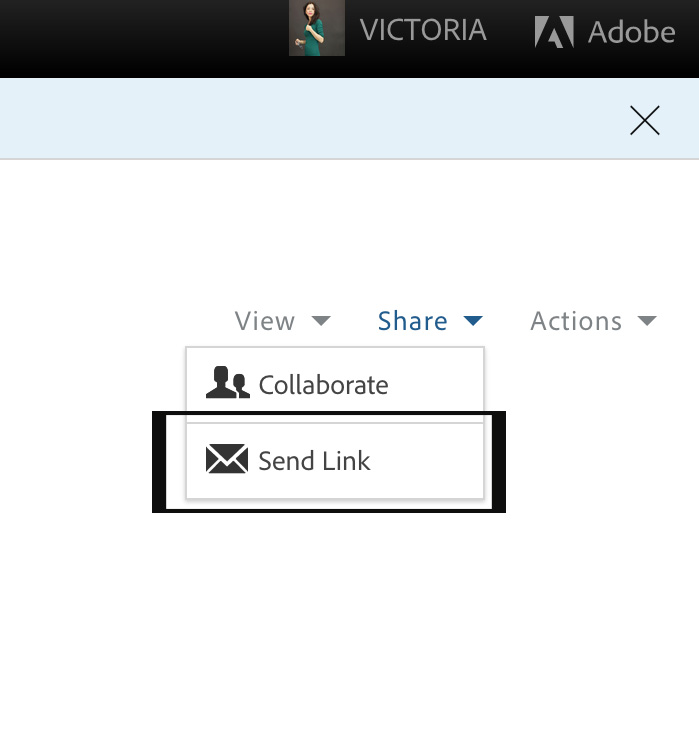
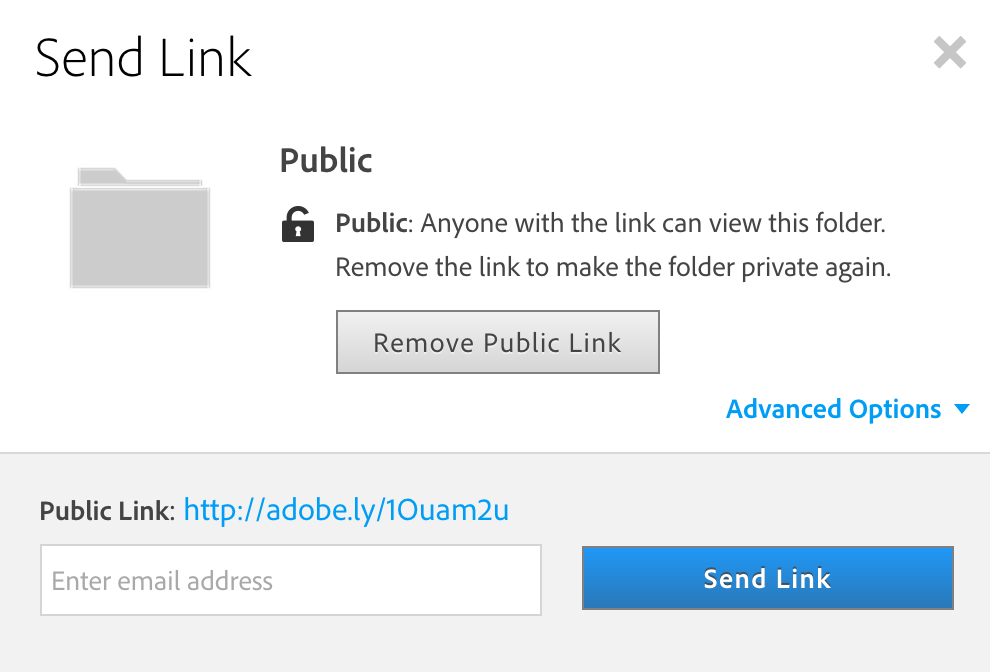
3: Share > Send Link
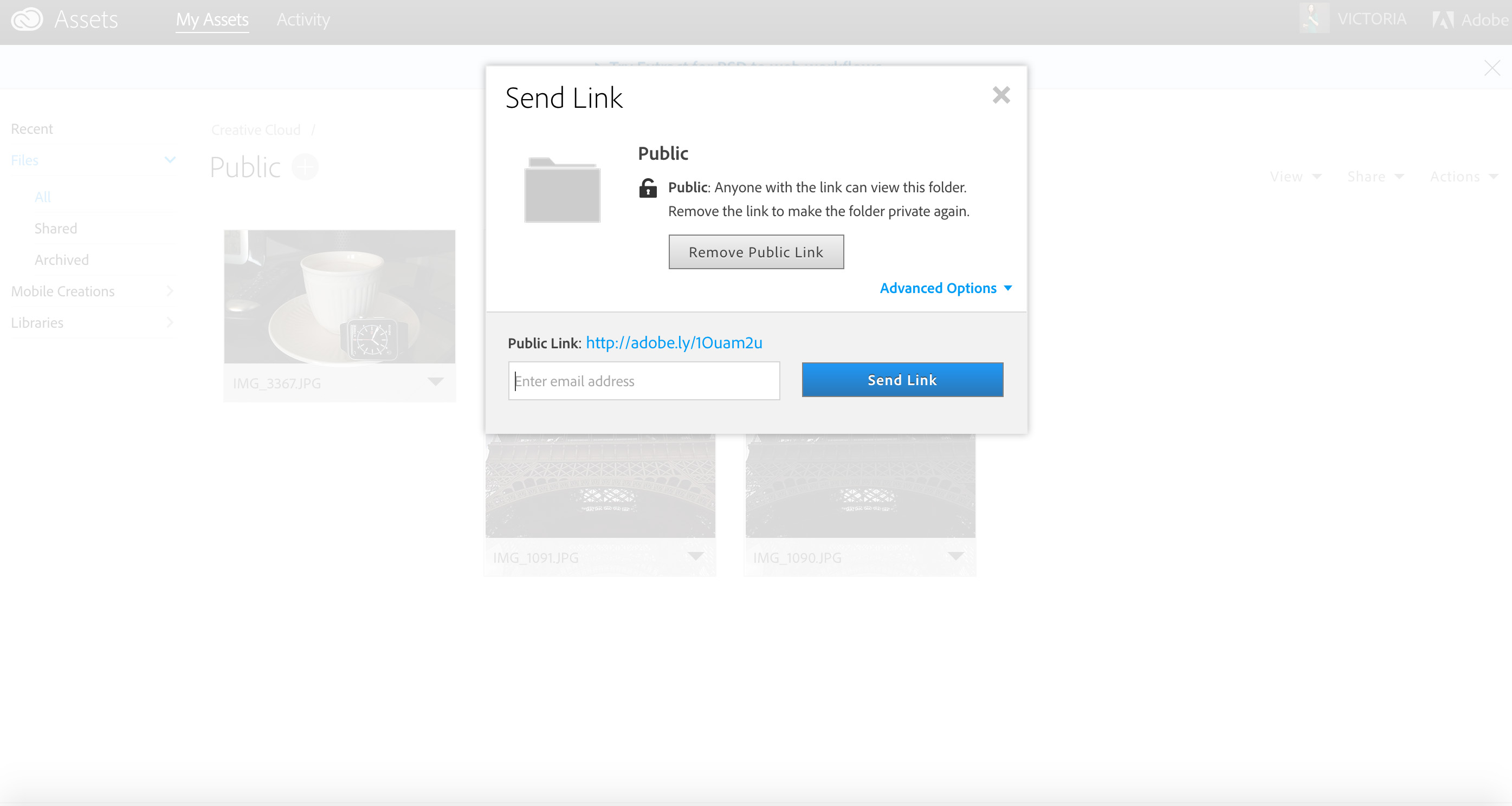
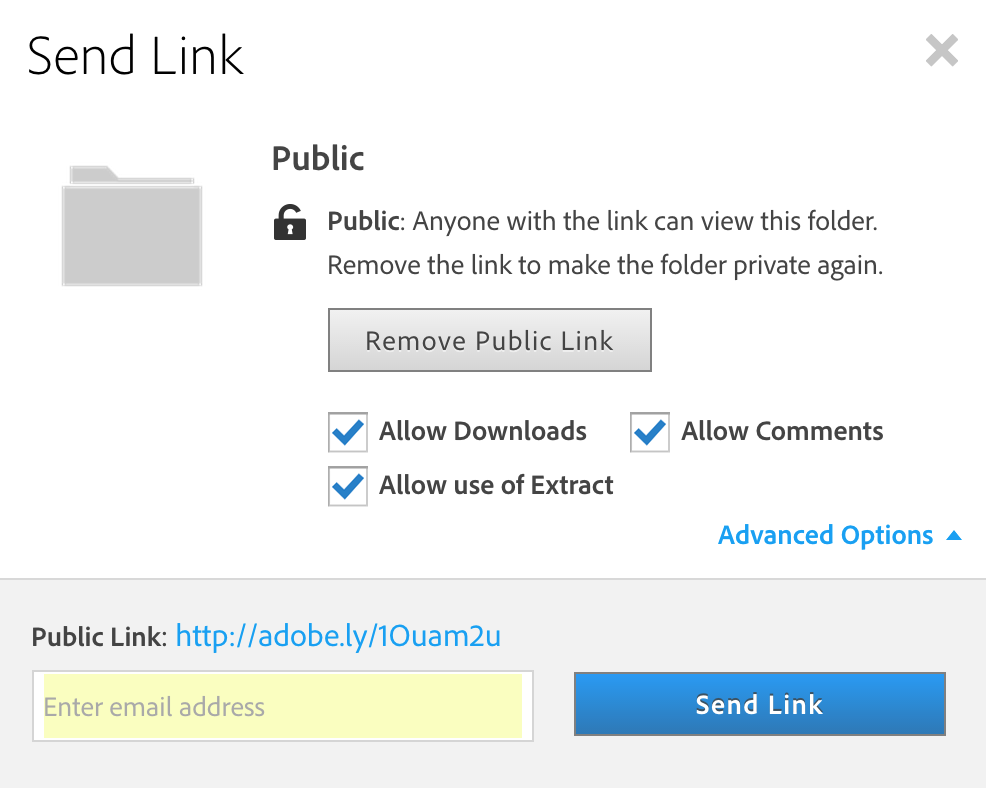
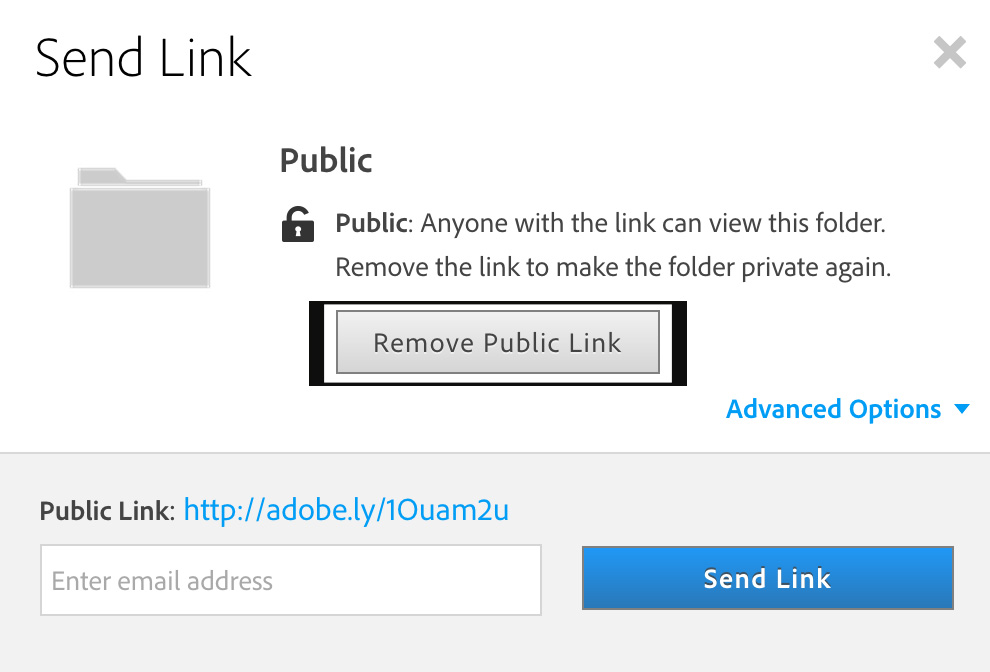
3: Creative Cloud created your public link you can share with anyone you want to.
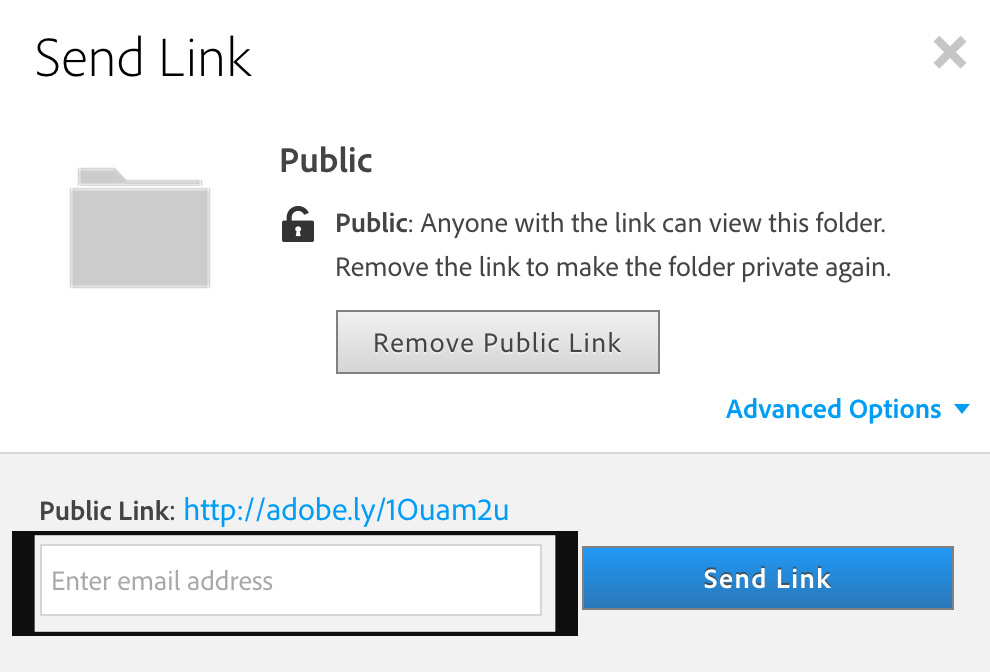
4: Type the email address of the person you want to share your link with
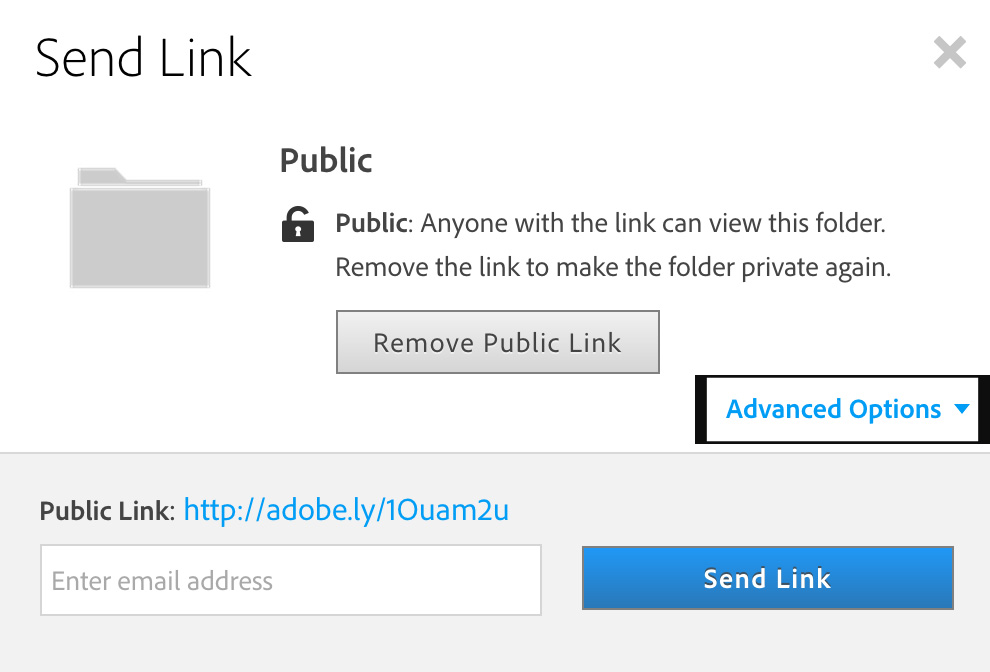
5: Click on Advanced Options
All options are enabled by default but you can choose to disable the options.
Allow Downloads > allows to download file
Allow Comments > allows to add comments
Allow to use of Extract > allows to extract image info and assets (available only when sharing a Photoshop (.psd) file )
P.S. To make you folder private again simply click on Remove Public Link