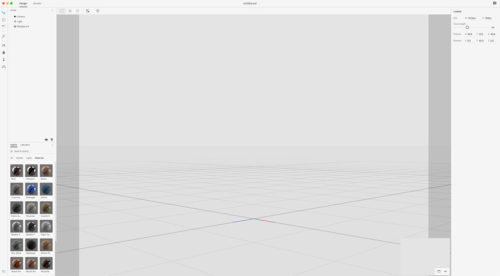
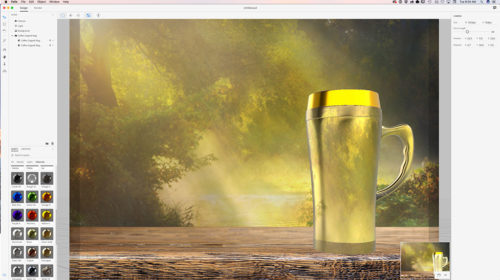
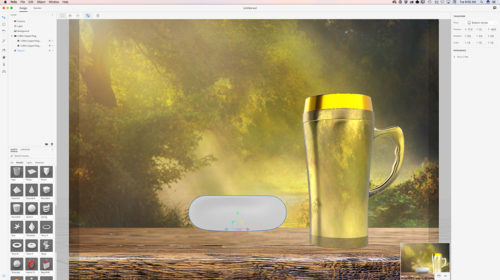
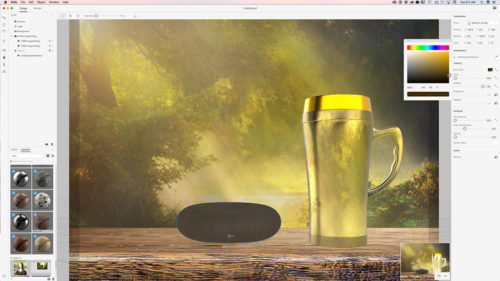
My workflow in Adobe Project Felix and Adobe Photoshop CC
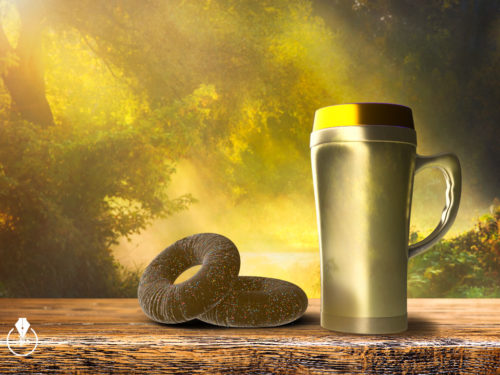
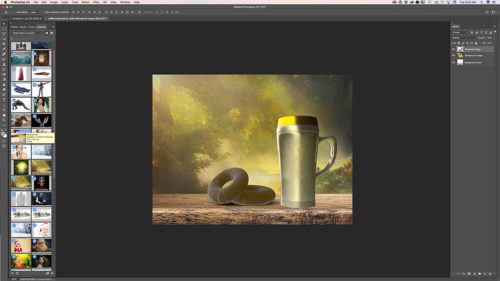
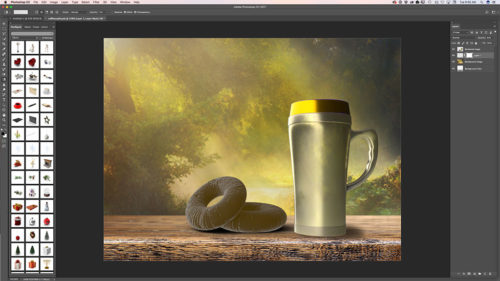
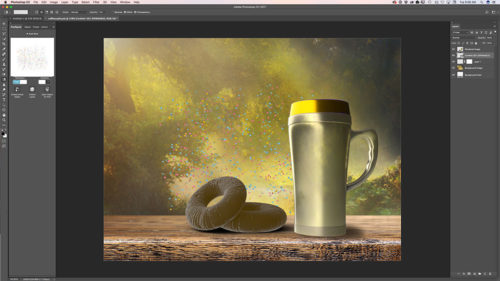
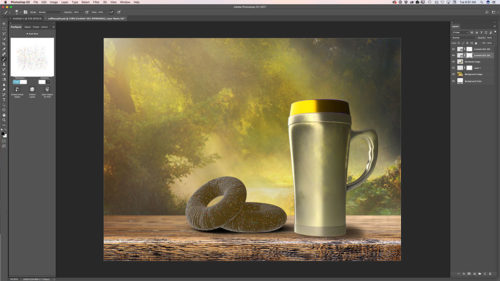
Image created in Adobe Project Felix and Adobe Photoshop CC
Step-by-Step
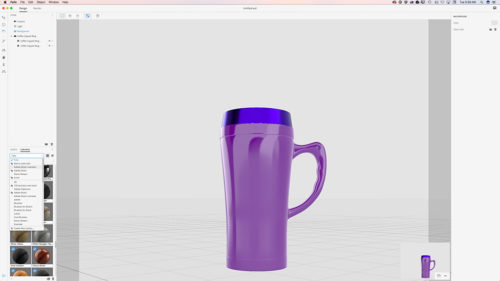
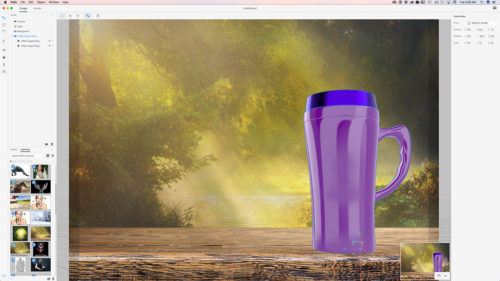
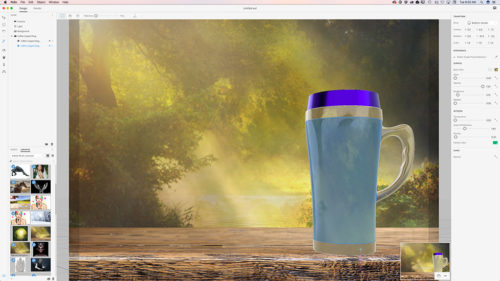
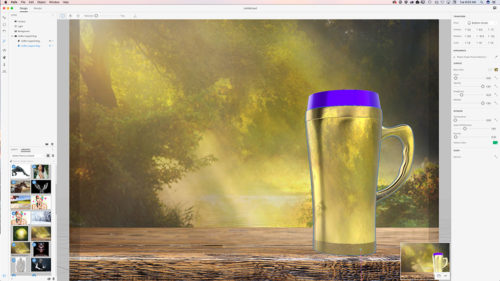
My Books on Amazon



My workflow in Adobe Project Felix and Adobe Photoshop CC
Image created in Adobe Project Felix and Adobe Photoshop CC
Step-by-Step
My Books on Amazon
How to create Mother’s Day E-Card in Adobe Photoshop CC

How to create Mother’s Day E-Card only in three steps in Adobe Photoshop CC using 3D object from PixelSquid

My Books:
101 Photoshop Hidden Gems and Tips & Tricks
Digital Painting for Photographers in Adobe Photoshop CC
How to create a car poster in Adobe Photoshop CC

My ebook on Amazon
Digital Painting for Photographers in Adobe Photoshop CC
The Adobe Mobile Apps
How to create a winter scene in Adobe Photoshop CC using Adobe Stock images and a 3D object from PixelSquid.com
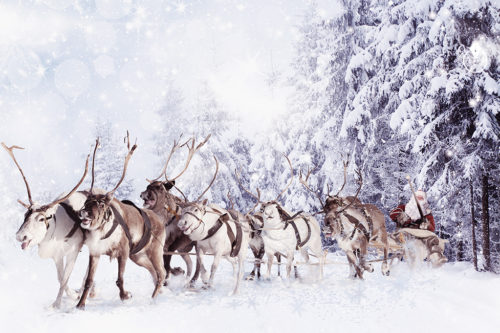 In this tutorial I will show you how you can create a winter scene in Adobe Photoshop
Adobe Stock images I downloaded for this tutorial:
FILE #: 45012599
FILE #: 94046505
3D object I downloaded from PixelSquid
First of all I downloaded two images from Adobe Stock website. I downloaded those files as preview files and after I tried them out I licensed them directly within Adobe Photoshop CC
Right Click on a image in your library panel you want to license > License Image

Double click on your licensed image (in the library panel)
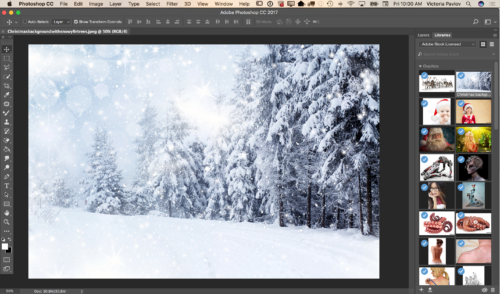
To bring another file into your document from your library panel > Click on the image > Drag into your document
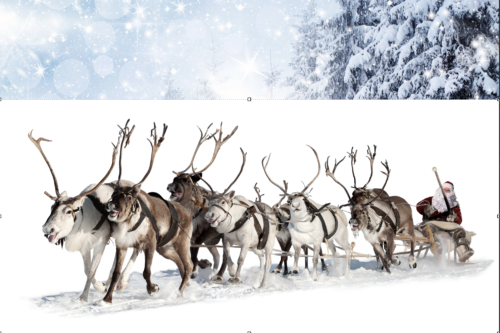
Using the Quick Selection Tool select Santa Claus and the reindeer? (don’t worry if your selection is not perfect. You will be able to fix it later on)
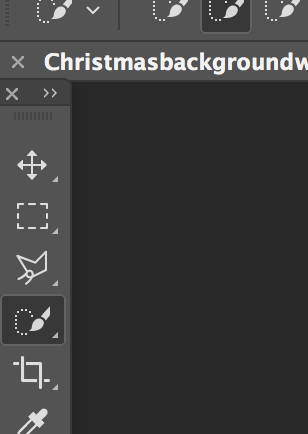
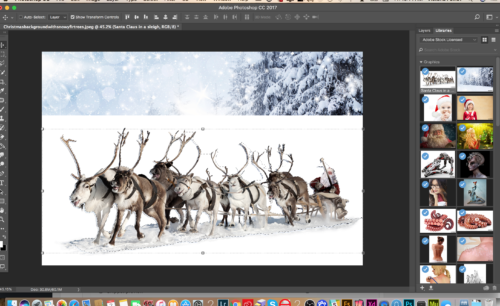
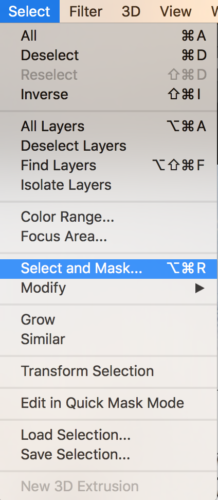
Select > Select and Mask
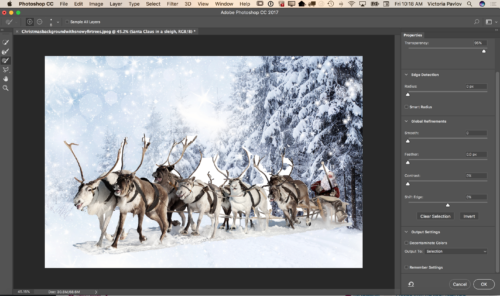
Change the View Mode to Onion Skin and Moon Transparency Slider all way to the right 100%. This way you will be able to see the background layer and make all the necessary corrections toyour initial selection right away.
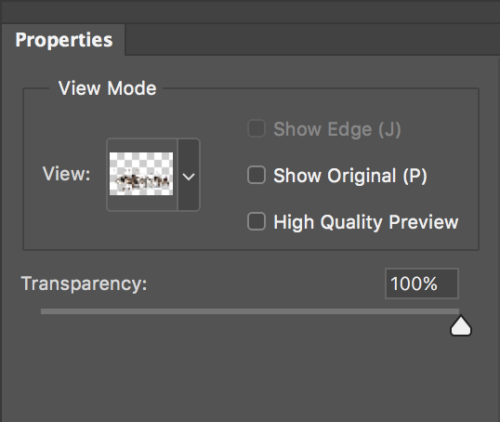
Zoom In your document
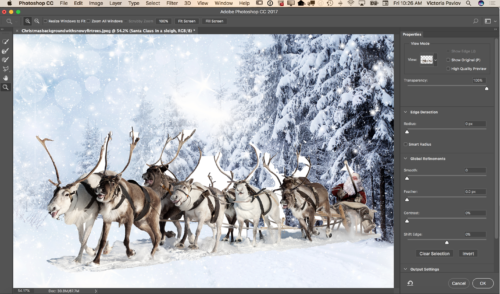
Using the Brush Tool correct your selection (switch between “+” and “-” if needed to correct the selection)


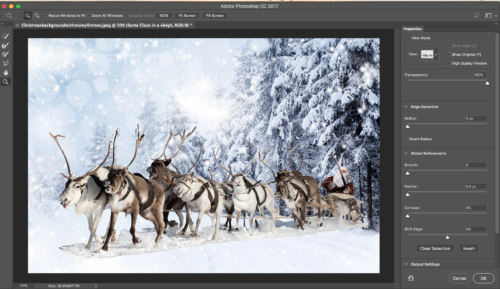
After you are happy with your selection switch to the Refine Edge Brush Tool

Switch View Mode to Black and White
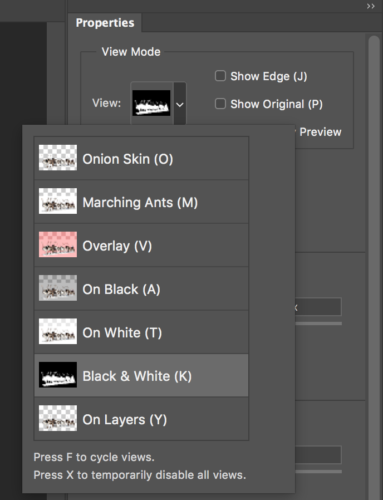
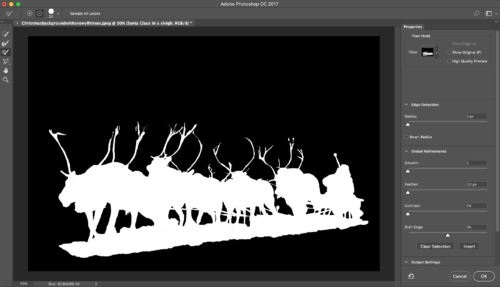
Using the Refine Edge Brush Tool clean up the edges of your selection.
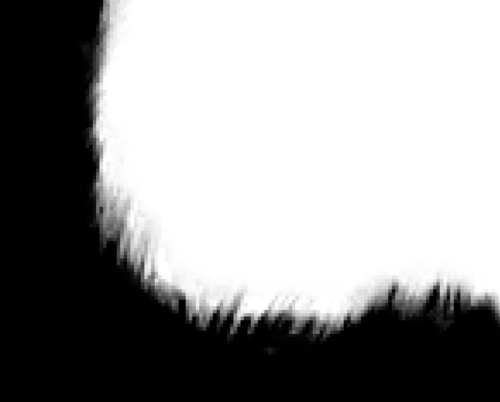
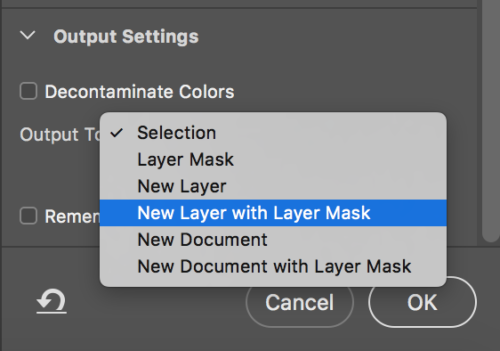
After you are happy with your final selection change the Output Setting to New Layer with Layer Mask
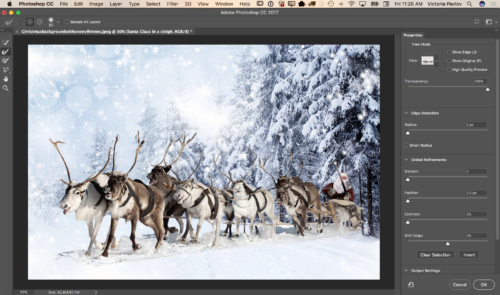
Click OK
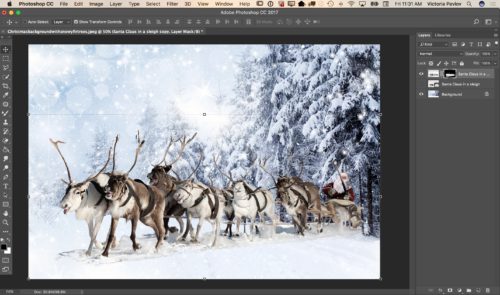
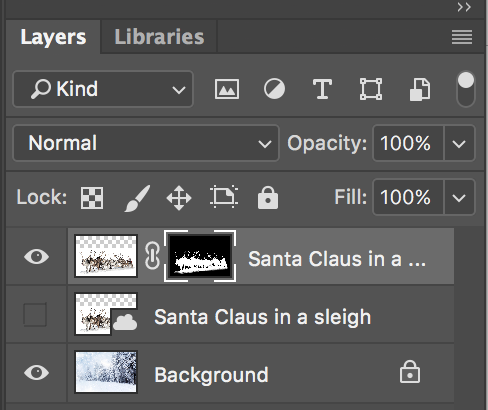
Click on the Mask Icon (Santa Layer) > Gradient Tool with Black color
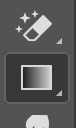
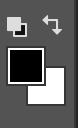

Correct the part between snow under the reindeer and background snow line (simply paint it out using gradient tool)
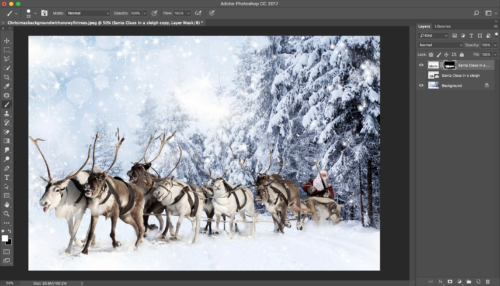
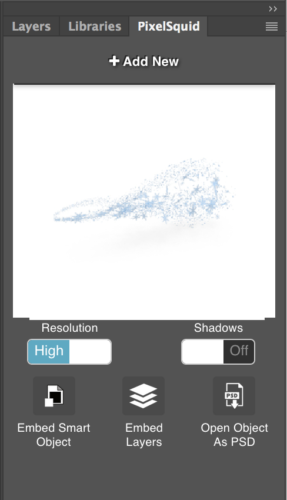
Previously I downloaded a 3D object from PixelSquid.com and now I will simply click on this object (snow) and object will be added to my document
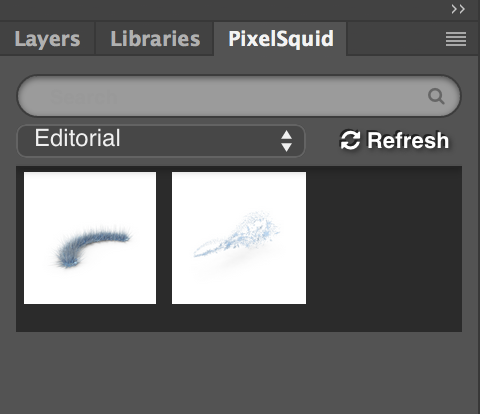
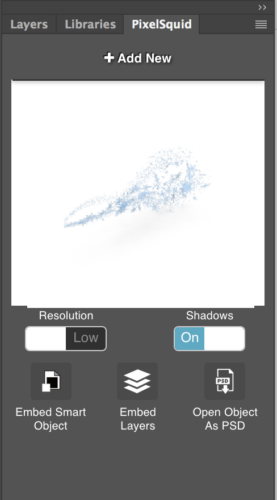
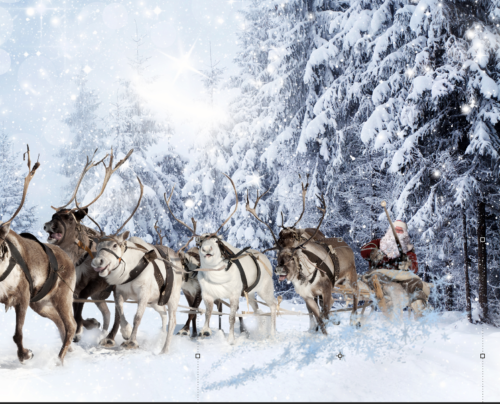
Now I will rotate my 3D object, also will Switch to High Resolution and remove the Shadow
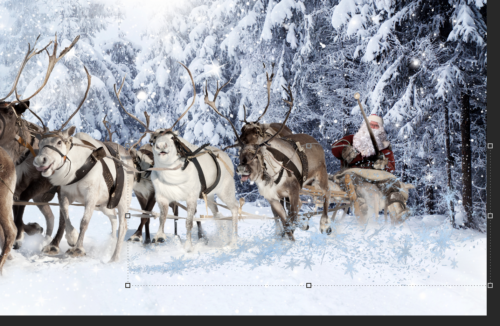
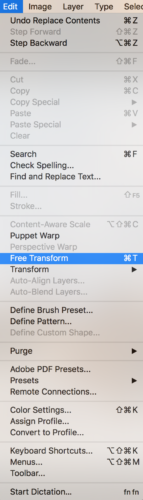
Resize your 3D object using the Free Transform tool
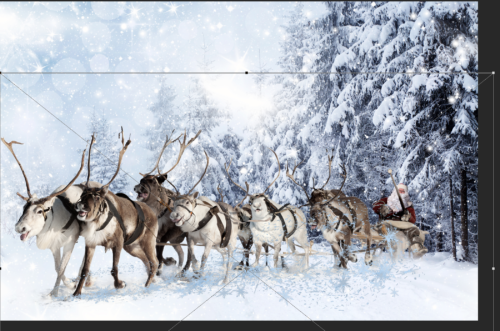
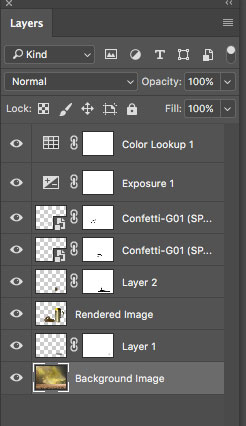
Delete the Hidden Layer from Layer Panel
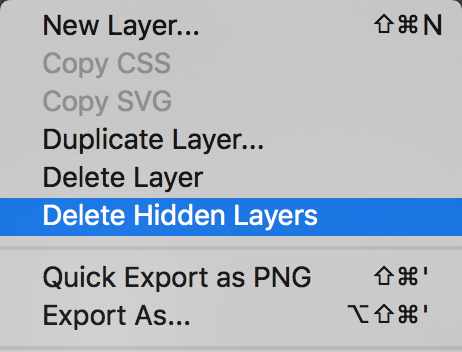
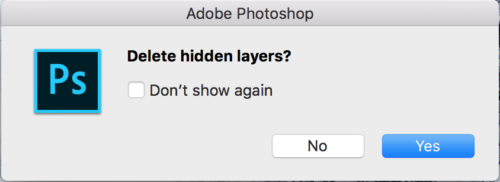
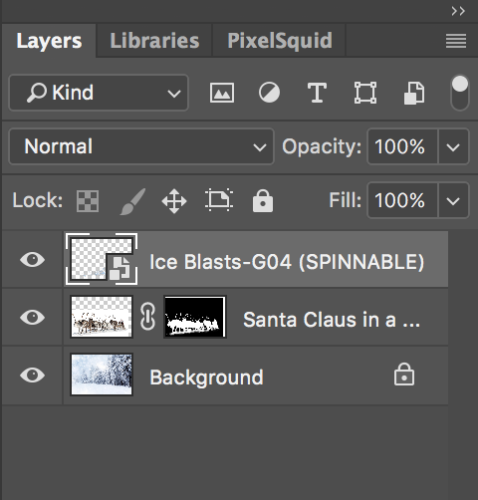
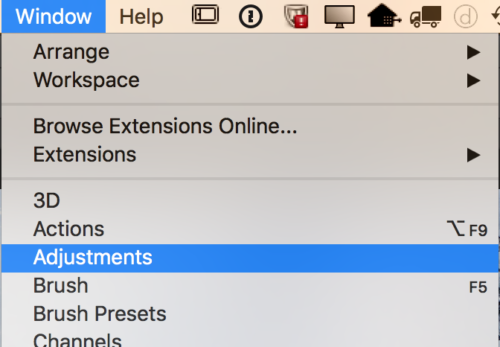
Window > Adjustments
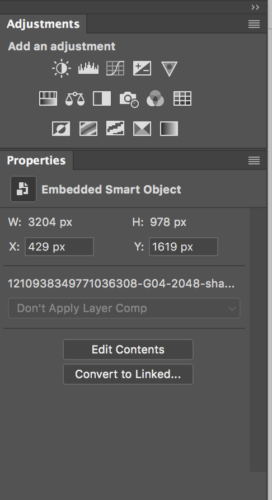
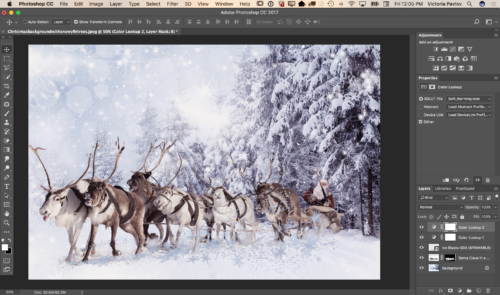
Color Lookup Adjustment
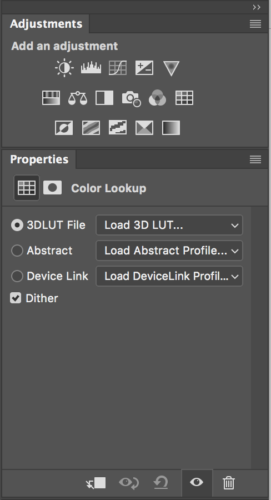
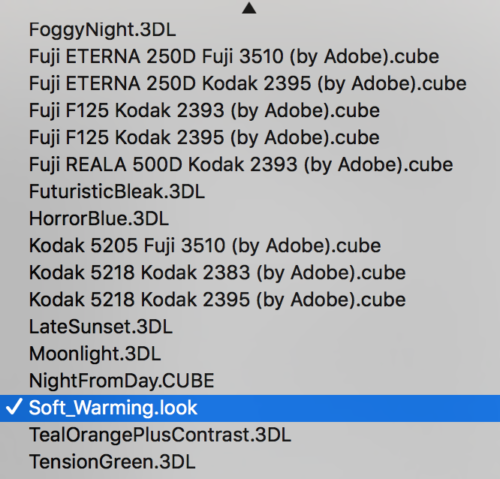
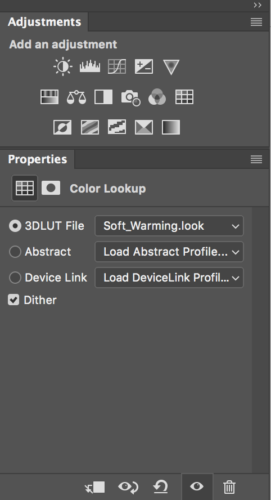
Choose Soft_Warming.look
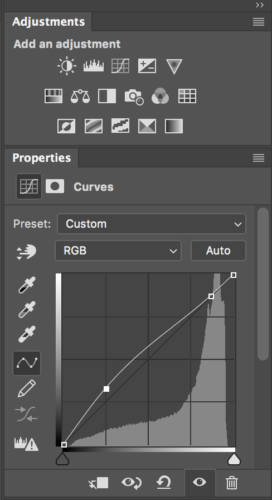
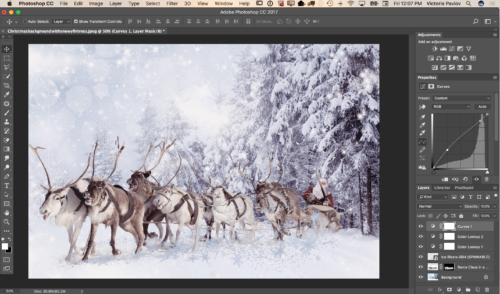
Adjustments > Curves
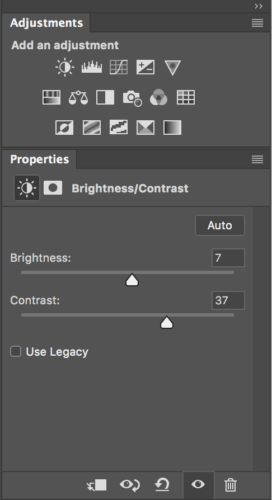
Adjustments > Brightness / Contrast
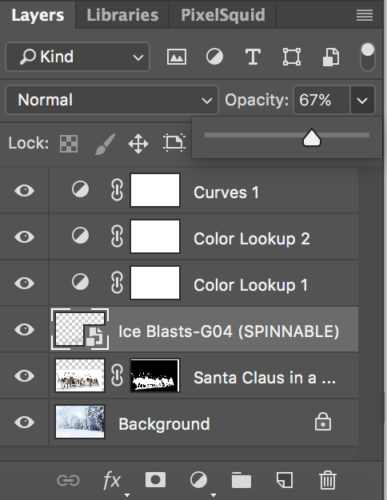
Make 3D object layer’s opacity = 67%
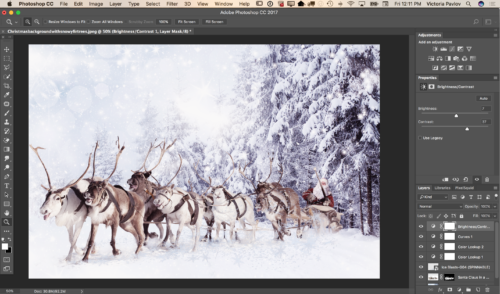
Now your image is ready
My Books on Amazon

Digital imaging is a big part of my workflow. I would say 97% of my work is based on digital imaging (photography, graphic/web design, digital painting, photo restoration, photo manipulation, 3D and more). Being self-employed, speed is as important as quality. I was VERY happy and surprised when I discovered the PixelSquid plugin for Photoshop


 using
using  objets from