How to create a car poster in Adobe Photoshop CC


My ebook on Amazon
Digital Painting for Photographers in Adobe Photoshop CC
The Adobe Mobile Apps

How to create a car poster in Adobe Photoshop CC
My ebook on Amazon
Digital Painting for Photographers in Adobe Photoshop CC
The Adobe Mobile Apps
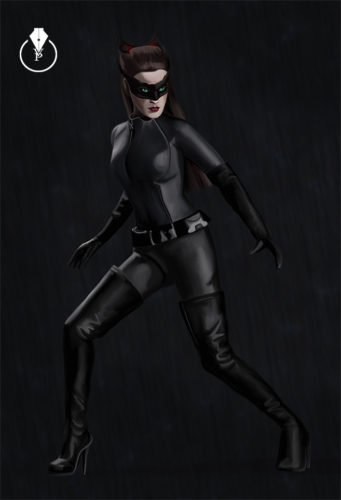
Catwoman painted in Adobe Photoshop CC
My Books on Amazon:
Adobe Project Felix.

Adobe Project Felix is now available for download to all subscribed Creative Cloud members via the Creative Cloud desktop application.


My Books on Amazon:
Rainy window glass effect in Adobe Photoshop CC

Open you image
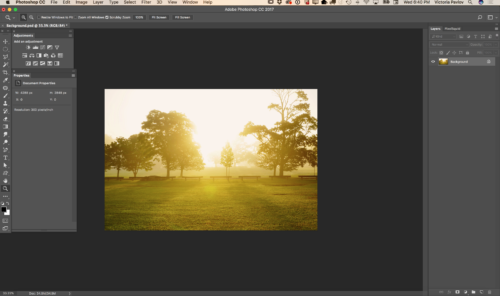
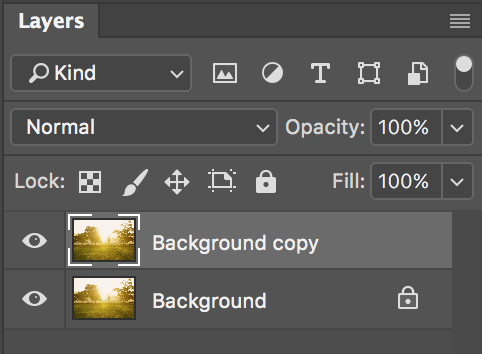
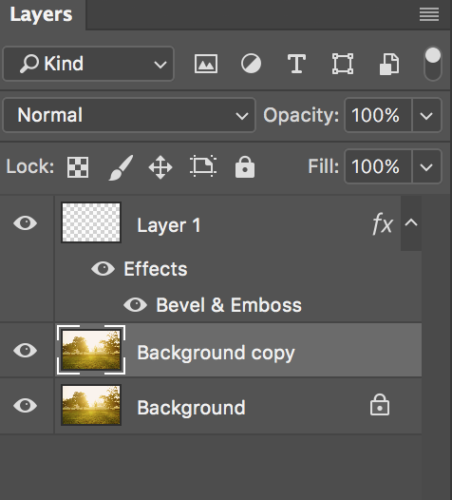
Duplicate background layer
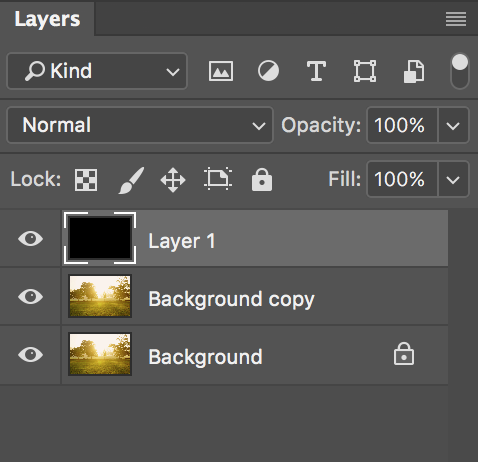
Create a new layer
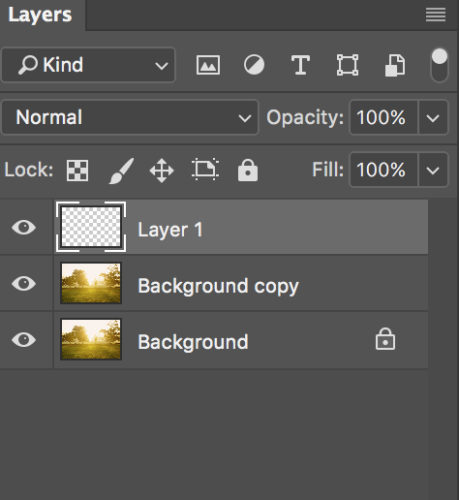
Create a new layer with black color
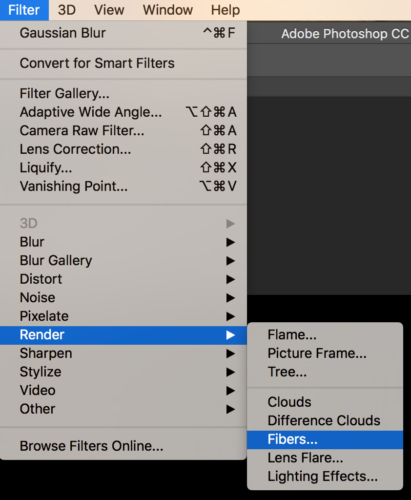
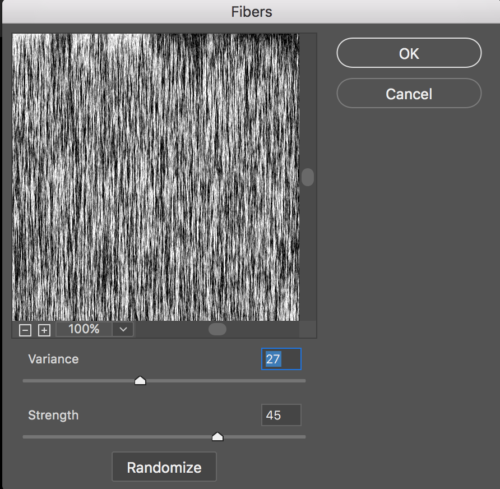
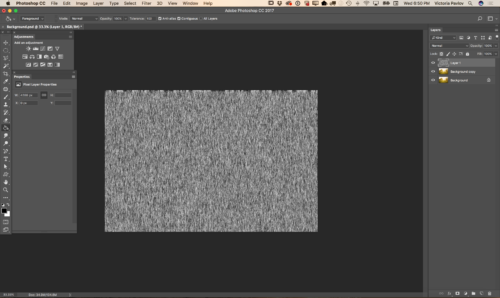
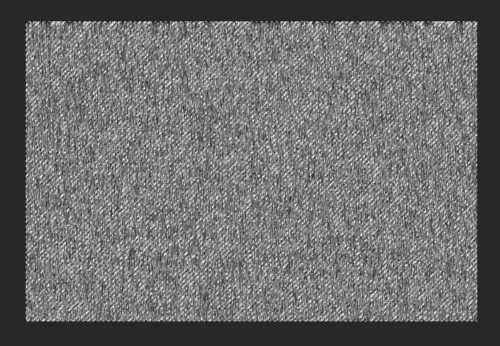
Filter > Render > Fibers
Magic Wand Tool
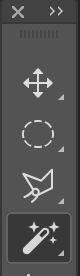

Select top layer
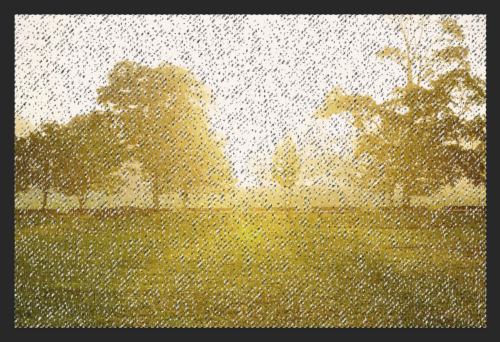
Click Delete
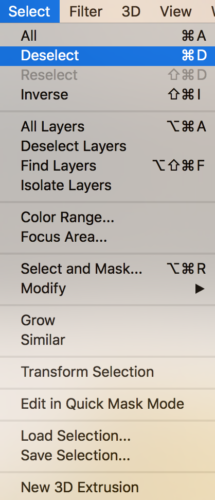
Select > Deselect
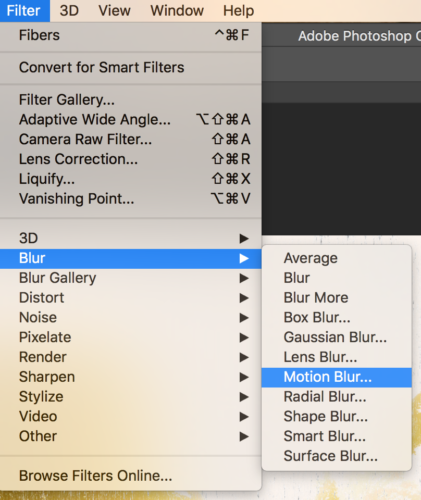
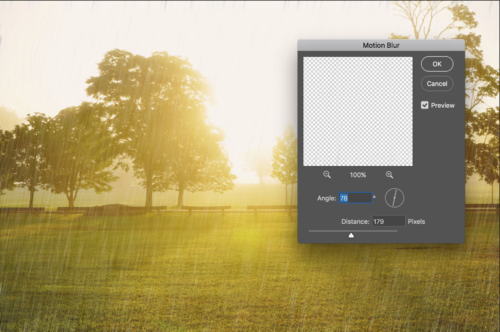
Filter > Blur >Motion Blur
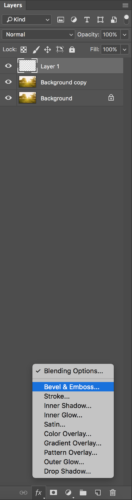
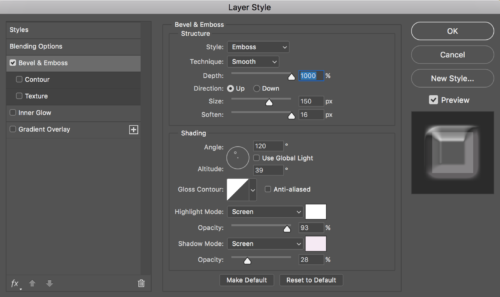
Add a layer style > Bevel & Emboss

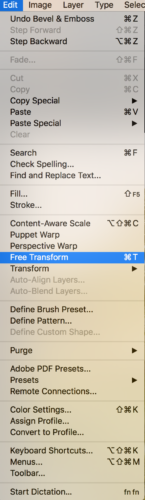
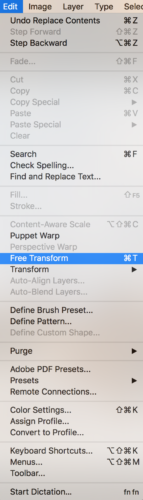
Edit > Free Transform
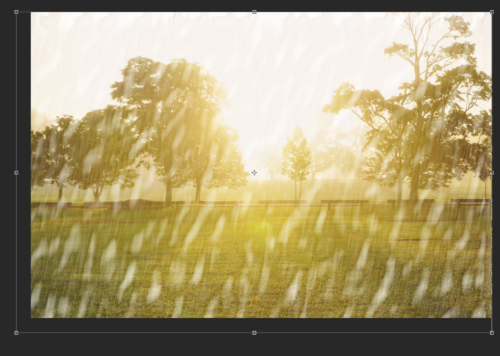
Bring the layer opacity down
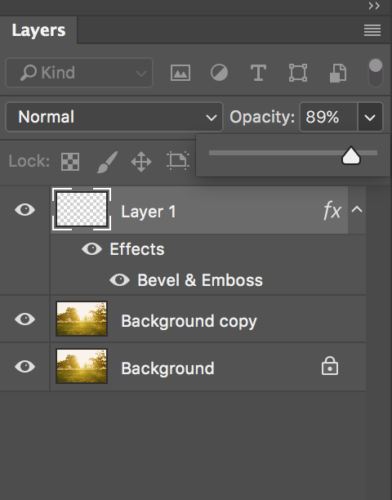
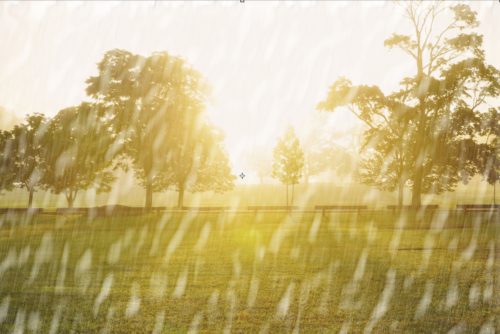
Highlight “Background copy” layer
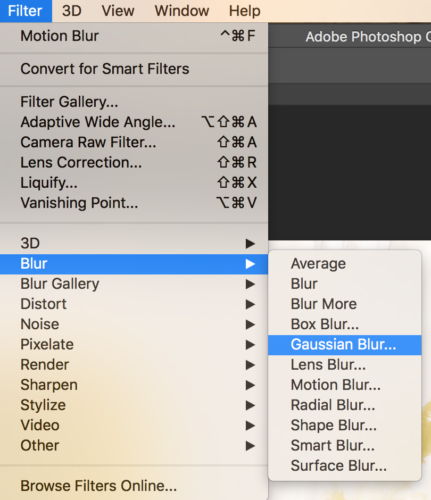
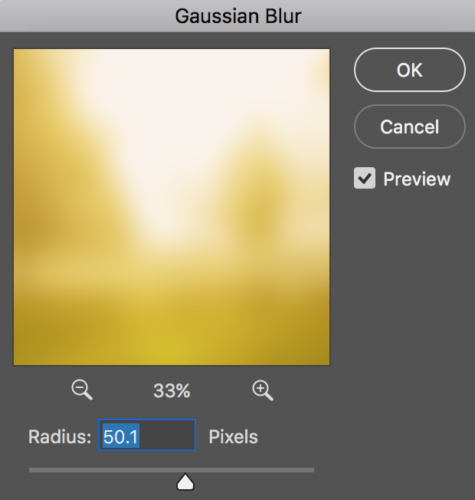
Filter > Blur > Gaussian Blur

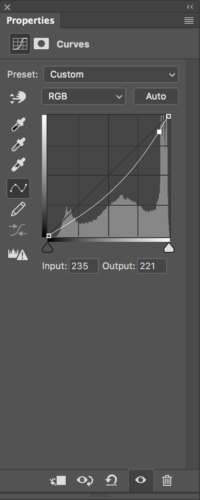
Adjustments > Curves
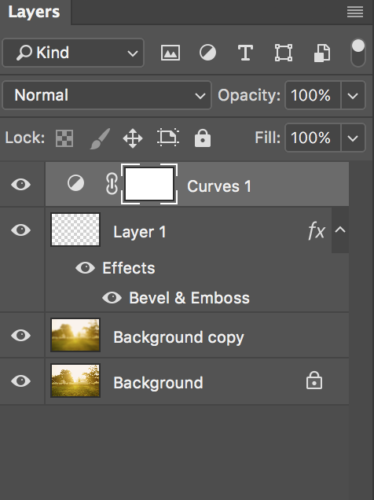
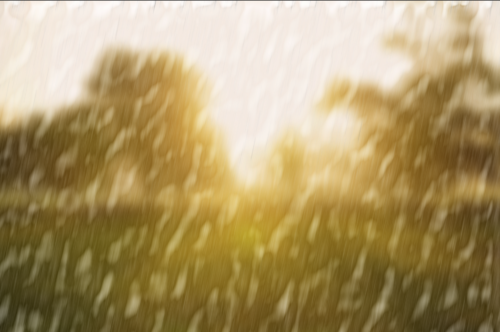
Highlight “Layer1” > Fill =0%
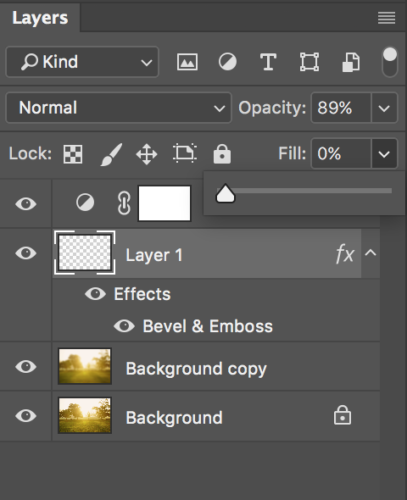
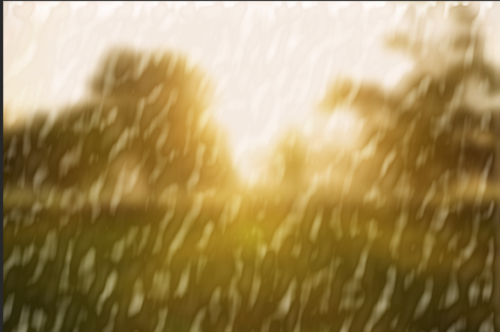
Edit > Free Transform > Resize “Layer1”
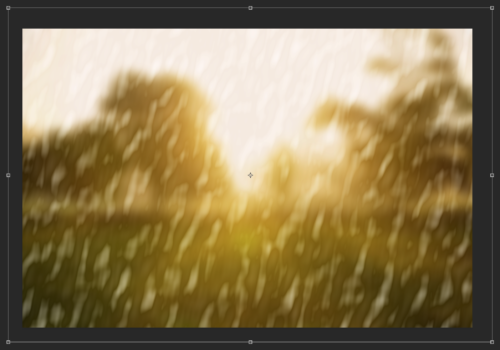

My Books on Amazon
How to create a winter scene in Adobe Photoshop CC using Adobe Stock images and a 3D object from PixelSquid.com
 In this tutorial I will show you how you can create a winter scene in Adobe Photoshop
Adobe Stock images I downloaded for this tutorial:
FILE #: 45012599
FILE #: 94046505
3D object I downloaded from PixelSquid
First of all I downloaded two images from Adobe Stock website. I downloaded those files as preview files and after I tried them out I licensed them directly within Adobe Photoshop CC
Right Click on a image in your library panel you want to license > License Image

Double click on your licensed image (in the library panel)
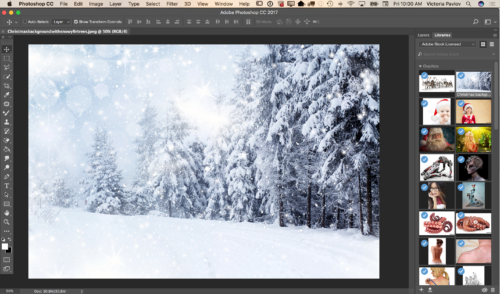
To bring another file into your document from your library panel > Click on the image > Drag into your document
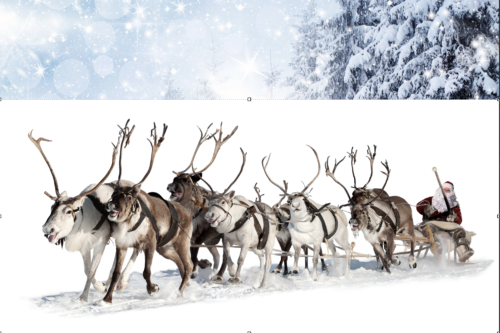
Using the Quick Selection Tool select Santa Claus and the reindeer? (don’t worry if your selection is not perfect. You will be able to fix it later on)
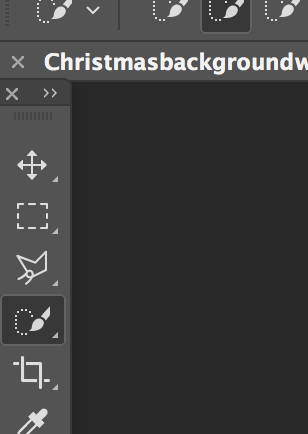
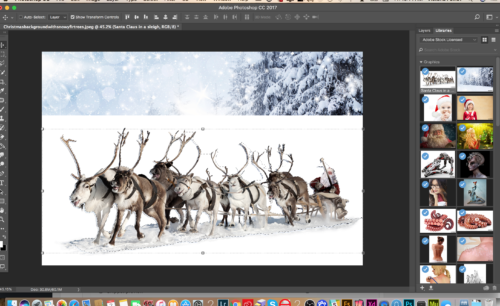
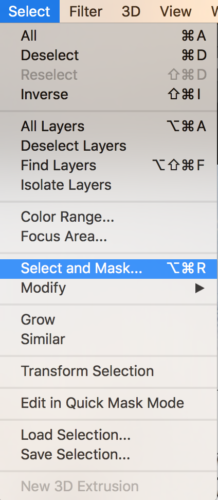
Select > Select and Mask
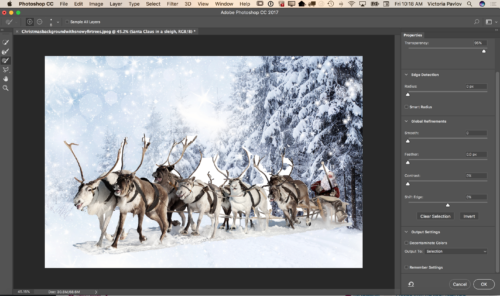
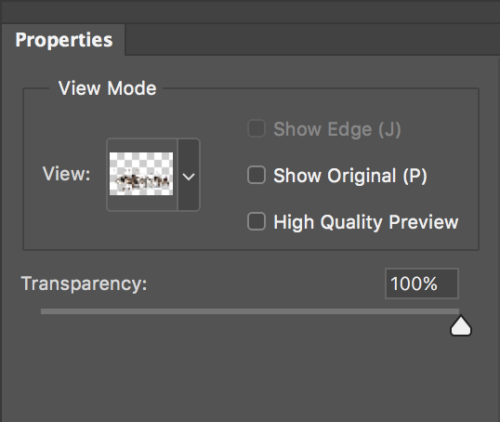
Change the View Mode to Onion Skin and Moon Transparency Slider all way to the right 100%. This way you will be able to see the background layer and make all the necessary corrections toyour initial selection right away.
Zoom In your document
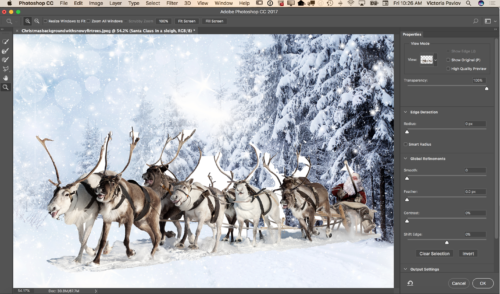
Using the Brush Tool correct your selection (switch between “+” and “-” if needed to correct the selection)


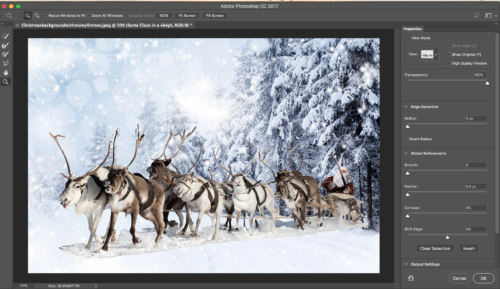
After you are happy with your selection switch to the Refine Edge Brush Tool

Switch View Mode to Black and White
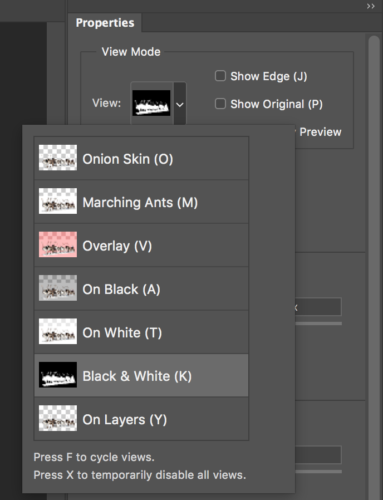
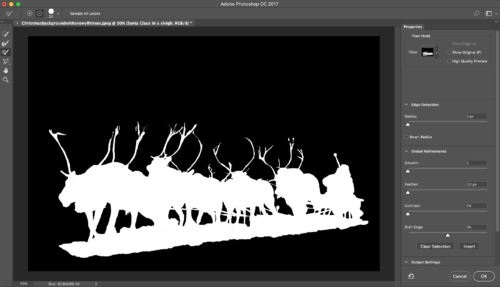
Using the Refine Edge Brush Tool clean up the edges of your selection.
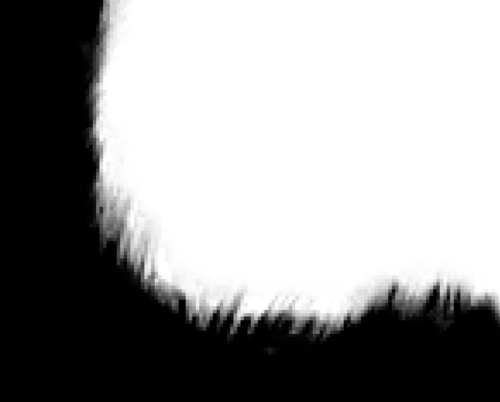
After you are happy with your final selection change the Output Setting to New Layer with Layer Mask
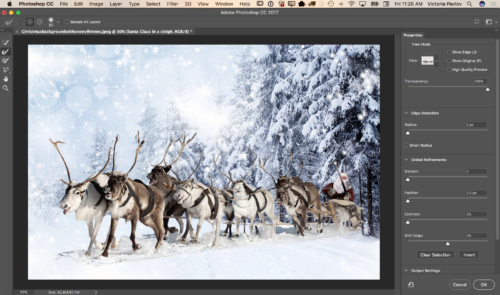
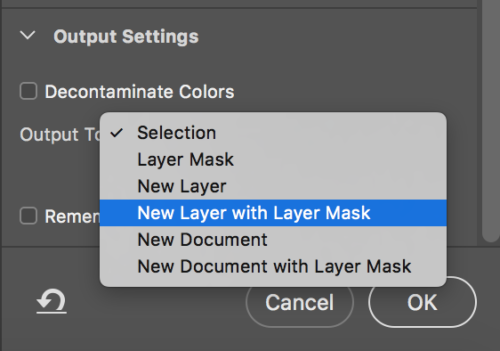
Click OK
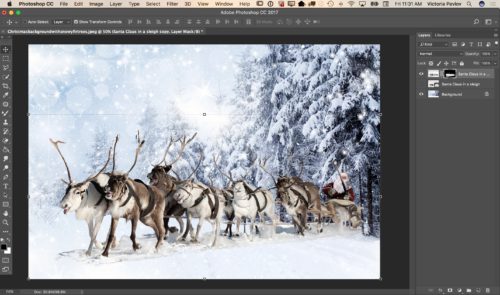
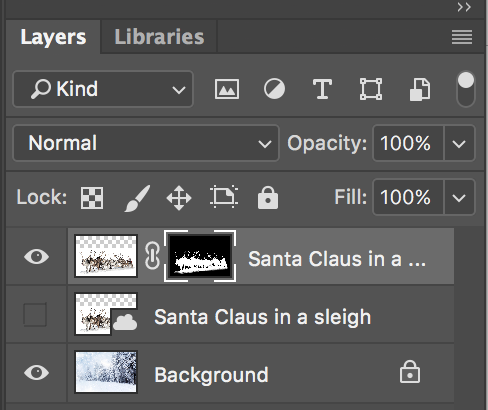
Click on the Mask Icon (Santa Layer) > Gradient Tool with Black color
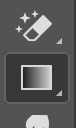


Correct the part between snow under the reindeer and background snow line (simply paint it out using gradient tool)
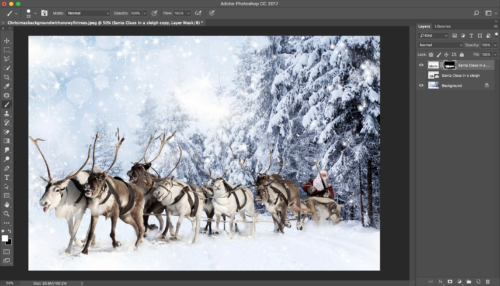
Previously I downloaded a 3D object from PixelSquid.com and now I will simply click on this object (snow) and object will be added to my document
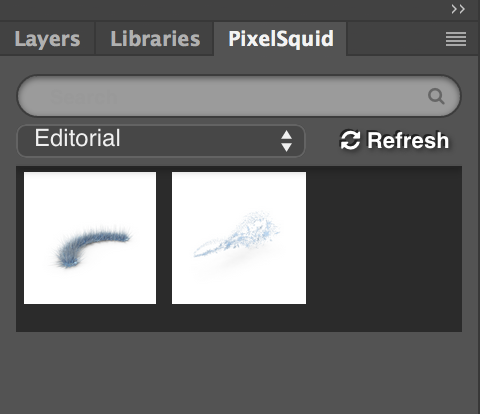
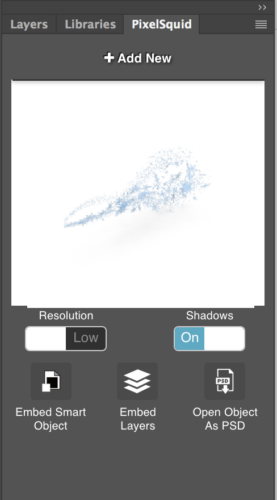
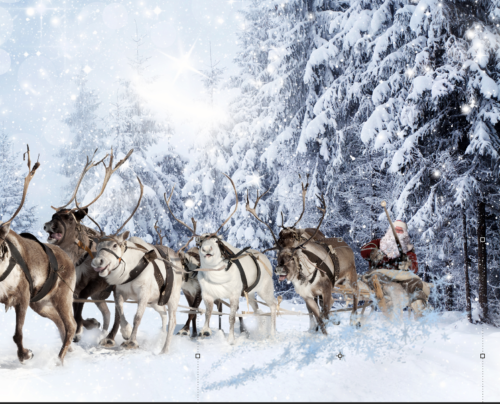
Now I will rotate my 3D object, also will Switch to High Resolution and remove the Shadow
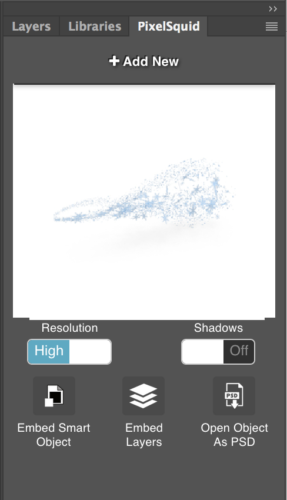
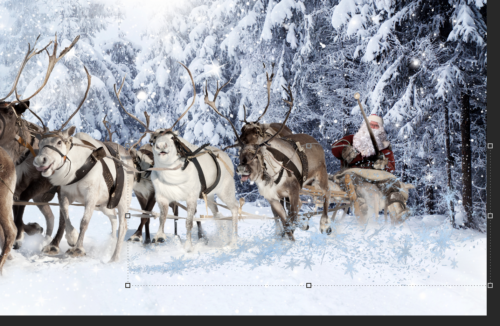
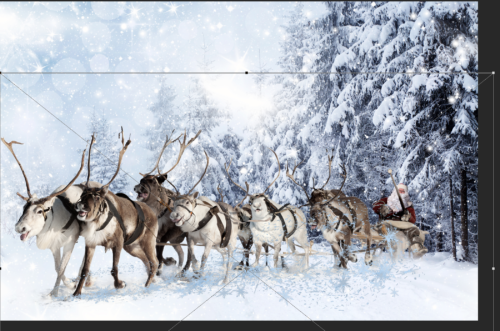
Resize your 3D object using the Free Transform tool
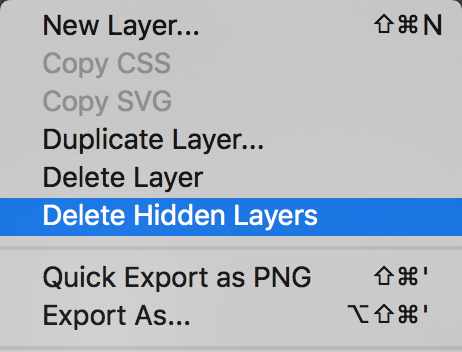
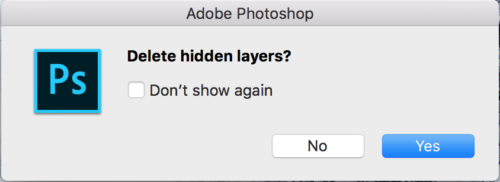
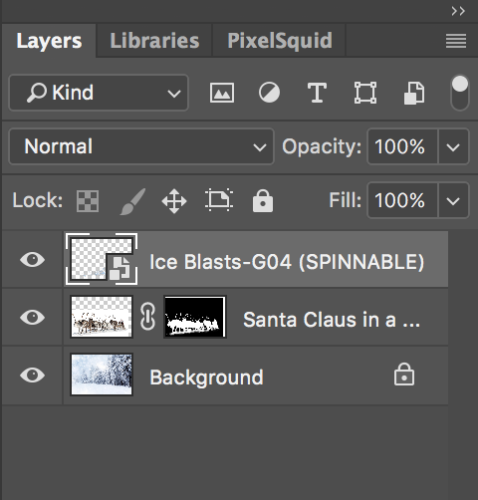
Delete the Hidden Layer from Layer Panel
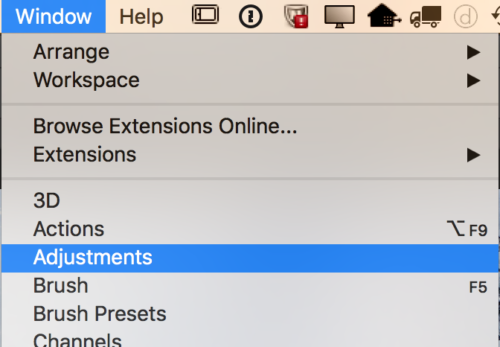
Window > Adjustments
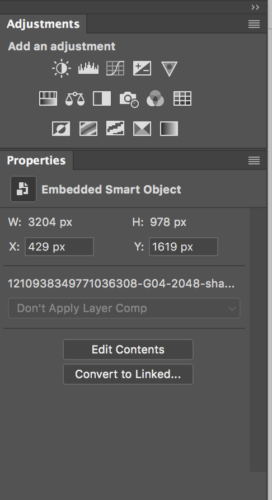
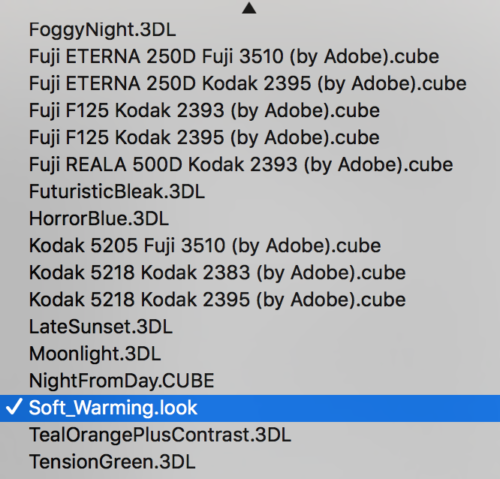
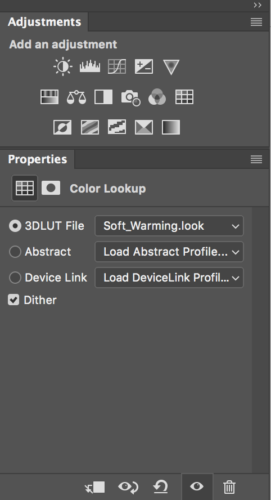
Color Lookup Adjustment
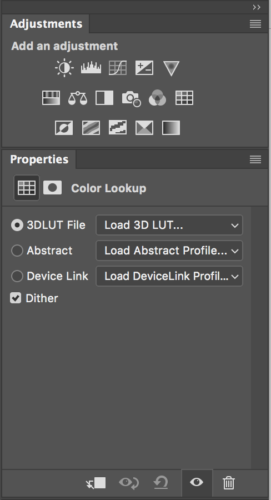
Choose Soft_Warming.look
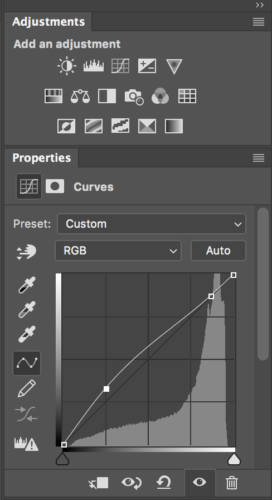
Adjustments > Curves
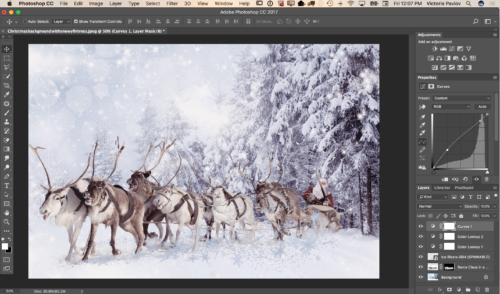
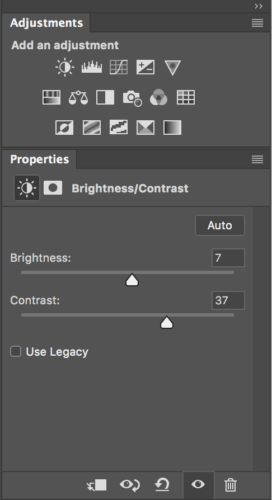
Adjustments > Brightness / Contrast
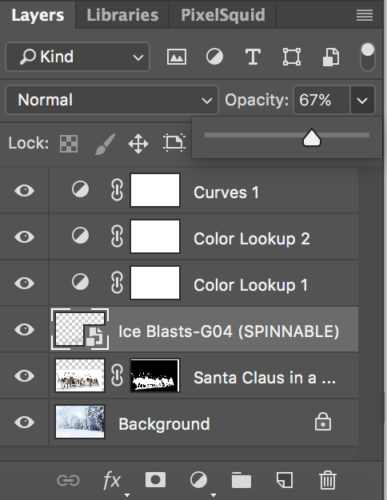
Make 3D object layer’s opacity = 67%
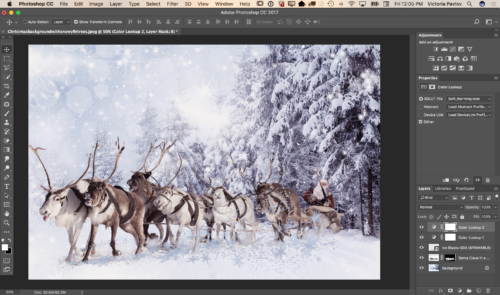
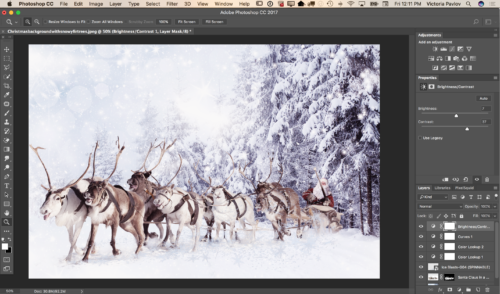
Now your image is ready
My Books on Amazon
Three helpful tips for your mobile workflow
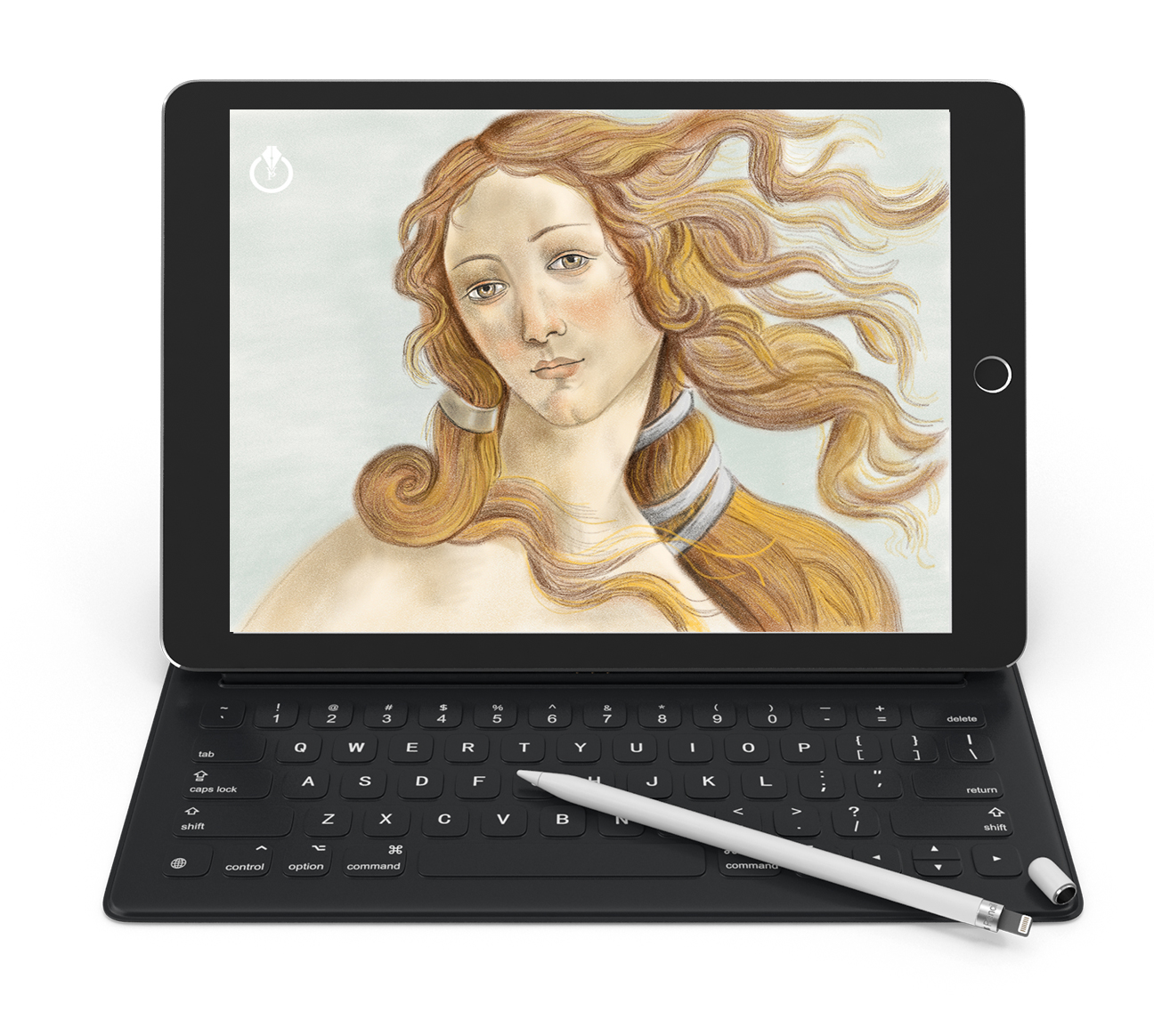
More and more people are using mobile apps to do real work. Mobile apps on our mobile devices give us the freedom of creativity on the go. These three tips will help you to bring your creativity to the next level.
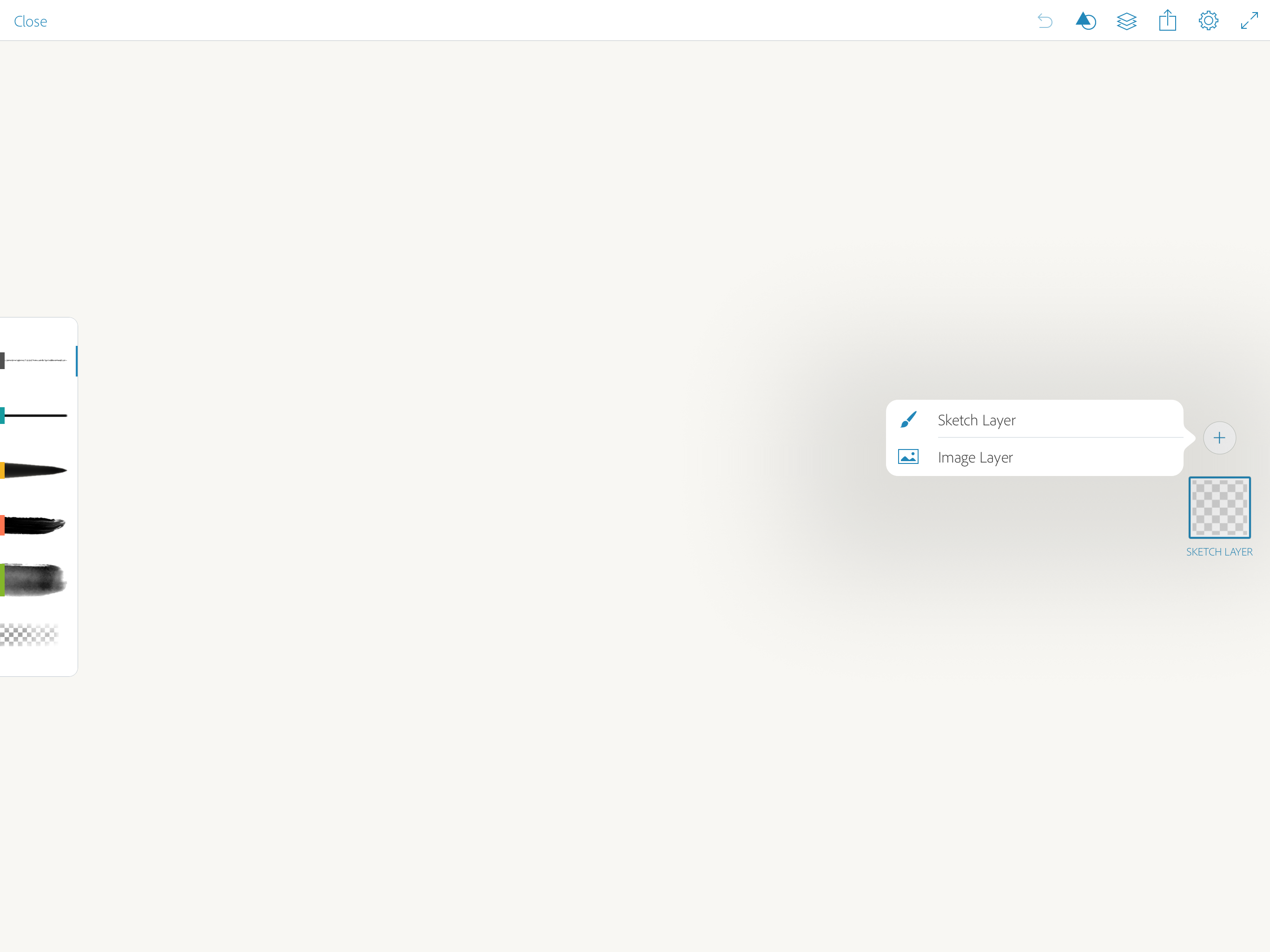
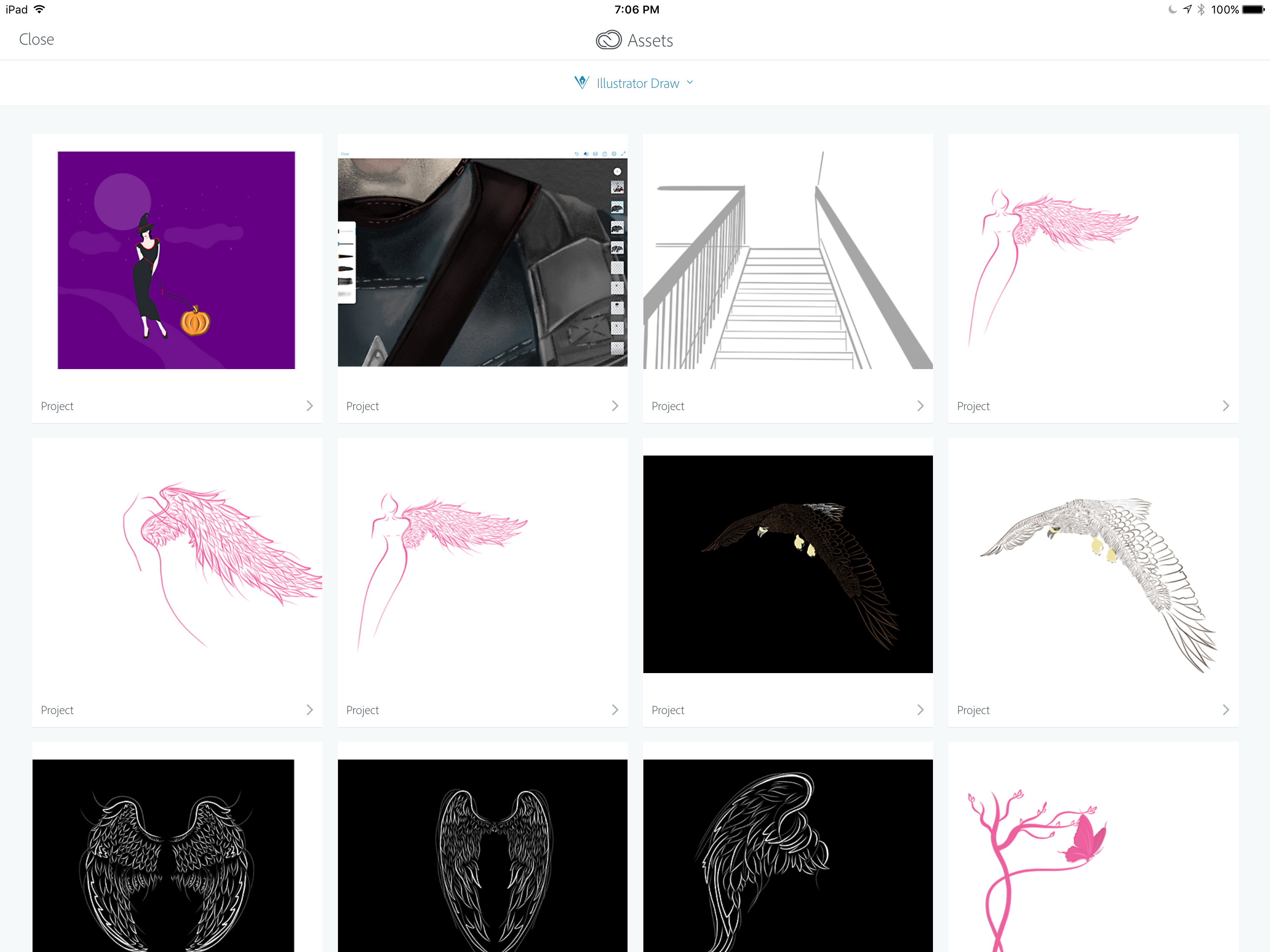
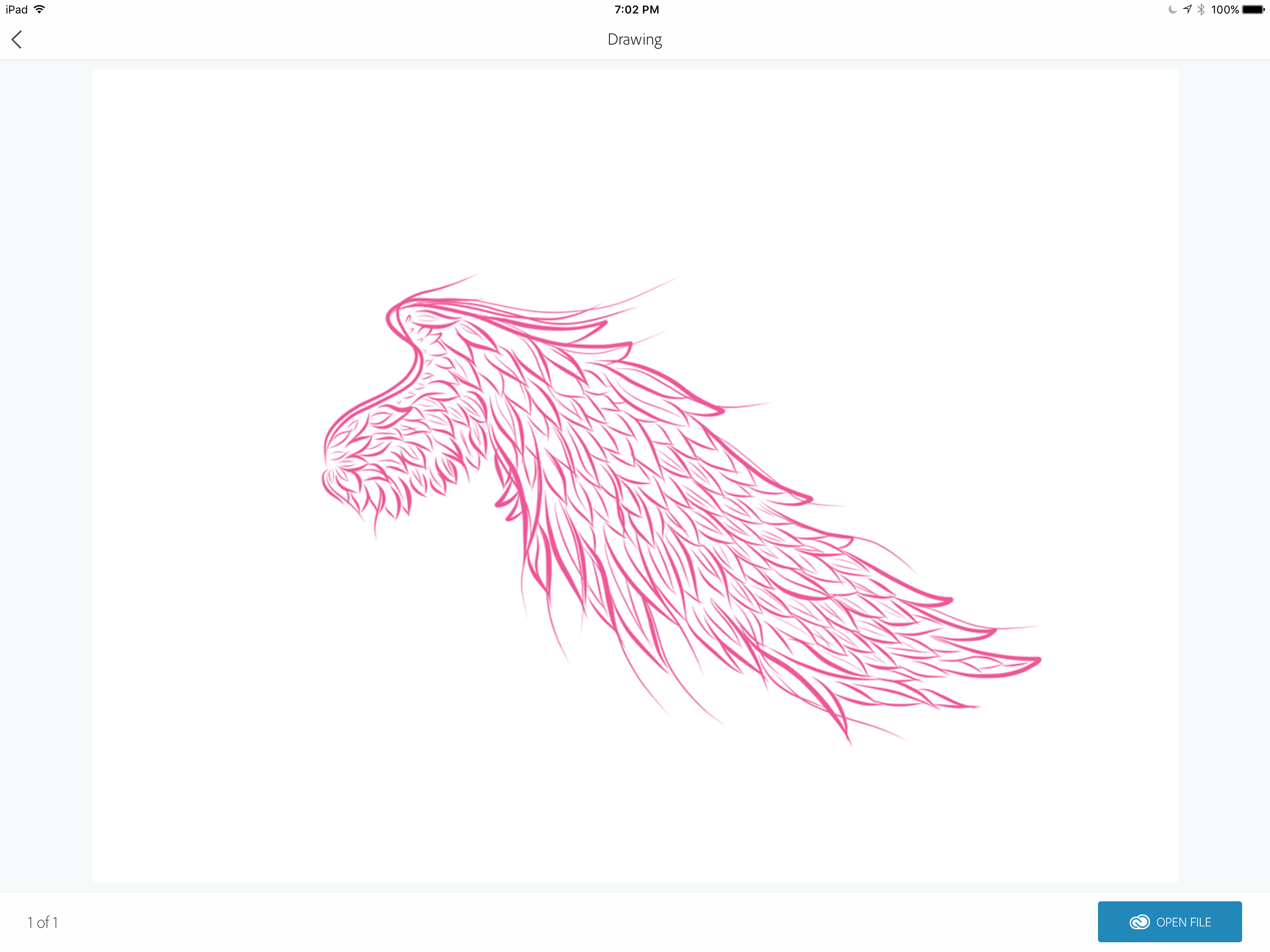
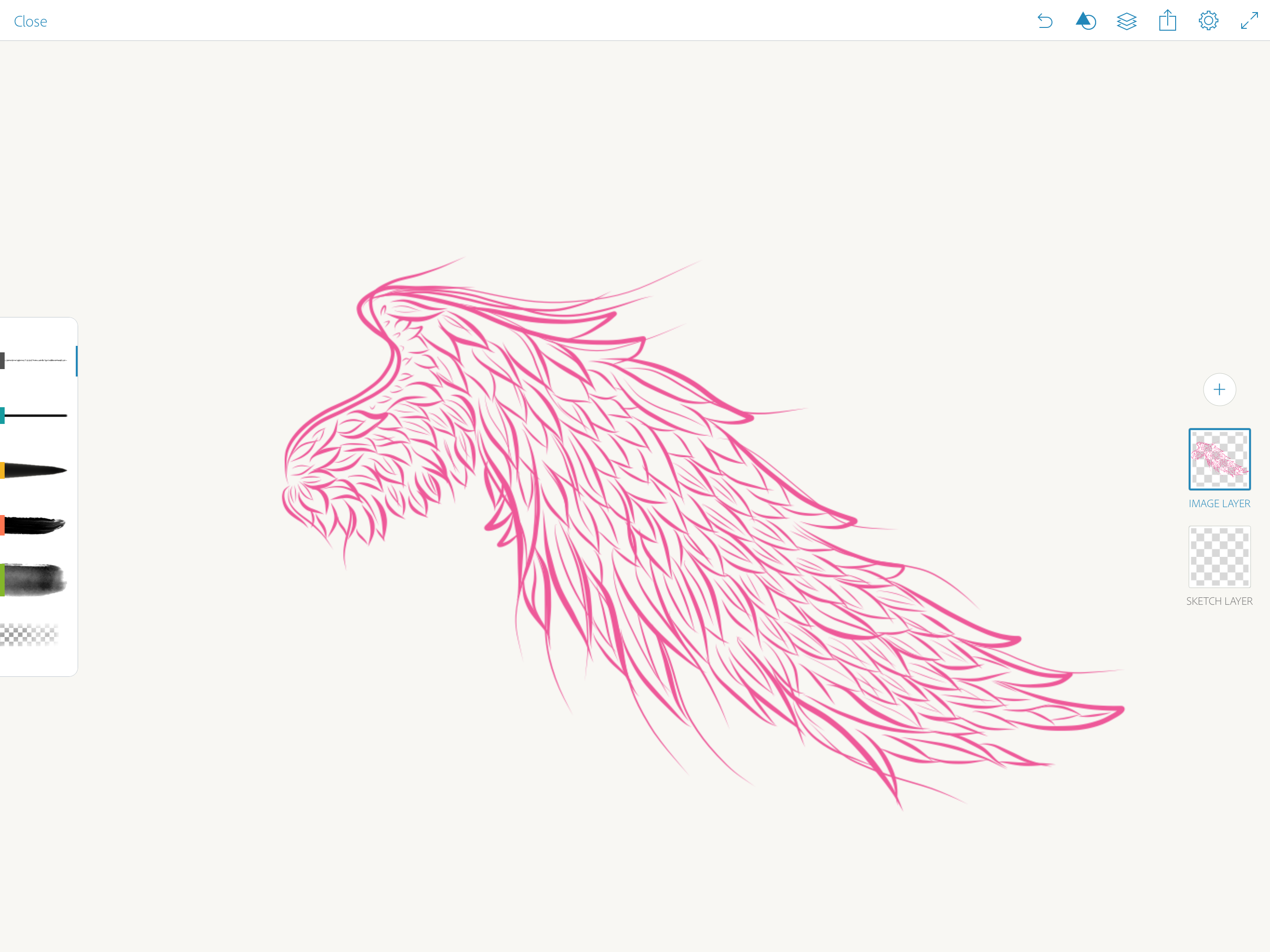
1: Bring your project created in another Adobe Mobile app as an image layer to your current Adobe Mobile App. This will help you to jump between Adobe Mobile Apps when working on the same project.
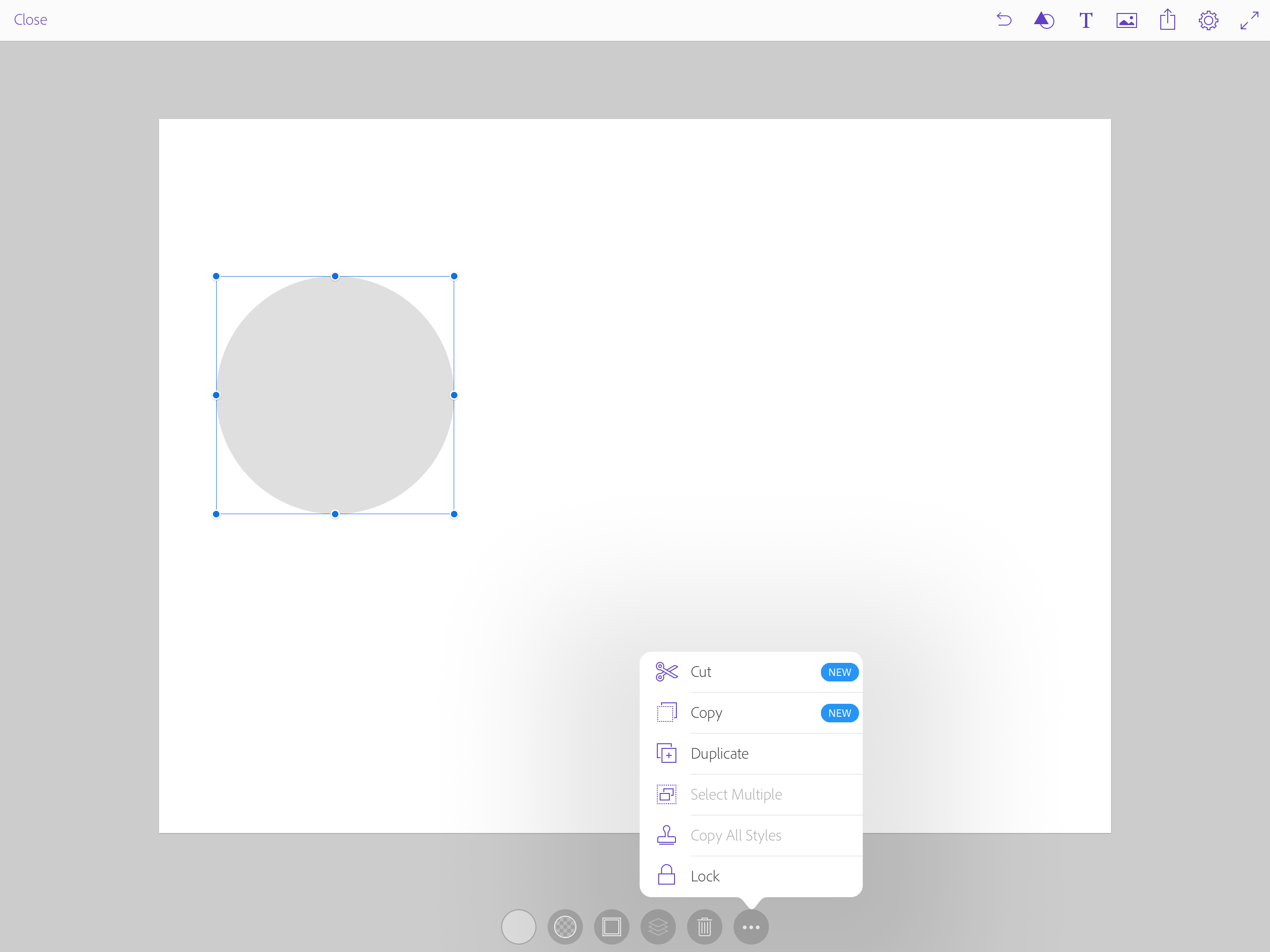
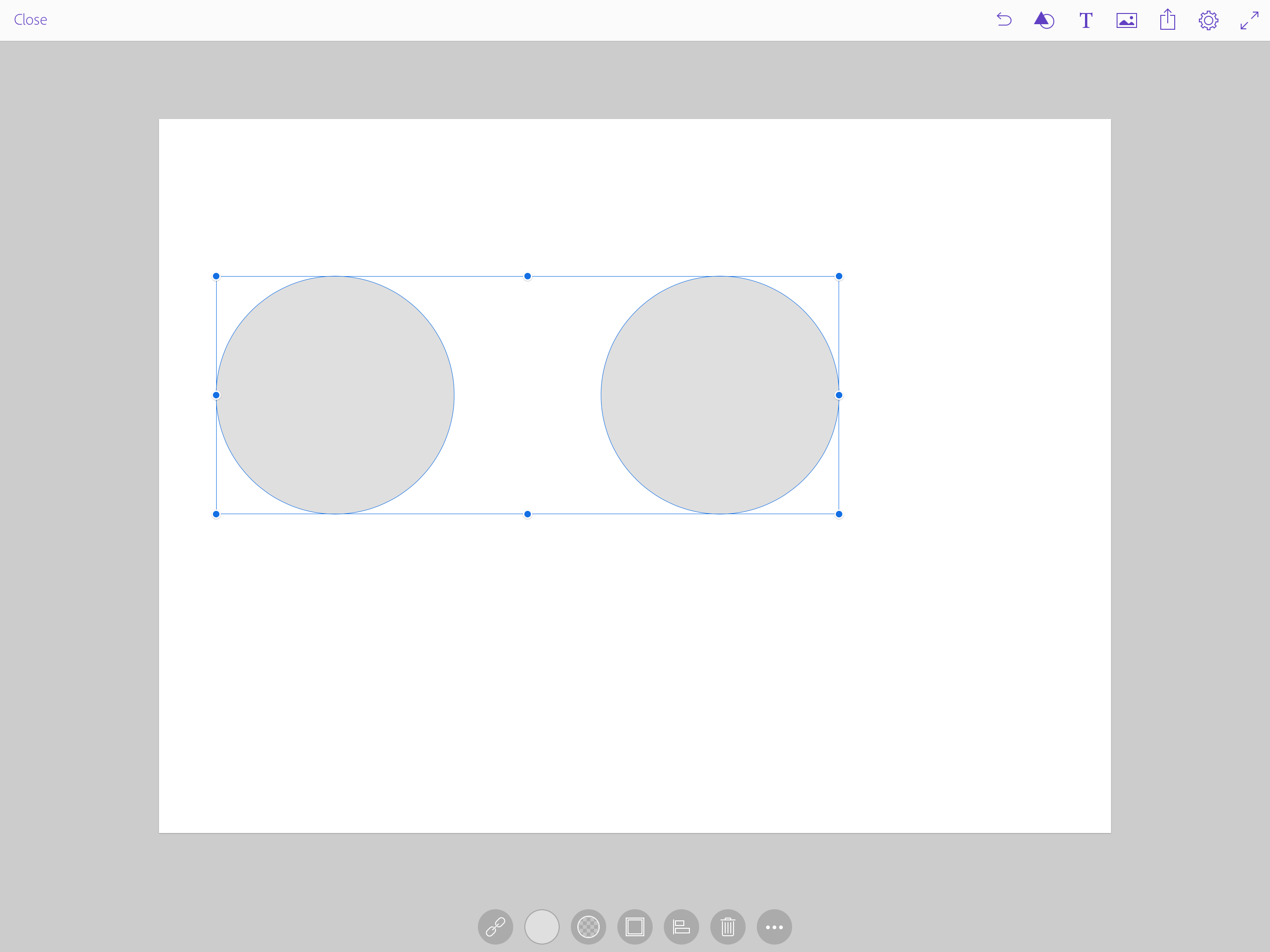
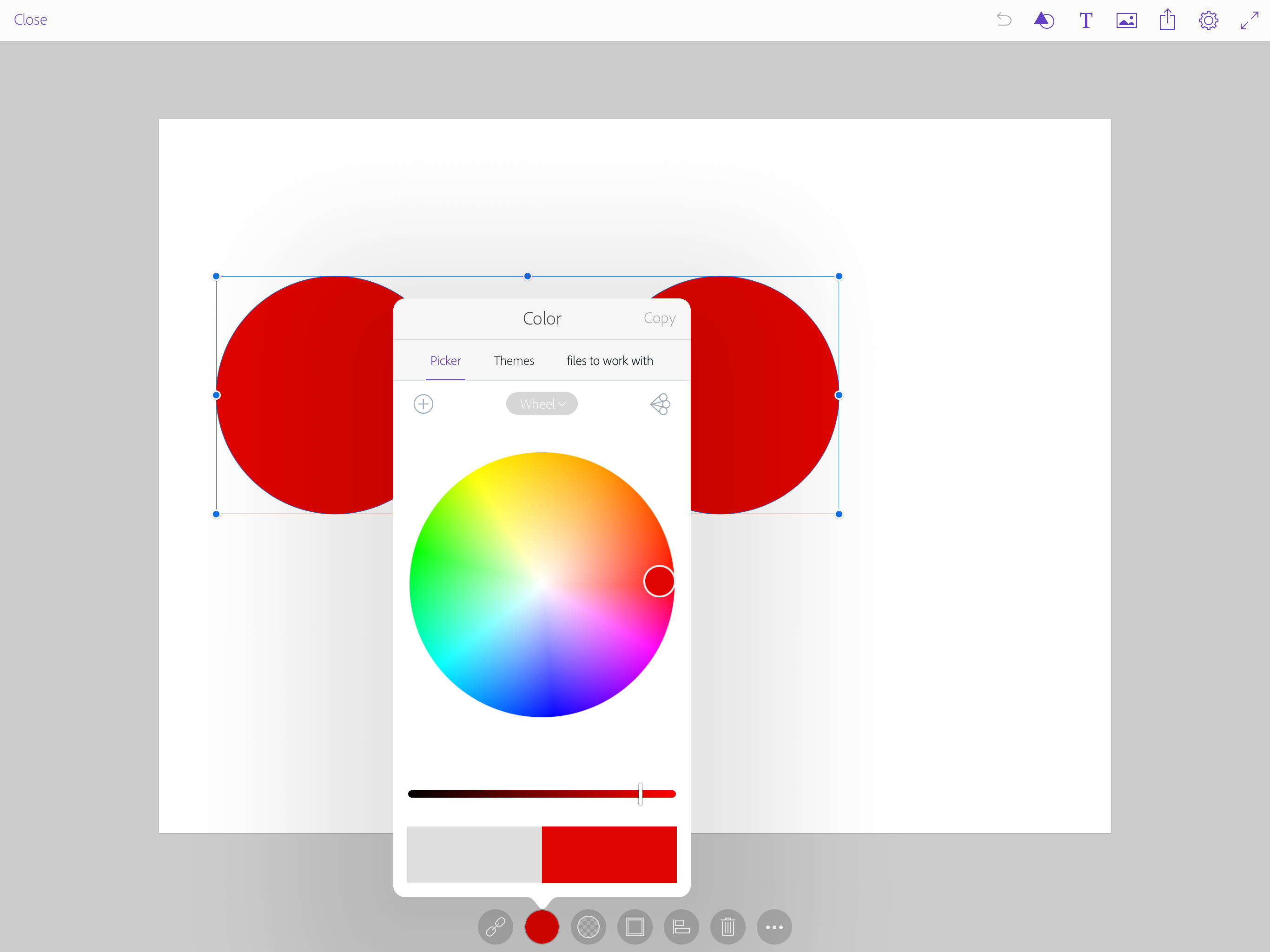
2: In Adobe Comp CC you can select a few objects to apply same effect at the same time Shift (tap and hold) + Tap. Applying the same effect at the same time to multiple objects will guarantee identical effects will be applied to multiple objects and plus it will speed up your workflow.
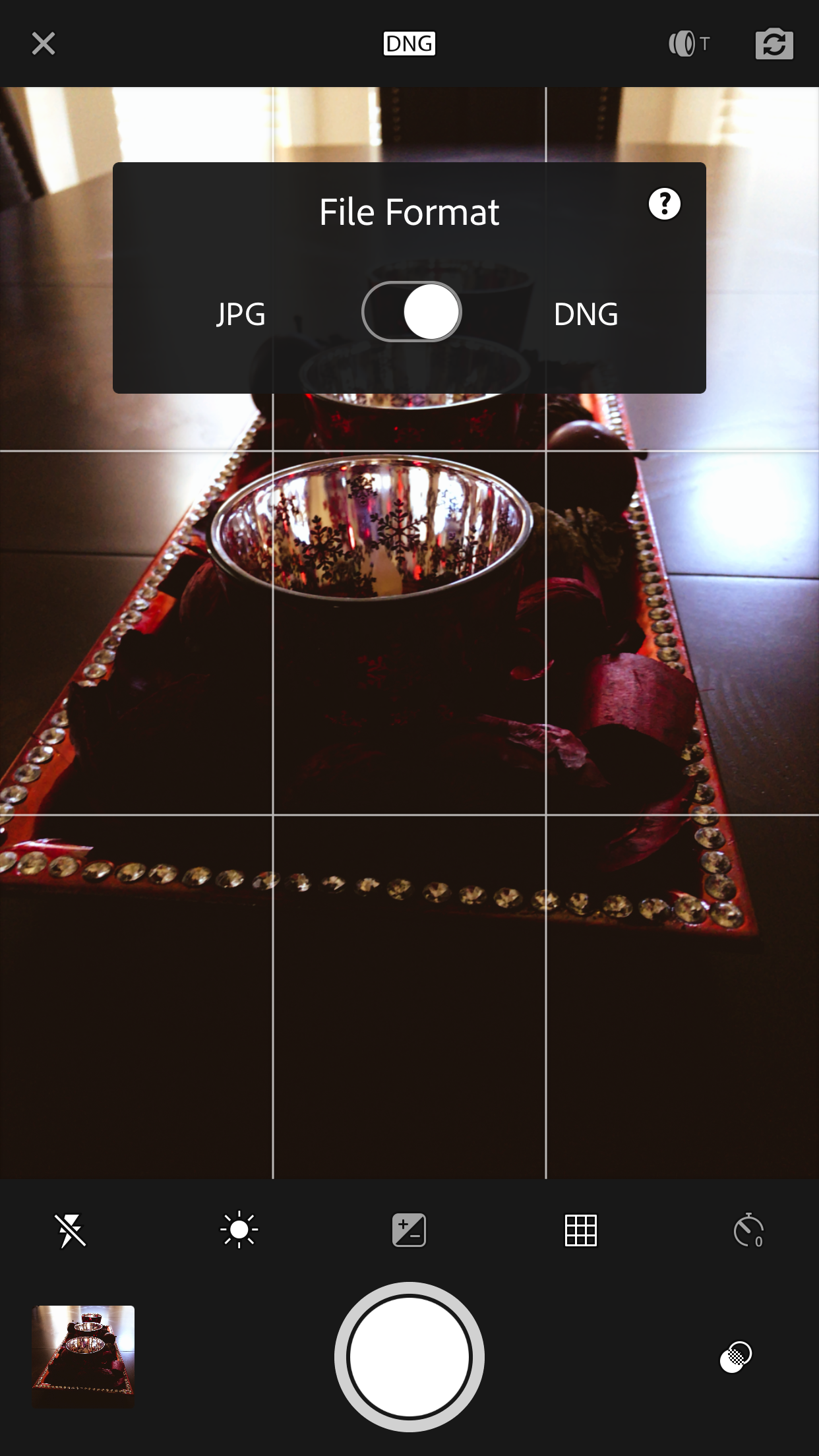
3: In Adobe Lightroom mobile use DNG raw when you shoot using the Lightroom camera. Shooting DNG gives you an uncompressed file. DNG file = raw file
My Books on Amazon
Digital Painting for Photographers in Adobe Photoshop CC
Speed Painting in Adobe Photoshop CC
The Oil Paint in Adobe Photoshop for Photographers
How to Retouch your image in Adobe Photoshop Fix
My Books on Amazon:
Digital Painting for Photographers in Adobe Photoshop
Follow me on Twitter
How to remove reflection in Adobe Photoshop CC
My Books on Amazon
The Adobe Mobile Apps
Digital Painting in Adobe Photoshop CC for Photographers
How to use the Clone Stamp Tool in Adobe Photoshop CC
My Books on Amazon
Digital Painting for Photographers in Adobe Photoshop CC
The Adobe Mobile Apps Book

Adobe is pushing the creative envelope with what can be done on mobile devices. In this book you will see how to use Adobe’s complete offering of FREE mobile Apps to do everything from photo editing, to layout, video editing, story telling, social media posts and full blown page layout. Whether you plan to just start the creation process on your mobile device and finish on the desktop or do your entire project on your mobile device, this book will show you what’s possible in each app and best of all provide you with the knowledge of how to use the apps.
